

Configure Google Workspace for SAML and SSO
With SAML support, Observe by Snowflake supports using Google Workspace as an Identity Provider (IdP). Use the following instructions to configure Google Workspace parameters.
NoteUse of stem names instead of Observe by Snowflake Customer IDs is possible, but you cannot configure Google Workspace to support both at the same time without introducing instability.
Configure Google Workspace for SAML and SSO
-
Log into the Google Workspace Admin portal,
admin.google.com, as a super administrator.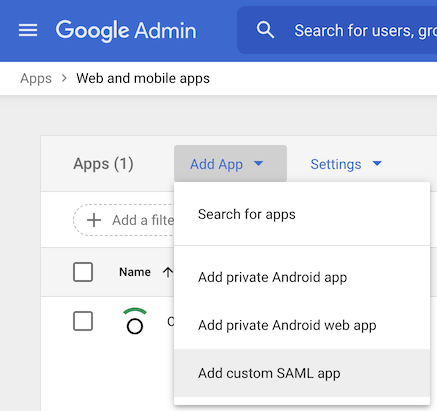
-
Navigate to Apps > Web and mobile apps,
admin.google.com/ac/apps/unified. -
Select Add App > Add custom SAML app.
-
Enter Observe as the App name.
-
Download the Observe by Snowflake icon from
https://s3-us-west-2.amazonaws.com/observeinc.com/assets/saml-icon.png, and use it as the App icon.
- Choose Continue.
- On the Google Identity Provider details page, click Continue.
- Enter the following Service Provider Details. Replace
${OBSERVE_CUSTOMER_ID}with your Observe by Snowflake tenant ID, and${REGION_URL}with the appropriate URL for your deployment region. See Observe by Snowflake deployment regions:
-
ACS URL -
https://${OBSERVE_CUSTOMER_ID}.${REGION_URL}/auth/saml2/callback -
Entity ID -
https://${OBSERVE_CUSTOMER_ID}.${REGION_URL}/auth/saml2/callback -
Start URL -
https://${OBSERVE_CUSTOMER_ID}.${REGION_URL}/ -
Signed Response -
check -
Name ID format -
EMAIL -
Name ID -
Basic Information > Primary email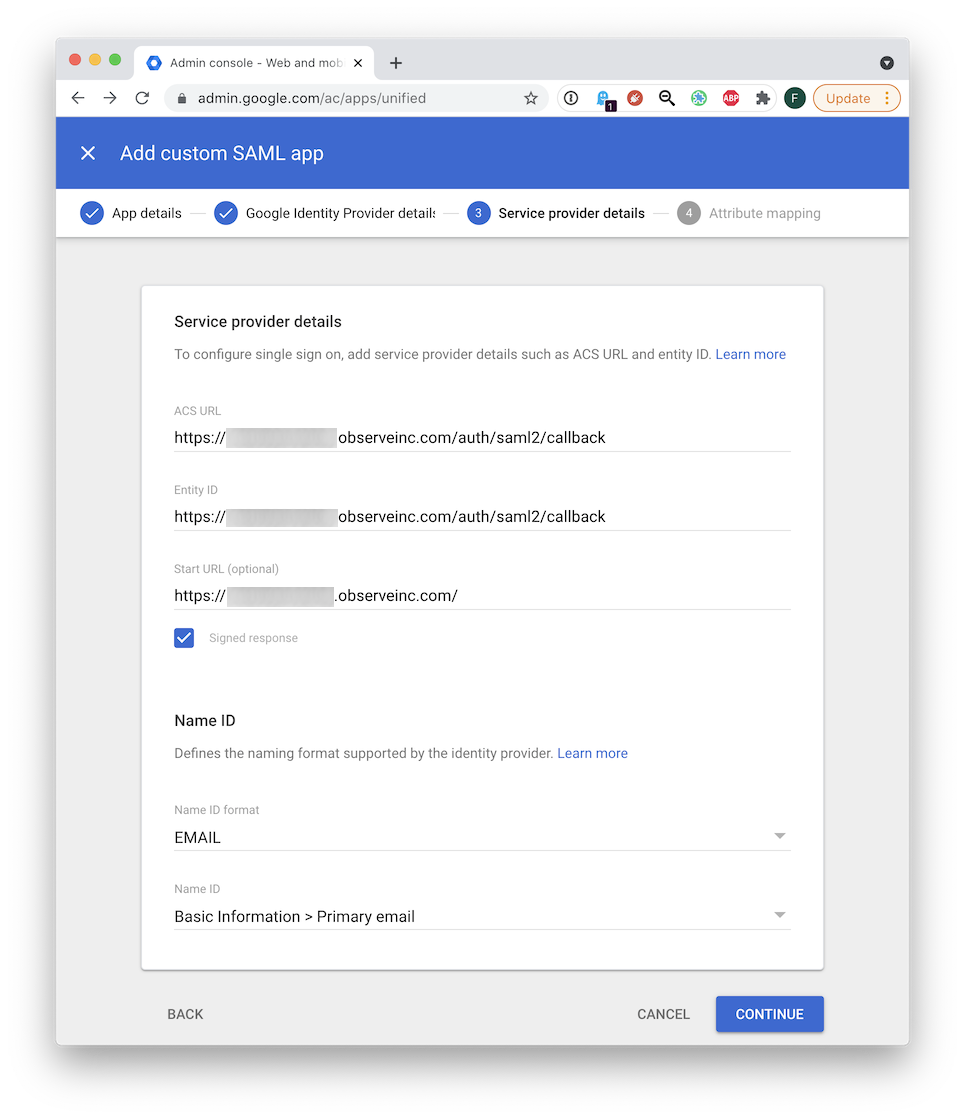
- Click Continue.
Attribute mapping
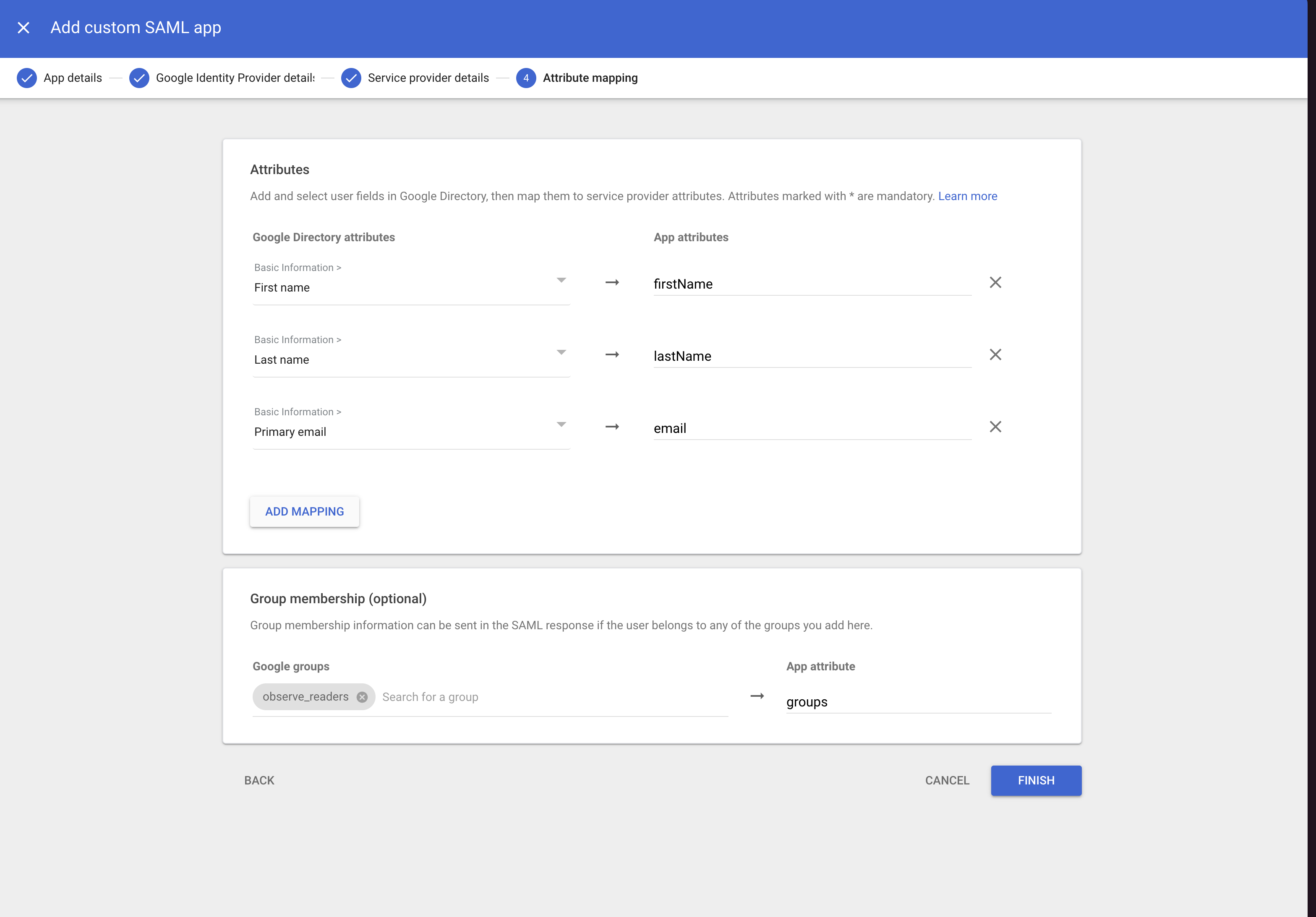
To map attributes, click Add Mapping and use the following Google Directory attributes and App attributes:
| Google Directory attribute | App attributes |
|---|---|
| First name | firstName |
| Last name | lastName |
| Primary email | email |
Group Membership Attributes
Observe by Snowflake supports the sending of group membership claims via SAML. The field mapping for Group Names support is as follows. Note that each Google group that you send to Observe by Snowflake should have at least 1 member.
| Google Directory attribute | App attributes |
|---|---|
| Google groups | groups |
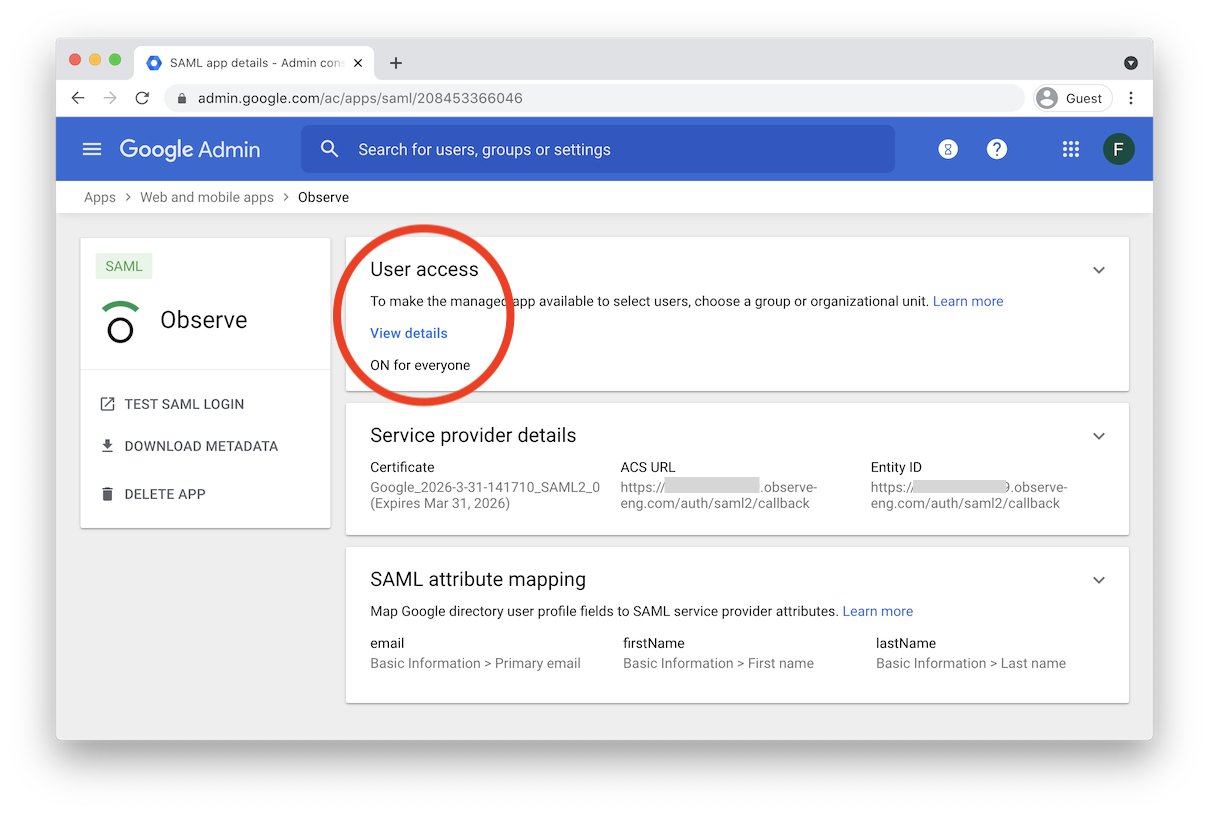
Click Finish, and review the Observe app page. By default, no users have access to the app. You must assign Users and/or Groups to the app.
Configure Observe by Snowflake for Google Workspace SSO
Perform the following steps to configure Observe by Snowflake for Microsoft Entra ID SSO:
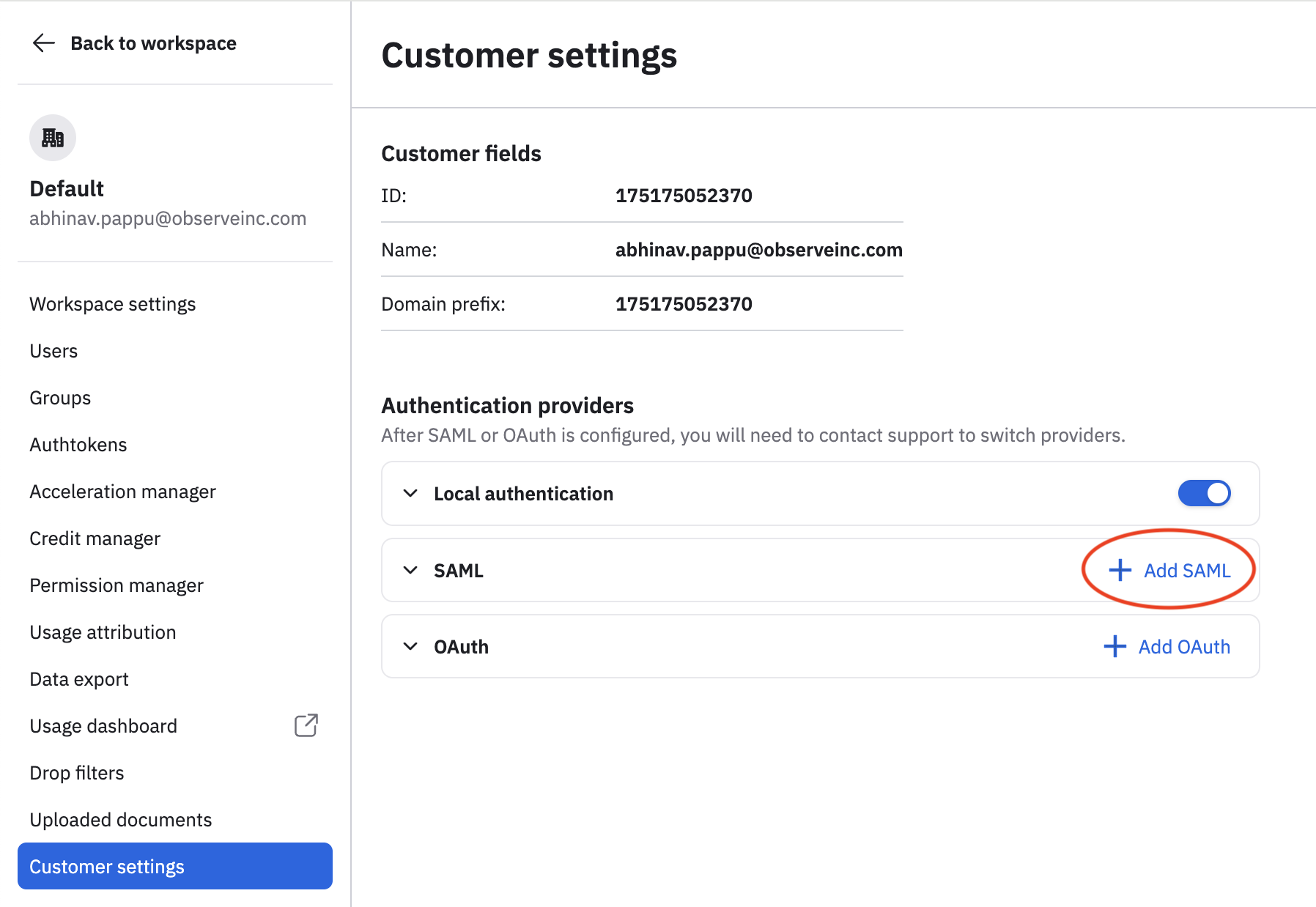
- In the left navigation rail, hover on your user name, then select Manage account.
- Click Customer settings.
- Click Add SAML.
-
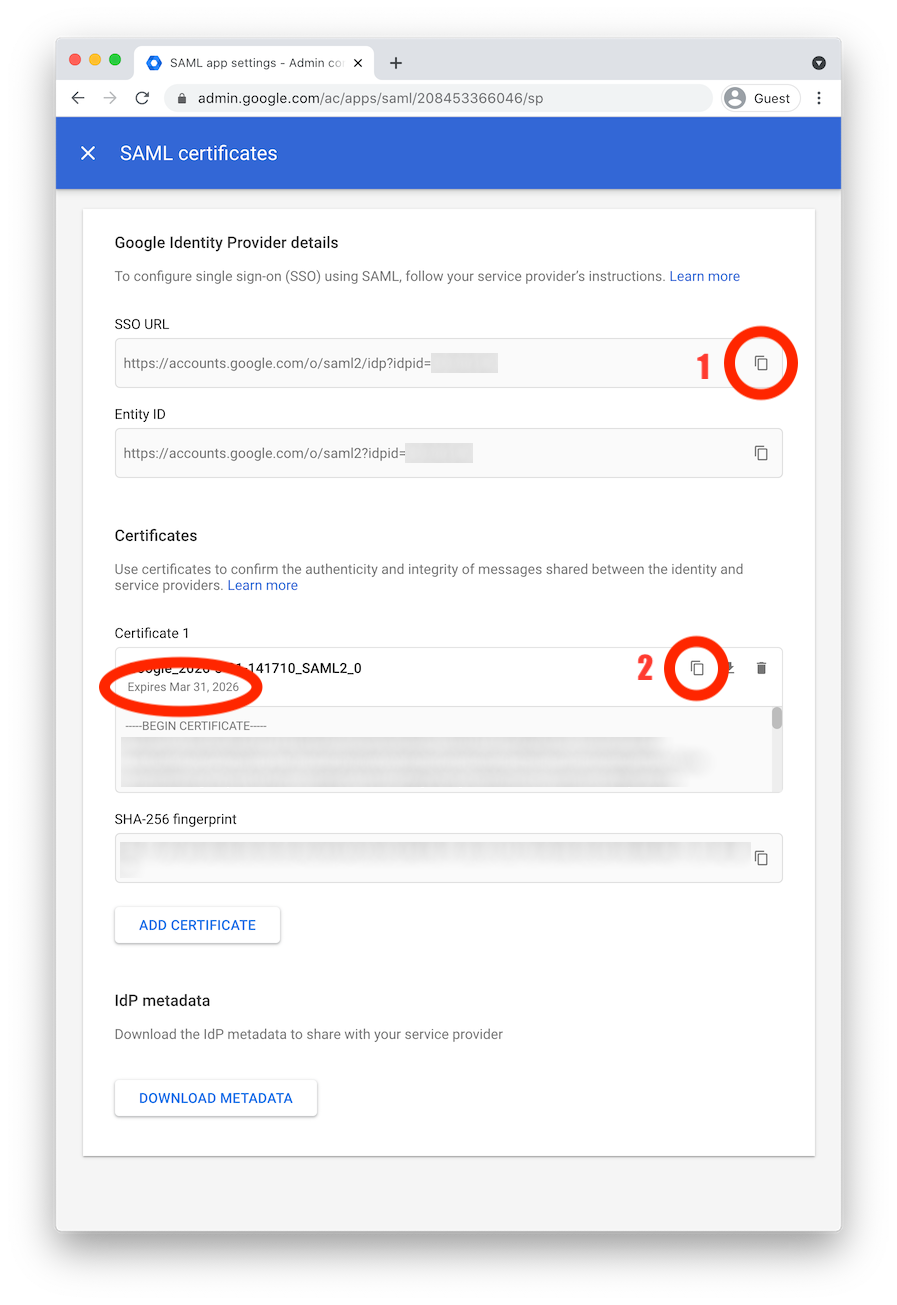
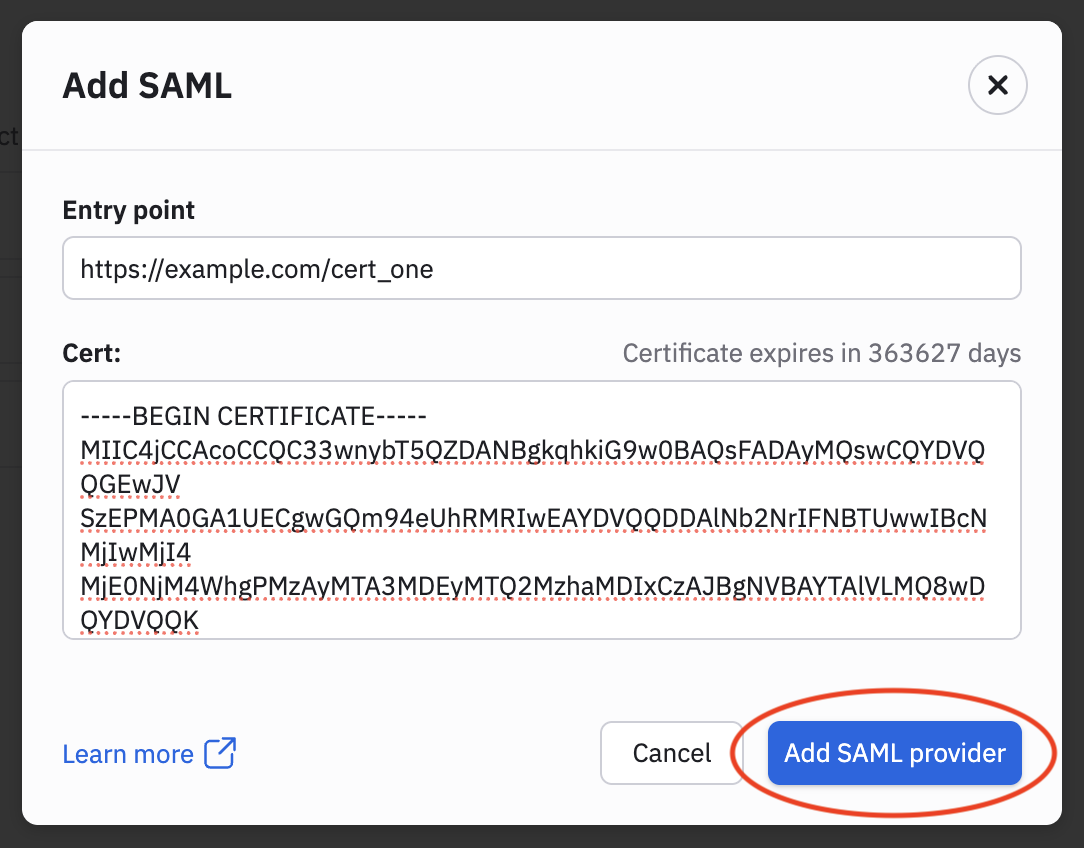
Copy the SSO URL from Google and paste it into the Entry Point field in Observe by Snowflake. The SSO URL has the format
https://accounts.google.com/o/saml2/idp?idpid=ACCT_ID. -
Copy the certificate in Google and paste it into Observe by Snowflake's Cert field.
-
Click Add SAML Provider.
Test the SAML login from Google
- Return to the Observe app configuration page on Google.
- Click X to close the SAML Certificates panel.
- Click Test SAML Login. If you added yourself as a user, then you log into Observe by Snowflake. If you did not add yourself as a user, the login successfully fails.
Now, when you return to the Observe Welcome page at https://${OBSERVE_CUSTOMER_ID}.${REGION_URL}/, a new button, Continue with SSO, appears on the page.
Updated about 1 month ago