

Customize the Home page
Learn how to cureate your starting experience in Observe by Snowflake
When you log in to the Observe by Snowflake, you are taken to the Home page by default. You can customize the Home page to curate your own starting experience in Observe by Snowflake.
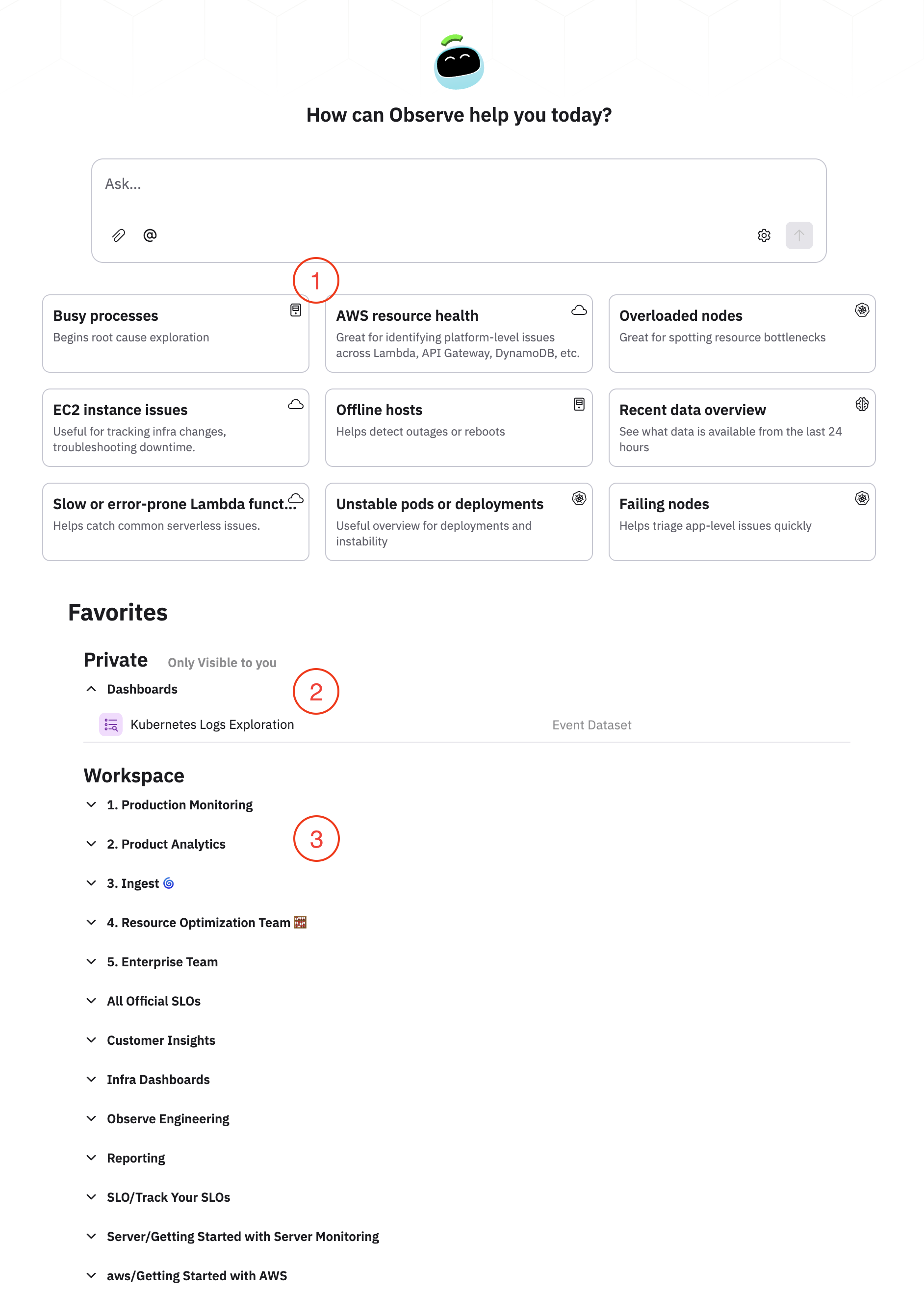
| Home page area | Description |
|---|---|
| (1) AI SRE | You can use AI SRE to begin asking questions, or use one of the cards featuring common questions to kick off an AI SRE session. For example, you can click on the Busy Processes card to have AI SRE show you the processes that are consuming the most resources on the busiest hosts. |
| (2) and (3) Favorite folders | You can also customize the Home page by adding individual objects and folders to group your favorite objects, such as dashboards and Datasets. This is useful for providing easy access to the objects in Observe by Snowflake you visit the most or have the highest priority. Favorites appear on the Home page in the following order:
|
NoteUsers with read-only access can create private objects and create groups, but cannot edit the Workspace objects and groups.
Add Favorites to your Home page
From any object in Observe by Snowflake that has the star icon (), such as dashboards and Datasets, you can add that object to your Favorites, where you can access them at any time by hovering on Favorites in the left navigation rail, or by viewing them on the Home page.
When you add an object as a Favorite, you are taking a snapshot of that object, including its filters and time range. Think of Favorites like bookmarks in your browser. You can organize your Favorites in Observe by Snowflake by creating folders and placing Favorites in your folders, as shown in this example:
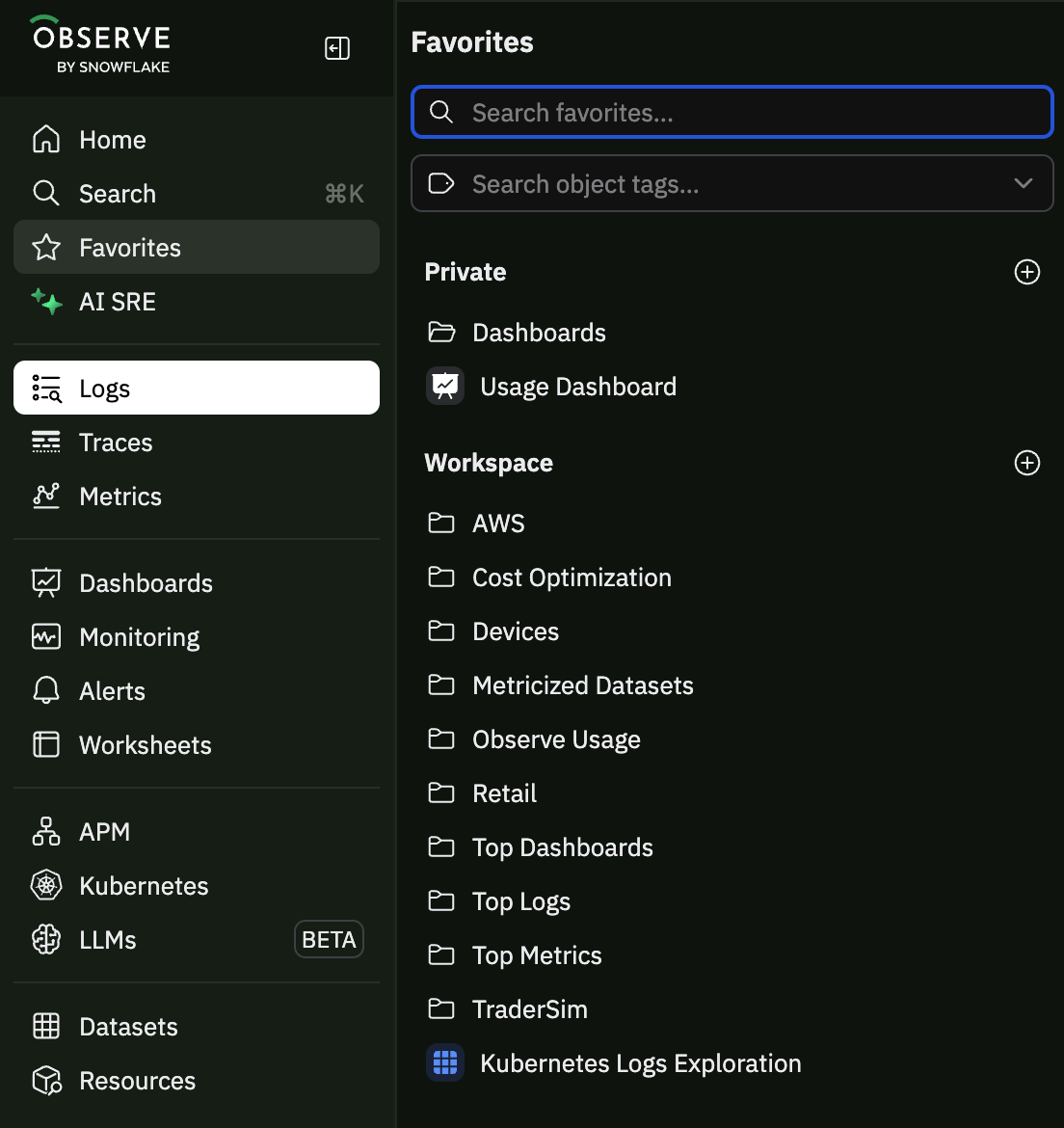
Search for your favorite folders and objects by typing in the Search favorites field, or search for objects containing specific Object tags in the Search object tags field.
HintUse object tags to label and organize your objects in Observe by Snowflake without having to create folders and manually add objects to your Favorites. Administrators can configure Required object tags to make sure that all objects are tagged consistently across your organization.
The visibility of your Favorite objects depends on if you save it in the Private area or the Workspace area, as described in the following table, using the image above for reference:
| Example item | Description of visibility |
|---|---|
| Private/ Dashboards | The Dashboards folder and all contents within the folder are private and only visible to the user who is logged in. You must first create folders in your Favorites before you can add anything to the folder. You can't create the folder during the workflow where you are adding objects to your Favorites. See Create folders to organize your Favorites. |
| Private/ Usage Dashboard | The Usage Dashboard object is private and only visible to the user who is logged in. |
| Workspace/ AWS | The AWS folder and all contents within the folder as public and visible to any user logged in to this tenant. You must first create folders in your Favorites before you can add anything to the folder. You can't create the folder during the workflow where you are adding objects to your Favorites folders. See Create folders to organize your Favorites. |
| Workspace/ Kubernetes Log Exploration | The Kubernetes Log Exploration object is public and visible to any user logged in to this tenant. |
When you save a dashboard as a favorite, whether it's saved in your Private or Workspace area has no relation to the visibility of the dashboard itself.
Create folders to organize your Favorites
You organize the content on your Home page and create custom folders for different users, teams, or groups. For example, let's say you want to create separate folders for Engineering and Technical Support. Perform the following steps:
- Click Favorites and then the + icon next to Workspace to open a dialogue box for creating a folder. You want to choose Workspace here because you want the folder and its contents to be shared and available to any user logged in to this tenant.
- In the Folder Name field, enter Engineering and a description of the folder.
- Toggle Add to Home page.
- Click Create to add it to your Home page.
- Click Explore and locate the content to add to your Engineering folder.
- Once you locate a Dashboard or Dataset, click the Favorites icon to open the Favorites dialogue box and add it to the folder.
To create a second folder for Technical Support, use the following steps:
- Click Favorites and then the + icon next to Workspace to open a dialogue box for creating a folder.
- In the Folder Name field, enter Technical Support and a description of the folder.
- Toggle Add to Home page.
- Click Create to add it to your Home page.
- Click Explore and locate the content to add to your Technical Support folder.
You can follow the same procedure to create folders in your Private area. Only the user who created the private folder can view the folder and its contents.
Add objects to your Favorites
To add an object to your Favorites, navigate to a dashboard, Dataset, or Resource, and click the star icon (), then complete the dialog box to add the object as a Favorite:
| Field | Description |
|---|---|
| Location | The location where you want to save this object. Save it in the Private section to make it visible only for you, or in the Workspace section to make it visible to anyone else logged in to the same tenant. You can choose to save the object directly in each area, or in one of your preexisting folders. |
| Save with | Select the state of the object you are saving as a Favorite.
|
You can save any object as a favorite in multiple folders. Perform the following steps to do so:
- From the object, click the star icon () and save the object as a favorite in your desired location.
- Refresh the page, then repeat the process and select a second location to save the object as a favorite.
You can repeat this as many times as you want to save the same object as a favorite in multiple locations.
Updated about 1 month ago