

Customize alert messages
Data available in an alert
Input data and type of Monitor can complicate what's available, but there are basic patterns. The following table summarizes the data you can expect to find in alerts generated by each type of Monitor:
| Monitor type | Alert data |
|---|---|
| Threshold | The alert from a threshold Monitor potentially has resources and group by values. Your resources and grouped values can be referenced specifically with {{alert.resources}} and {{alert.values}}, if they are present in the monitored data and Monitor configuration. |
| Count | The alert from a count Monitor is limited to the count and group by values, and the resource array is not populated. Your {{alert.values}} can be referenced, if they are present in the monitored data and Monitor configuration. |
| Promote | The alert from a promote Monitor typically has a great deal of data. The Resource columns and value columns are likely to overlap in a promote Monitor alert, meaning that you may see duplicate entries in your alert. Template customization to select or eliminate specific fields can be useful. |
| Anomaly | The alert from an anomaly Monitor includes group by values and a Percentage aggregation value—the fraction of anomalous data points in the evaluation window. If your groupings include link columns, resources may also be populated, similar to a threshold Monitor. Reference grouped values and Percentage with {{alert.values}} (for example, {{alert.valuesByName.Percentage.value}}), and resources with {{alert.resources}}, when they are present in the monitored data and Monitor configuration. |
Customize shared actions
To prevent accidental edits to an existing shared resource, a shared action can't be customized when you are editing a Monitor. To customize an existing shared action, perform the following steps:
- Select Monitoring in the left navigation rail to access the Monitors list.
- Click View shared actions.
- Hover on any shared action, then do either of the following:
- Click the edit icon () to edit the shared action.
- Click the vertical ellipsis (), then select Duplicate to make a copy of this shared action as a new shared action.
- Click either Edit headline or Edit body to customize the action.
The following example shows a shared action for Slack:
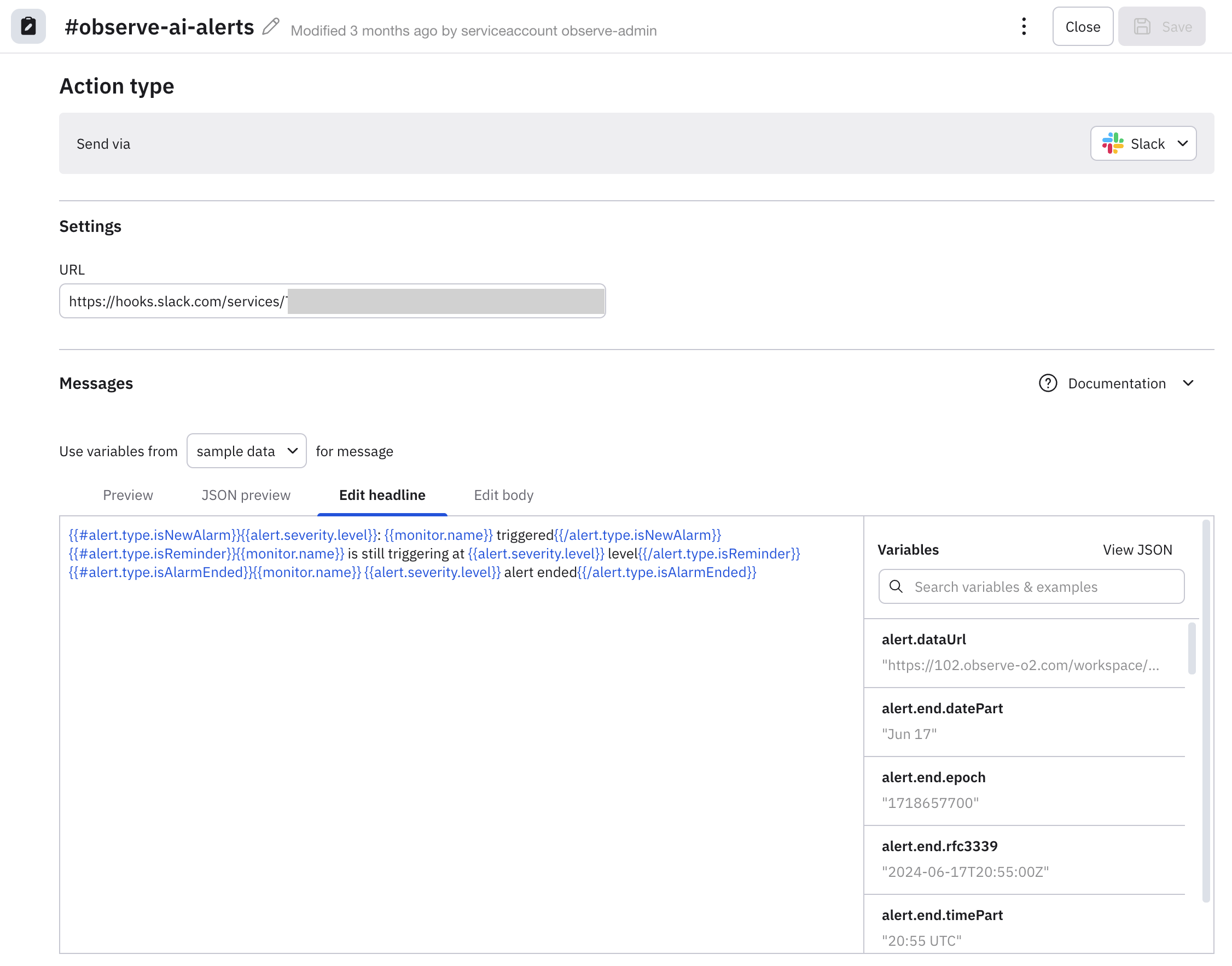
Customization options
Observe by Snowflake's Monitoring system can use our extended Mustache formatting language to customize the data and metadata sent to destinations. The filtering and data reference options have been expanded for Monitors v2.
See the Mustache template reference for more information.
Control options
The following types of tags that can be used with Mustache:
- Variable insertion
- If test
- Transformation
Variable insertion
Variables are referenced with a single Mustache tag. At rendering, Mustache replaces a variable such as {{alert.severity.level}} with its value, such as Critical.
If test
An If test has an open and a close tag which can be tested for positive or negative matching.
- Positive match: If the variable contains data, then insert everything between the tags; if not, nothing is inserted. The following example inserts an HTML row with the Monitor description if one is set. If the Monitor doesn't have a description, the row is not be included:
{{#monitor.description}}
<tr><th>Monitor Description</th></tr><tr><td>{{monitor.description}}</td></tr>{{/monitor.description}}- Negative match: If the variable does not contain data, then insert everything between the tags. This example emits the word danger if
isAlarmEndedis false:
{{^alert.type.isAlarmEnded}}danger{{/alert.type.isAlarmEnded}}Transformation
A transformation has an open and a close tag. The transformation is applied to anything between the tags. The following example creates a properly escaped Observe by Snowflake dashboard link referring to a User resource. Without escaping, the spaces and punctuation in a person's name would produce a non-working URL:
"url":"https://12345678901.observeinc.com/workspace/87654321/dashboard/User-Dashboard-12481632?param-user={{~urlqueryescape}}{{alert.valuesByName.User.value}}{{/urlqueryescape}}&userUid={{~urlqueryescape}}{{alert.valuesByName.userUid.value}}{{/urlqueryescape}}"
Iteration
The data in an alert can be structured in arrays, which can be looped over. For instance, a set of resources involved in an alert can be referenced with an array:
{{#alert.resources}}
    ,{
        "type": "section",
            "text": {
                "type": "mrkdwn",
                "text": "*<{{url}}|{{label}} : {{value}}>*"
            }
    }
{{/alert.resources}}
Each resource's url, label, and value will be inserted into its own section.
The isFirst or isLast tests can be used for punctuation in lists:
[{{#alert.values}}{{^isFirst}}, {{/isFirst}}{{value}}{{/alert.values}}]Each Alert Value will be presented in a comma separated list, such as [one, two, three].
NoteArray iteration functions at the alert level as well: the entire payload may be dumped without parsing or formatting by replacing the template with
{{.}}. This is not recommended for most destinations, but can be useful in a Webhook.
Email action - email addresses
The email notification action now supports the use of alert level variables in the Email addresses field. For example, your monitor contains a Group by column called service_owner that contains one or many email addresses, this can then be referenced in the Email addresses field, via the following syntax {{alert.valuesByName.service_owner.value}}. The values can be a single email address or, a semicolon or comma-separated list of email addresses.
Updated about 2 months ago