

Configure Ping Identity PingOne for SSO
Observe by Snowflake supports Ping Identity's PingOne as an Identity Provider (IdP) using Security Assertion Markup Language (SAML).
Configure PingOne
- Log into your PingOne portal as the admin and choose Applications > Applications and select the
+icon to add a new application. - Fill out the Application Name and Description fields to indicate this application is associated with your Observe by Snowflake tenant.
- If you would like to add the Observe by Snowflake icon, you can download it from here.
- For Application Type choose SAML Application and continue via the Configure button.
- Under the SAML Configuration section, select Manually Enter, then set the following URL for ACS URL and Entity ID. Replace
${OBSERVE_CUSTOMER_ID}with your Observe by Snowflake tenant ID, and${REGION_URL}with the appropriate URL for your deployment region. See Observe by Snowflake deployment regions.

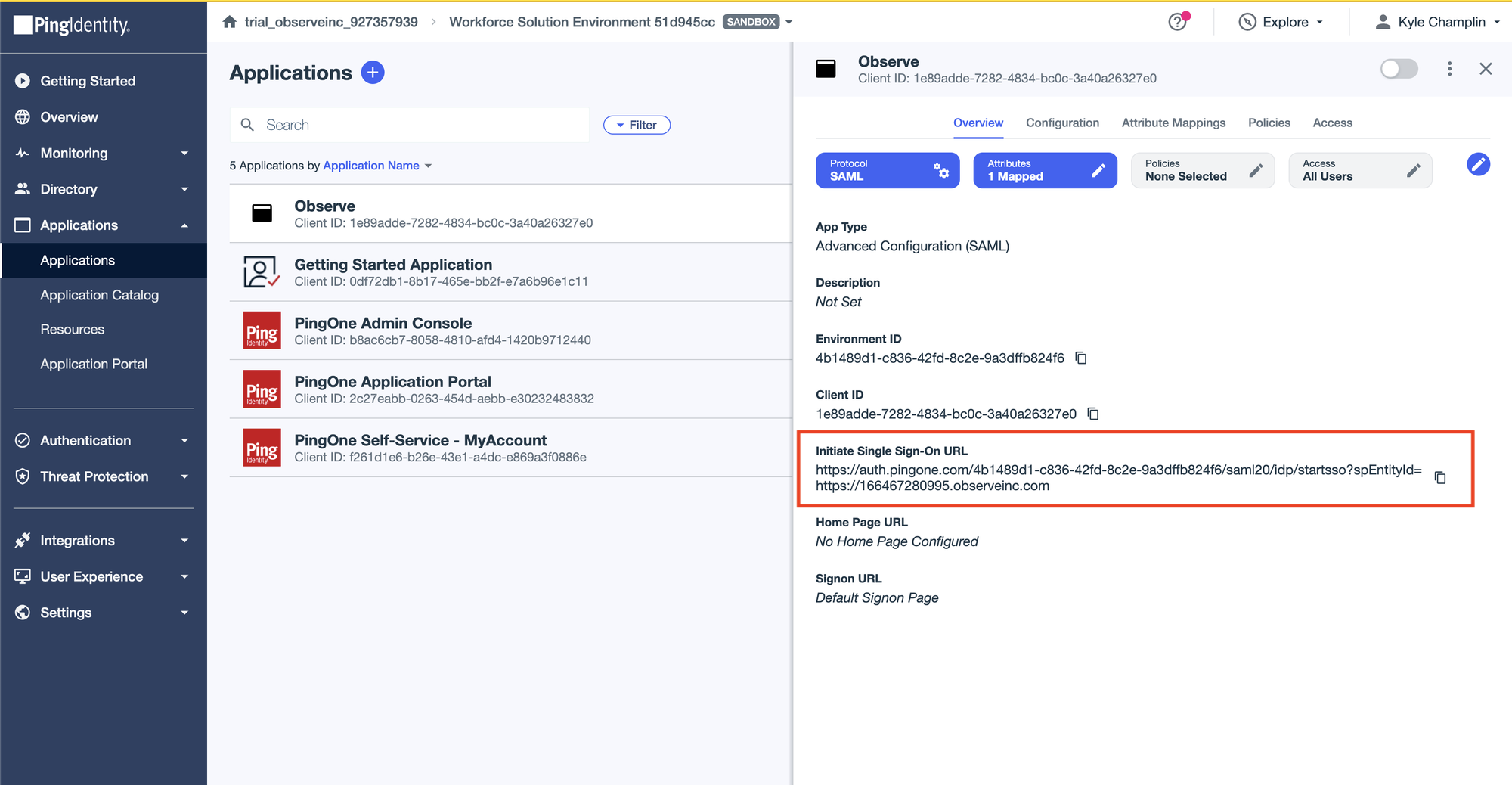
https://${OBSERVE_CUSTOMER_ID}.${REGION_URL}/auth/saml2/callback- In the Overview tab copy the Initiate Single Sign-On URL value. This will be something similar to
https://auth.pingone.com/${GUID}/saml20/idp/startsso?spEntityId=https://${OBSERVE_CUSTOMER_ID}.${REGION_URL}where${GUID}is a value specific to your PingOne account,${OBSERVE_CUSTOMER_ID}is your tenant ID, and${REGION_URL}is your region URL, such as observeinc.com for US locations.
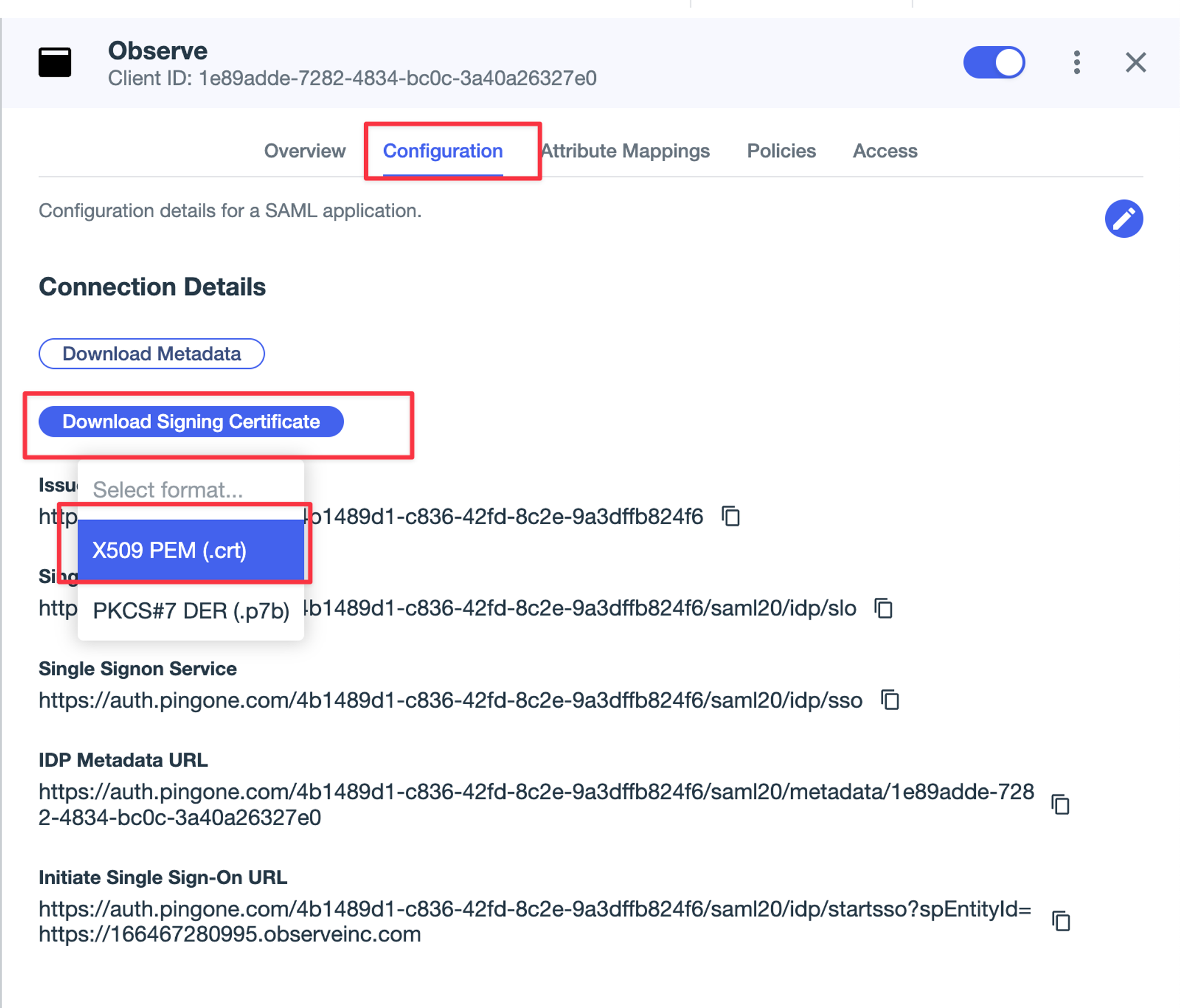
- Navigate to the Configuration tab, and under the Connection Details section, select Download Signing Certificate, and select the
X509 PEM (.crt)option.
Attribute mapping
Navigate to the Attribute Mappings tab, set the following values and save them. Note that the Observe by Snowflake values are case sensitive:
| Observe by Snowflake | PingOne |
|---|---|
| saml_subject | Email Address |
| Email Address | |
| firstName | Given Name |
| lastName | Family Name |
Group membership attributes
Observe by Snowflake supports the sending of group membership claims via SAML. The field mapping for Group Names support is as follows.
| Observe by Snowflake | PingOne |
|---|---|
| groups | Group Names |
Configure Observe by Snowflake
Perform the following steps to configure Observe by Snowflake for PingOne SSO:
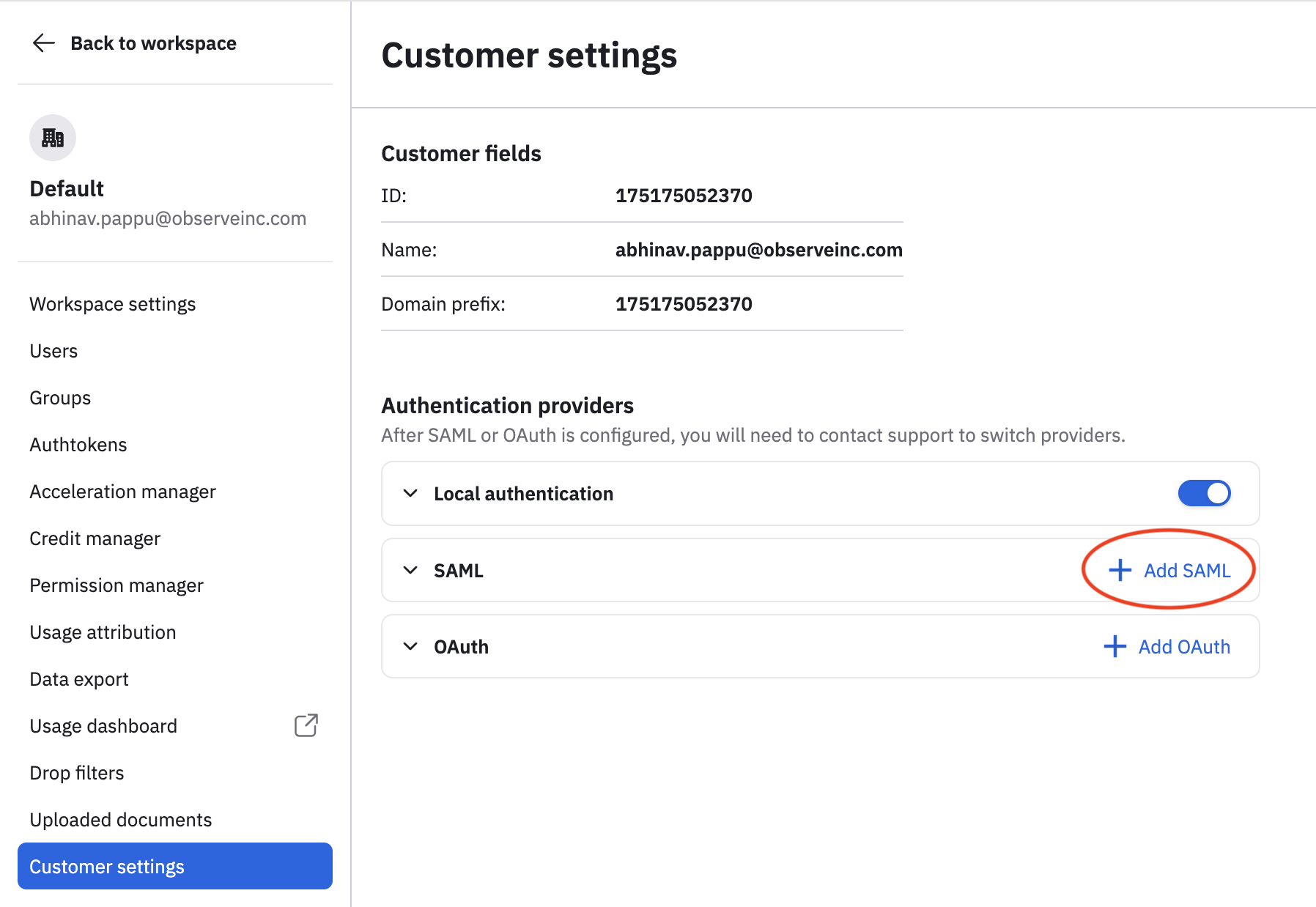
- In the left navigation rail, hover on your user name, then select Manage account.
- Click Customer settings.
- Click Add SAML.
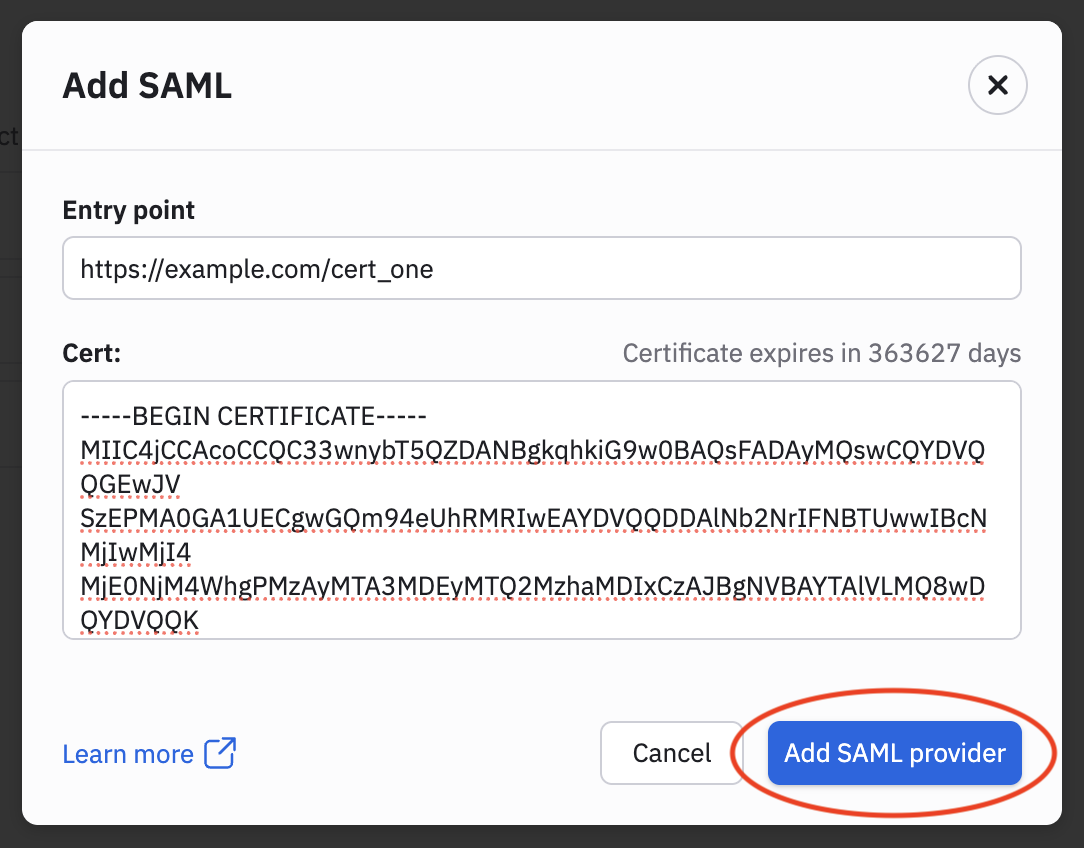
- Paste the Initiate Single Sign-on URL from Configure PingOne into the Entry Point field.
- Open the X.509 certificate from Configure PingOne in a text editor. Copy the certificate details and paste them into the Cert field for Observe by Snowflake.
- Click Add SAML Provider.
Updated 29 days ago
Did this page help you?