

Sample action for PagerDuty
This page describes how to configure a shared action to send alerts to PagerDuty by configuring a Webhook channel action. Incoming events from Observe by Snowflake trigger a new incident for a PagerDuty service, or grouped with alerts for an existing incident.
Creating a shared action in this manner makes the action available to all other Monitors. You can also create the same action inside any single Monitor, as a private action. This makes the action available just to the Monitor in which it is created. See the details for each Monitor type for more information.
Requirements
To configure this integration, you need a PagerDuty admin account. If your login does not have the Admin base role, contact an administrator or account owner in your organization.
Integration tutorial
Begin by creating an integration in an existing PagerDuty service, or by creating a new service and integration.
In PagerDuty, create a service and integration
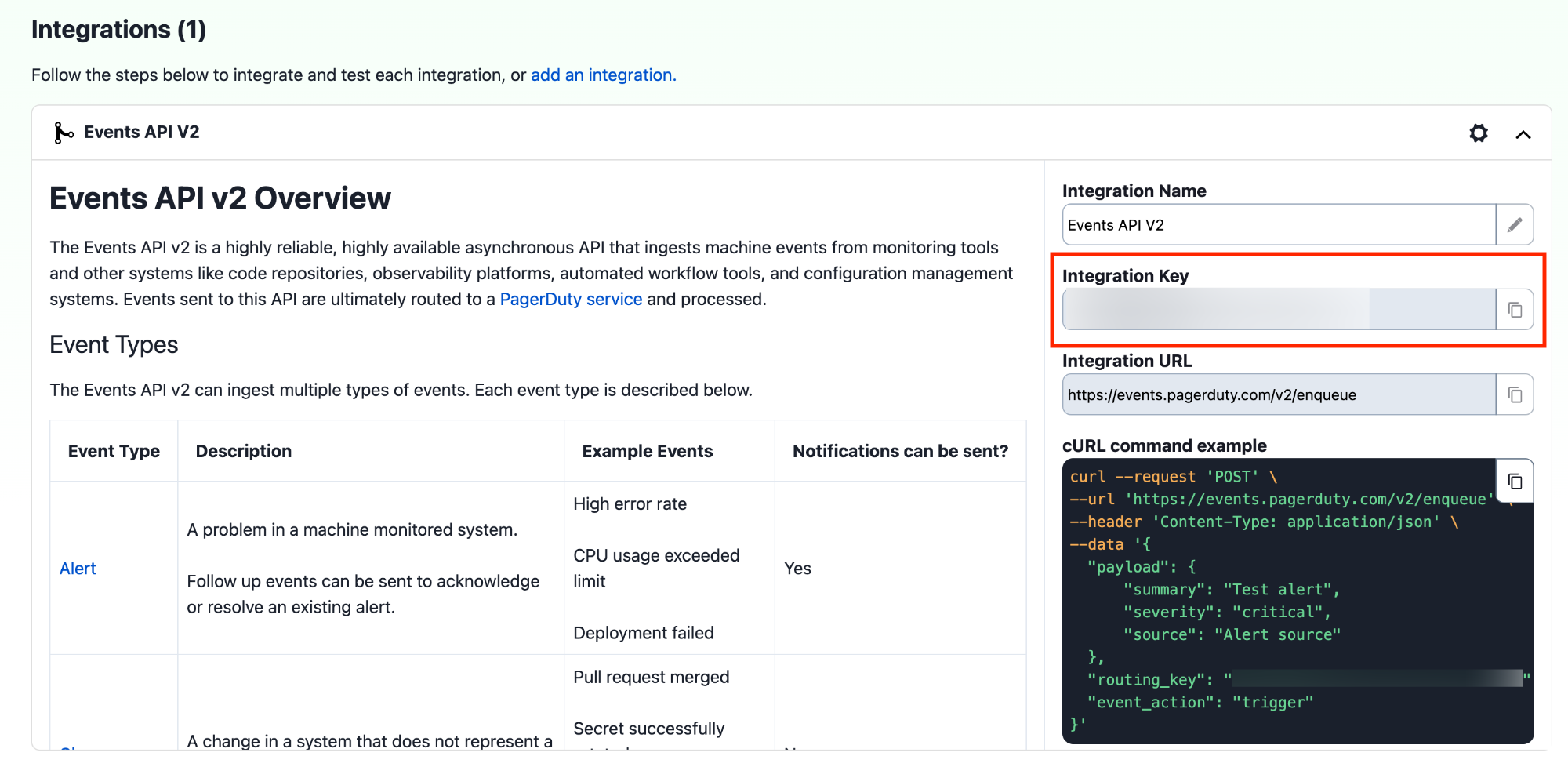
Create a new service and integration, or add an integration to an existing service. After you add the integration, record the integration key.
Create a new PagerDuty service and integration
To create a new service and integration, follow the instructions at Create a Service in the PagerDuty documentation, selecting Observe in the Integrations step.
After you create a new service and integration, be sure to record your integration key.
Add an integration to an existing PagerDuty service
Perform the following steps in PagerDuty to add an Observe by Snowflake integration to an existing service:
- Select Services > Service Directory.
- Click the name of the service you want to add the integration to.
- Select the Integrations tab for this service and click Add another integration.
- Enter an Integration Name in the format
monitoring-tool-service-name, such as Observe-K8s-Cluster. - In the Integration Type menu, select Observe.
- Click Add Integration to save the integration. PagerDuty redirects you to the Integrations tab for your service.
- Record your integration key.
Record your integration key
Go to your new or existing integration in PagerDuty and click the expand icon ( ). Record the integration key for the next step.
In Observe by Snowflake, create a shared action
After you have your PagerDuty integration key, return to Observe by Snowflake and complete the following steps:
-
From the left rail, open the Monitors pane.
-
Click View shared actions.
-
Click New shared action.
-
For Action Type, select PagerDuty.
-
In the URL field, enter the following URL:
https://events.pagerduty.com/v2/enqueue -
Accept the default Method of POST.
-
In Headers, add the following header:
Content-Type = application/json -
Paste the following template into the Body, replacing the default template:
{
"dedup_key":"00000000-0000-0000-0000-000000000000",
"payload": {
"summary": "example title",
"timestamp": "2024-06-17T20:52:00Z",
"source": "Observe Monitor MONITORID",
"severity": "error",
"custom_details": {
  "Observe Monitor": "Count Monitor",
  "Condition started at": "20:52 UTC, Jun 17",
  "Importance": "Error",
    "Message": "example message",
  "Description": ""
}
},
"routing_key": "REPLACE_WITH_PAGERDUTY_ROUTING_KEY",
"links": [
{
  "href": "https://102.observe-o2.com/workspace/0/alert-data",
  "text": "View Data"
}
],
"event_action": "trigger",
"client": "Observe Alert Link",
"client_url": "https://102.observe-o2.com/workspace/0/alert?alarmId=00000000-0000-0000-0000-000000000000&monitorId=0\""
}{
"dedup_key":"{{notification.uuid}}",
"payload": {
"summary": "{{monitor.name}}: {{notification.description}}",
"timestamp": "{{notification.startTime}}",
"source": "Observe Kubernetes Environment",
"severity": "info",
"custom_details": {
"Observe Monitor": "{{monitor.name}}",
"Trigger at": "{{notification.startTime}}",
"Importance": "{{monitor.notifyWhenDetails.importance}}",
"Trigger Condition": "{{monitor.triggerWhen}}",
"Notification Condition": "{{monitor.notifyWhen}}",
{{#notification.hasValues}}
"Triggered_By": " {{#notification.valuesWithFieldName}} {{fieldName}}: {{#values}}{{.}}{{/values}},\n{{/notification.valuesWithFieldName}}",
{{/notification.hasValues}}
"Description": "{{notification.description}}",
{{#notification.resourcesWithLinkType}}
"{{linkType}}": "{{#instances}}{{name}}{{/instances}}",
{{/notification.resourcesWithLinkType}}
{{#notification.valuesByFieldName.scope}}
"Scope": "{{.}}",
{{/notification.valuesByFieldName.scope}}
{{#notification.valuesByFieldName.target}}
"Target": "{{.}}",
{{/notification.valuesByFieldName.target}}
"Profile": "high"
}
},
"routing_key": "REPLACE_WITH_PAGERDUTY_ROUTING_KEY",
{{#notification.hasResources}}
"links": [
{{#notification.resources}}
{
"href": "{{url}}",
"text": "{{name}}"
},
{{/notification.resources}}
{
"href": "#",
"text": "End of List"
}
],
{{/notification.hasResources}}
"event_action":{{#notification.isNew}} "trigger"{{/notification.isNew}}{{#notification.isEnded}}"resolve"{{/notification.isEnded}},
"client": "Observe Notification Link",
"client_url": "{{notification.url}}"
}- Replace
REPLACE_WITH_PAGERDUTY_ROUTING_KEYwith your routing key, the integration key that you created earlier.
NoteYou may customize your payload, for details see Customize alert messages.
-
Click Send Test Notification and verify there are no errors.
-
(Optional) Select non-synthetic sample data by expanding the Sample Data and Preview section and changing the dropdown from Static Sample Data.
-
Click Create Shared Action to save.
Auto-resolve PagerDuty incidents
You may optionally configure an ending notification to automatically resolve a PagerDuty incident.
In Observe by Snowflake, configure a new webhook channel action
To enable auto-resolving incidents, configure a new Webhook channel action:
- Edit an existing Shared Action, or create a new one following the steps in In Observe by Snowflake, create a shared action, above.
- Update the Body template to add a new key,
is_ended, incustom_details:When an incident is resolved and Observe by Snowflake sends an ended notification, the"custom_details": { "is_ended": "{{notification.isEnded}}", "Observe Monitor": "{{monitor.name}}", "Trigger at": "{{notification.startTime}}",is_endedkey triggers the PagerDuty auto-resolve event rule. - In the Delivery section, under Status Updates, enable Send update that notification has ended to generate a notification when the monitor condition has resolved.
In PagerDuty, define a new event rule
Perform the following steps in PagerDuty to define a new rule using the action you created in Observe by Snowflake:
-
Navigate to the Service Directory and select the service you wish to configure.
-
In the Service panel, select the Settings tab.
-
Under Event Management, click View Event Orchestration Rules.
-
Click New Rule.
-
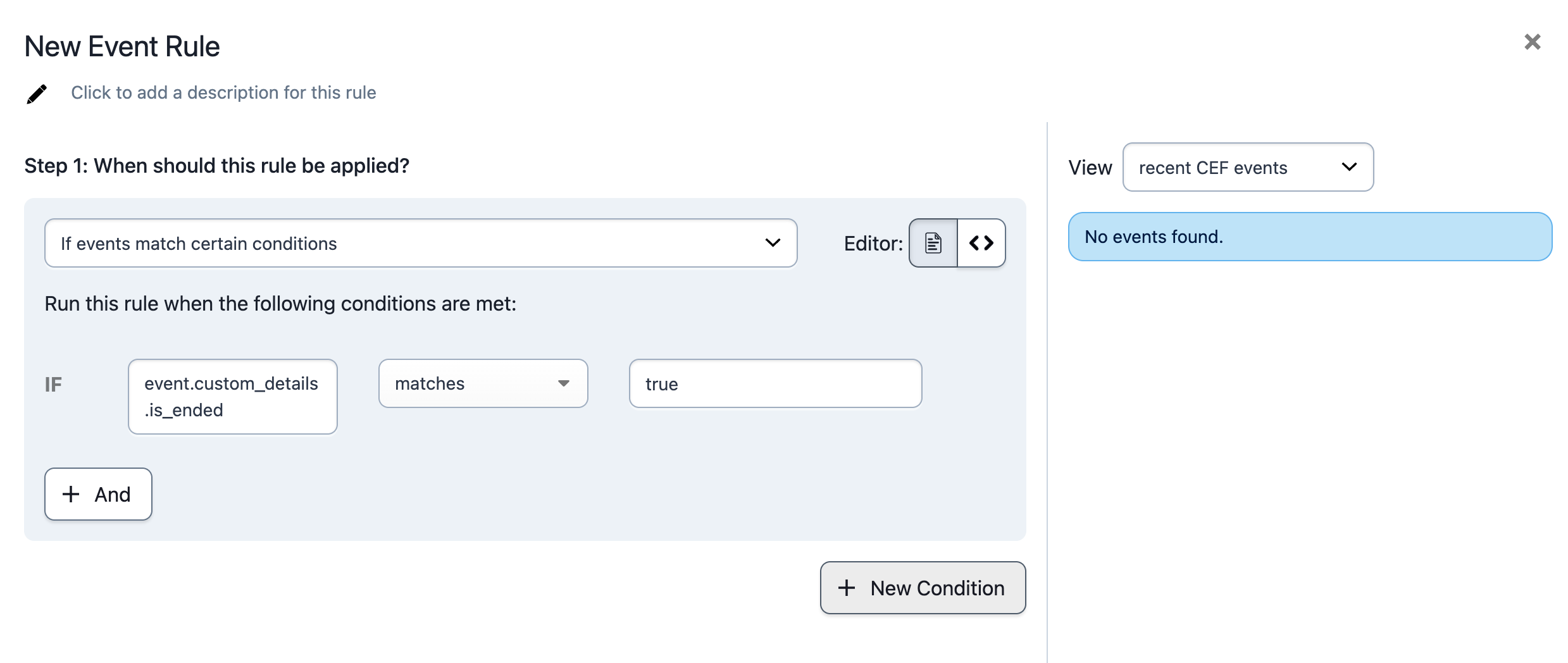
Select If events match certain conditions, choose Custom Details from the dropdown and enter the
custom_detailsvalue you configured in Observe by Snowflake. Example:is_ended. -
In the second condition dropdown, select matches and enter the value
true.
- Click Next.
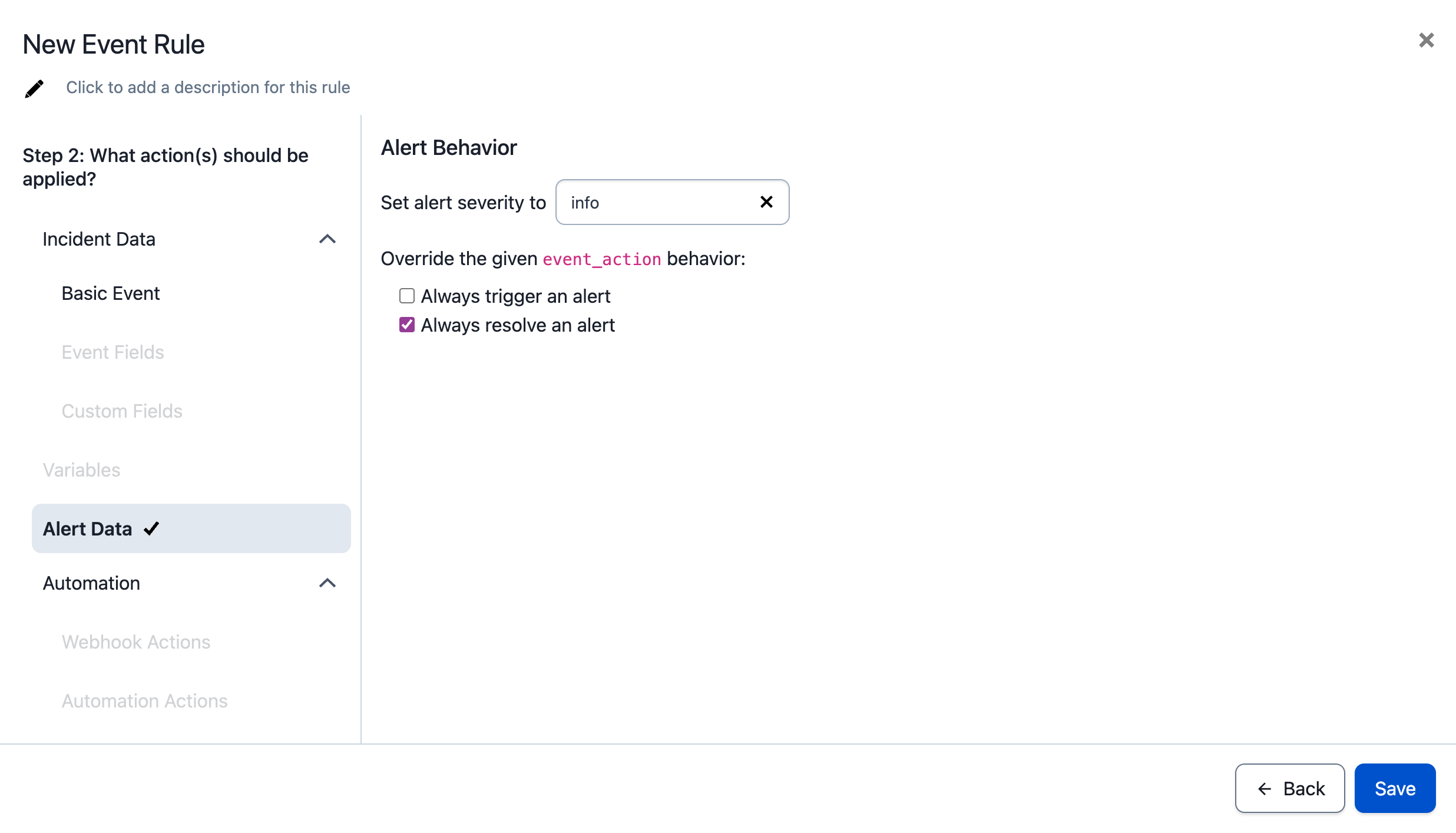
- On the Actions page, click Alert Data .
- Select an alert severity, then click Always resolve an alert.
- Click Save.
Test the auto-resolve rule
To test creating and resolving incidents:
- In Observe by Snowflake, open your channel action configuration and click Send Test New Notification.
- In PagerDuty, confirm a new incident was opened.
- In Observe by Snowflake, select Send Test Ended Notification from the dropdown next to the test notification button.
- In PagerDuty, confirm the incident was closed.
Uninstall the PagerDuty channel
Follow these steps to uninstall the PagerDuty Alert channel from Observe by Snowflake:
- From the left navigation pane, open the Other pane by clicking "..."
- Under Alerting, click Shared Actions.
- Find the action you previously created.
- Click "..." to the right of the Shared Action and select Delete.
- Confirm by clicking Delete Shared Action.
Updated about 1 month ago