

Mute a Monitor
A Monitor's detections produce alerts, which are delivered to any configured notification actions. You can prevent this delivery by muting alerts on a per monitor or data-driven basis. Muted alerts are still visible in the Alert Explorer, but are not delivered to destinations such as email or webhook.
In Observe by Snowflake, you can mute Monitors on an ad hoc basis, or set a schedule for muting Monitors.
NoteMuted monitors are still evaluating data and will still produce alerts that can be seen in Alert Viewer. To prevent alerts being generated at all, disable the monitor instead.
What's the difference between muting and disabling a Monitor?
When you disable a Monitor, the Monitor no longer performs any evaluations and therefore no longer uses any credits. Muting a Monitor only mutes the notifications based on the schedule you set. A muted Monitor continues to evaluate data and conditions and continues to use credits. You can still view alerts generated from muted Monitors in the Alert Explorer.
When you mute a Monitor, it's typically a temporary measure, when you know that you want to silence notifications for a short amount of time, like a few hours, or maybe a few days. After that, the Monitor is automatically unmuted and will start sending notifications again.
Disabling a Monitor is more permanent, as it requires someone to manually enable it again.
Mute by monitors
Ad hoc mutes, or muting by Monitor, is good for suppressing alerts from a known issue so that you can concentrate on solving the issue.
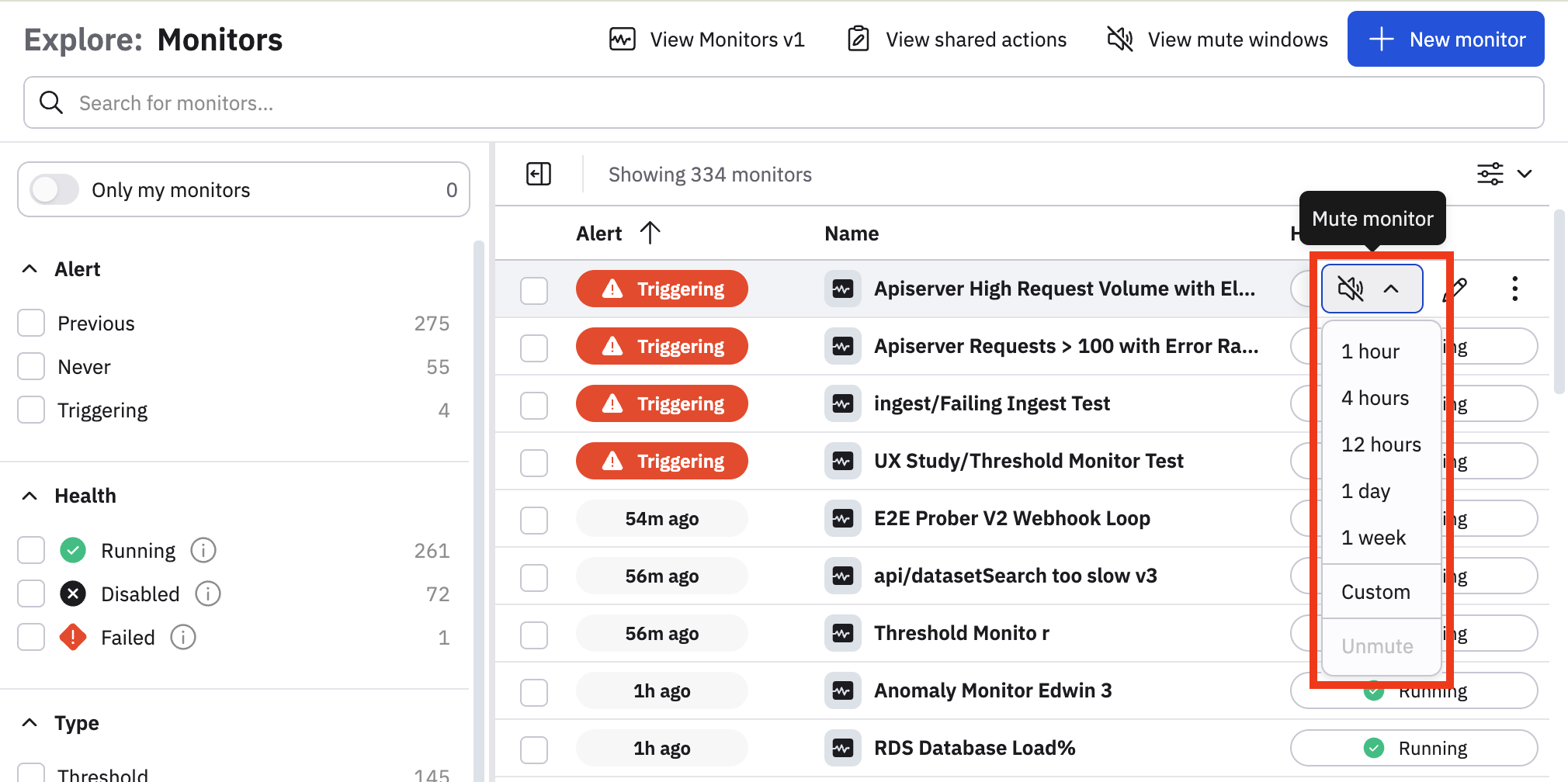
To quickly mute a Monitor, hover over any Monitor in the Monitors list and click the mute icon (), then select the period of time you want to mute the Monitor.
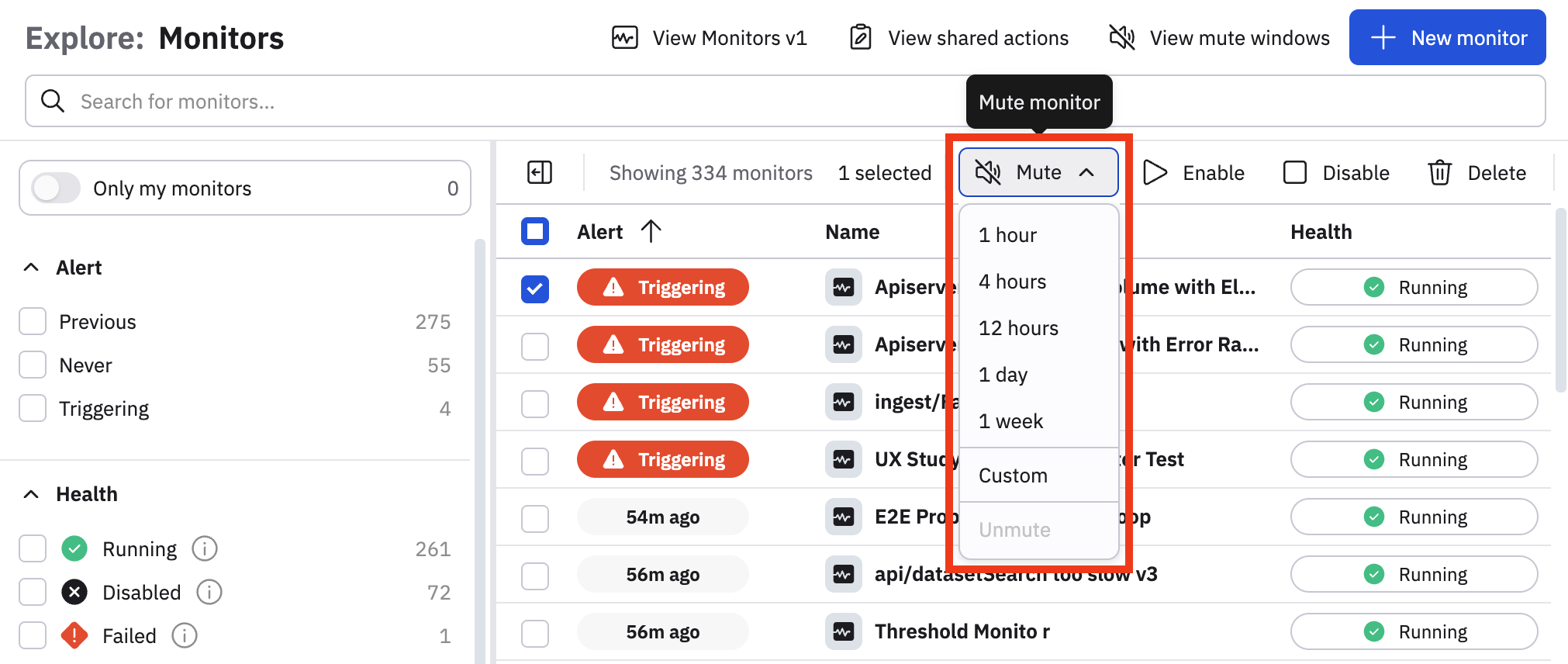
You can also select one or more Monitors using the checklist buttons, then click Mute in the toolbar. The toolbar with the Mute option and other Monitor actions won't appear unless you select at least one Monitor in the list.
Mute by data
Often we need to mute alerts related to a system or service without knowing which monitors might produce alerts. This is done with a Global Mute, which reviews all alerts and mutes them if they match selected data attributes.
Perform the following steps to create a mute window:
- Starting in the Monitors list, click View mute windows.
- Click New mute window.
Provide the following information to configure the mute window:
| Field | Description |
|---|---|
| Name | Provide a name for this mute window. |
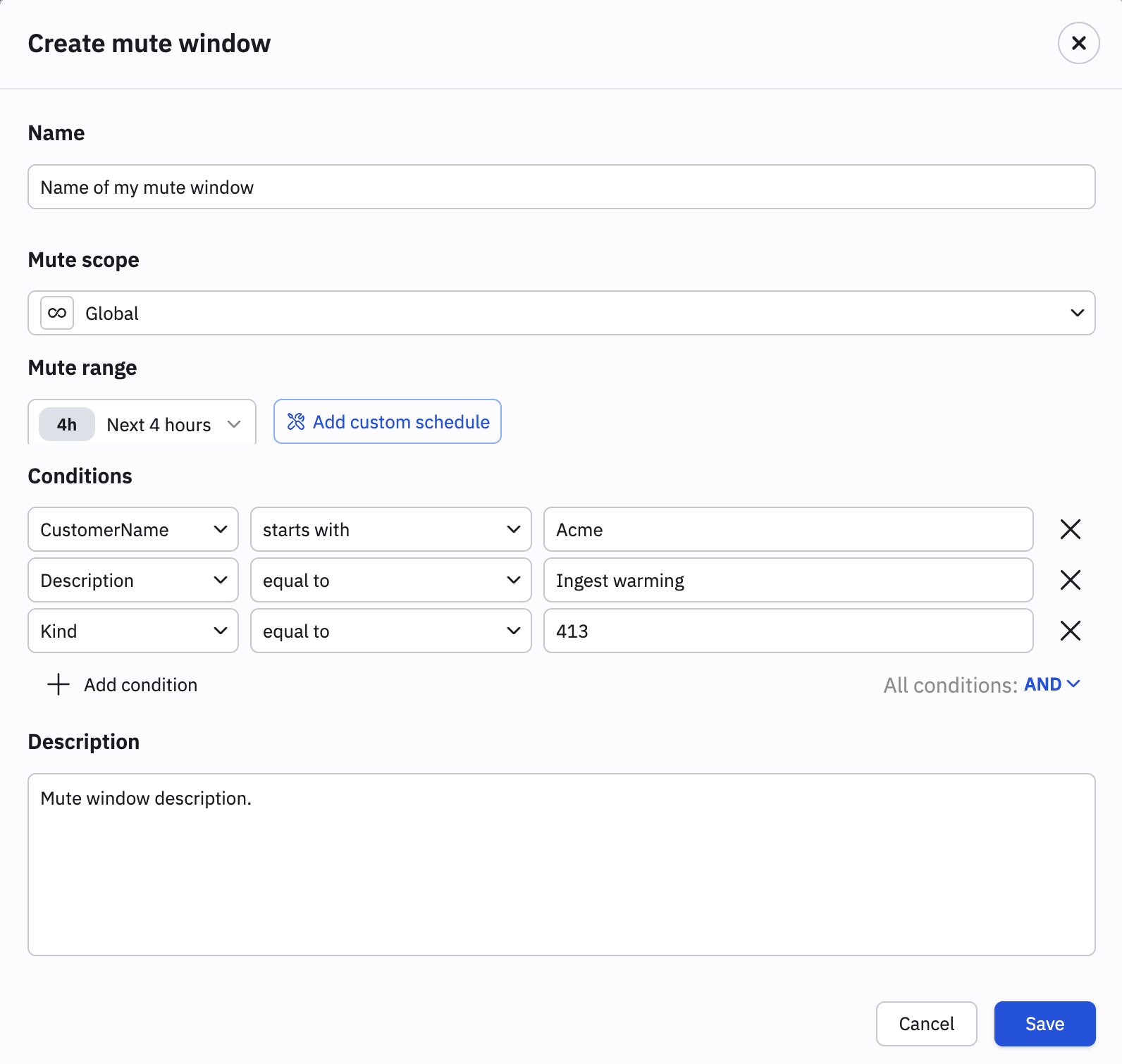
| Mute scope | By default, mute windows apply globally. If you want to apply a mute window to a single Monitor, select the Monitor from this list. If you select a single Monitor, the available columns for scoping are limited to only that Monitor's columns. |
| Mute range | Select a time period for which you want to mute the selected Monitors. You can choose one of the pre-configured options, or click Add custom schedule to configure a custom schedule. |
| Conditions | Specify the conditions you want to mute. The conditions available are gathered from the configured monitors. If you have not configured a monitor that evaluates the data you want to mute, it will not be possible to produce a mute window this way. For example, you can set:
|
| Description | Provide a text description of this mute window. |
Below is an example configuration:
Mute by alert
To be sure that you have configured a global mute appropriately, you can start from an existing Alert that should be muted. Open the alert from Alert Explorer, and click Mute in the top right. The Global mute creation modal will open, pre-populated with data from this alert. Name the mute, set a time window, and click Save.
View mute windows
Click View mute windows to see a list of mute windows matching the following criteria:
- Mute windows that are currently active.
- Scheduled mute windows that will be active in the future.
- Expired mute windows within the last 30 days.
Updated about 1 month ago