

Resources
Resource Explorer provides users with an easy-to-browse inventory of all Observe by Snowflake resources in their system.
Resources are rows within Resource Datasets , which are specific types of datasets that maintain state over time. Observe by Snowflake applications install resource datasets; for example, the Kubernetes Application will generate resources for Hosts, Pods, Containers and more. You can also create your own resources using the make_resource command.
With Resource Explorer, you can now do the following:
- Browse all of the Resource datasets in your Observe by Snowflake instance
- See changes over time for a given Resource instance
- Pivot from Resource to related logs and metrics for that resource
Resource Explorer tutorial: Find the change in weather by city
This tutorial will use the weather data from the OpenWeather app.
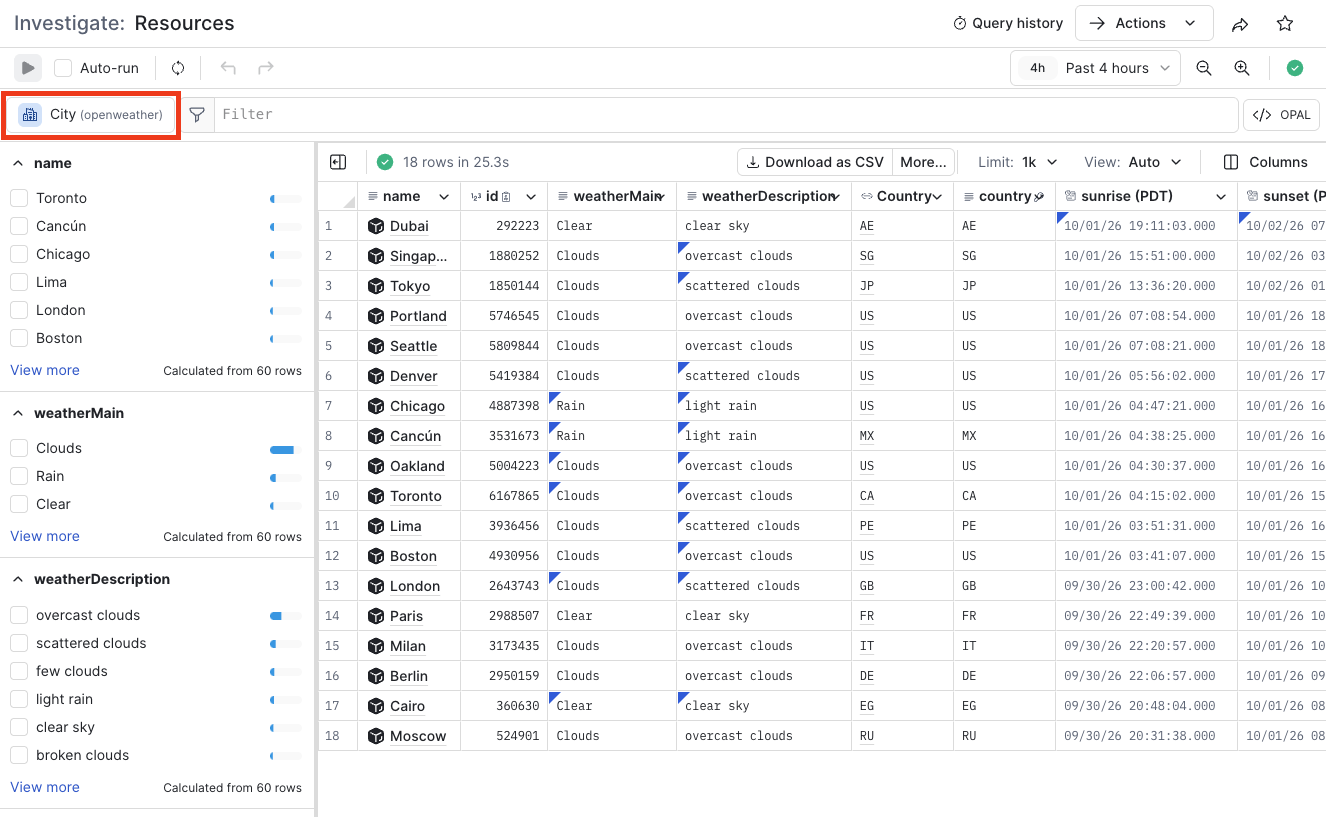
First, open the Resource Explorer from the Resources tab on the left navigation. Then in the list of Resource Datasets on the left rail, choose City.
Navigate down to the filters by Attribute and choose US to filer down to only US Cities.
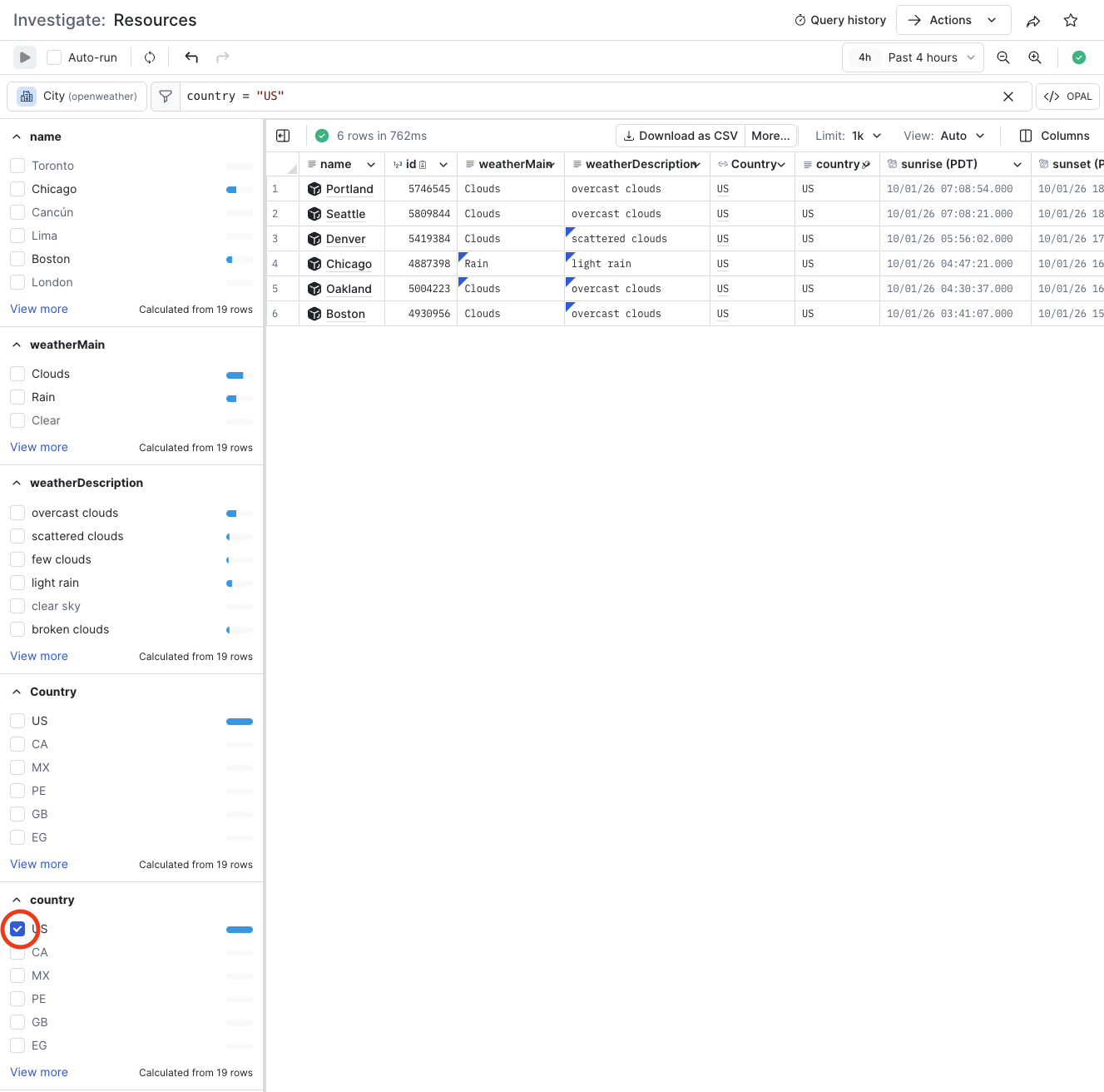
Each row in the main table now represents a US city. As Observe by Snowflake receives new data about these cities, such as a new weather data point, the resource is updated with the new data.
Whenever a cell has changed values over the specific time frame, a marker appears in the top left of the cell.
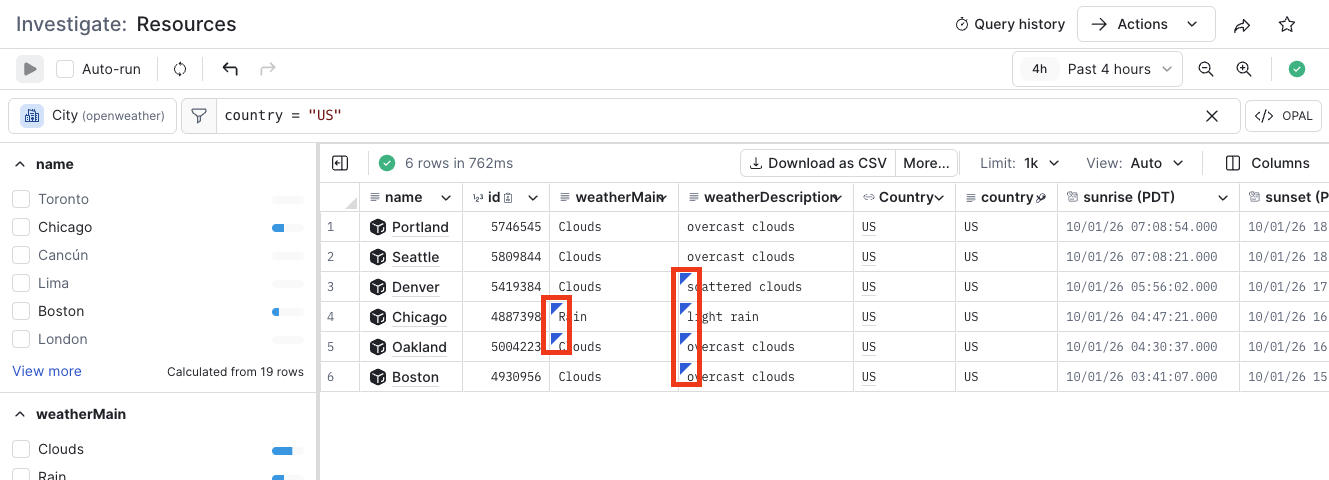
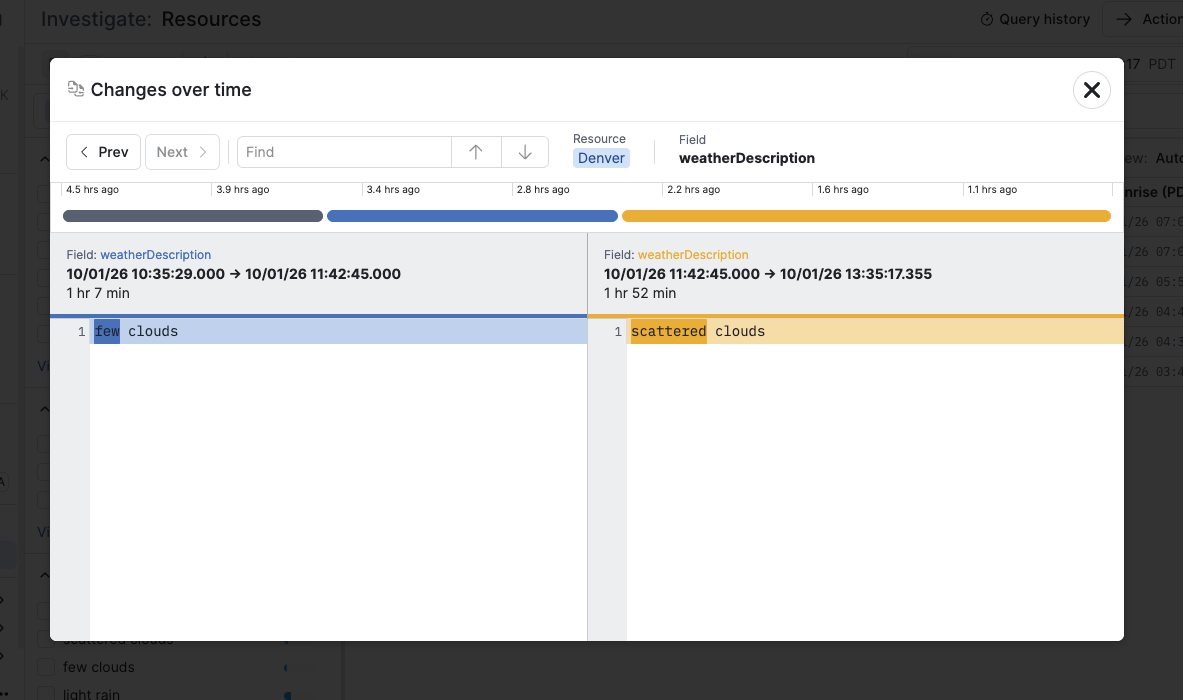
In a cell that has a marker indicating a recent change, right-click or click the caret icon (), then select Show changes over time.
Access Resource Explorer from other pages
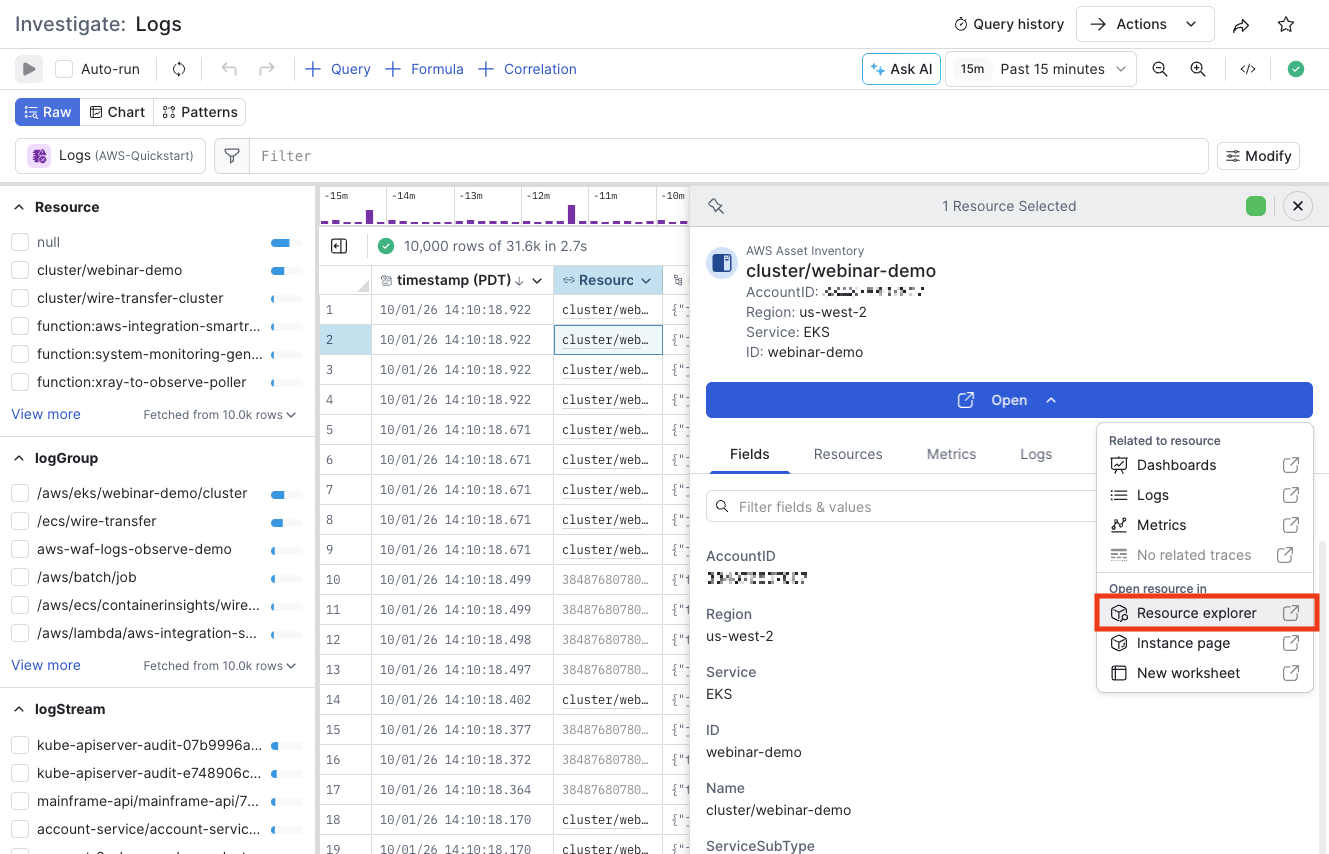
Whenever you access a resource from another page, you can open up the inspection rail on the right by clicking it. You can then choose to open that resource within Resource Explorer or the Resource Instance page.
Export data from the Resource Explorer
To download the data displayed in Resource Explorer, click the Export button. You may select CSV or JSON format, and a maximum size limit (one thousand, ten thousand, or one hundred thousand rows). Note that hidden fields will be included. Use the pick_col OPAL verb to reduce the width of downloaded data.
Updated about 1 month ago