Create and use Favorites
This page describes how you can add and share objects on your Favorites page.
Add objects to Favorites
Choose Favorites to view objects added to your custom Home page. Use the + icon to add folders to your list.
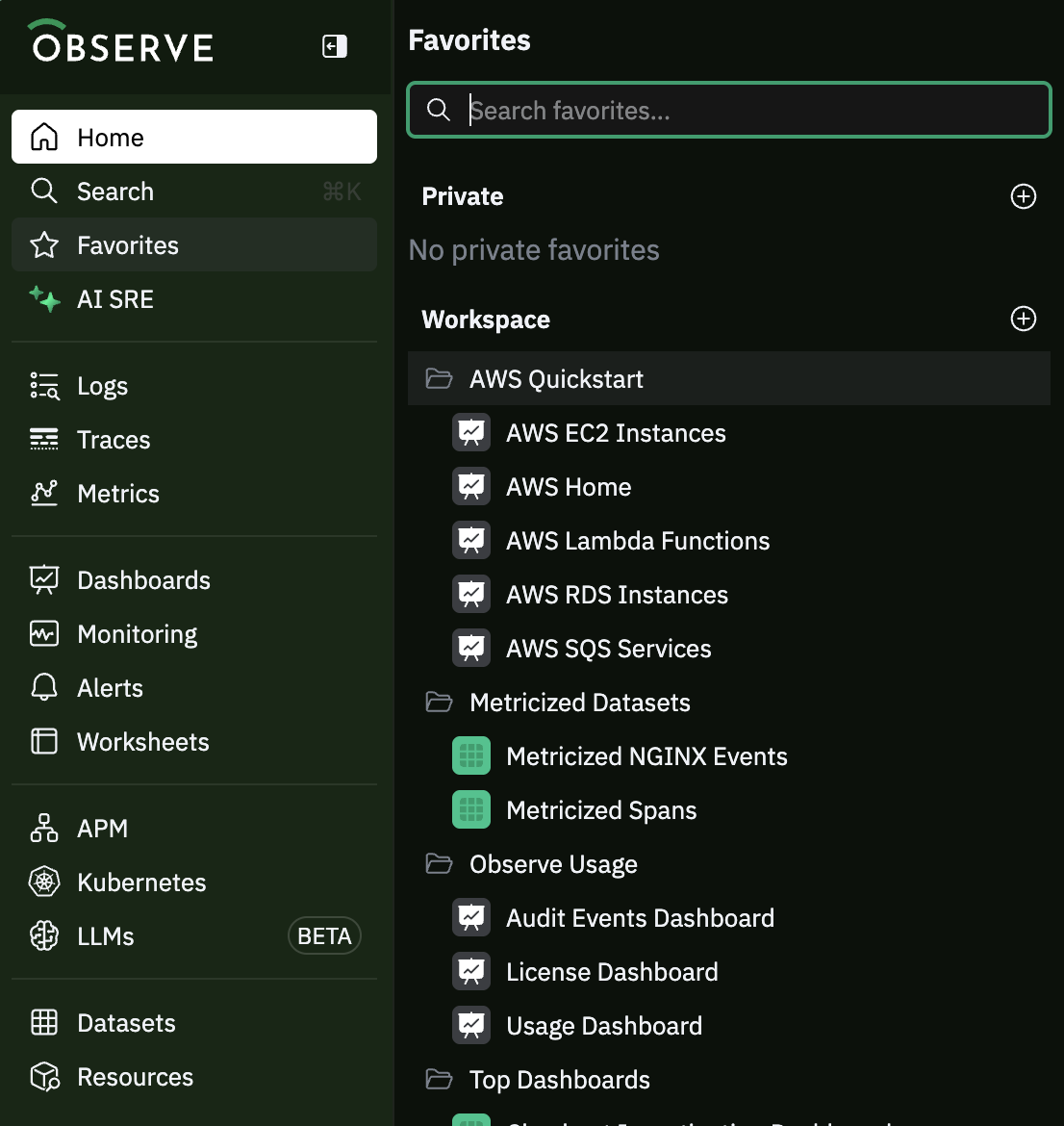
To add an object to your Favorites, navigate to a Dashboard, Dataset, or Resource, and click the Favorites icon at the page's upper right side. A dialogue box appears to allow you to optionally rename the object and select the folder to add the object. The object defaults to the Workspace if you don't select a folder.
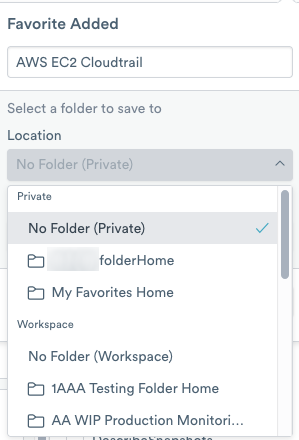
NoteBefore you select a filter and time, be sure to select a preset timeframe from the Select Time Frame menu.
Select from one of three Save options to save your Favorite, such as Default, or with filters and time:
- Default - defaults to the current version of the Datasheet or Dashboard.
- Filter and relative time - displays current filters with data in the relative timeframe in the Select Time Frame menu.
- Filters and current time - displays the latest version based on the current time.
Click Done to finish adding the Favorite.
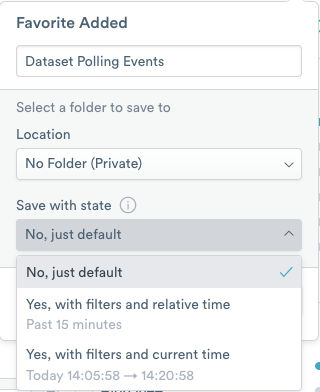
You also choose the State to save the object, such as default or with filters and time. You have three options for State:
- No, just default - defaults to the latest version of the Datasheet or Dashboard.
- Yes, with filter and relative time - displays the latest version within the last 15 minutes.
- Yes, with filters and current time - displays the latest version based on the current time.
Share objects in Observe
Share a Dataset, Dashboard, or Resource, with another Observe member using the Share icon next to Favorites.
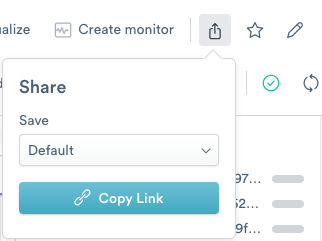
Select from one of three Save options to share your object, such as Default, or with filters and time:
- Default - defaults to the current version of the Datasheet or Dashboard.
- Filter and relative time - displays current filters with data in the relative timeframe in the Select Time Frame menu.
- Filters and current time - displays the latest version based on the current time.
Click Copy Link to copy the link to your clipboard and then provide the link to the Observe member.
Your copied link looks similar to the following link:
https://yourinstance.observeinc.com/workspace/12345678/dataset/event/CloudTrail-Events-123456789?Updated 5 months ago