
Create data links
From any Observe dashboard, you can create a link from a panel within the dashboard to another dashboard, link, logs, metrics, or traces. You can use this to build a custom dashboard to view specific data without having to access multiple dashboards. Just pick the panels you want to see and link them to a single custom dashboard.
You can create data links to the following types of targets, including dashboards:
| Link target | Description |
|---|---|
| Dashboard | Create a link from a panel to another dashboard. |
| Link | Create a link from the dashboard to an external web page. |
| Logs | Create a link from the panel to related logs. |
| Traces | Create a link from the panel to a metrics Dataset or Trace Explorer. |
| Metrics | Create a link from the panel to the Metrics Explorer or Trace Explorer. |
Create a data link from a chart
Perform the following steps to create a data link. In this example, we create a link from a new dashboard to our o4s/Query History dashboard.
We will create a link to the Query Errors panel on the Snowflake Query History dashboard so that it can be viewed from Kevin's Snowflake Stuff dashboard:
- Select Dashboards in the navigation panel.
- Create a new dashboard to sort Snowflake queries by ROLE. For example:
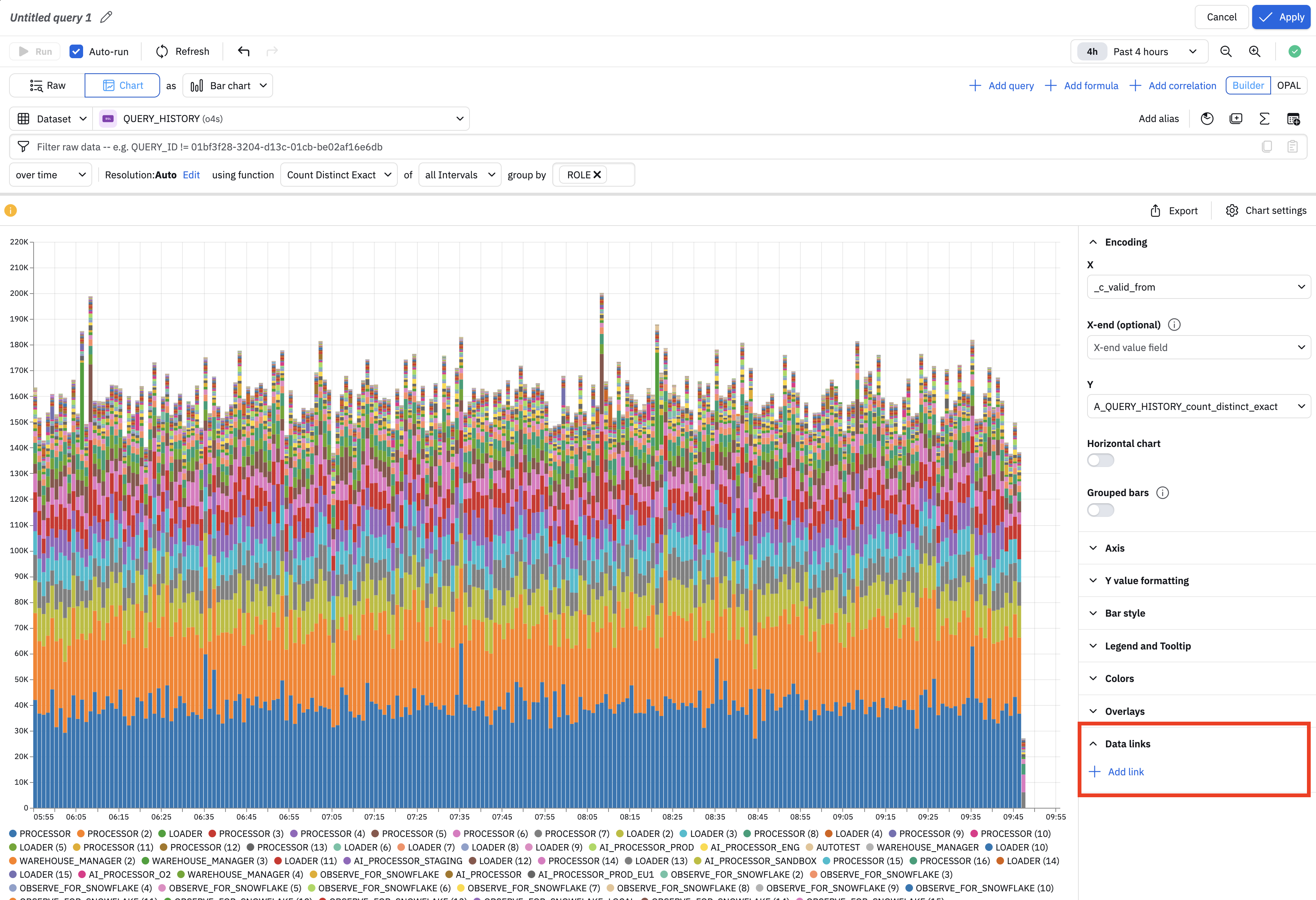
- In the Chart settings, expand the Data links section, then click Add link to create a data link.
- Alternatively, you can save the query as a panel on your dashboard, and create a data link from the panel. For example:
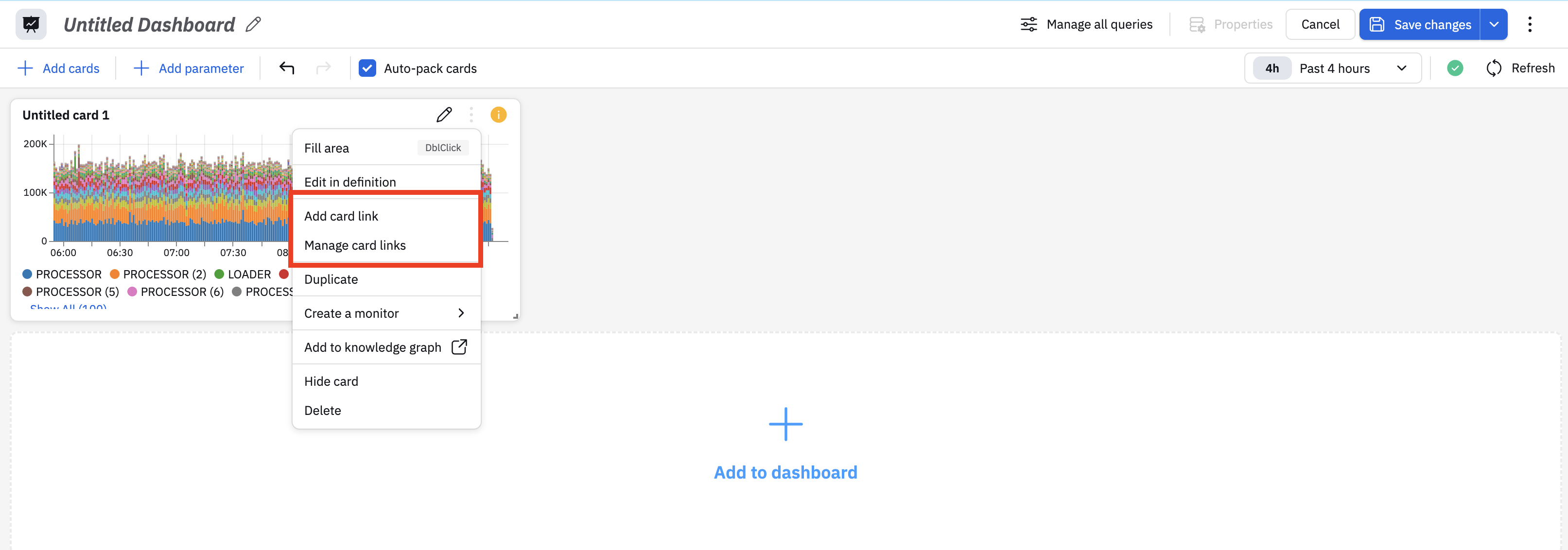
- When you add a link, provide the destination for the link, along with any other parameters. In this example, we select o4s/Query History as the target dashboard, and leave the other parameters with their default values:
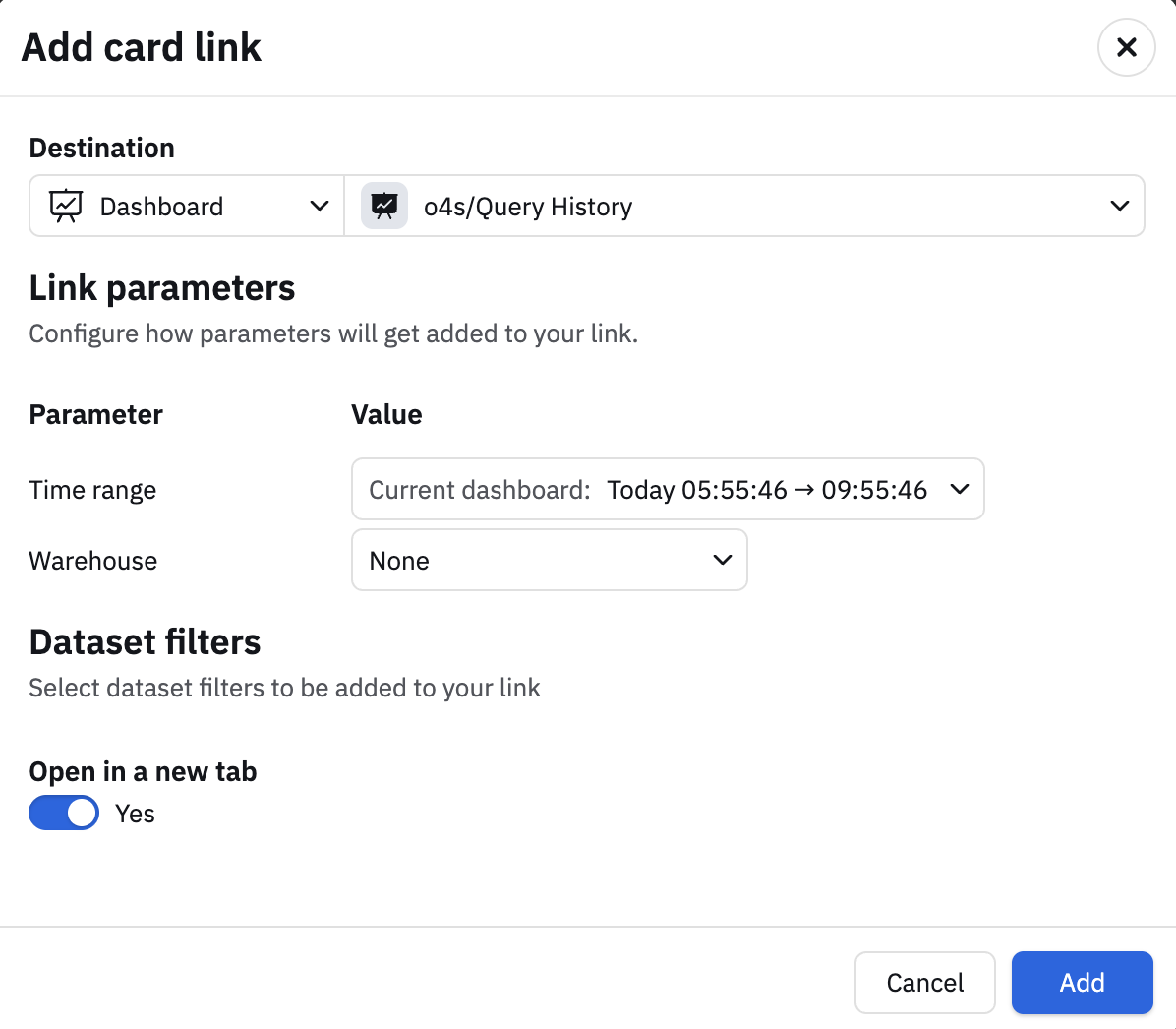
- Click Add to create the link.
- Check the Data links section to verify that the link is created.
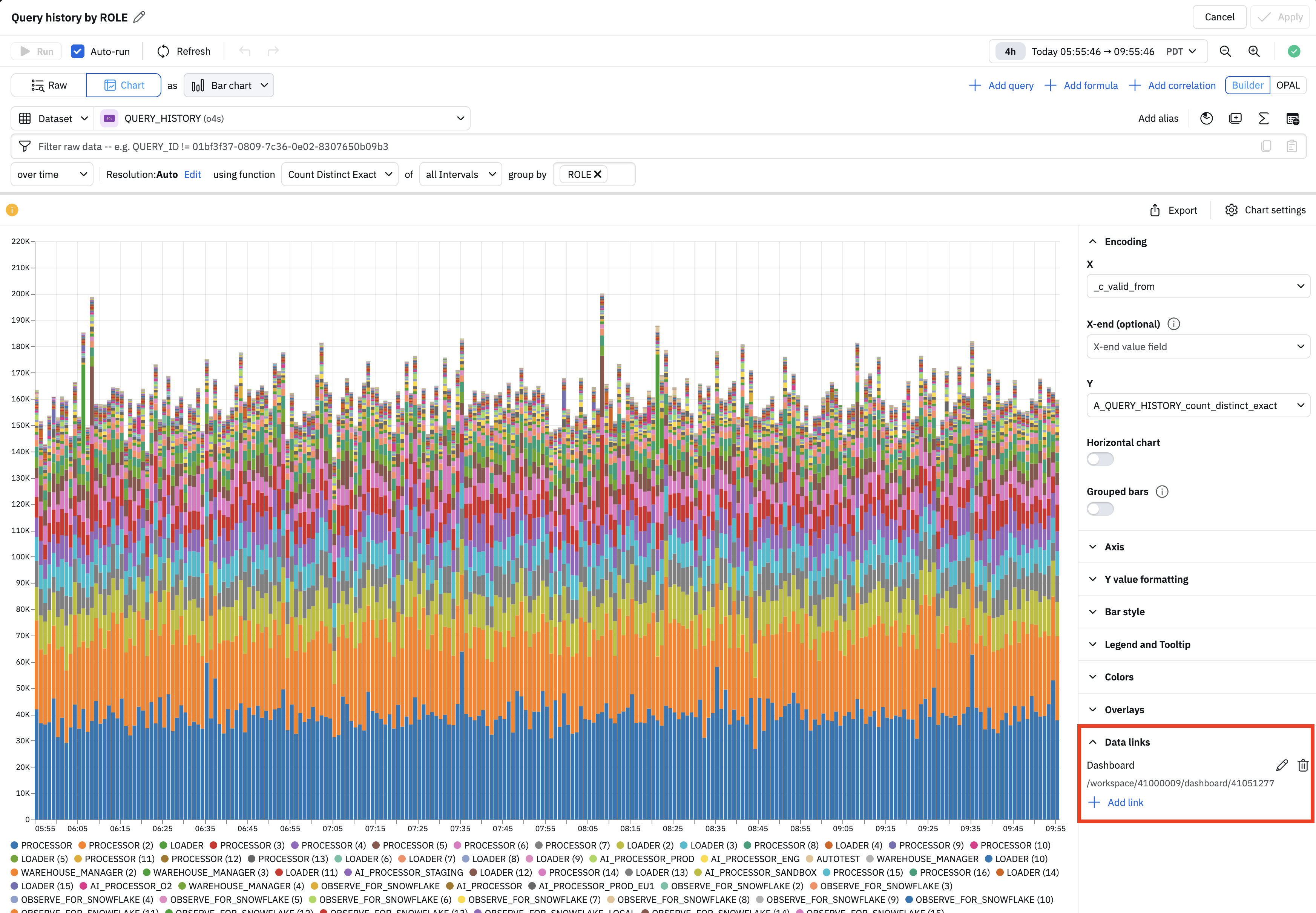
- Click Apply to save the changes to this panel.
- Click Save changes to save the changes to this dashbaord.
Create a data link from table
You can create data links from a table, but the way to access this functionality is slightly different.
Revisiting the Query History Snowflake dashboard, we see the Query Errors List panel is represented as a table instead of a chart:
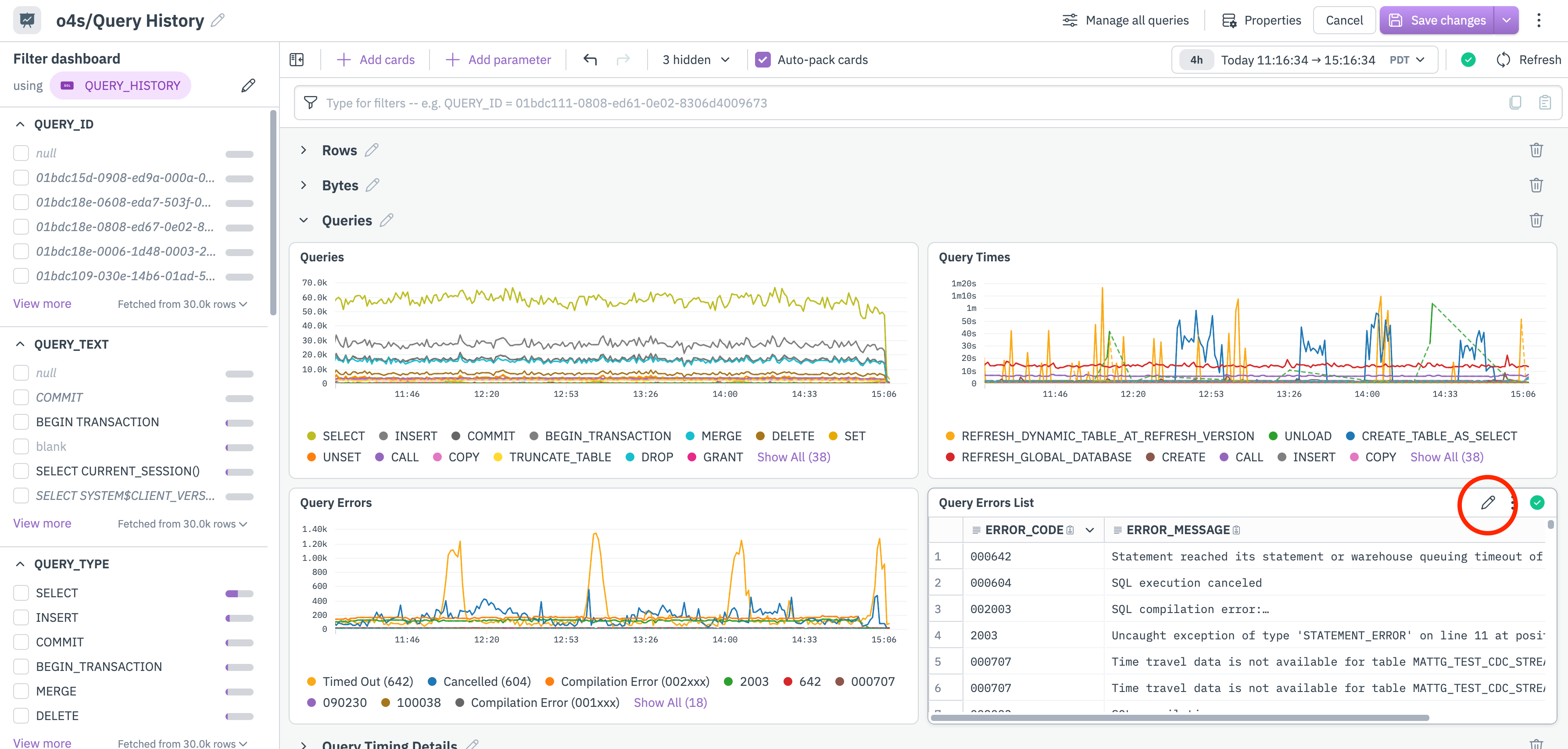
In edit mode, click on the pencil () icon in the panel. To create data link from table visualizations, click Links, and the rest of the procedure is the same as in the earlier example.
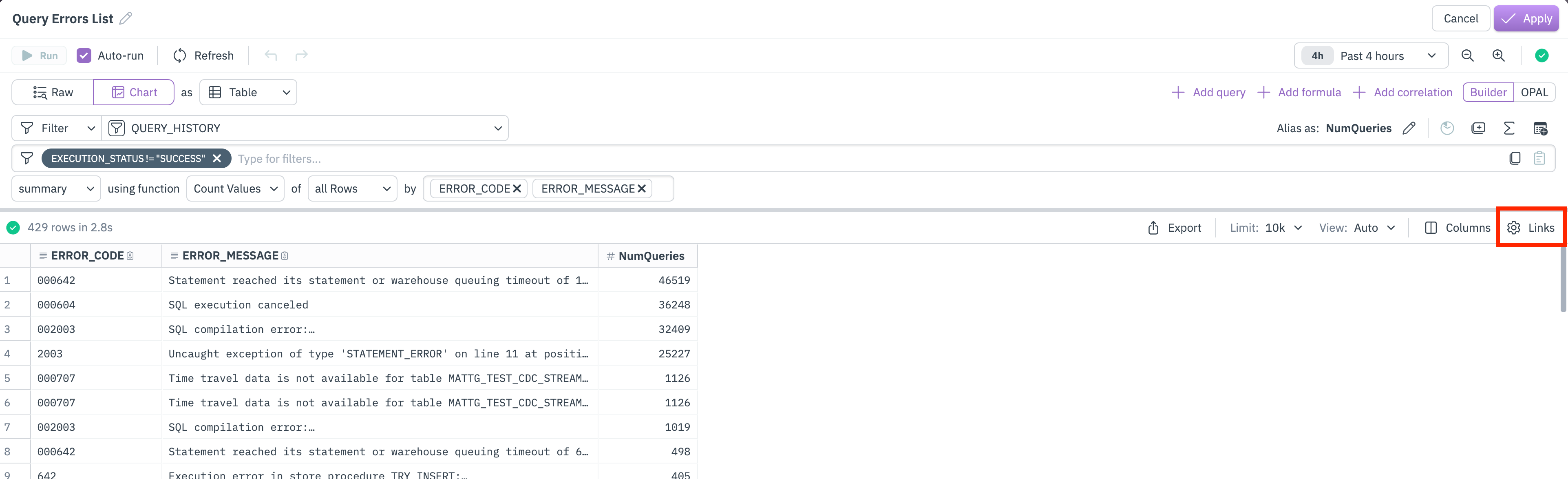
You can only create links from tables when both of the following conditions are met:
- The linked column must be part of a
group_byclause. - The columns must be either a resource column or tag (correlation tag) column.
Updated 2 months ago