

Uninstall the Microsoft Azure app
Uninstall the Microsoft Azure app from Observe by Snowflake
Azure app
Follow the instructions in Delete an app to uninstall the Microsoft Azure app.
Terraform
If you decide to remove the Observe by Snowflake collection module, remove Azure Application Insights from the portal first.
Remove the terraform-azure-collection module by running the following in the root directory:
terraform destroy
NoteYou may encounter the following bug in the Azure provider during your removal of the app:
`Error: Deleting service principal with object ID "########-####-####-####-############", got status 403
ServicePrincipalsClient.BaseClient.Delete(): unexpected status 403 with OData error:
Authorization_RequestDenied: Insufficient privileges to complete the operation.`If this happens, remove
azuread_service_principal.observe_service_principalfrom the terraform state and continue the destroy process.terraform state rm azuread_service_principal.observe_service_principal terraform destroy
- Find the service_principal object name by using the
idreturned, for example, replace it with yourid.
terraform state list -id=249783e5-bcfd-480b-b8e8-5f8aaa7452e8- Remove the object from the state. Make sure to wrap the object in single quotes, for example, and replace the name with that returned in the previous step.
terraform state rm 'module.collection["eastus"].azuread_service_principal.observe_service_principal' - Perform the terraform destroy function again.
terraform destroyAzure Resource Manager
To uninstall the Azure Integration using the Azure Resource Manager, follow these steps:
- Using the Azure CLI, determine the Resource Group name for installed Observe by Snowflake deployment:
az deployment sub show --name observe --query ["properties.dependencies[].resourceGroup"]This can also be optionally determined from Resource Groups
- Delete the deployment at a subscription scope.
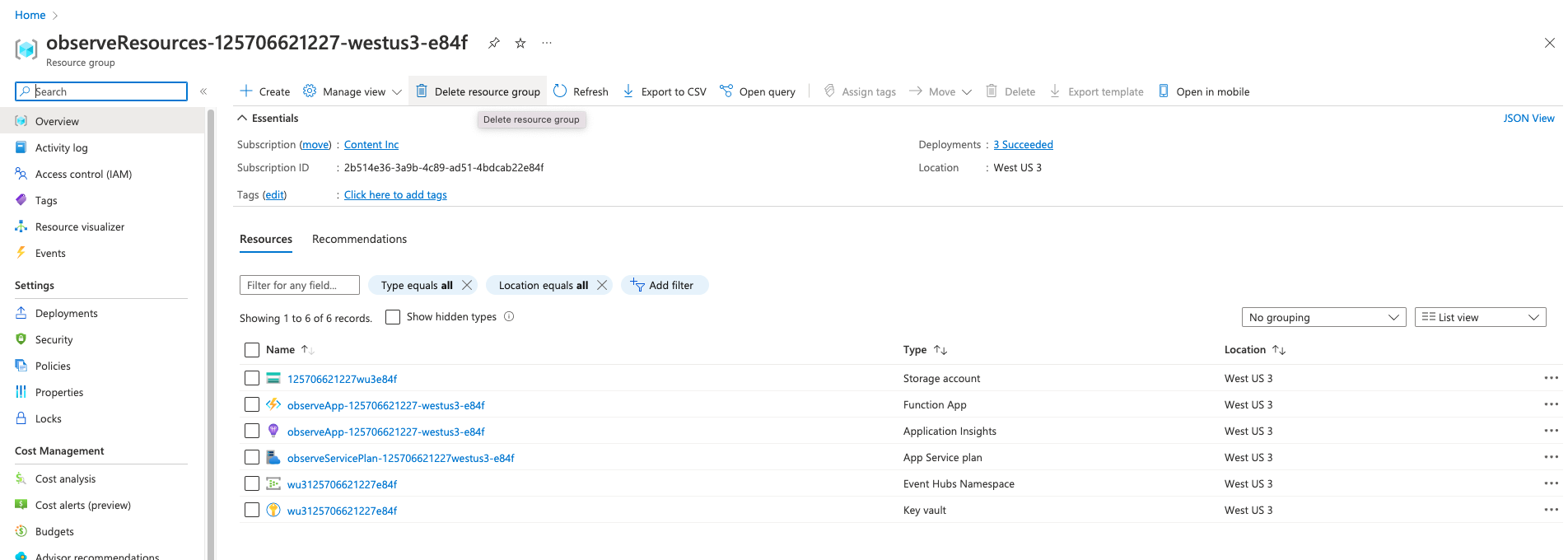
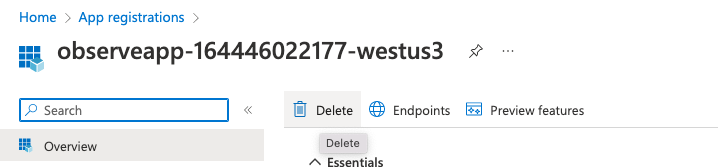
az deployment sub delete --name observe - Delete the Observe Resource Group for the installed Observe by Snowflake deployment and App Registration.
NoteDeleting the Observe Resource Group soft-deletes the Key Vault. To prevent any reinstallation errors, navigate to Key Vaults and purge the created Key Vault as shown here.
Manually Delete the app's Azure Resources
Deleting the Observe Resource Group and App Registration removes all resources created by Observe by Snowflake. Note that the Key Vault is soft deleted.
To re-install after deletion, you may need to navigate to Key Vaults and then click Manage deleted key vaults.
Troubleshooting
Partial deletion of the Azure Resources can cause errors during re-installation. If you delete the collection and attempt to re-deploy after setting diagnostic settings, you will get an error similar to this:
{
    "status": "Failed",
    "error": {
        "code": "DeploymentFailed",
        "target": "/subscriptions/ff4e4328-8c45-41b1-8317-30ff09f25437/resourceGroups/observeResources-102434054203-eastus-5437/providers/Microsoft.Resources/deployments/services",
        "message": "At least one resource deployment operation failed. Please list deployment operations for details. Please see https://aka.ms/arm-deployment-operations for usage details.",
        "details": [
            {
                "code": "MessagingGatewayBadRequest",
                "message": "SubCode=40000. PartitionCount can only be changed on a Dedicated Event Hub cluster or Premium namespace. TrackingId:6c46143c-a4cc-41f7-9e73-22e4b89018d5_G18, SystemTracker:eu1024340542035437.servicebus.windows.net:observeEventHub-102434054203-eastus-5437, Timestamp:2024-01-19T00:34:35"
            }
        ]
    }
}
The Microsoft Azure installation creates an Eventhub and Eventhub Namespace, which are deleted on removal. If there are diagnostic settings referring to this Eventhub, they will cause it to be recreated with default partitioning and data retention levels, which then conflict with the fresh installation. To avoid this, delete diagnostic settings referring to Observe by Snowflake before removing the Observe by Snowflake Azure resources.
Updated about 1 month ago