

Create a data export job
Before your create a data export job, make sure you have configured your S3 bucket to receive data from Observe by Snowflake. See Configure your S3 bucket to receive data from Observe by Snowflake.
Create a data export job
To create an export job:
-
In the Observe by Snowflake navigation bar, select Settings > Workspace Settings.
-
Click Data export.
-
Click New export job.
-
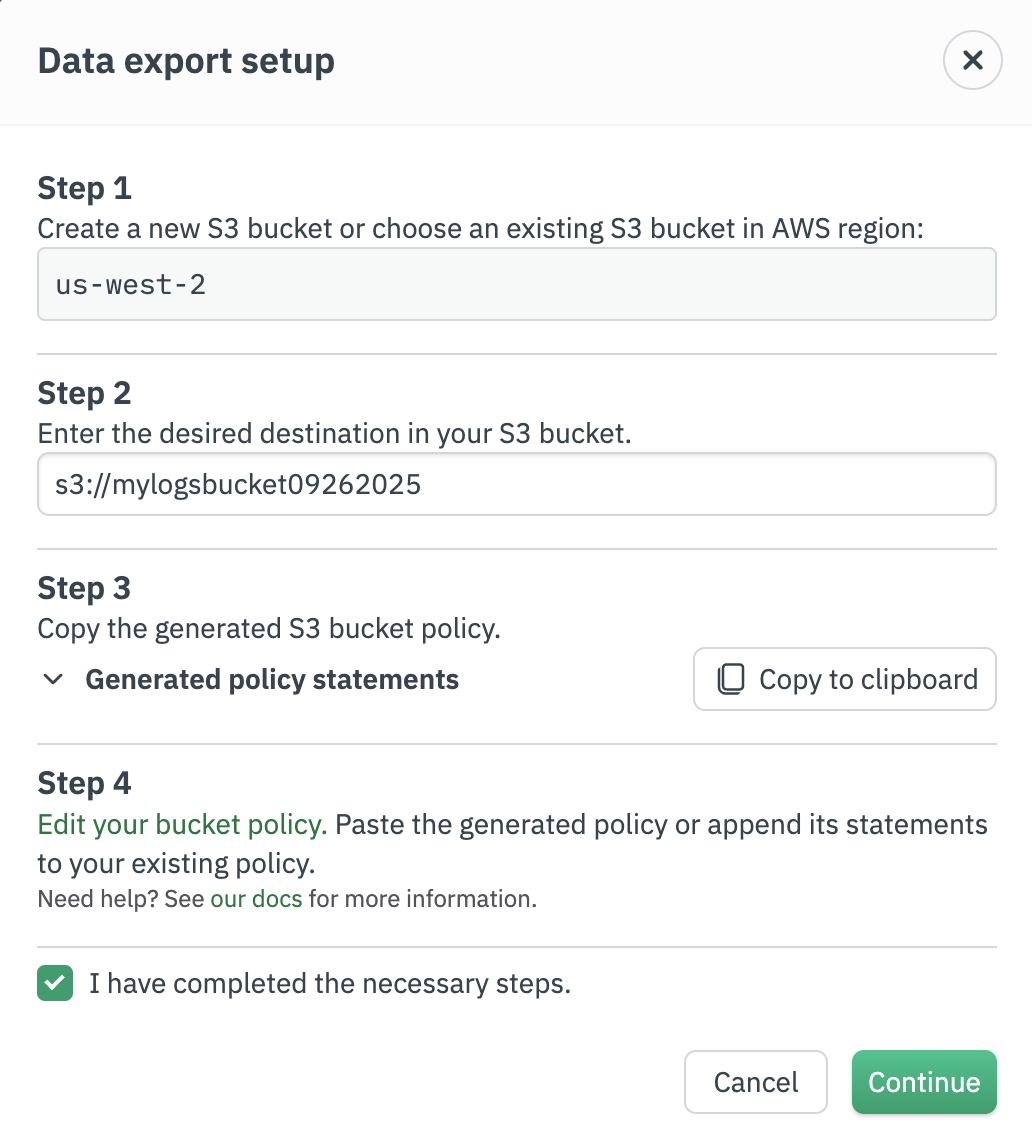
Provide the URL to your bucket, starting with s3://.
After you provide a valid URL, your bucket policy statements are automatically generated. You can click the expand () icon to view the statements and make changes as needed. See Statement templates.
-
Click Copy to clipboard to copy the policy statements.
-
Click Edit your bucket policy to go to your AWS bucket configuration, and paste the policy into the bucket's configuration. Click Save changes in AWS to save the policy statements.
-
In the Observe by Snowflake UI, click the I have complete the necessary steps checkbox, then click Continue.
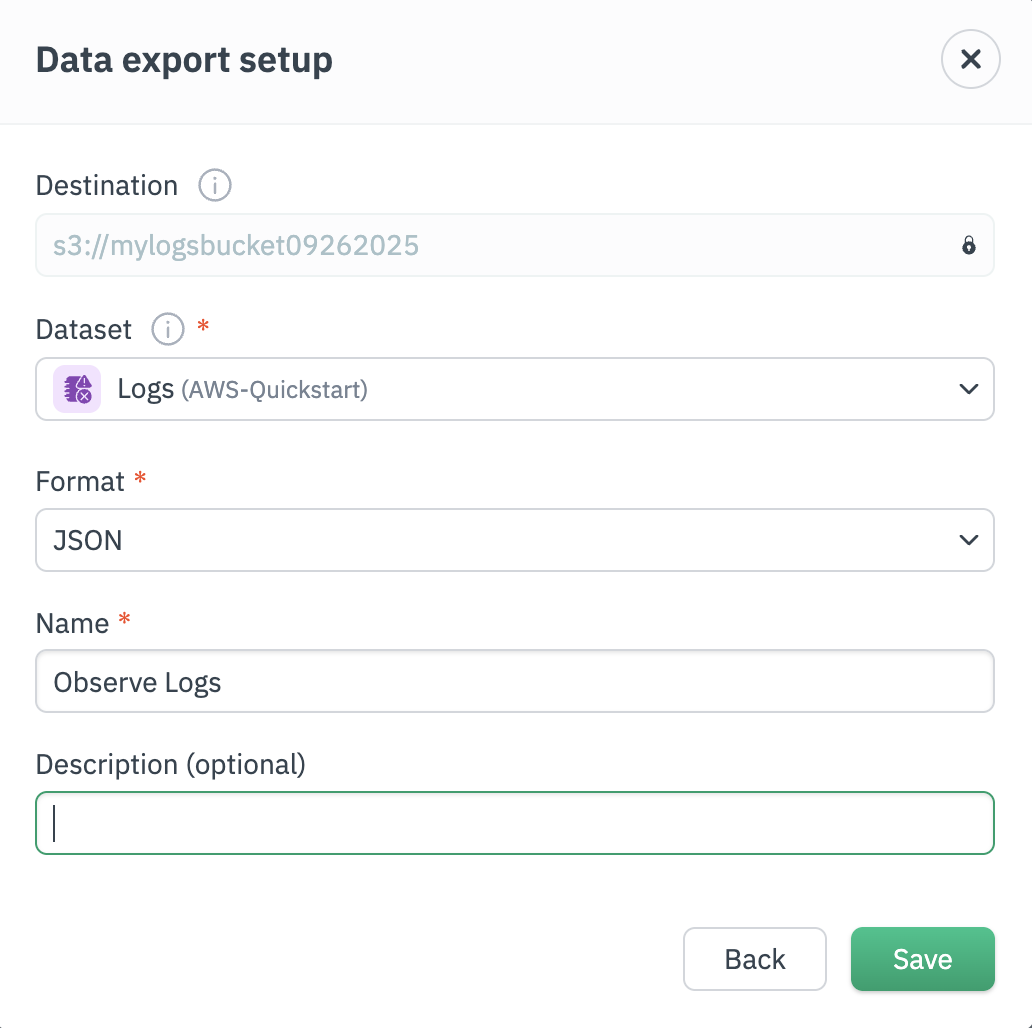
- Provide the following details to complete the data export setup:
- Dataset - the name of the Dataset in Observe by Snowflake you want to export to your S3 bucket.
- Format - Select JSON format (gzip compression) or Parquet format (snappy compression). All export job names must be unique.
- Name - a unique name used to identify this export job.
- Click Save.
Each export job begins exporting data from approximately 24 hours prior to job creation, and will continue to export new data indefinitely, until the job has an error or is deleted.
View details of your data export job
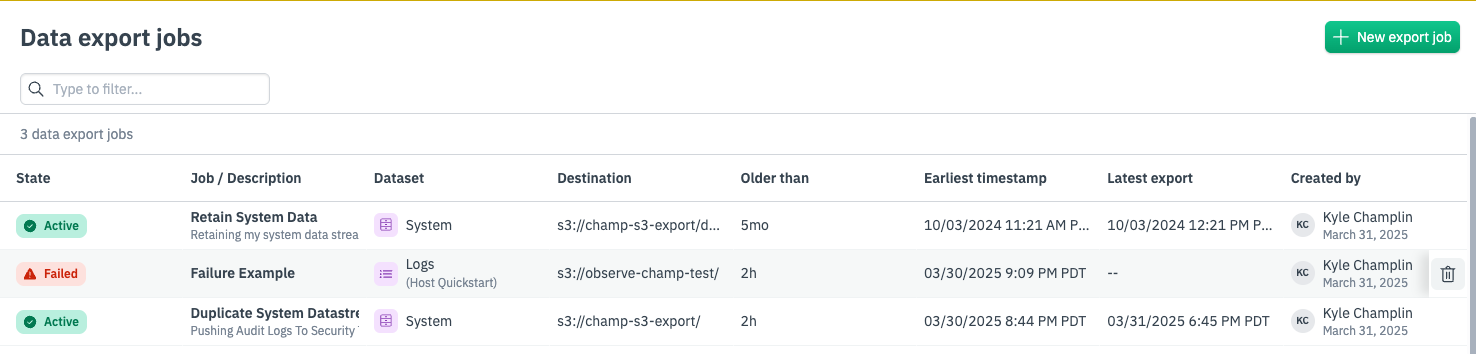
All export jobs have the following attributes:
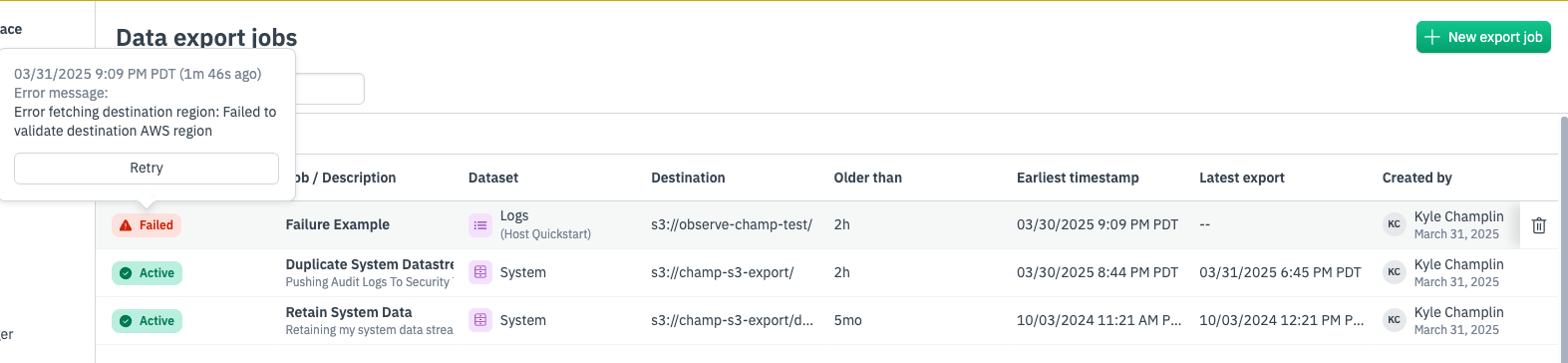
- State: Initializing, Active, or Failed. You can hover over the Failed state to learn more about the status or failure reason.
- Job / Description: The name and description of the export job.
- Dataset: The name of the dataset you are exporting.
- Destination: The S3 bucket to which you are exporting your data.
- Earliest timestamp, Latest timestamp: These describe the time range of data that has been exported by the job.
- Created by: The name of the user who created the export job, and the export job creation date.
Once a data export job is created, the resulting folder structure that Observe by Snowflake creates is:
/<observe_customerId>/<observe_jobId>/YYYY/MM/DD/HH_MI_SS/data_<observe_queryid>_0_0_0.ndjson.gz|snappy.parquetDepending on the format you selected for the export job, it will either end in ndjson.gz (JSON) or snappy.parquet (Parquet).
Your export job's state
Export jobs can be in one of three states: Initializing, Active, or Failed. After creation or retry, jobs begin in the Initializing state and typically transition to Active or Failed within a few seconds.
Hovering over the state pill will provide additional details as to why the export job has failed. For example, if your export job fails due to a misconfigured bucket policy, you can update the bucket policy and then retry the job.
Delete an export job
Export jobs can be deleted by hovering over the row of the job you want to delete, and clicking the trash-can icon on the right-hand side. You will be presented with a confirmation dialog. Note that deleting an export job does not delete data that has already been exported.
Updated about 1 month ago