

Correlation tags
Learn how to use correlation tags to link data together in Observe by Snowflake.
Correlation tags are a flexible way to link data in Observe by Snowflake to support pivoting, or correlating, data. You can connect logs, metrics, traces and other data in Observe by Snowflake regardless of the underlying data format. It’s a way to say, “This column in this Dataset describes the same stuff as that column in that Dataset.” When multiple Datasets have columns (or nested fields within JSON objects) tagged with the same correlation tag, you can pivot between them by filtering them by the same common concept.
Benefits of correlation tags
Correlation tags offer an easier and more flexible way to link data in Observe by Snowflake compared to Resources.
Correlation tags have the following benefits:
- Can be added via the UI without writing OPAL.
- Can be added to app-installed content.
- Can be added to nested fields within JSON, such as
attributes.name. - Can be added and removed without triggering re-materialization or an increase in transform costs.
- Can help Observe by Snowflake's AI features work better. For example, it's necessary for AI SRE to be able to map an input such as apiserver to the correct Dataset and field in order to provide accurate answers.
Add correlation tags to a Dataset
A correlation tag is a piece of metadata added to a Dataset, either automatically by the Observe by Snowflake system or manually by a user. Each correlation tag consists of a name and a path within a Dataset, which can either be a column or a nested path within JSON.
Correlation tags can be added to Datasets via the Dataset edit page. Below is an example of how to add a correlation tag:
-
Click Datasets in the left navigation.
-
Find the Dataset you want to edit, hover on the Dataset name and click the Open Dataset page icon ().

-
Click the Properties tab.
-
Click Correlation tags.
-
Click New tag.
-
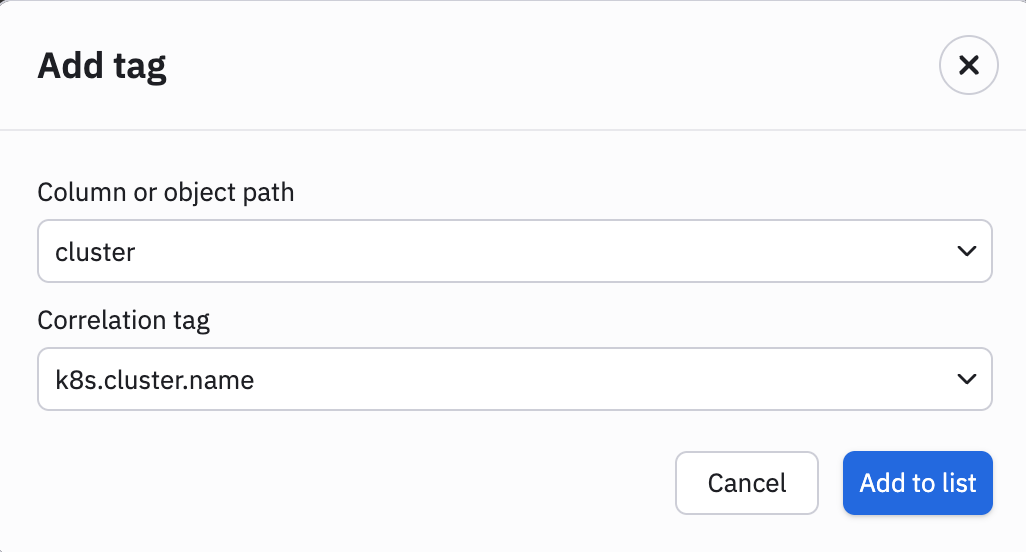
Select the column and tag you want to use to create the correlation tag. In this example, we add the correlation tag k8s.cluster.name and attach it to the cluster column in the Kubernetes Logs:
-
Click Add to list.
You are taken back to the list of tags, where you can see your new tag in the table.
Tag inheritance
After you create a new tag, you are taken back to the list of tags, where you can see your new tag in the table. Here, we see the tag k8s.cluster.name appears in the table:
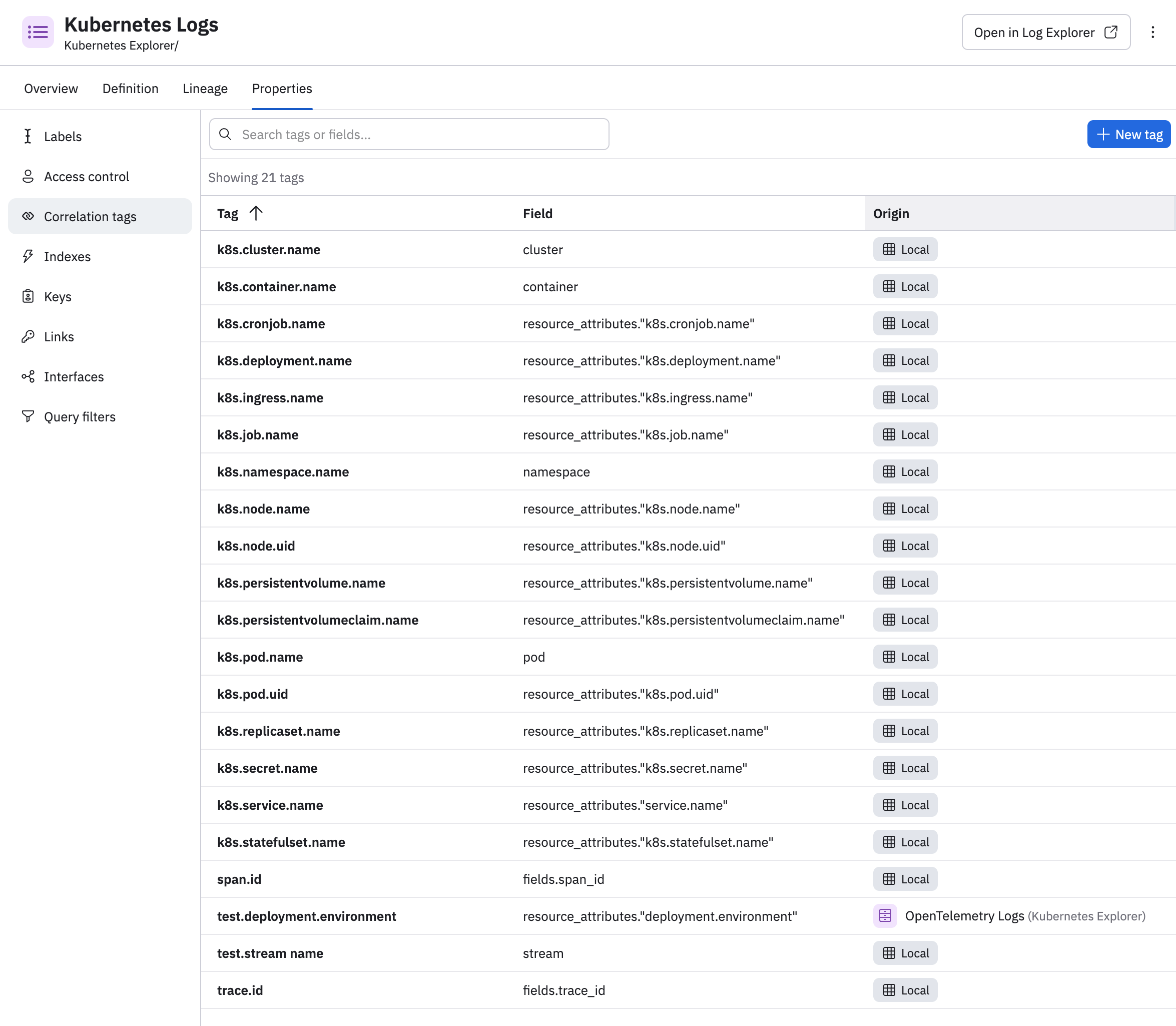
The Origin column tells you about the origination of each tag. Tags created manually from the Dataset, as described on this page, have the Local label in the Origin column. A tag such as resource_attributes."deployment.environment" in this example comes from a parent Dataset and was inherited to this Dataset.
When a child Dataset is derived from a parent Dataset, if any columns remain unchanged between the parent and child Datasets, any correlation tags defined on such columns get inherited to the child Dataset. For example, suppose you have a parent Dataset with the following columns:
| timestamp | log (string) | attributes (object) | cluster (string) |
|---|---|---|---|
| 2026-01-31 00:00 | Poller initialized | {”pod”: “poller”, “namespace”: “eng-pollers”} | eng |
| 2026-01-31 00:01 | Poller initialized | {”pod”: “poller”, “namespace”: “prod-pollers”} | prod |
And you have the following tags:
- k8s.cluster.name on cluster
- k8s.namespace.name on path attributes.namespace
Below is a mapping from child Dataset definitions and tags that would be inherited:
| Child definition | Inherited tags |
|---|---|
pick_col timestamp, cluster | k8s.cluster.name because the cluster column remained unchanged from parent to child Dataset. |
timechart 1h, count:count(), group_by(cluster) | k8s.cluster.name |
rename_col clusterName: cluster | k8s.cluster.name is defined on the clusterName column. |
pick_col timestamp, namespace:attributes.namespace | Although entire attributes column is not retained, the attributes.namespace is extracted out to a new column. Because the new namespace column contains the same values as the parent, the k8s.namespace.name tag is retained. |
Delete a tag
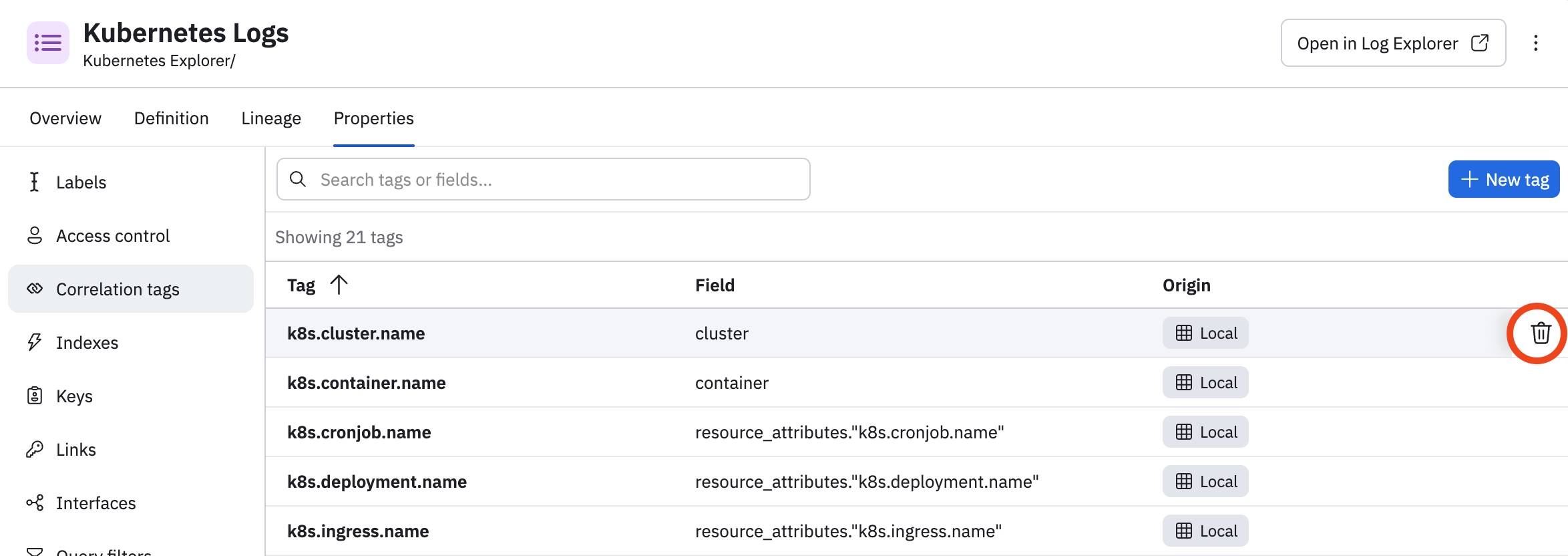
You can hover and click the delete icon () to delete any local tag. Inherited tags can only be deleted from the origin Dataset.
Create correlation tag parameters in dashboards
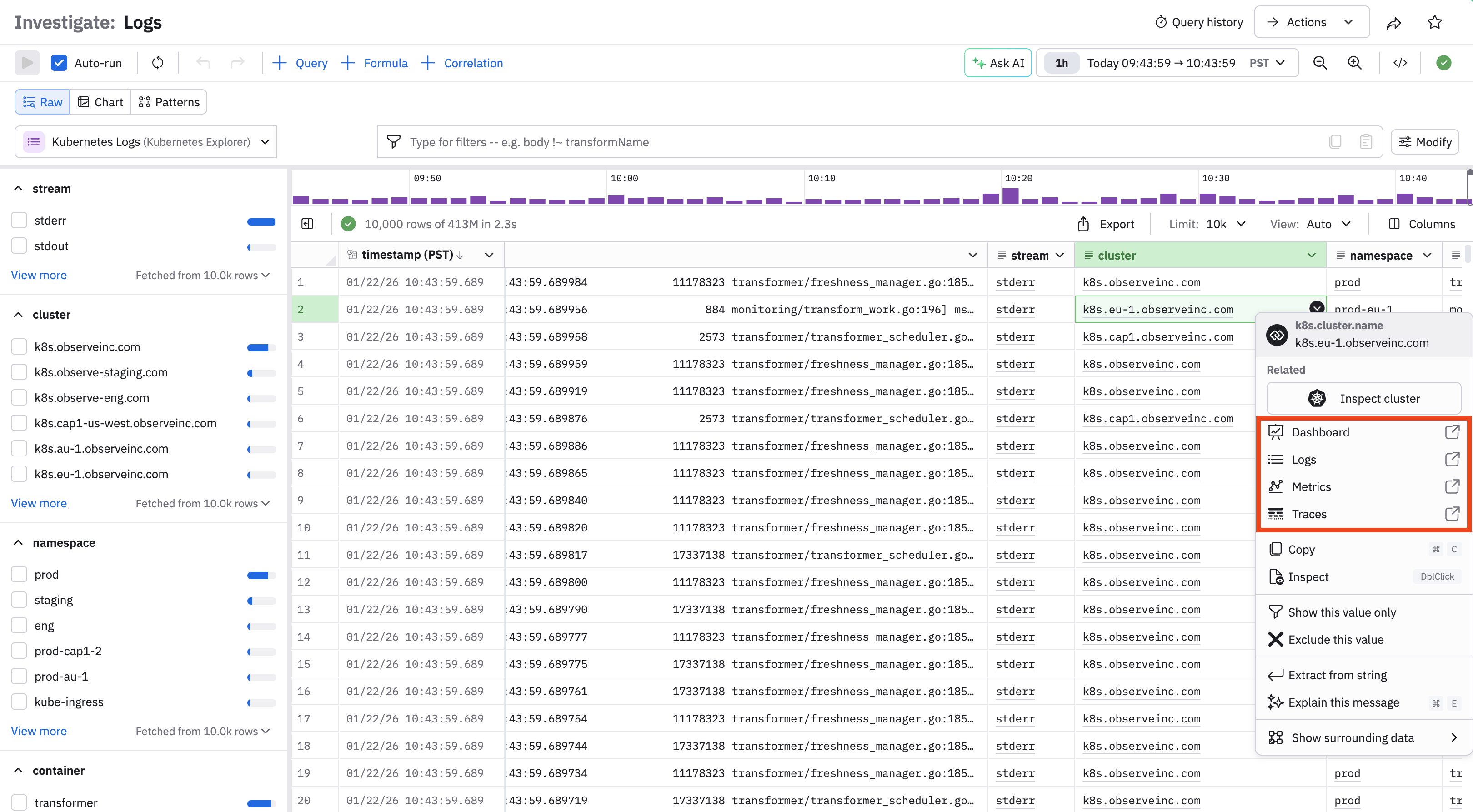
After adding a correlation tag, you can pivot via the pivot context menu. Using the pivot menu, users can pivot to related logs, metrics, and traces.
In this example, when we return to the Log Explorer and view the Kubernetes Logs, we can pivot on the cluster column. Adding the k8s.cluster.name tag and attaching it to the cluster column enables the pivots highlighted below:
See Create a correlation tag dashboard parameter for an example of how to add a correlation tag parameter to a dashboard, so that the dashboard can be destination for pivots from the Log Explorer.
Log correlation using correlation tags
Correlation tags provide the ability to query across multiple log sources that shared common attributes, such as IDs. In other observability systems, this capability is known as log subqueries.
For example, if two teams submit logs to Observe by Snowflake containing a service name in two different naming formats, such as serviceid or one and service_name for the other, you can add a correlation tag such as service.name to these two fields to ensure that users can run queries across both log Datasets.
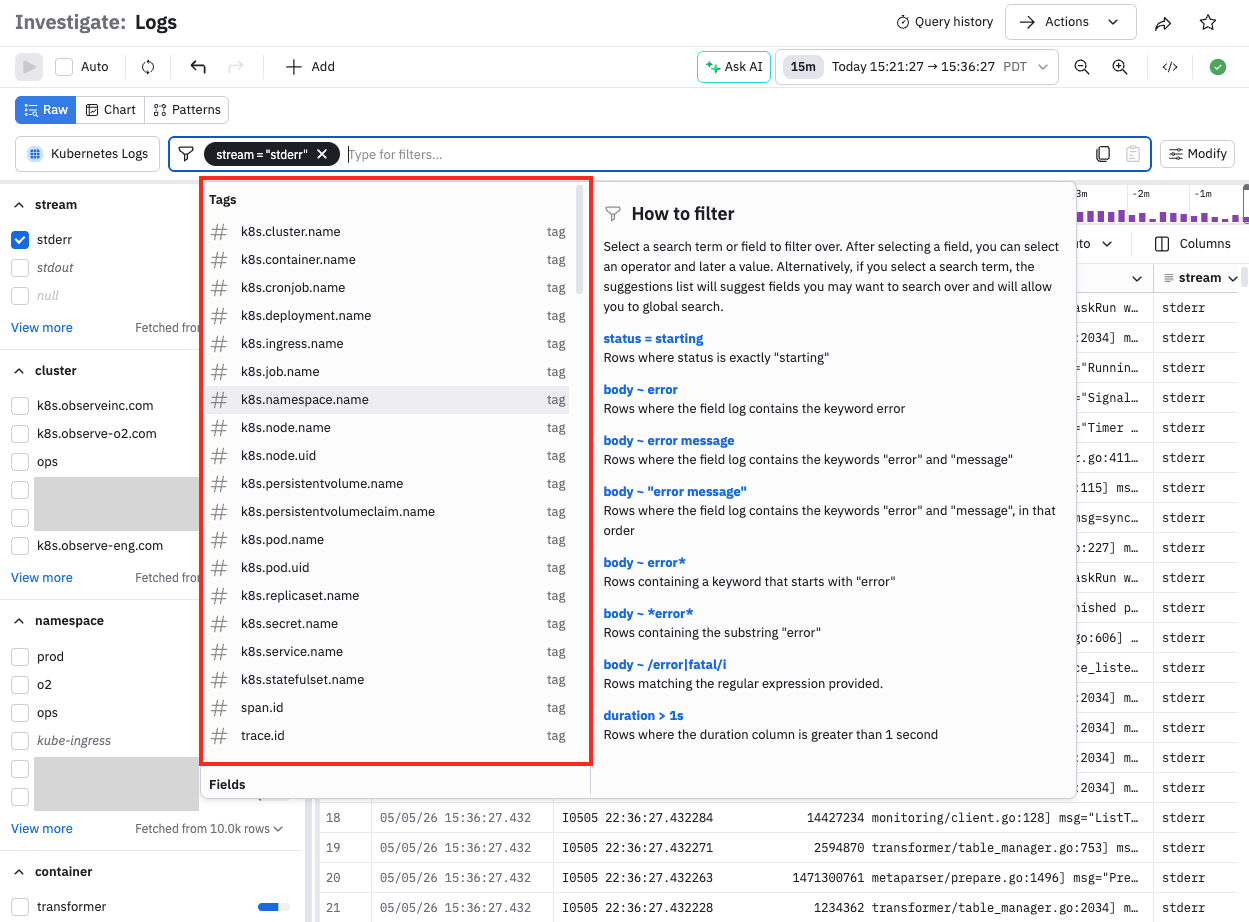
To select tags to use in your queries, click in the filter bar
Link applications logs to the Service Explorer
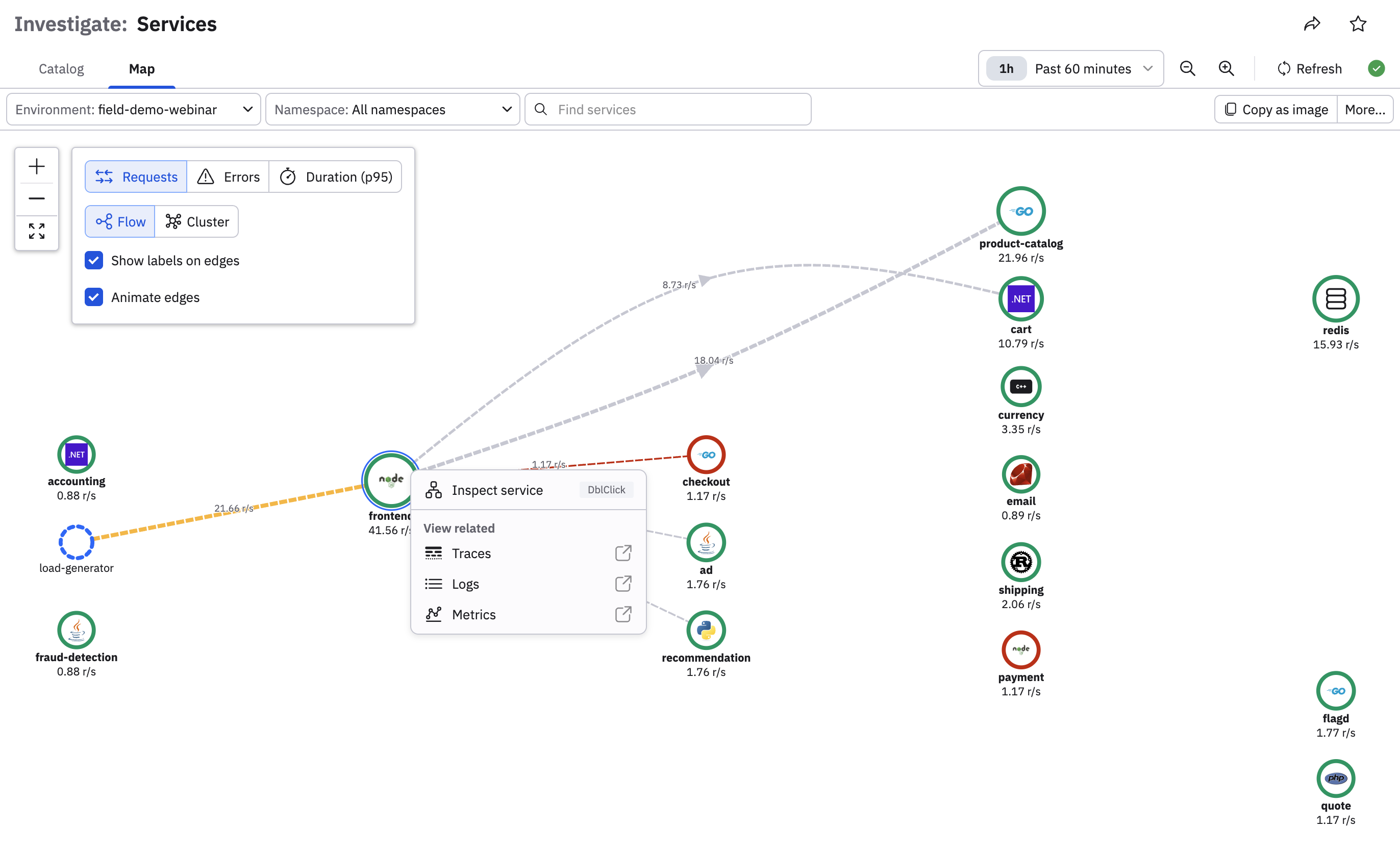
Our native Service Explorer is a core part of the Observe by Snowflake application performance monitoring (APM) offering.
You can link custom application logs to the Service Explorer by simply adding the service.name correlation tag to a column or path to any log Dataset.
Automatic tagging
Observe by Snowflake automatically tags data coming from the Observe Agent with relevant tags following the Open Telemetry Semantic Convention for resources.
Updated 12 days ago