

Permission manager
Learn how to apply access permissions for objects in your Observe by Snowflake instance.
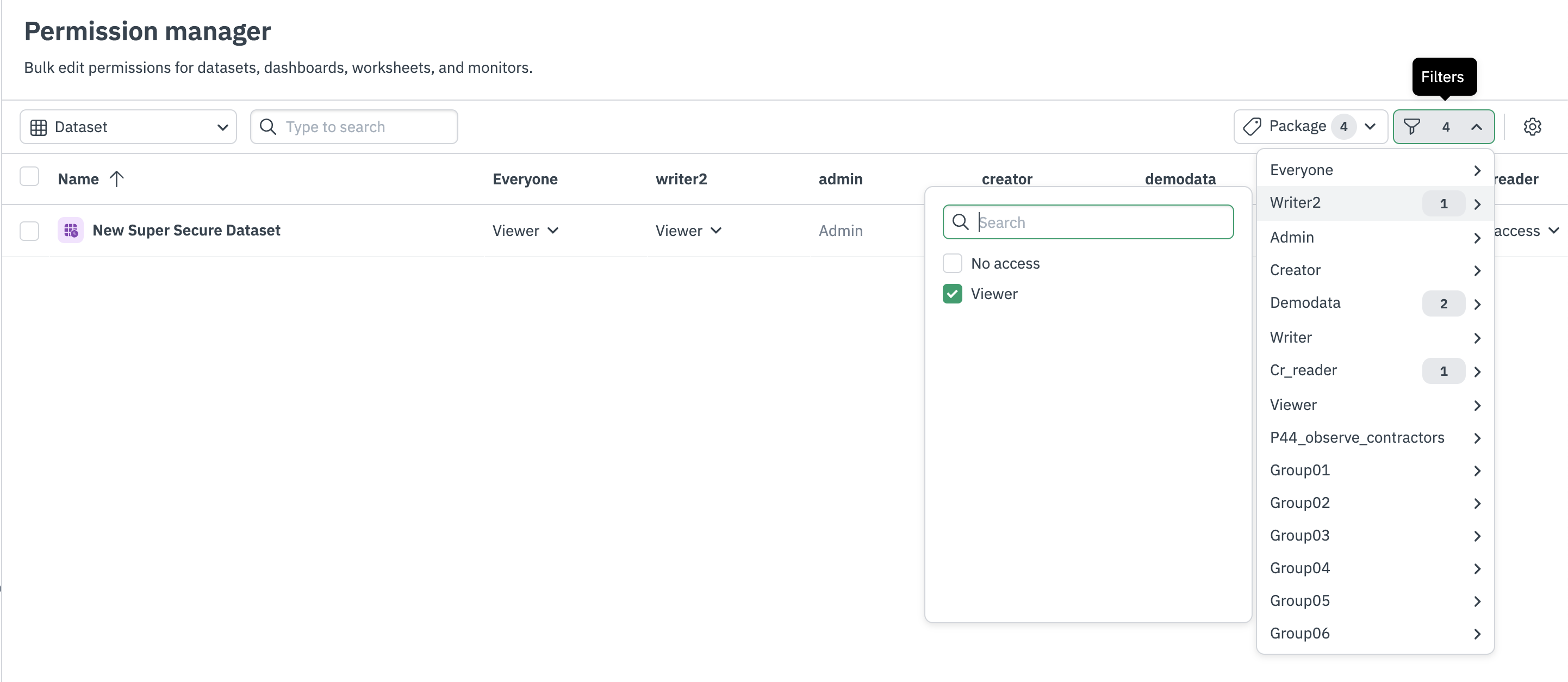
Permission manager allows you to quickly apply access permissions for multiple Datasets, Dashboards, Monitors and Worksheets. For all object types, you can filter by group and associated group permissions.
Access the Permission manager
Access the Permission manager in either of the following ways:
- In the left navigation rail, select Admin > Permissions.
- In the left navigation rail, hover on your user name, then select Manage account, then click Permission manager.
Make bulk permission changes
To change the RBAC grants for multiple objects at one, select one or many objects via the left-most column, and then click Edit permissions. This will open a modal that provides the following options:
- Replace - Completely replace any existing permissions for the selected objects with new permissions you specify in the next step.
- Add - Add permissions in addition to any existing permissions to the selected objects. You will specify the additional permissions in the next step.
- Remove - Remove permissions that you select in the next step.
Next, specify which permissions to replace, add or remove. The permissions that are initially listed are an intersection of the current permissions of the selected objects. Select Review updates to review your changes. Permission manager provides a “diff”-style view of your changed permissions when you select View all changed permissions. Finally, select Yes, update to apply your new permissions.
Make single object changes
You can also directly edit access at an individual group and object level. Hover over any cell in the Permission manager table, and select Viewer, Editor or Remove to set permissions for that group and object.
Updated about 1 month ago