

Observe by Snowflake apps
Apps consist of self-service packages that include data ingestion, Datasets, Worksheets, and sample monitors to help you investigate issues in your infrastructure. Ingest and navigate your data in minutes with a single app install.
Select Data & integrations > Applications in the left navigation to see your installed apps:
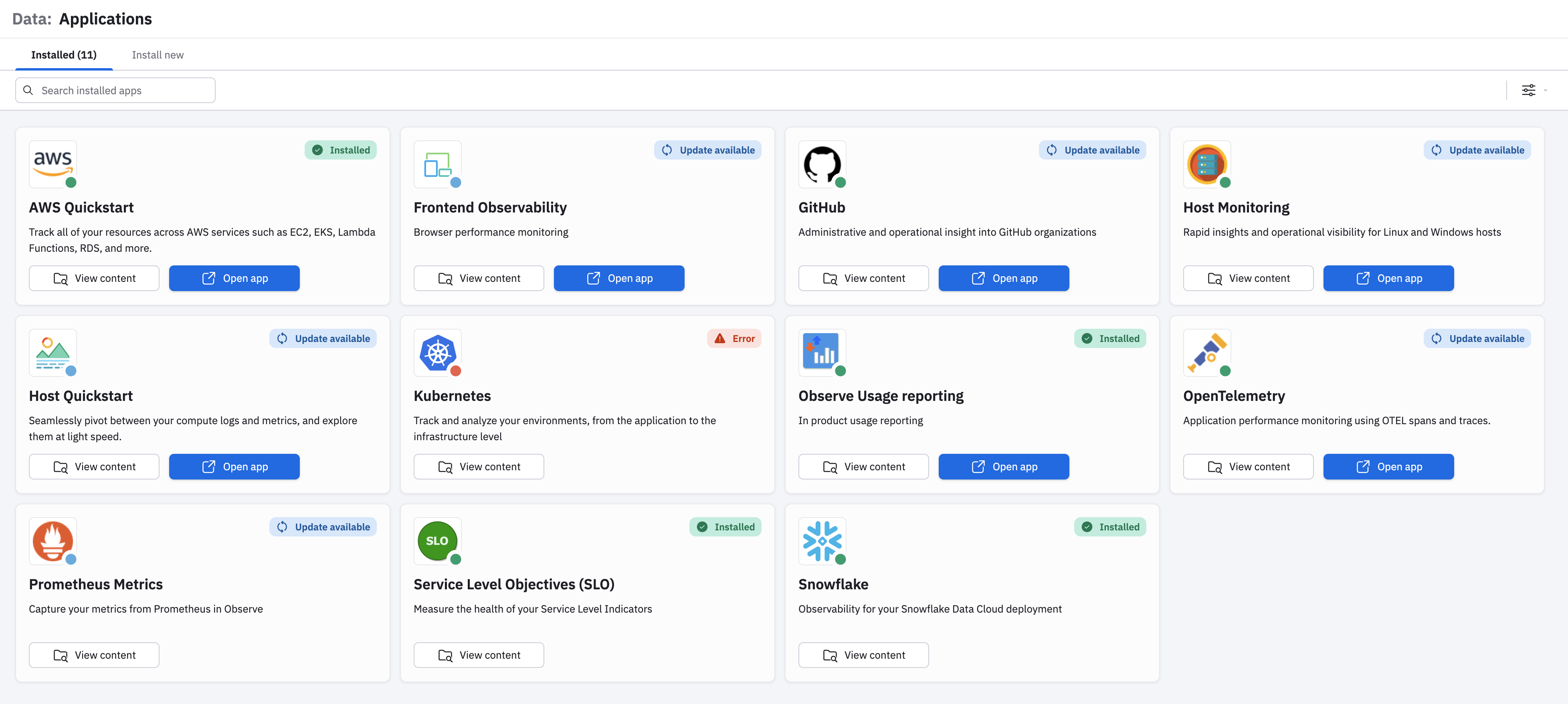
Click Install new to view the apps that are available for installation.
Install an app
Perform the following steps to install an app:
- In Observe by Snowflake, select Data & integrations > Applications in the left navigation bar.
- Select the Install new tab.
- Find the app you want to install, and click Install on the app's panel.
- (Optional) Select the version of the app you want to install. In general, you want to install the latest version, which is the version selected by default.
- Click Install.
- Select your desired configuration: Recommended for the default settings or Manual install for advanced options.
- Click Continue to install the app.
- Once you install the app, click the Connections tab to create a connection token.
- Click View instructions to view the App data connection instructions.
- Go to the Installed tab to view the app health once you configure a connection.
A Healthy status indicates that you have correctly installed the app and ingested data.
Freshness determines how frequently the data shaping updates a dataset that populates it. A shorter freshness duration provides more recent results but uses more acceleration credits. Each app has a Freshness Default setting in the manual configuration options.
Delete an app
Deleting an app deletes all of its content, removing it from your workspace. This includes the following:
- The Datastream where the app ingests its data.
- Datasets, dashboards, and worksheets created by the app.
Deleting an app does not delete the Datasets, dashboards, worksheets, and monitors you created. But since they depend on app data, they no longer function as expected.
Data connections, including all tokens and pollers, are not deleted during app deletion.
The following apps can be integrated with another app:
- Host monitoring
- Jenkins
- Kubernetes
- MySQL
- OpenTelemetry
You may need to delete the linked app first before completely deleting the app from your Observe by Snowflake workspace.
To delete a linked app, first unlink the configuration from other apps:
- From the Apps tab, click Manage to open the App details.
- Click the Configuration tab.
- Select None in the linked app dropdown.
- Click Update
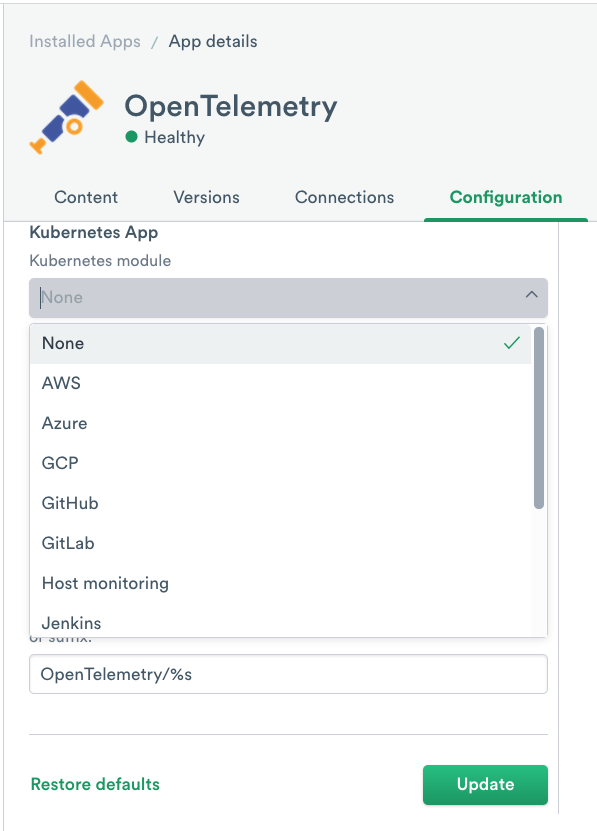
Some apps link to multiple apps, such as the AWS and GCP apps.
To completely delete an app from your Observe by Snowflake workspace, follow these steps:
- From the Apps tab, click Manage to open the app details.
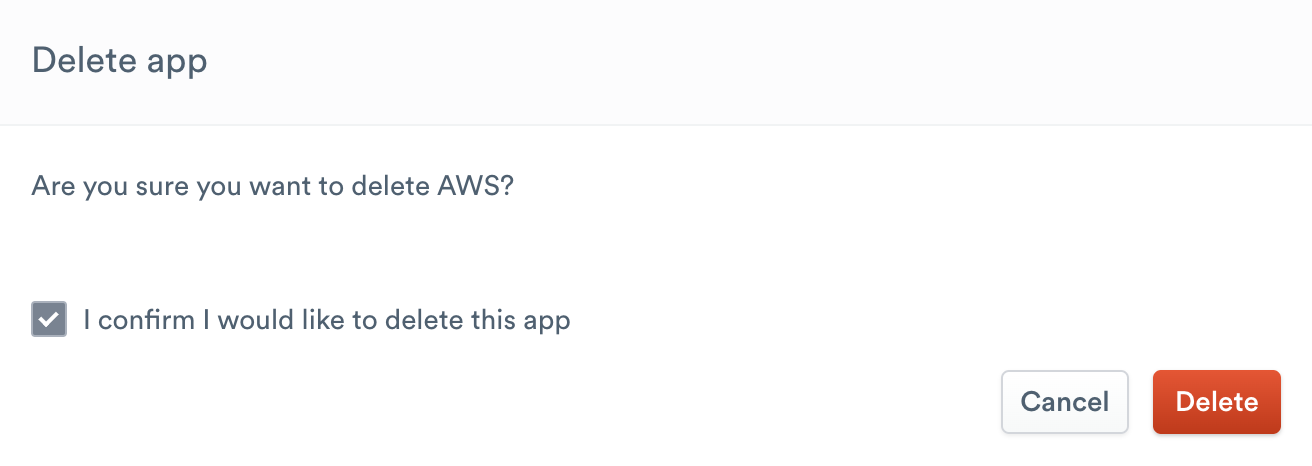
- Hover over the Trashcan icon, then click Delete to confirm app deletion.
Updated about 1 month ago