

Dataset query filters
If you have accidentally ingested some sensitive data and personally identifiable information (PII), you can configure Dataset query filters so that this sensitive data and PII can't be queried.
Dataset query filters protect sensitive data from appearing in search results during querying and serve as a soft-delete, but do not affect the source data stored in Observe by Snowflake's Snowflake tables.
If you want to make sure sensitive and PII data is not ingested, you can configure drop filters. See Drop filters.
NoteThe gray boxes in the visuals on this page serve to obfuscate potentially sensitive data.
Dataset query filters affect entire rows of matching data, meaning that any downstream queries will not see the affected rows. Dataset query filters do not mask individual columns or fields.
Create a Dataset query filter
In this example, we have made a copy of the Kubernetes Logs Dataset. We have discovered that some external customer IDs appear in the cluster and namespace columns, and we want to remove them so they can't be queried.
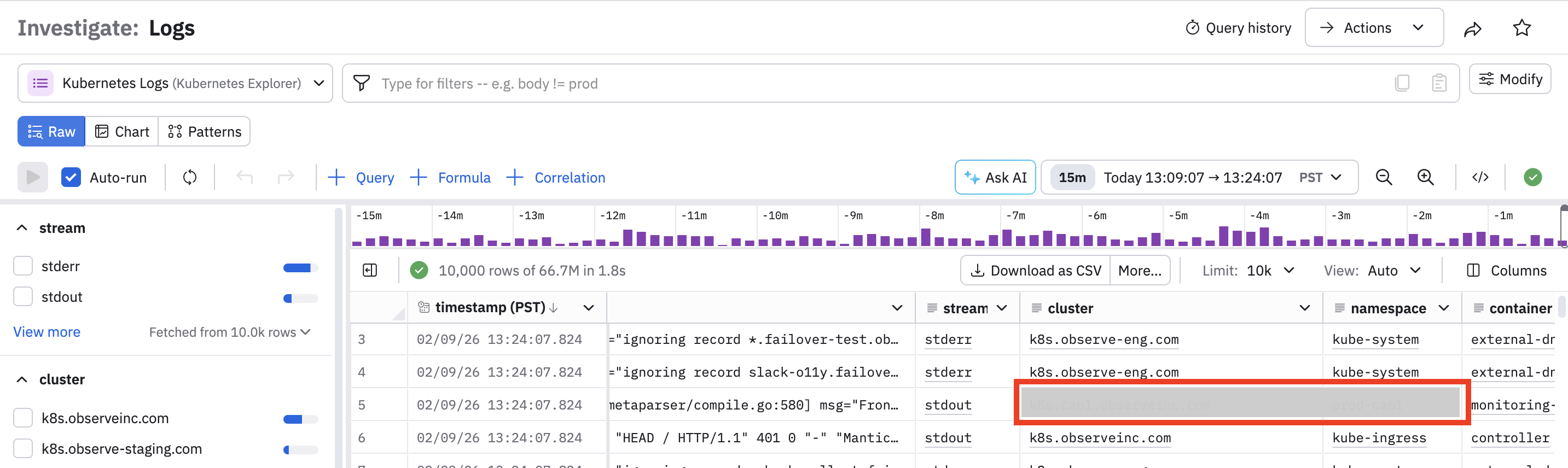
To create a Dataset query filter, perform the following steps:
- In the left navigation, click Datasets to access the Dataset Explorer.
- Find the Dataset you want to create a Dataset query filter for, then hover on the Dataset name and click the edit icon ().
- Click the Properties tab.
- Click Query filters.
- Click Add filter.
- In the Define Query Filter filed, enter a filter like
cluster = "<external-customer-cluster>". - (Optional) Define the dates for which you want this filter to apply. For example, we know that customer data was accidentally ingested between February 6 and February 9, so we can specify those dates as the start time and end time.
- After you define the query and dates, click the Removed tab to verify the events being removed from the query results. The events on the Removed tab won't be available for any queries against this Dataset.
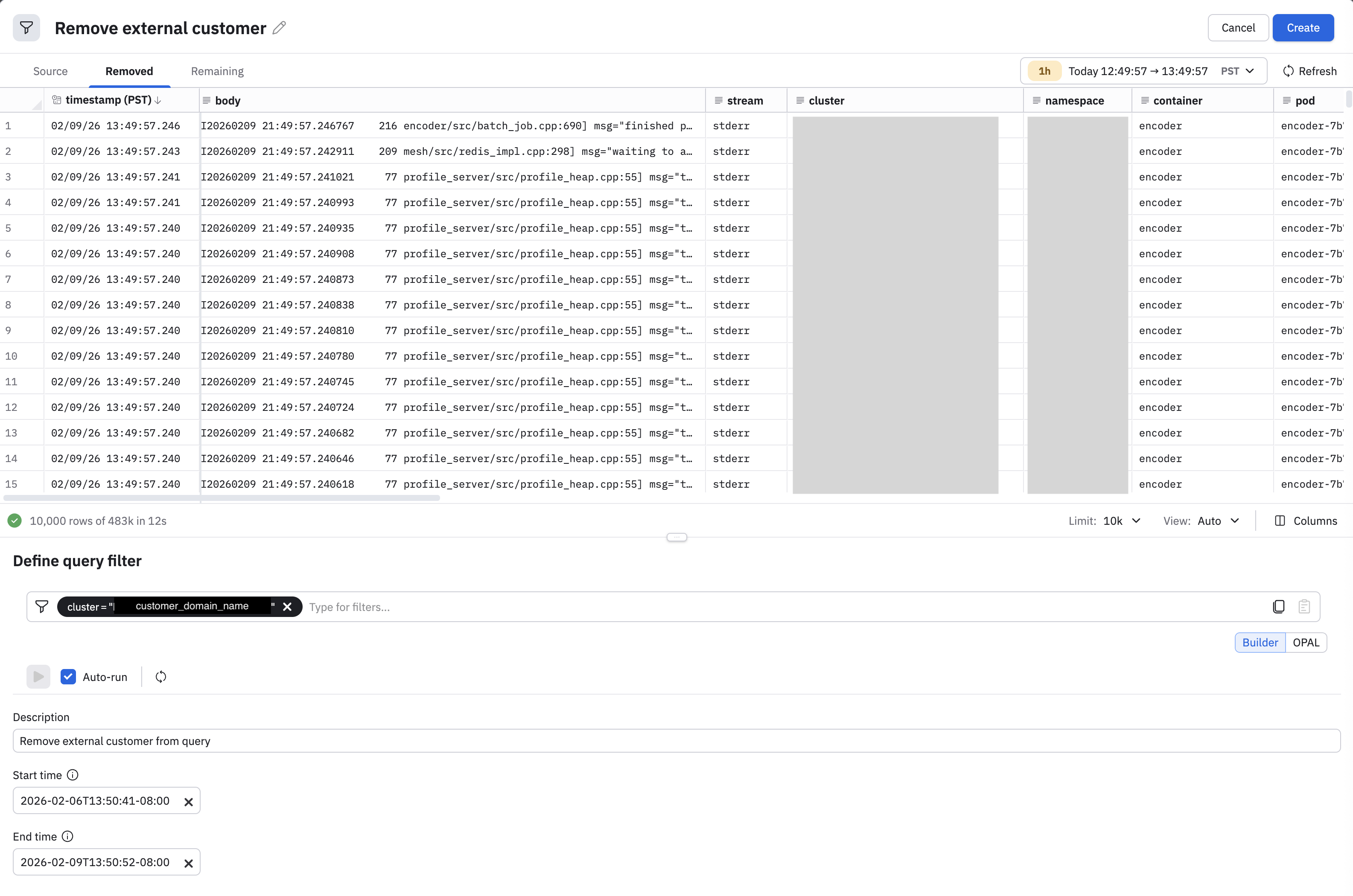
Click on the Remaining tab to verify that the remaining data what you want to be available for queries, and you haven't accidentally filtered out all the data. Use the Source tab to view the original, unfiltered data for reference.
- Give the filter a name, then click Create to save your changes and create the filter.
Manage your Dataset query filters
After you create a Dataset query filter, you can enable or disable the filter by sliding the Status toggle to the on or off position.
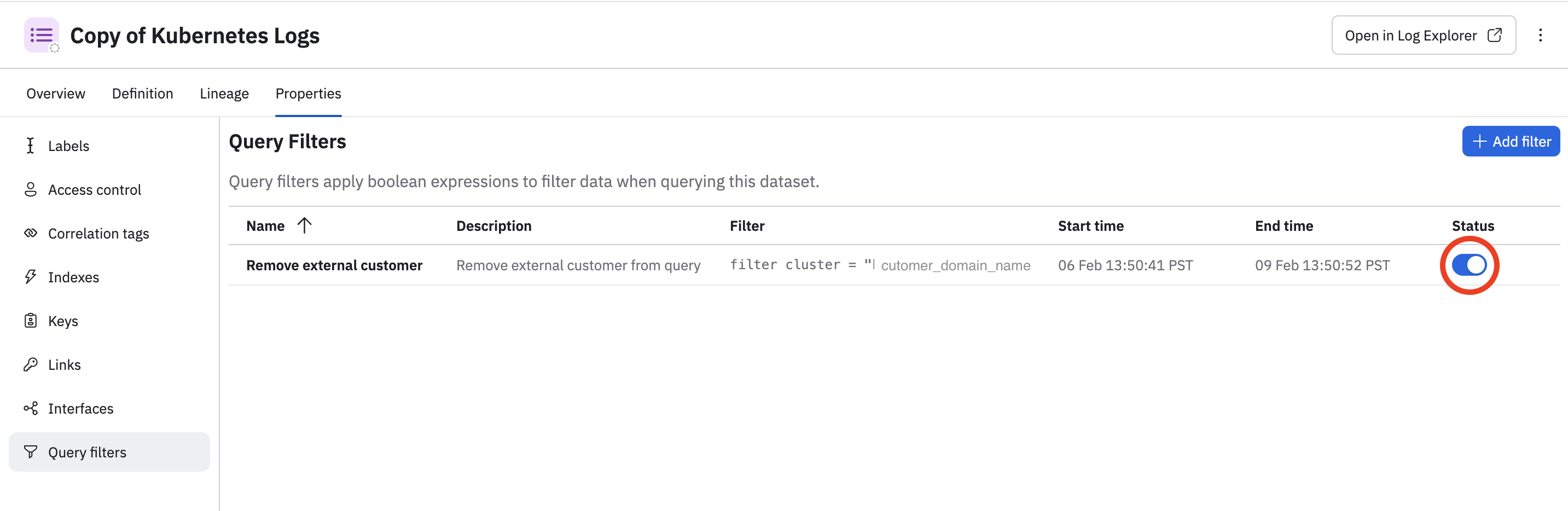
You can also hover on your filter and edit or delete the filter.
To verify that your filter is working, go back to the Dataset and verify that the desired entries no longer appear.
What happens to Dataset query filters in downstream Datasets?
Suppose you have accidentally ingested some sensitive data or PII and created some downstream Datasets.
Downstream Datasets that have already been transformed or materialized before the Dataset query filter was added will continue to have the sensitive data included. Your Dataset query filters must be applied on the downstream Dataset as well to filter out data that already exists in the downstream Dataset.
Once a Dataset query filter is applied to a Dataset, any new data going into any downstream Datasets will also have the filter applied.
Updated about 1 month ago