

Configure Microsoft Entra ID SSO
Observe supports using Microsoft Entra ID using Security Assertion Markup Language (SAML 2.0).
Use the following steps to configure SSO for Microsoft Entra ID.
NoteYou can use stem names instead of Observe customer IDs, but you cannot configure Entra to support both at the same time.
Configure Microsoft Entra ID
- From the Microsoft Entra ID portal, navigate to the Enterprise applications page and click New Application.
- Click Create your own application.
- Select Integrate any other application you don't find in the gallery, and enter Observe as the Input Name.
- Click Set up single sign-on, and then click SAML.
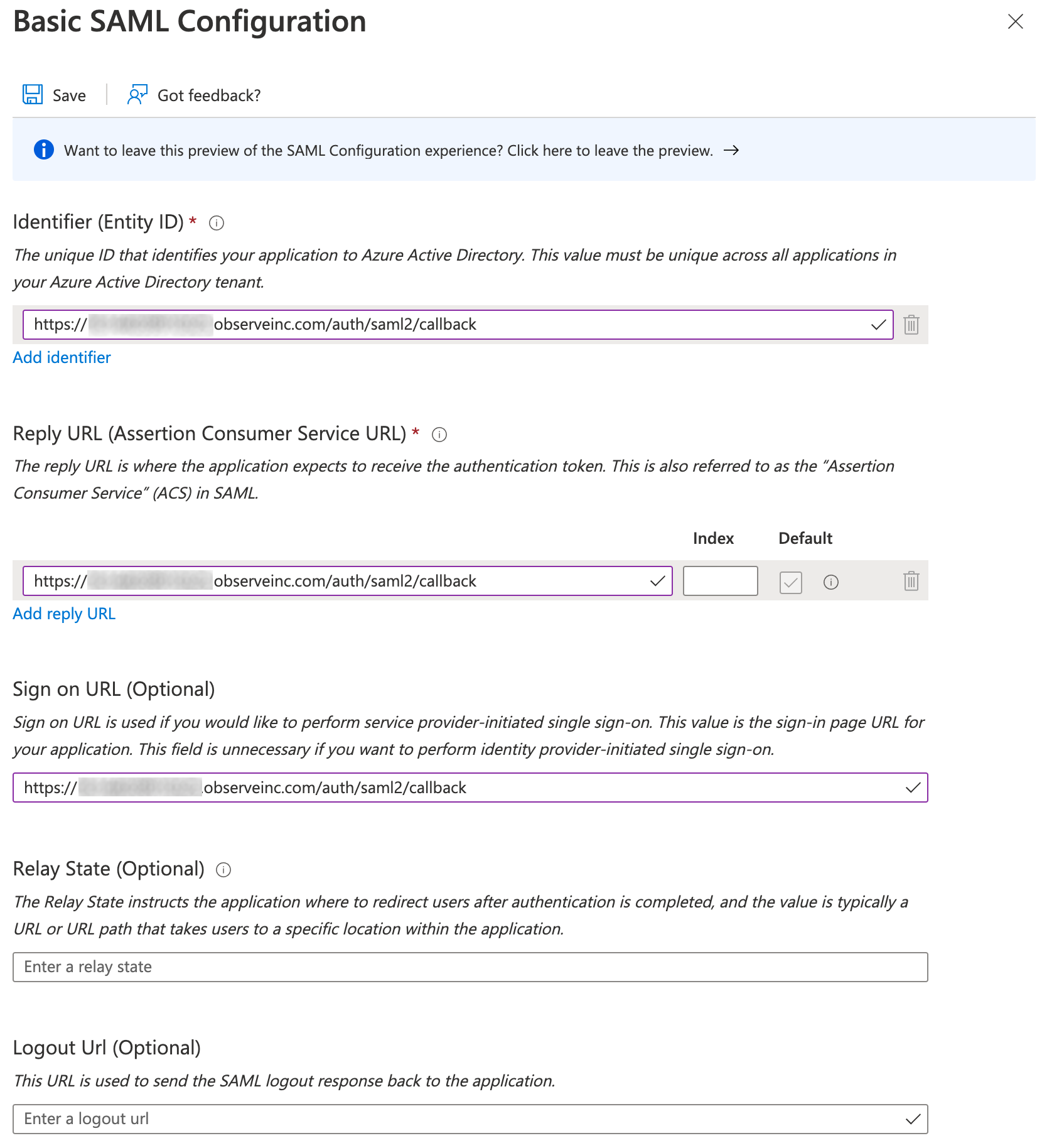
- Click Edit on the Basic SAML Configuration tile, and add the following URL to the Identifier (Entity ID), Reply URL (Assertion Consumer Service URL), and Sign on URL (Optional) fields:
https://${OBSERVE_CUSTOMER_ID}.${REGION_URL}/auth/saml2/callbackReplace ${OBSERVE_CUSTOMER_ID} with your Observe tenant ID, and ${REGION_URL} with the appropriate URL for your deployment region. See Observe deployment regions.
Claims configuration: default and custom attributes
Default attributes
If your users have email addresses assigned in Entra ID, you can use the default User Attributes & Claims.
To check whether email addresses are assigned, click Users in the Entra ID portal and select a name. The email fields appear under the Contact Info section and may contain values.
Custom attributes
If the email user property is not populated in Entra ID, the SAML login will fail. Add email addresses to User properties, or update the emailaddress claim to use user.userprincipalname (UPN) instead of the default user.mail.
If the UPN login names do not match the user's email address, add the email address to the user's Entra ID profile. Please contact your Observe Data Engineer for further assistance.
To update the attribute value for emailaddress, navigate to the Attributes & Claims area of your Observe enterprise application:
- Click the claim name
http://schemas.xmlsoap.org/ws/2005/05/identity/claims/emailaddress - Change the Source attribute field from
user.mailtouser.userprincipalname. - Click Save and then exit from the configuration.
Group membership attributes
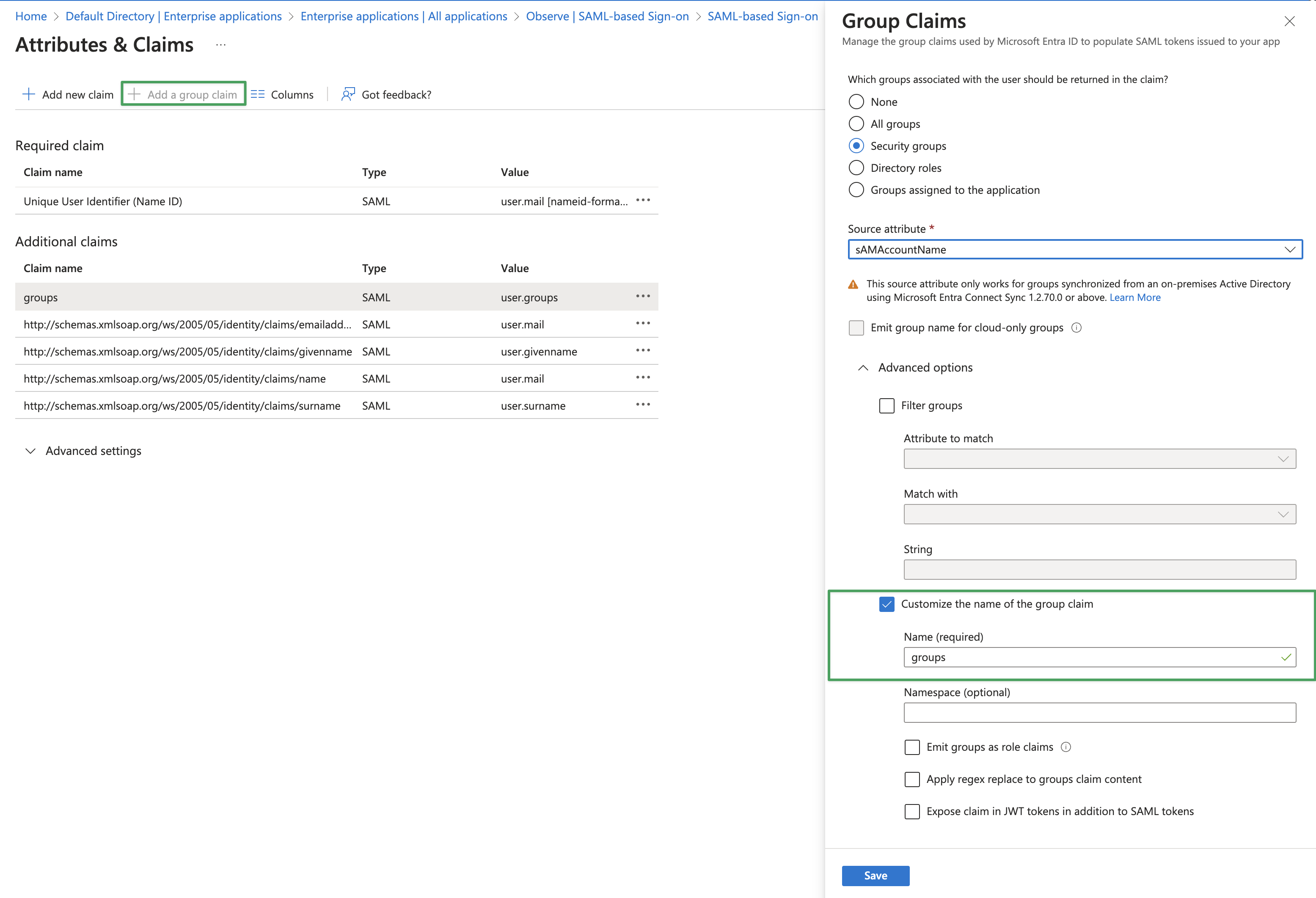
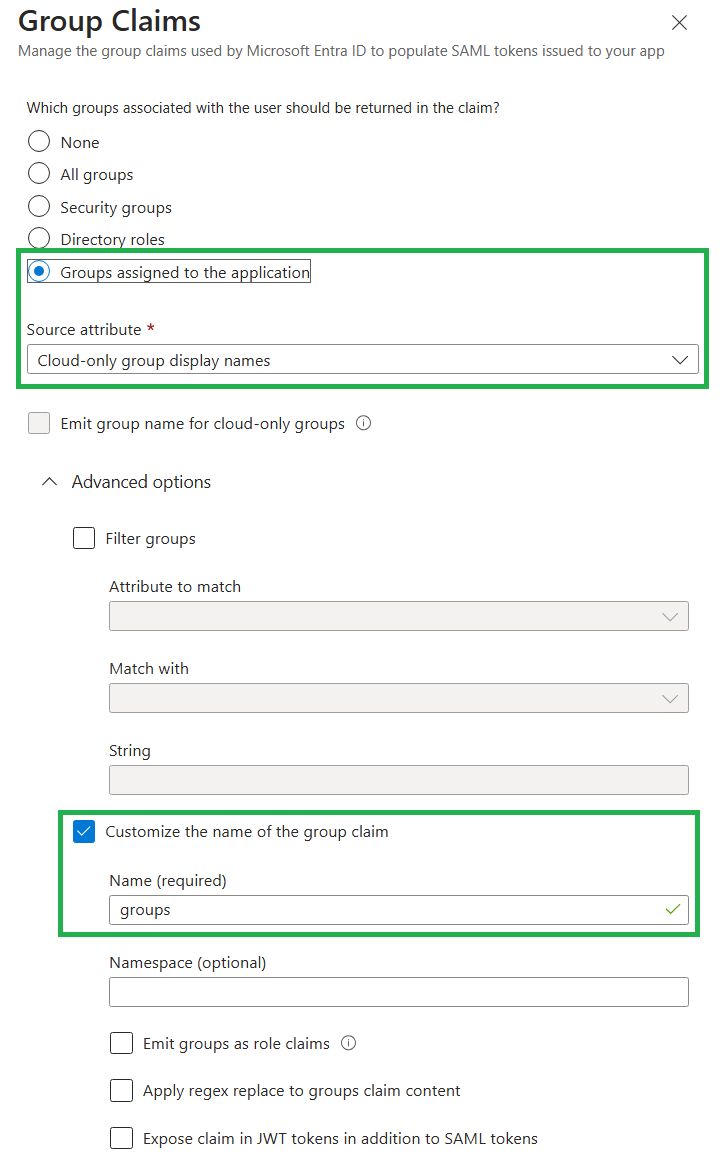
Observe supports sending group membership claims through SAML. In the Attributes & Claims area, select Add a group claim, select Customize the name of the group claim, and enter groups in the Name (required) field. This value is case-sensitive.
The following table describes how Entra ID behaves with each source attribute option in Token Configuration:
| Source attribute | Value emitted | Notes |
|---|---|---|
| Group ID | GUID (e.g., a1b2c3d4-...) | Not human-readable; only useful if matching groups in Observe by GUID |
| sAMAccountName | OnPremisesSamAccountName for on-prem AD groups | Cloud-only Entra groups emit nothing unless Emit group name for cloud-only groups is also enabled |
| Cloud-only group display names | Display name for cloud-only groups only | On-prem AD groups are excluded entirely from the assertion; only works under Groups assigned to the application scope |
Group ID configuration:
Display name configuration:
Hybrid on-prem Active Directory + cloud-only Entra environmentsIf your directory contains both on-premises Active Directory groups (synced via AD Connect/Entra Connect) and cloud-only Entra groups, use the following Token Configuration:
- Which groups: All groups or Security Groups
- Source attribute:
sAMAccountName- Enable checkbox: Emit group name for cloud-only groups
Important caveats:
sAMAccountNameapplies to on-prem AD groups and passes theOnPremisesSamAccountNamevalue.- Cloud-only Entra groups do not have a
sAMAccountName. Without the Emit group name for cloud-only groups checkbox, they are silently omitted from the SAML assertion with no error.- When both are configured as above, on-prem groups use
OnPremisesSamAccountNameand cloud-only groups useDisplayName. These can differ — group names configured in Observe must match the value Entra emits for each group type.
Troubleshooting: groups not applying at login
Because Observe uses SAML JIT provisioning, group membership is determined by what the IdP includes in the SAML assertion at login time. If a group is configured in Observe but not applying for a user, first confirm whether it is present in the assertion.
Step 1: Capture a SAML trace using the SAML-tracer browser extension (available for Chrome and Firefox) during an affected user's login. Inspect the groups attribute claim in the assertion.
If the group is absent from the assertion, the issue is IdP-side. Common causes in Entra ID:
- Nested/indirect group membership — Entra ID does not include groups the user belongs to through a parent group. Navigate to Entra ID > Users > [affected user] > Groups and confirm the group appears as a direct assignment.
- Group type mismatch — If Token Configuration is scoped to Security groups, Microsoft 365 Groups and Distribution Lists are not emitted.
- "Groups assigned to the application" scope — If this scope is selected, the group itself must be explicitly added under the Enterprise App > Users and groups blade. Assigning individual users to the app is not sufficient.
- Missing "Emit group name for cloud-only groups" — Required when using
sAMAccountName. Without it, cloud-only groups are silently omitted.
If the group is present in the assertion but not applying in Observe, confirm that the group name configured in Observe matches the assertion value exactly (case-sensitive, no extra whitespace).
Additional configuration settings
-
Add the Observe SSO logo on the Properties page by downloading the image.
-
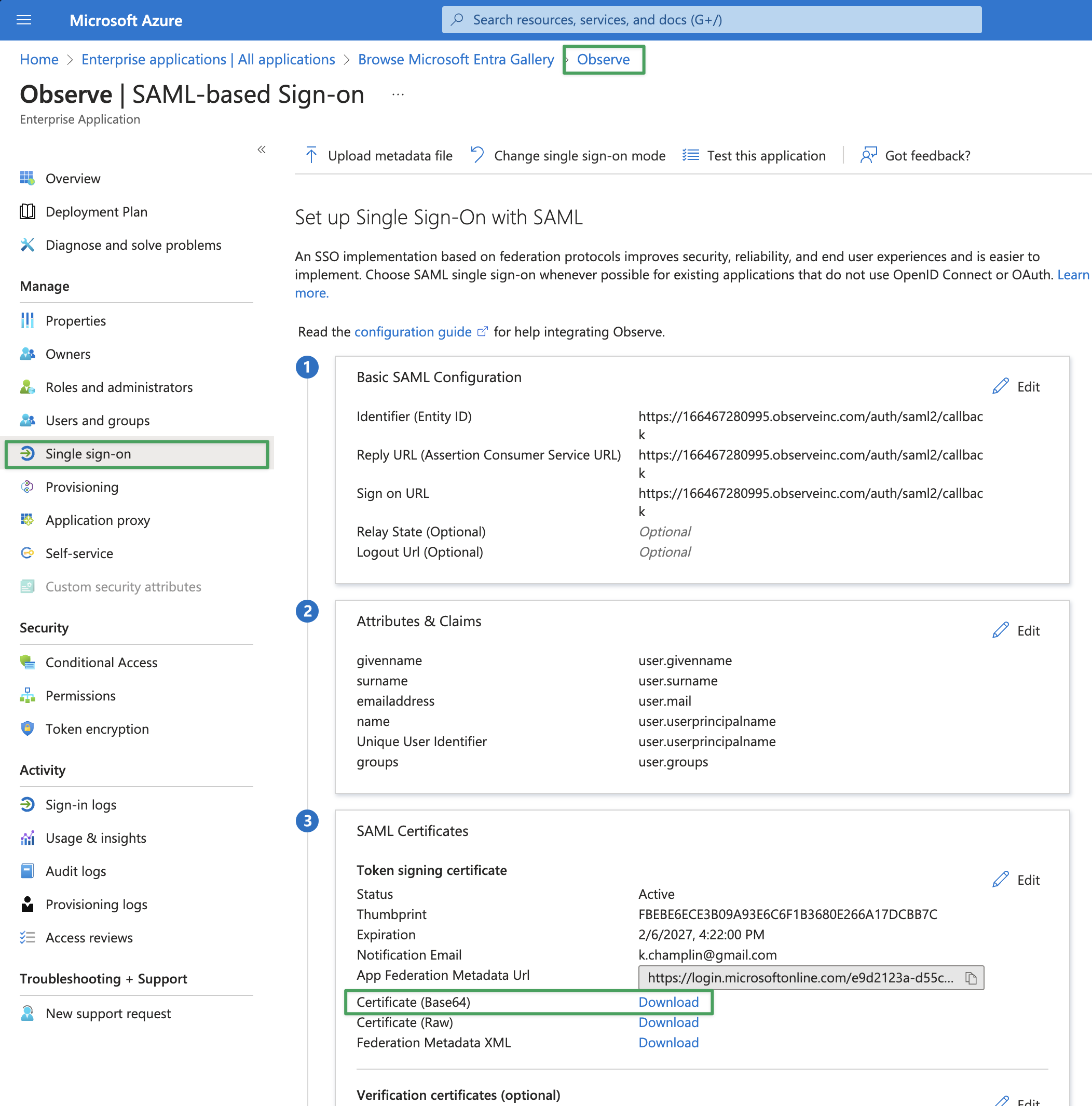
Download the Base64 version of the SAML Signing Certificate. This is located in the Single sign-on > SAML Certificates section of your Observe Enterprise App.
-
Copy the Login URL from the Single sign-on page of Entra ID. It has the format
https://login.microsoftonline.com/${GUID}/saml2, where${GUID}is specific to your Entra ID subscription.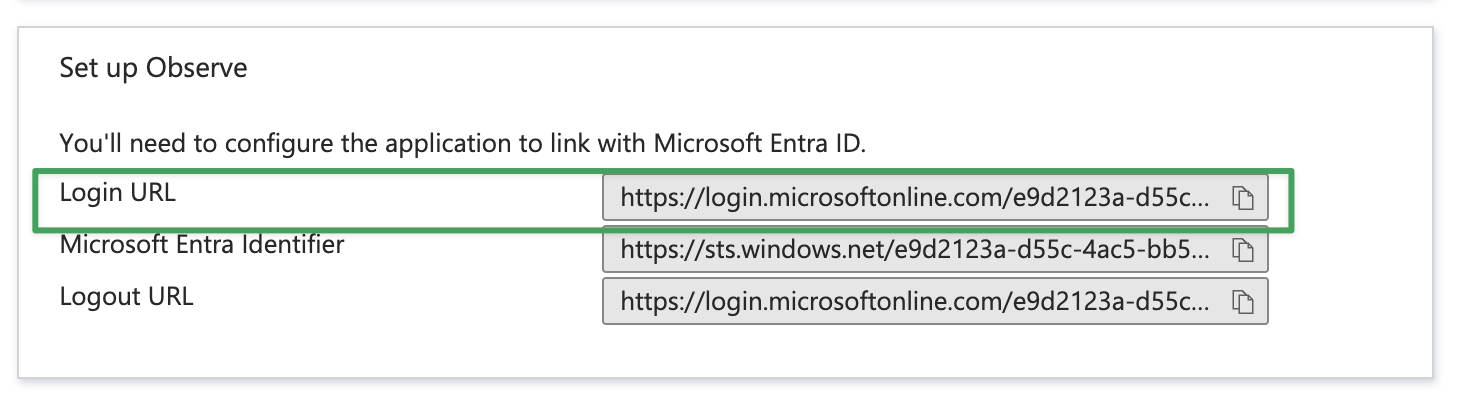

Configure Observe
Configure Observe to use Microsoft Entra ID SSO:
- In the left navigation rail, hover over your user name, then select Manage account.
- Click Customer settings.
- Click Add SAML.
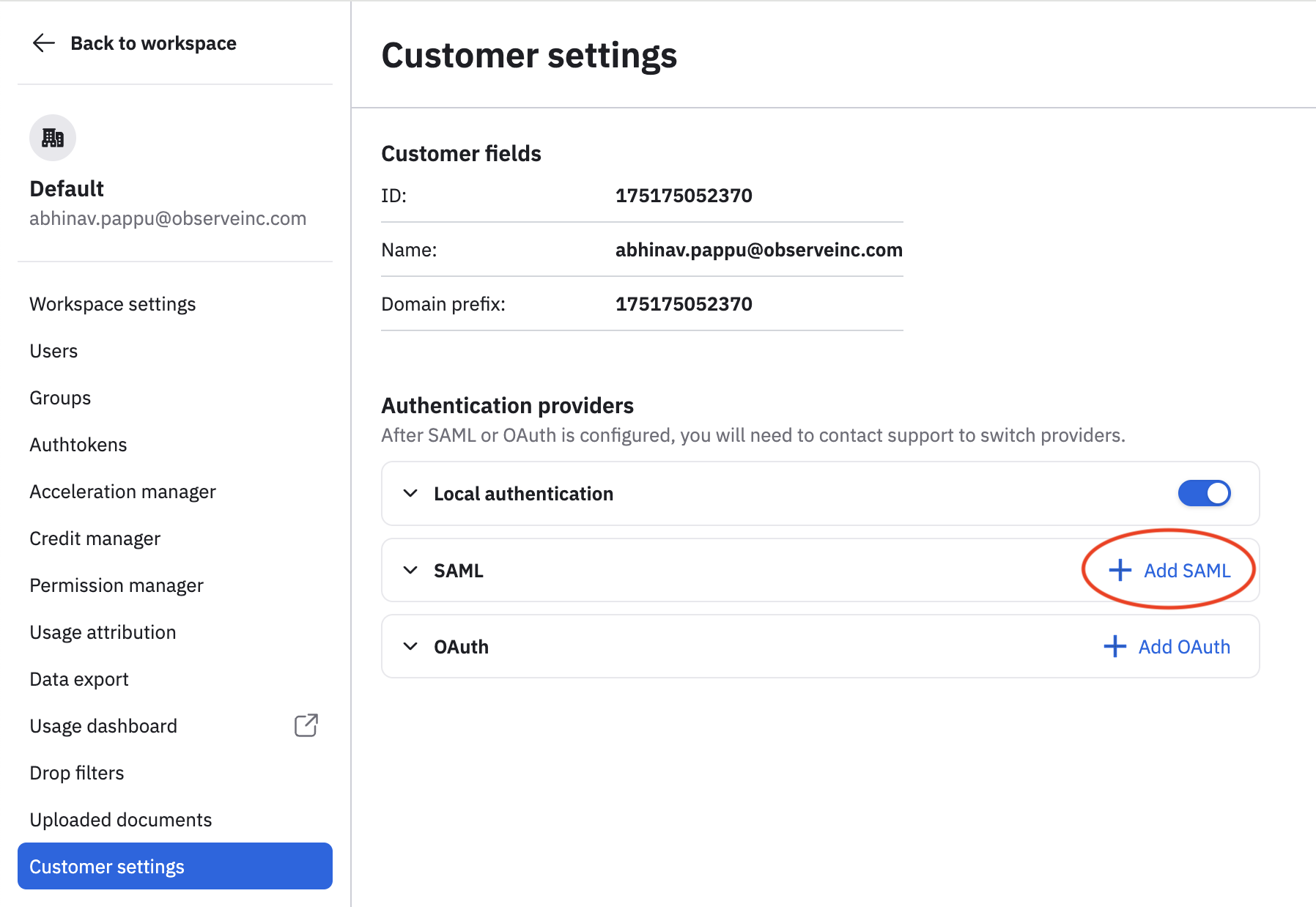
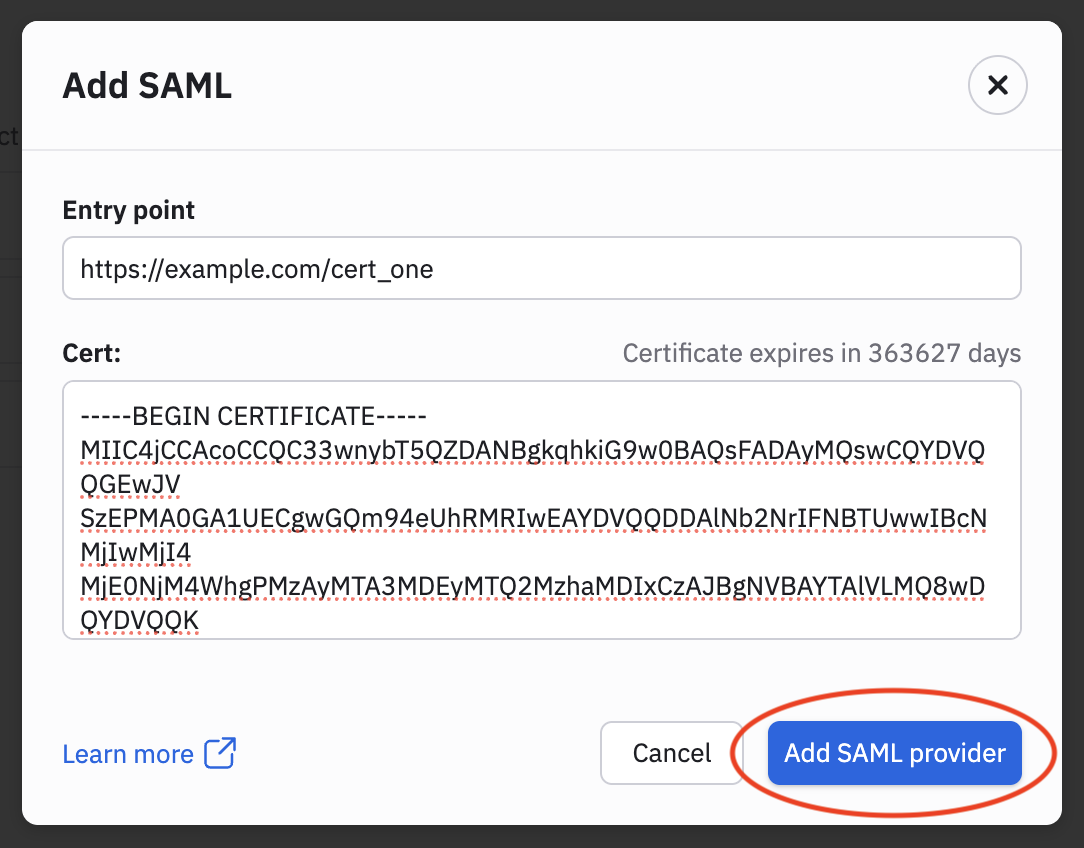
- Scroll down to Add SAML, and paste the Login URL that you copied in Additional configuration settings into the ENTRY POINT field of Observe's SAML configuration.
- Open the X.509 certificate from Additional configuration settings in a text editor and paste the Base64 certificate into the CERT field.
- Click Add SAML Provider.
Updated 28 days ago