

Install the Orca Security app
Create the Orca Security API token
Perform the following tasks to create an Orca Security API token.
- Log into your Orca Security Instance.
- Click Settings on the left.
- Expand Users & Permissions, then select API.
- Click Create API Token.
- Name the new API token, for example, Observe-Lambda-Token, and select a desired expiration date. When a token expires, you must update the integration.
- Select the Viewer role.
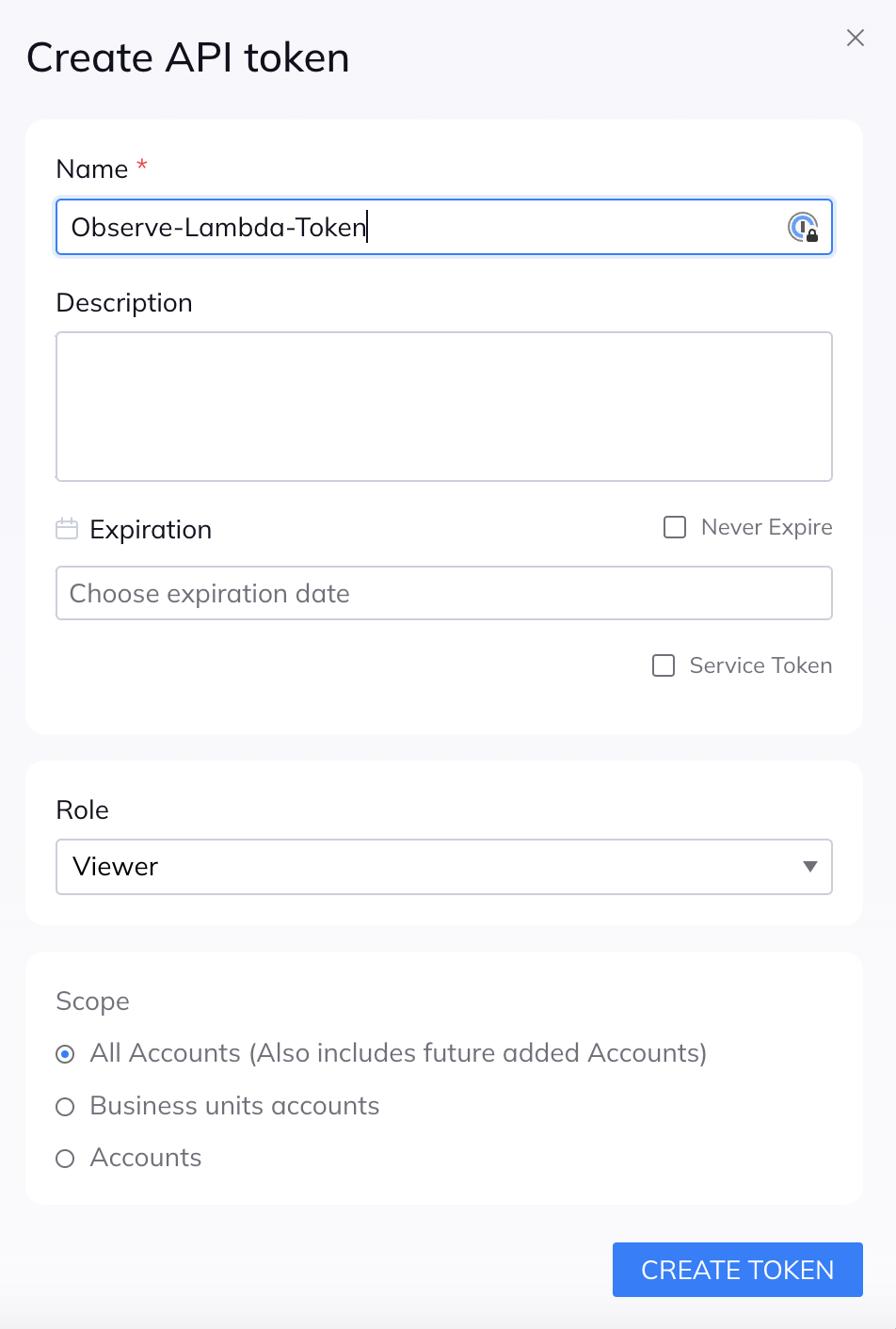
- Click Create Token, then record the generated API Token value in a secure location.
Install the Orca Security app
Follow the instructions in Observe by Snowflake apps to find and install the Orca Security app.
Change the Datastream
The Orca App uses the Default Datastream for polled data and resource set creation. To select another Datastream, use the Configuration tab of the App Details page.
Create an Observe by Snowflake ingest token
Create an Orca Security token to ingest your logs into Observe by Snowflake.
- Under the Connections section of the App Details page, select Create Orca Token and follow the prompts.
- Record the generated API Token value in a secure location.
- Use the generated test command to test that the token works appropriately.
Collect Orca API to Observe by Snowflake
- Ask your sales engineer about configuring Orca data collection using AWS Lambda to Observe by Snowflake.
- Create one Lambda for each event type to collect.
- Configure the environment variables for each event collector.
OBSERVE Connector Values
    OBSERVE_URL = Required: Observe Customer ID (Example: https://154418444508.observeinc.com/)
    OBSERVE_TOKEN = Required: Observe Datastream Token
    OBSERVE_LOGGING_LEVEL = Optional: Desired Logging Level (Example: DEBUG)

# Orca API Values:
    ORCA_TOKEN = Required: Orca Reader Level API Token
    ORCA_QUERY_TYPE = Required: Orca Query Type (Example: alerts)
    ORCA_TIME_LIMIT_HOURS = Optional: Integer in Hours To Limit Alert created_at time for OBSV Posting
    ORCA_LOGGING_LEVEL = Optional: Desired Logging Level (Example: DEBUG)
NoteSome Observe by Snowflake instances may optionally use a name instead of Customer ID; if this is the case for your instance, contact your Observe by Snowflake data engineer to discuss implementation. A stem name will work as is, but a DNS redirect name may require client configuration.
- logs and alerts: ORCA_TIME_LIMIT_HOURS is recommended to be 24 hours, with cron schedule of hourly for 'logs' and 'alerts' because of the way Orca processes data and makes it available in the API. There could be duplicate events ingested, however, the Orca/Orca Alerts and Orca/Orca Logs datasets de-duplicates these events.
- assets: ORCA_TIME_LIMIT_HOURS is recommended to be 4 hours, with cron schedule of every 4 hours.
Review your data
- Review the Orca Resource Sets and Dashboards to confirm the data processed correctly.
- The Orca/Orca Data Ingest Status Dashboard assists you with your data collection. The raw ingested counts are shown but not deduplicated events. This provides simple confirmation that data is being successfully ingested into Observe by Snowflake.
You have now configured the Orca Security app and ready to use this data in Observe by Snowflake.
Updated about 1 month ago