

Troubleshoot Azure
NoteBe sure you install Diagnostic Settings for your integration (metrics and logs) before you begin to troubleshoot your instance. If none are configured, then only resource metadata will show up in Observe by Snowflake which can first take up to 20 minutes.
Q: I’ve installed via Azure Resource Manager or the Observe by Snowflake collection module terraform-observe-collection, but I don't see any data in Observe by Snowflake. How can I troubleshoot the app?
-
Check to see if your deployment settings are correct, whether through parameters of Azure Resource Manager or through variables in
azure.auto.tfvarsif using Terraform. -
It’s common to swap values for
objectIdandenterpriseAppObjectId, or to introduce spaces or other extra characters in these settings. -
Check Observe by Snowflake ingest token
observe_tokenis valid in the Observe by Snowflake instance and the corresponding datastream has not been deleted. -
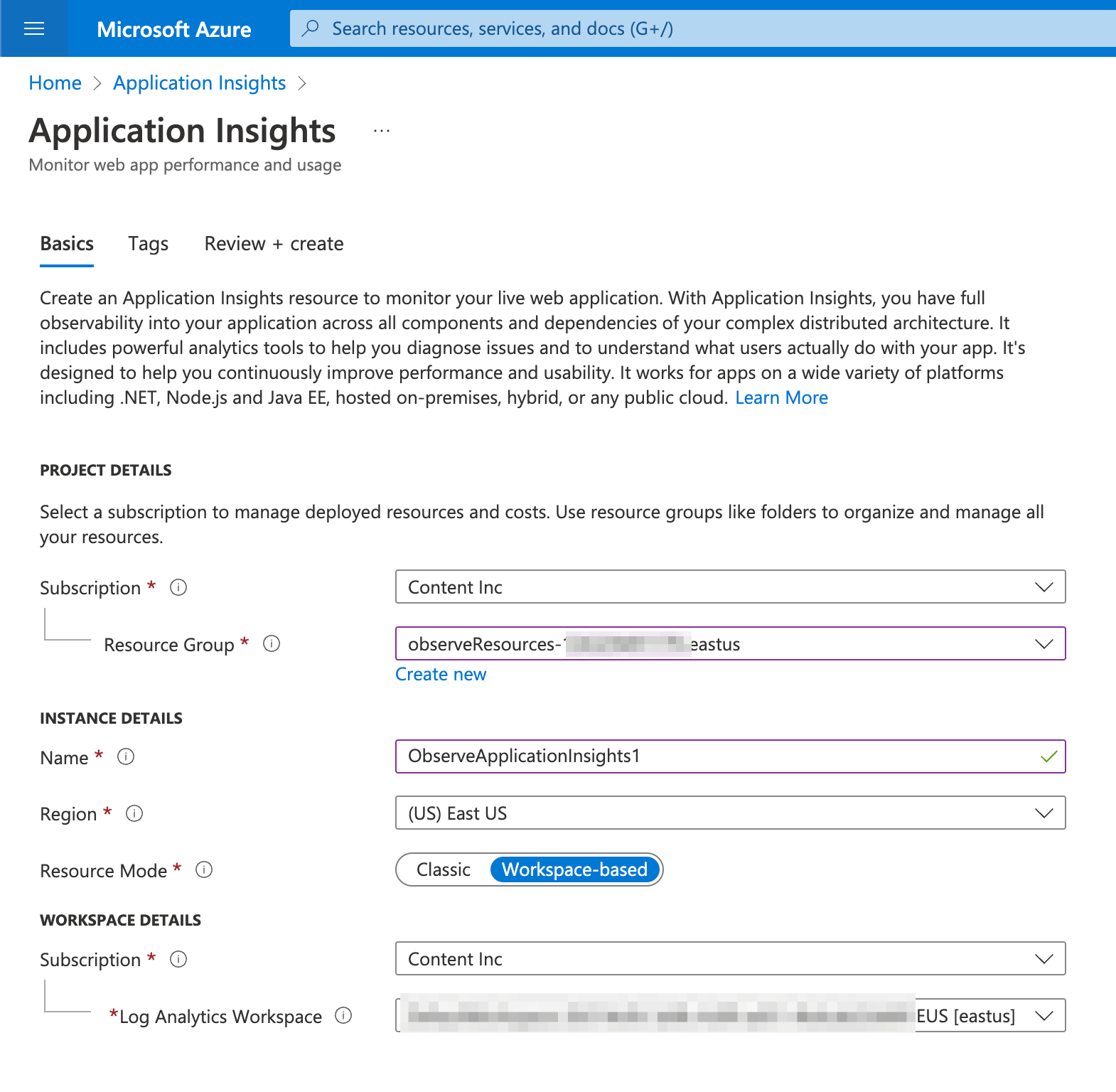
Enable Azure's Application Insights and select your Observe Resource Group. Ensure that the application functions perform correctly.
- Enabling Application Insights On Your Resource Group:
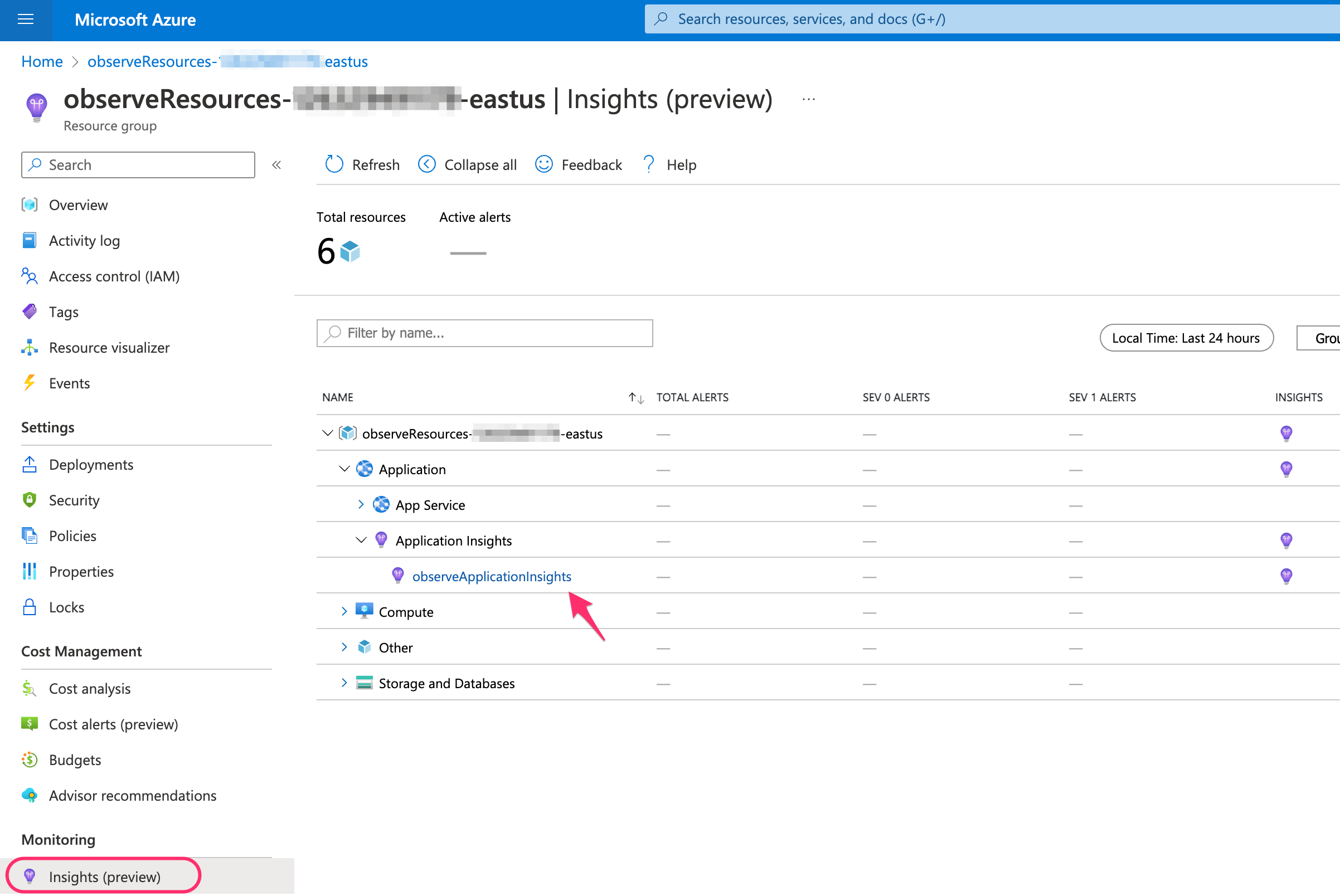
- Select Application Insights inside your Resource Group:
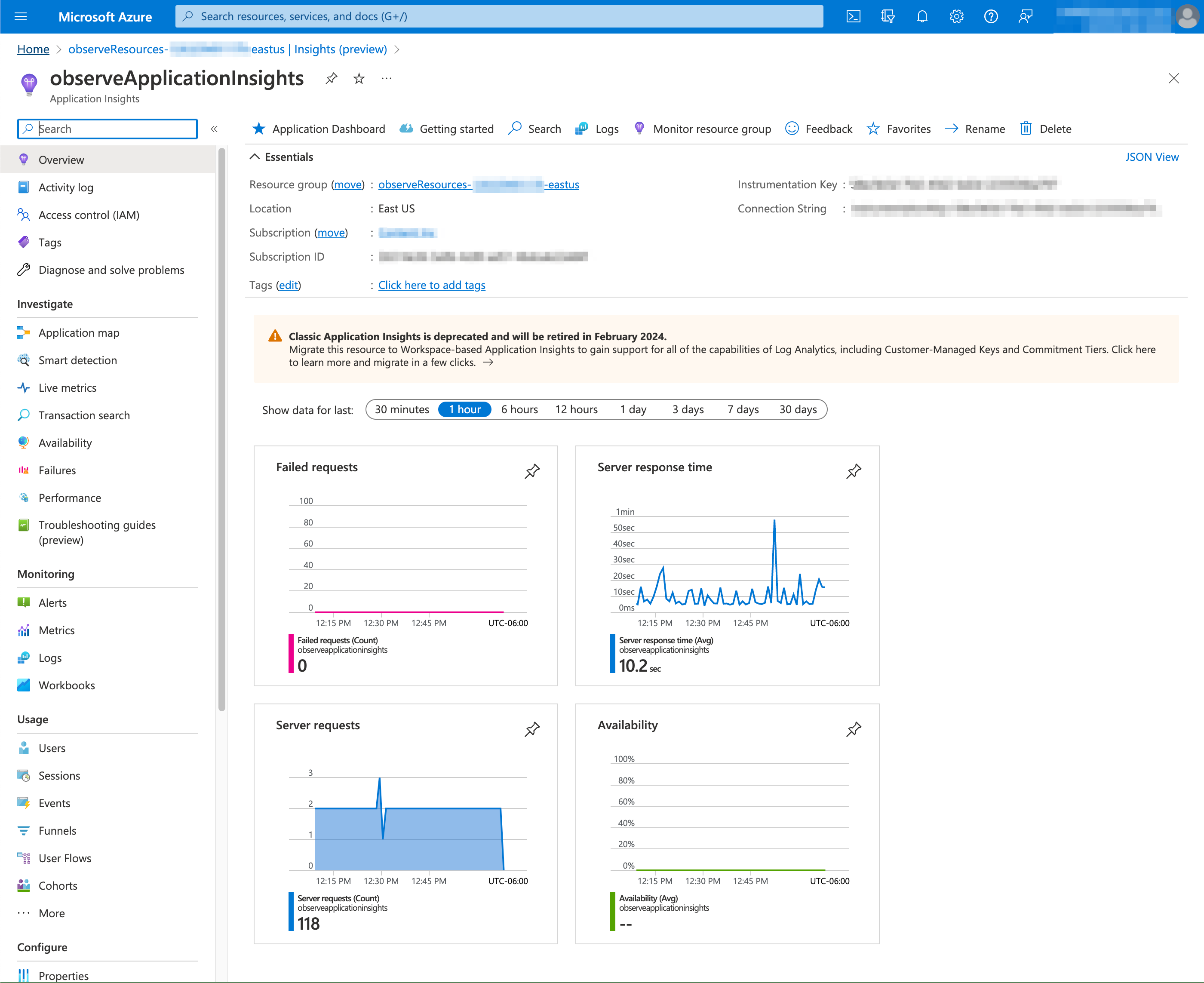
- Review Observe by Snowflake application insights:
NoteIf you decide to remove the Observe by Snowflake collection module, remove Azure Application Insights from the portal first.
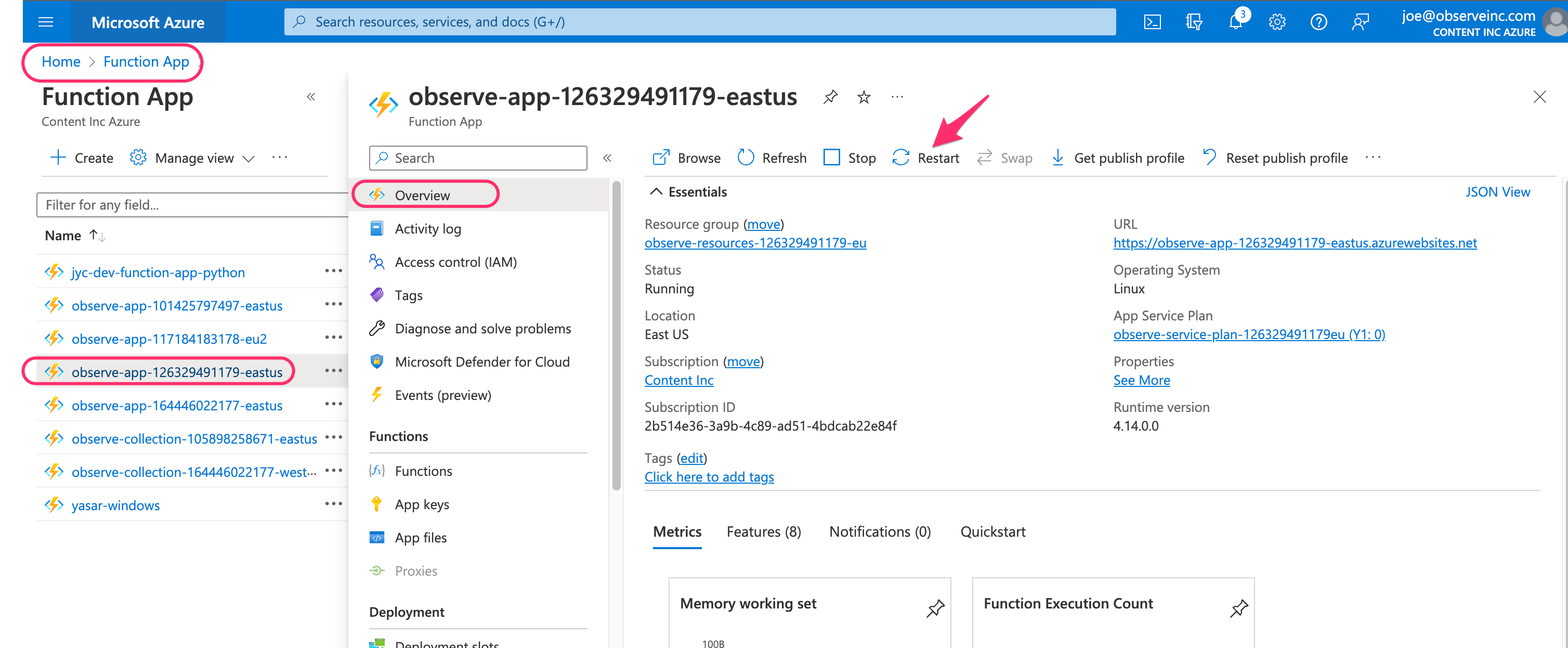
If the functions exist, try restarting the instance for your Function App.
Q: I see logs and metrics data in Observe by Snowflake but I don't see any resource metadata in Observe by Snowflake. How can I troubleshoot?
- Navigate to
timer_resources_funcfunction in the function app and ensure that successful invocations are taking place as in the below image:
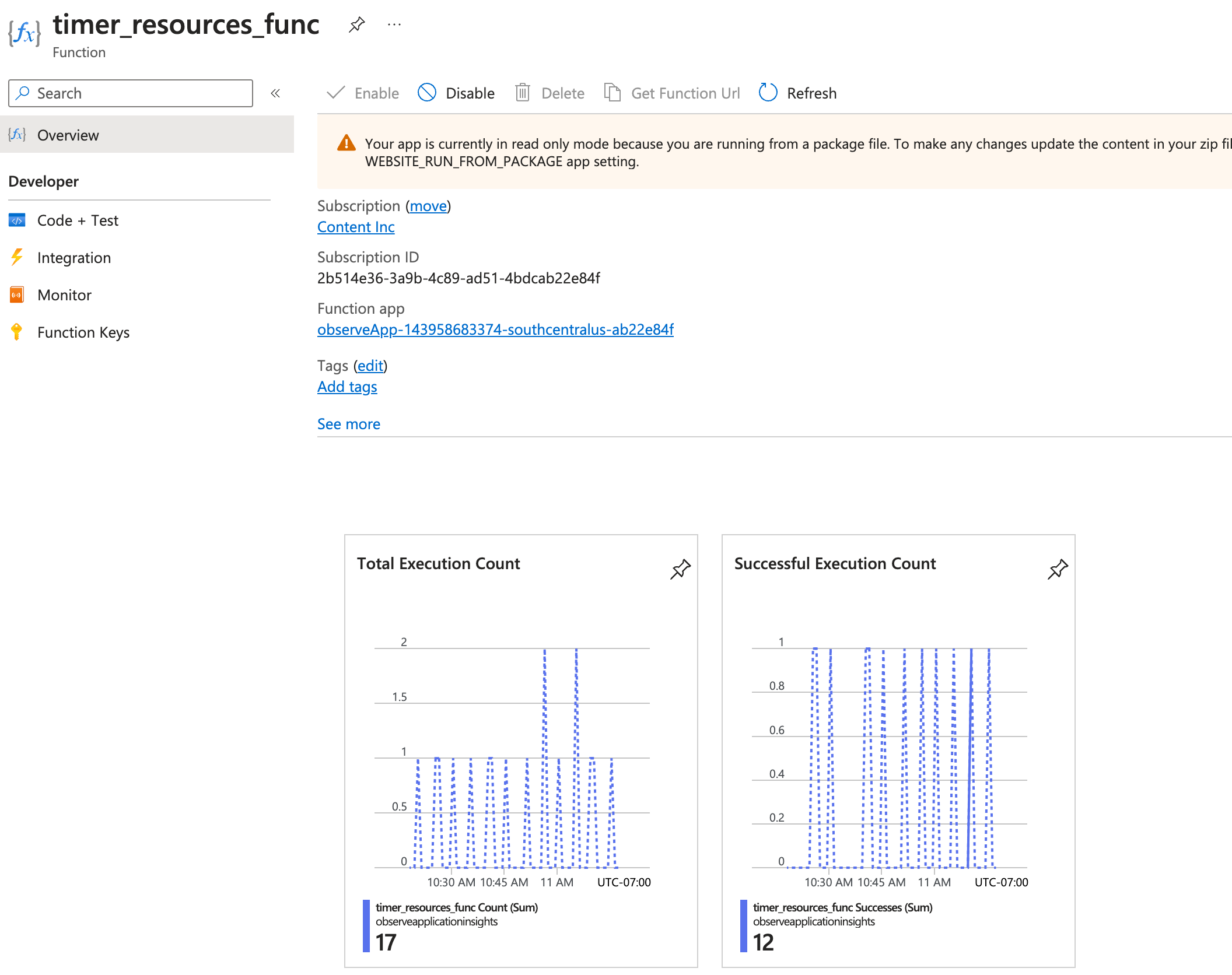
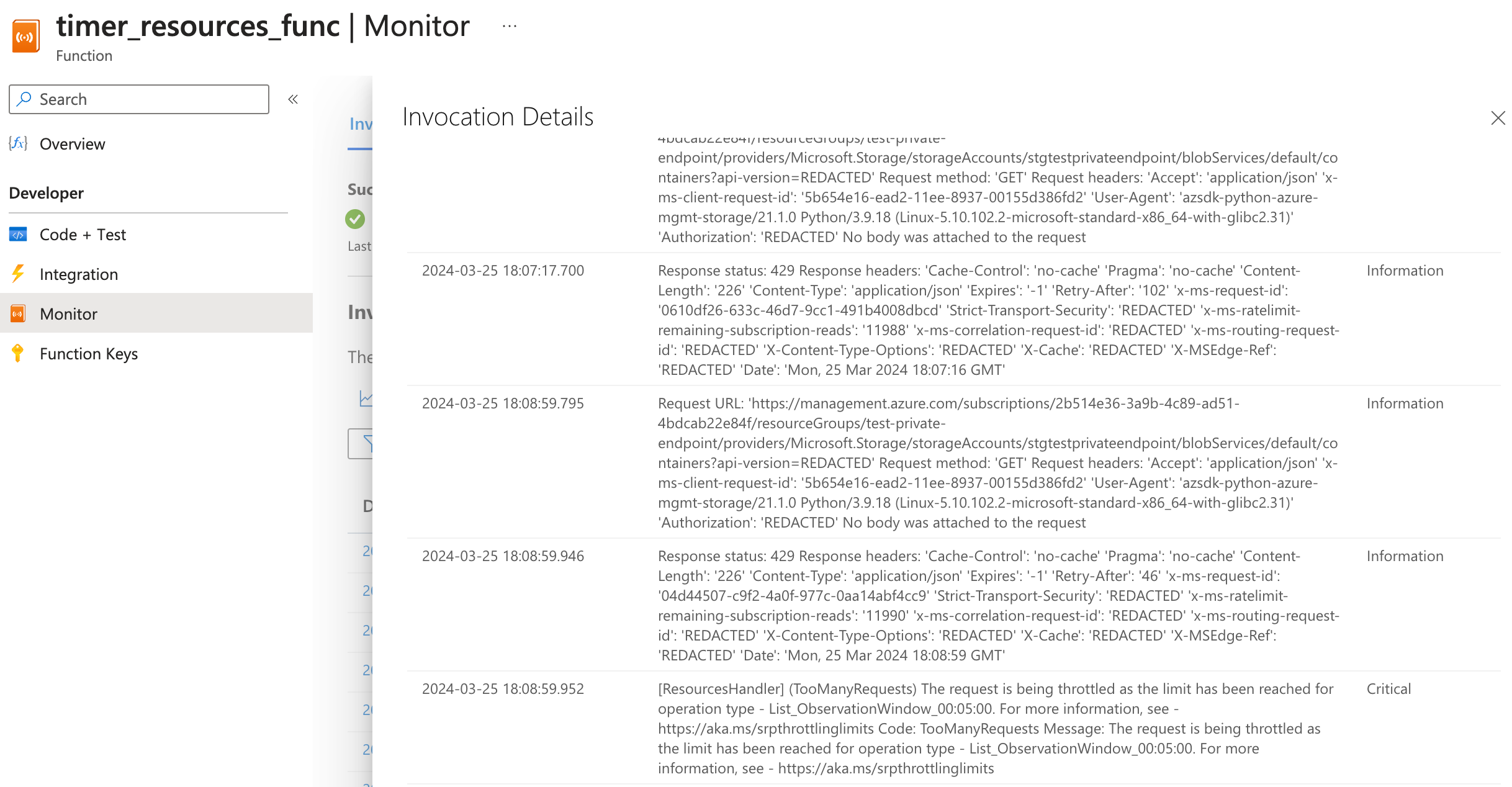
- If there are failing invocations, navigate to the "Monitor" tab and click on an invocation to view failure details.
-
By default, Terraform or ARM will automatically attempt to register any resource providers that it supports. Verify that the following resource providers are at least registered, as these are accessed by the
timer_resources_funcfunction. See Register resource provider in the Microsoft documentation for more information.- Microsoft.Compute
- Microsoft.Storage
- Microsoft.Network
- Microsoft.Insights
- Microsoft.Sql
- Microsoft.Web
- Microsoft.KeyVault
- Microsoft.ContainerService
- Microsoft.Resources
- Microsoft.EventHub
Q: How do I send Azure collection function logs into Observe by Snowflake?
To send Azure collection function logs into Observe by Snowflake for an Observe by Snowflake engineer to troubleshoot, enable the diagnostic settings on the Function app:
- Log into the Azure portal.
- Search for the Function App in the search field and select the Function App.
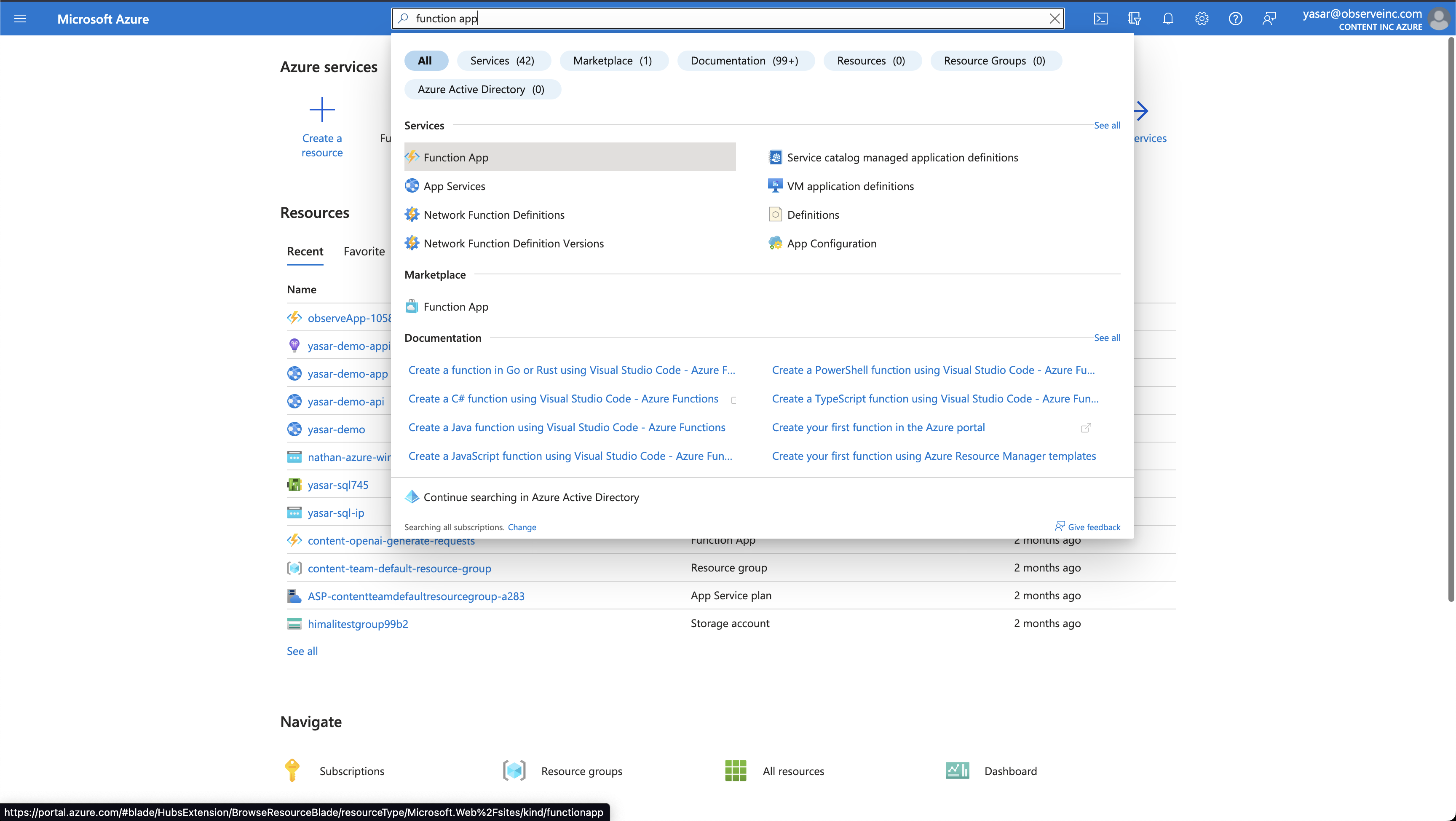
- Select the Observe by Snowflake collection function called
observeApp-<OBSERVE-CUSTOMER-ID>-<AZURE-LOCATION>-<LAST-8-CHARS-OF-SUBSCRIPTION>. - Search for Diagnostic settings and select it.
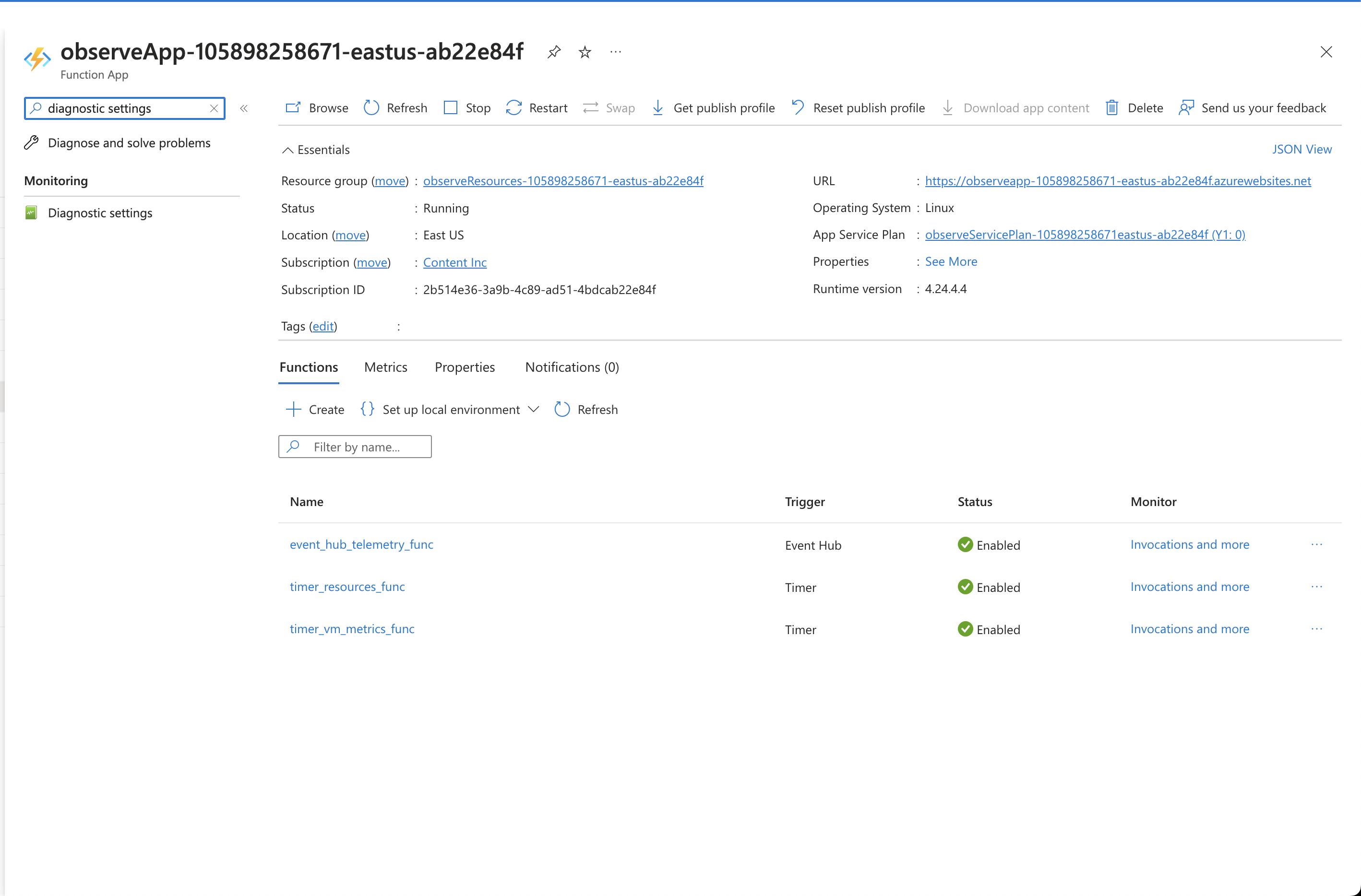
- Select Add diagnostic setting.
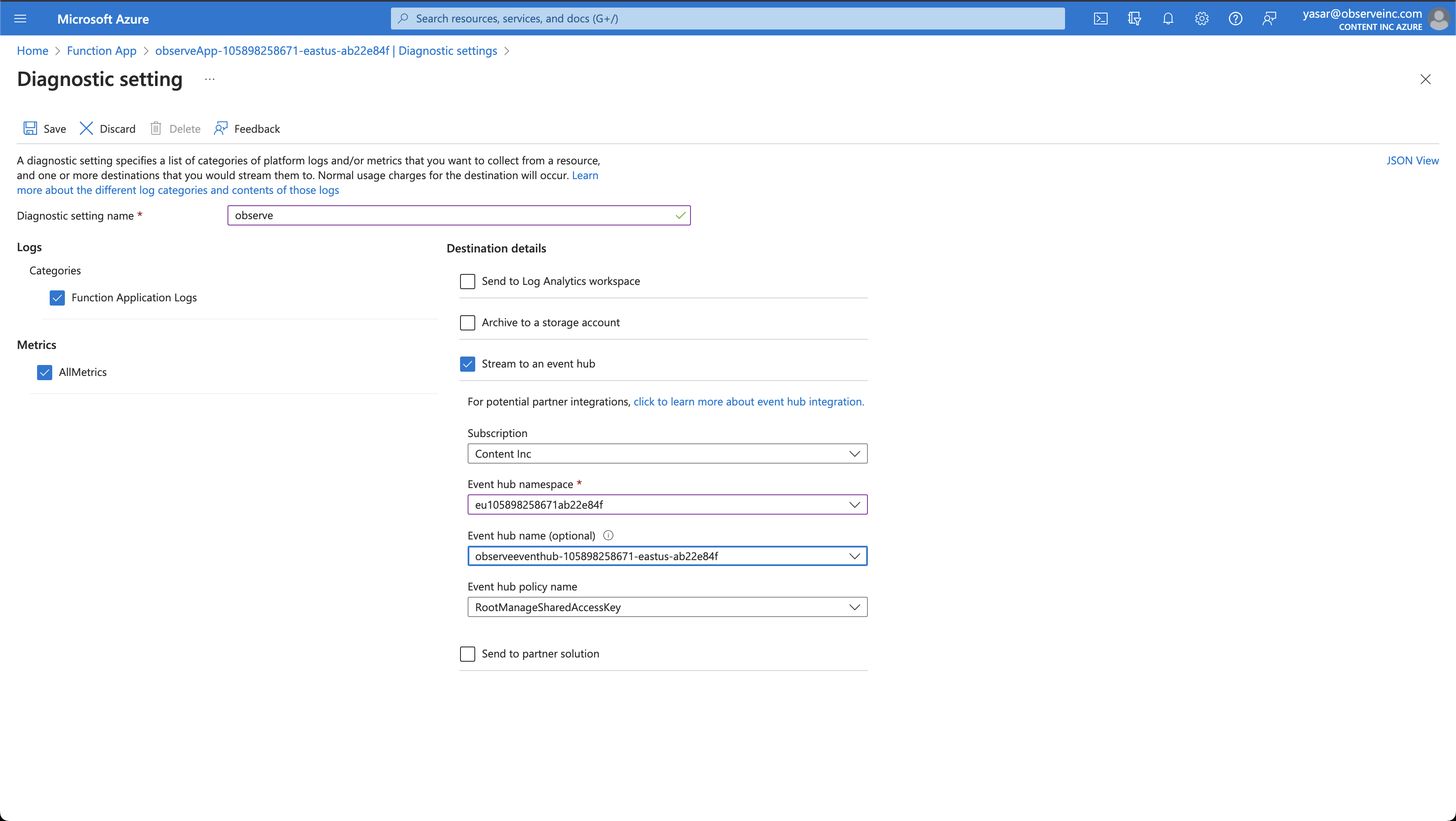
- Select the following options:
- Diagnostic setting name - observe
- Function Application Logs
- AllMetrics
- Stream to an event hub
- Select the event hub created by the Observe by Snowflake collection function. This will look like
observeeventhub-<OBSERVE-CUSTOMER-ID>-<AZURE-LOCATION>-<LAST-8-CHARS-OF-SUBSCRIPTION>. - Click Save.
Q: I'm receiving HTTP status code 429 "Too many requests" errors in Function Logs. What should I do?
The 429 HTTP status is commonly used to reject a request because a call rate limit is reached. The client will auto retry requests but may raise an exception after repeated retries. This usually happens in the timer_resources_func function by Microsoft.Storage client's API calls, which has stricter rate limits for management operations.
Rate limiting may happen when there are large numbers of blob services and/or blob containers in a storage account. It is recommended to disable their collection by adding a feature flag as part of the function app environment variables, under App Settings.
FEATURE_FLAGS=!blob_services,!blob_containers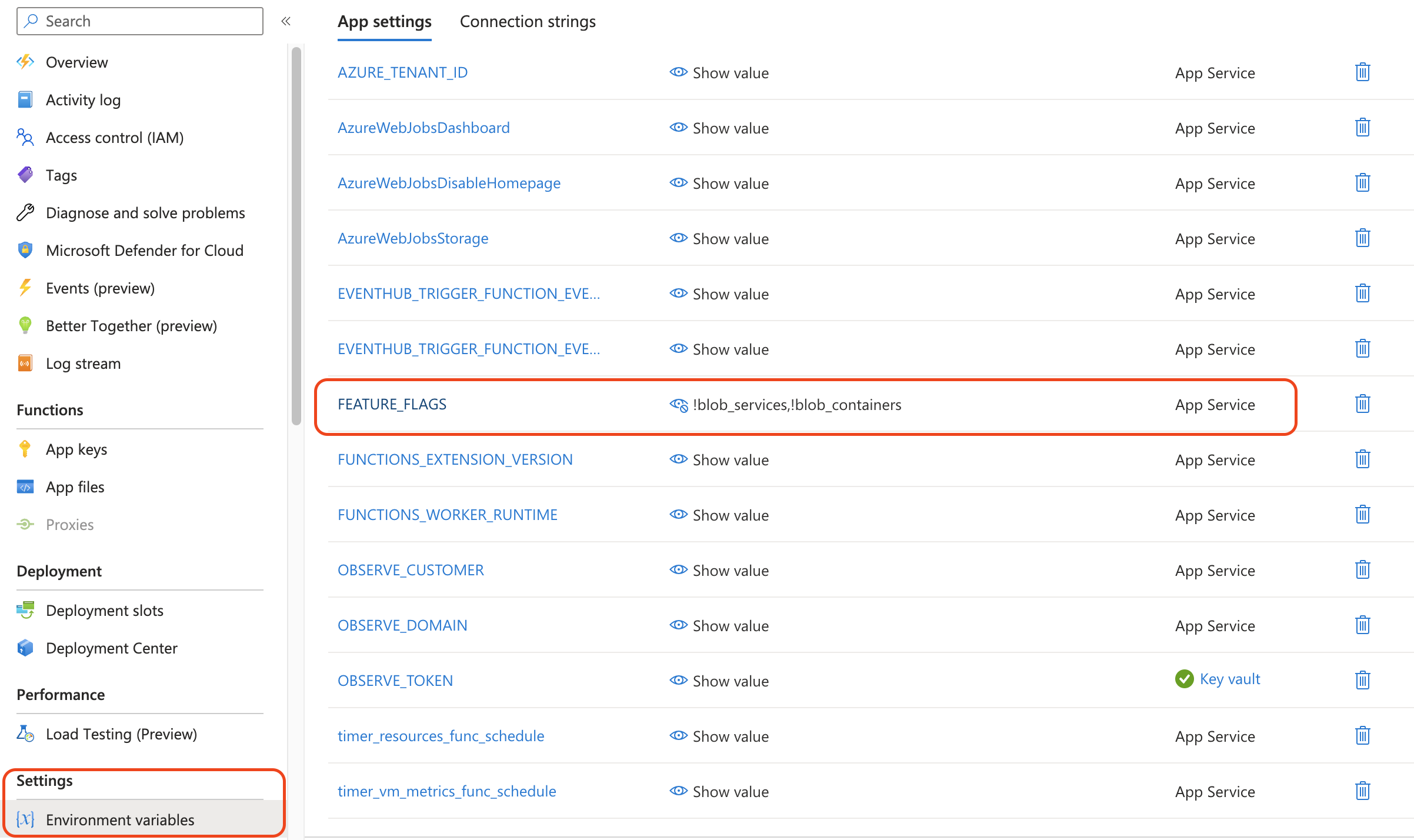
If managing via Terraform, this can be set by adding the following app_settings variable to your azure.auto.tfvars file
app_settings = {
  FEATURE_FLAGS = "!blob_services,!blob_containers"
}
If managing via ARM, this can be set by adding the feature_flags parameter to the ARM deployment command as below:
/az deployment sub create \
      --name observe \
      --location <THE_AZURE_LOCATION_TO_MONITOR> \
      --template-file resourcemanager-latest.json \
      --parameters \
        observe_customer=<YOUR_CUSTOMER_ID> \
        observe_token=<YOUR_DATASTREAM_TOKEN> \
        objectId=31a56... \
        applicationId=58339... \
        clientSecretValue=K3j8... \
        enterpriseAppObjectId=3aca8... \
feature_flags='!blob_services,!blob_containers'Q: Why don't some of the messages in Function Logs link back to the Python Function Resource?
Any logging performed by functions in Python should use the logging module and not the print() function. Using the print() function generates separate events for each line and does not include the required metadata to tie it back to a function, or, in the case of multi-line stack traces, the other lines of the stack trace.
Updated about 1 month ago