

Create and share Datasets
Create and share Datasets from the Dataset page, or from any Worksheet. This page provides information about the following topics:
- How to create a Dataset from a Worksheet, or from the Dataset page.
- How to view and configure details about your Dataset, including edit forward, data lineage and other Dataset properties.
- How to create a reference table from the Dataset page.
Create and publish a Dataset from a Worksheet
From a Worksheet, you can create a query and publish a new Dataset:
- Access a Worksheet in Observe by Snowflake. You can do this by selecting Worksheets in the left navigation and then selecting or creating a Worksheet, or by selecting Open in Worksheet from a variety of places in Observe by Snowflake.
- In the list of queries, click the More icon (), and select Create new dataset.
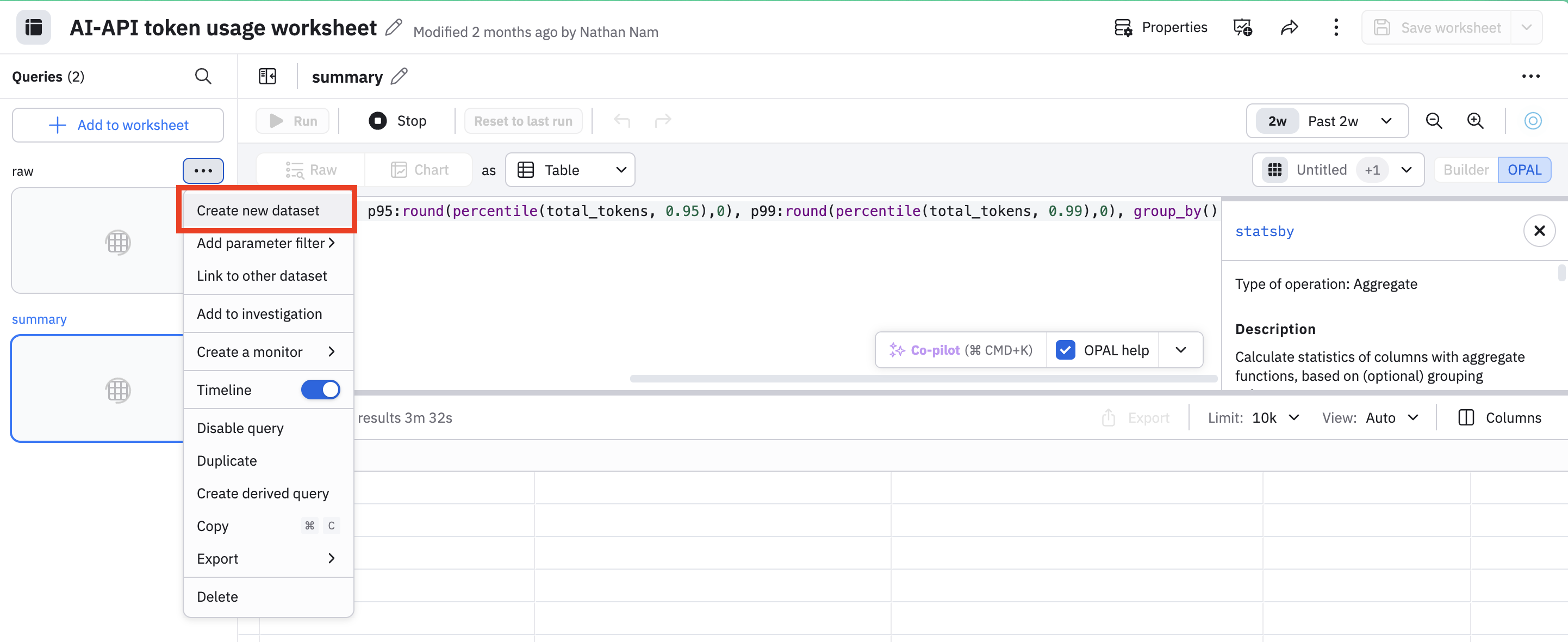
The Dataset editor allows you to customize the Dataset before you publish it.
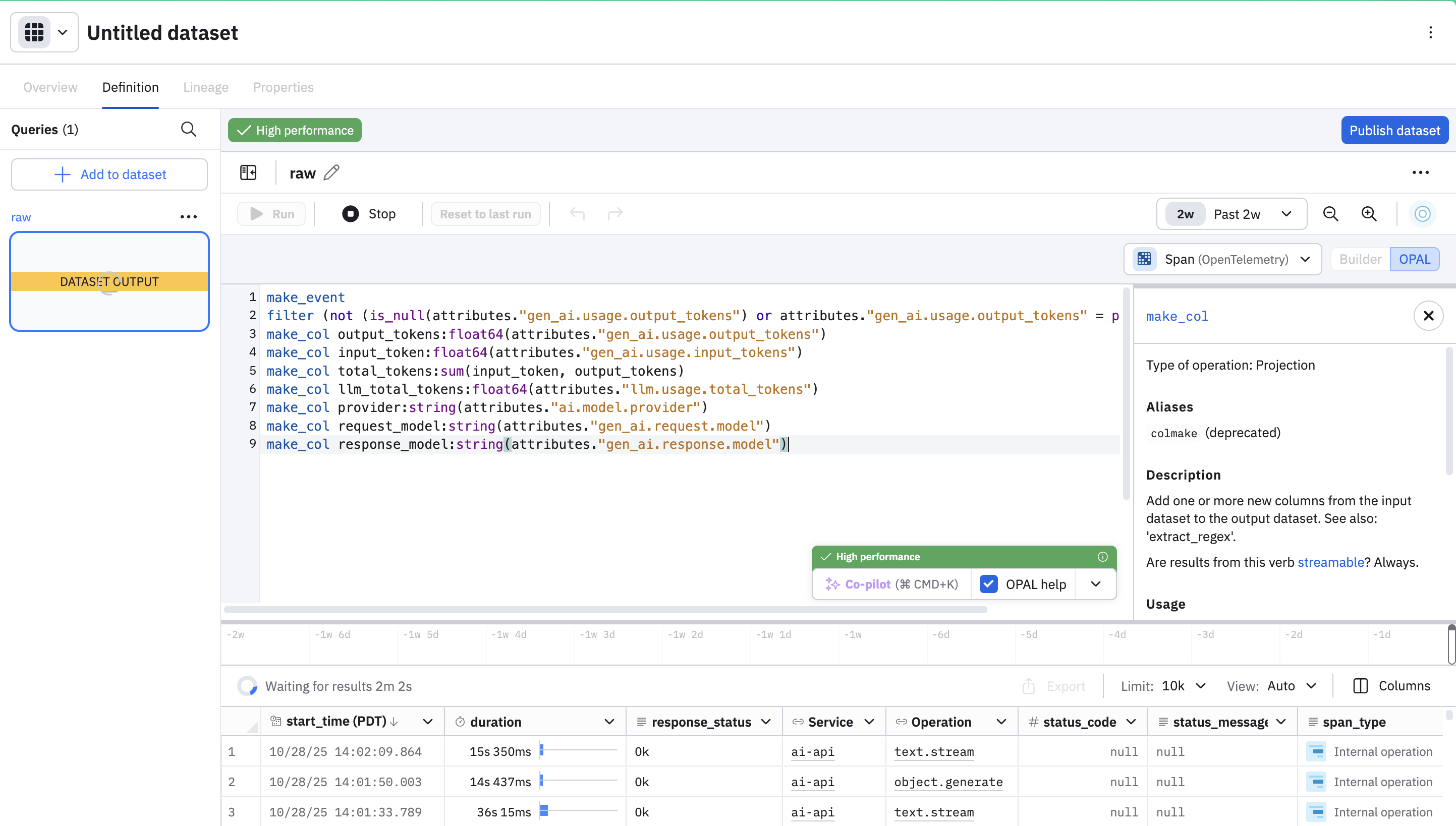
The High Performance label means that the Observe by Snowflake platform is checking your OPAL for errors and warning related to Dataset acceleration, and whether or not a pipeline can be accelerated as well as the complexity of its acceleration. Dataset acceleration is required for a Dataset to be created.
Click Publish dataset when you are ready to publish your Dataset. In the series of subsequent modal windows:
-
Give the Dataset a name, add any desired Object tags, or specify a data lake other than the default Observe by Snowflake-managed data lake if you want to use Observe by Snowflake on Iceberg.
-
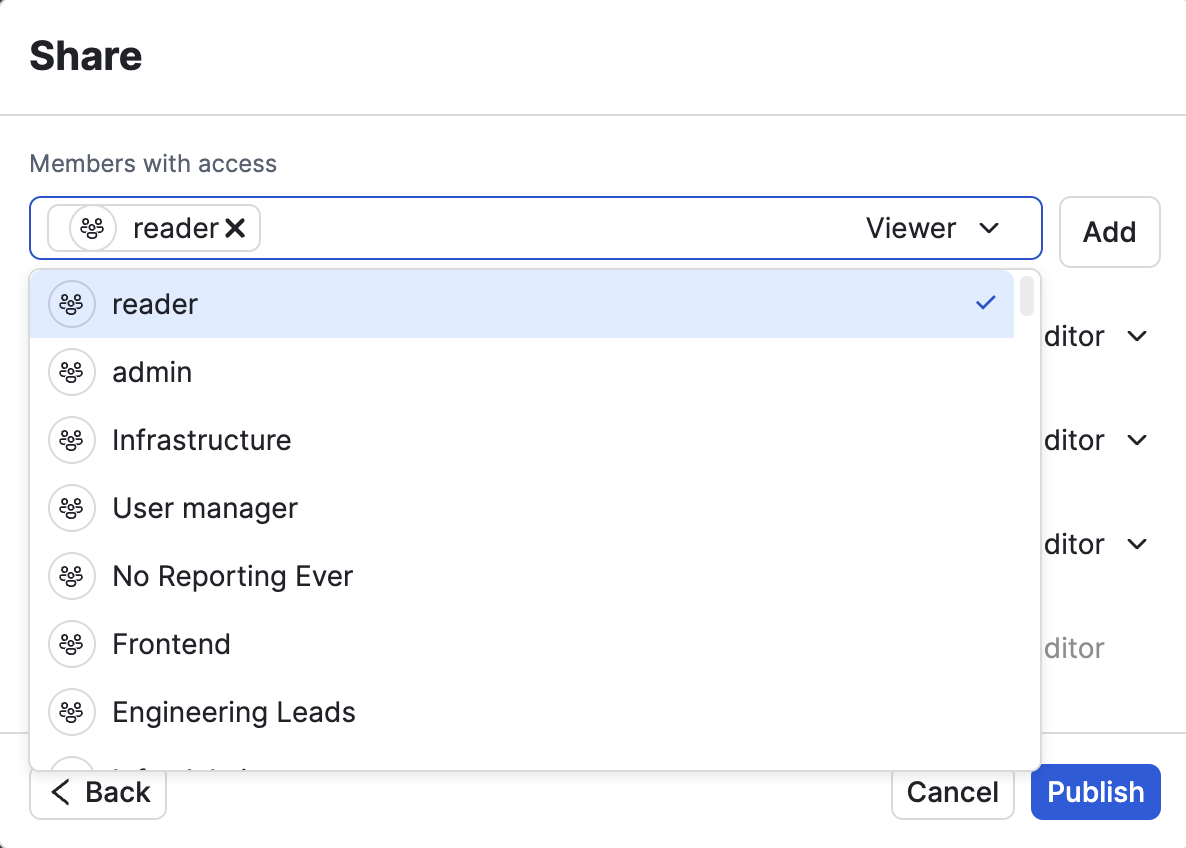
Configure the sharing settings for your Dataset. For example, here we are granting the reader group permission to view this Dataset. Any user in the reader group will have this privilege.
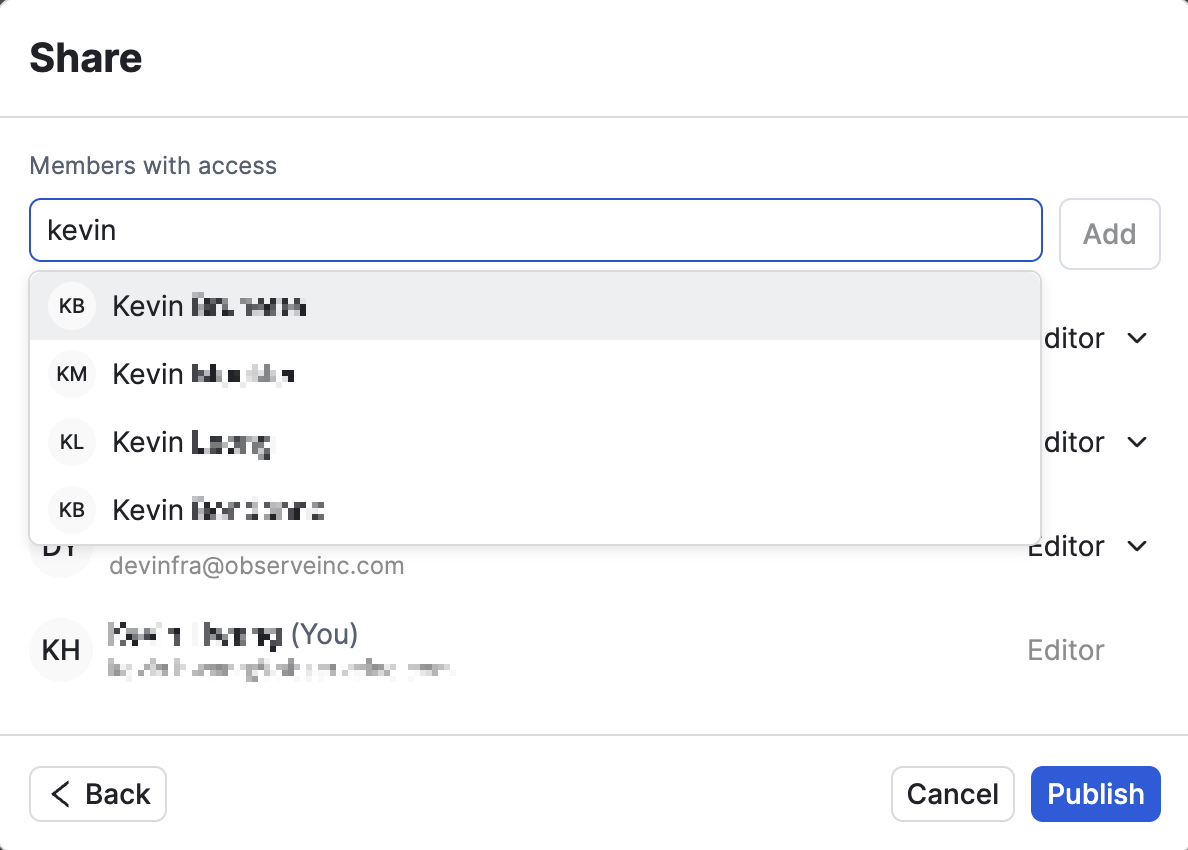
You can also grant view or edit access to individual users, just scroll or type to find the desired users, then assign the permissions:
-
Click Publish.
Manage your Dataset
Once you create and save a Dataset, you can view additional information about your Dataset and also configure additional properties.
Get an overview of your Dataset
Click the Overview tab to view general information about your Dataset, such as the data type, data source, status, freshness goals, and acceleration details.
View and update your Dataset's definition
Click the Definition tab to view or edit the OPAL query. If you make changes to the OPAL query in a Dataset, you may have the option to save your changes and apply them to new data only without rematerializing the Dataset, thus not incurring additional charges.
For example, you can update a Dataset's logic, add and drop columns, or change the Dataset's input, and you will have the option to apply these updates in the following ways:
-
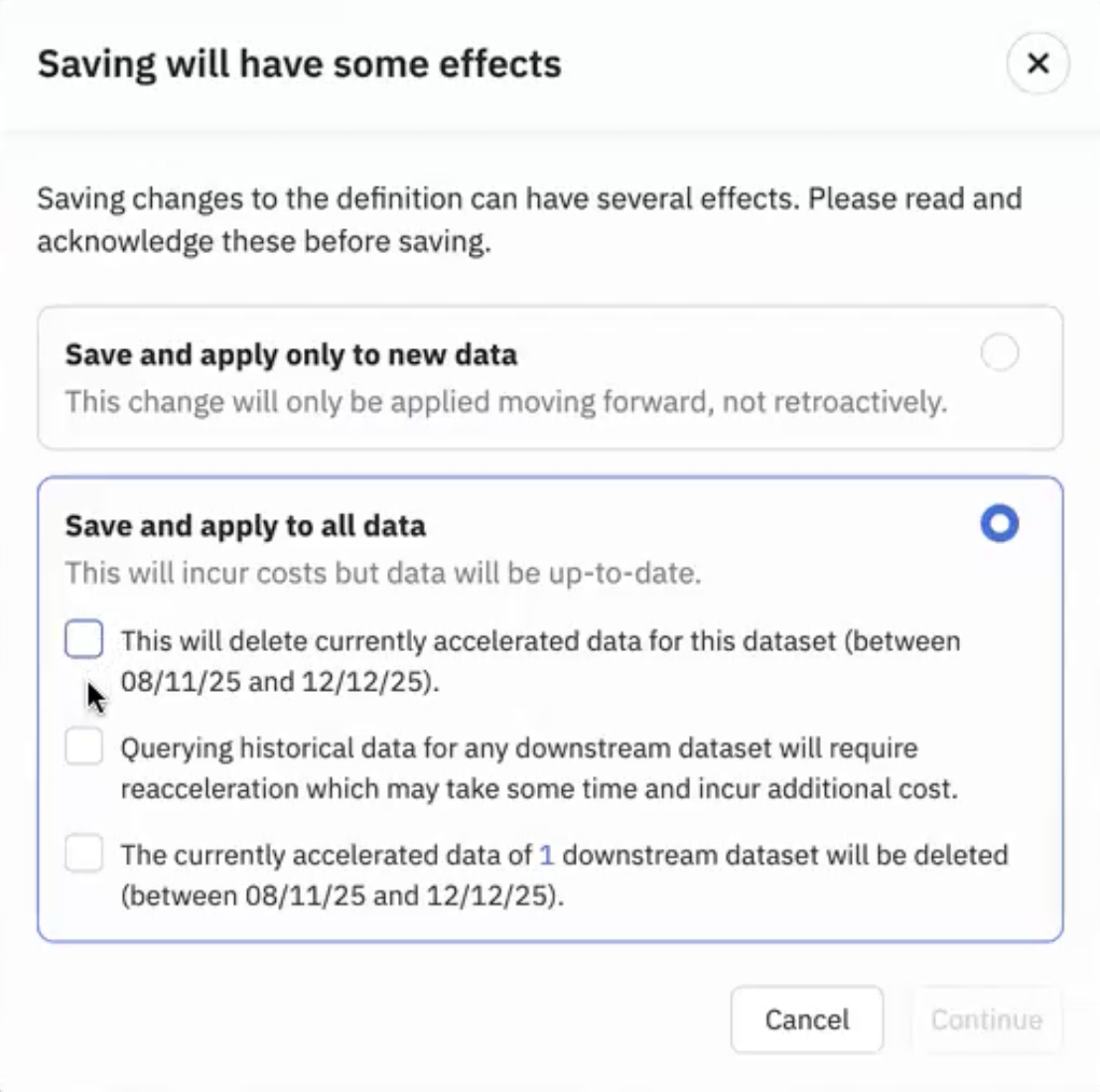
Save and apply only to new data. Apply the updates to only new data, and leave all existing data as-is. No additional costs are incurred for applying updates forward to new data only.
-
Save and apply to all data. Apply the updates to all data, including all existing data. Selecting this option allows all your data to be up to date, but can incur additional costs. You must acknowledge the actions listed in the UI after you select this option before you can apply the updates to all data. For example:
The Save and apply only to new data option is not available in the following cases:
- Datasets using aggregation verbs, such as
make_resource,timechart, ortimestats. - Datasets containing the following OPAL, or Datasets that are children of a Dataset containing the following OPAL:
interface "metric" ...
You can use the rematerialization_mode parameter to configure edit forward using Terraform. See observe_dataset in the Observe Terraform documentation.
View your Dataset's lineage
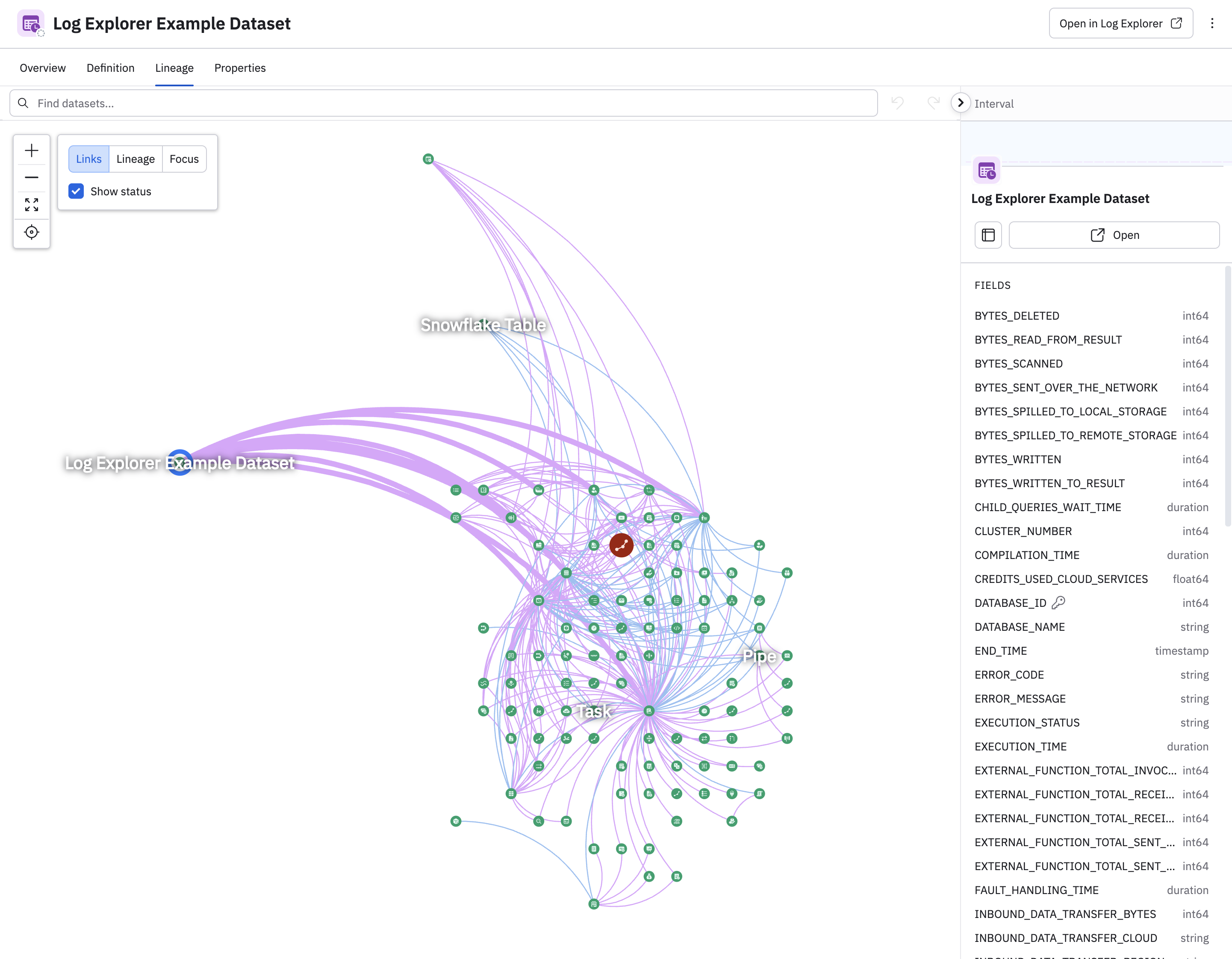
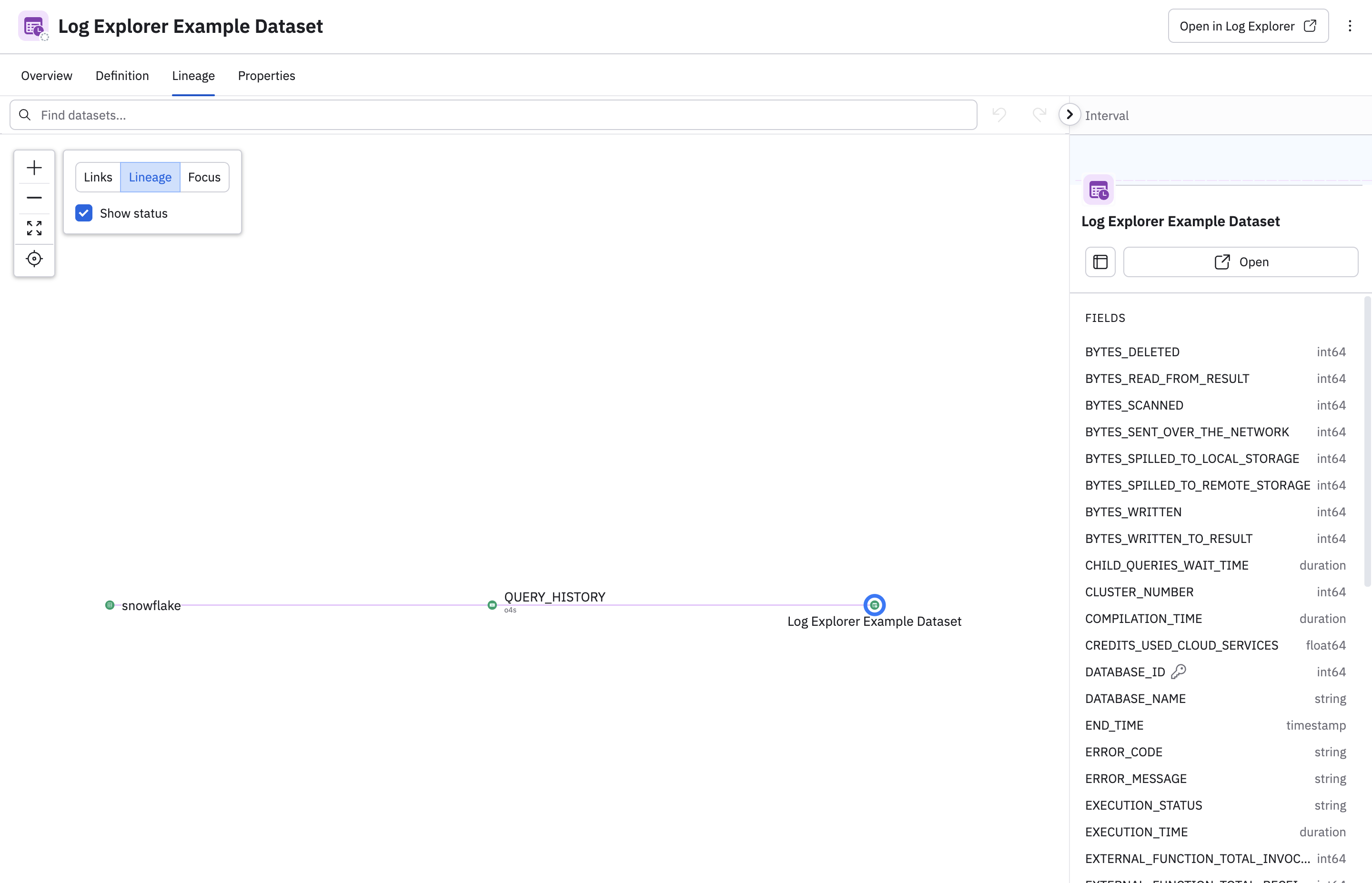
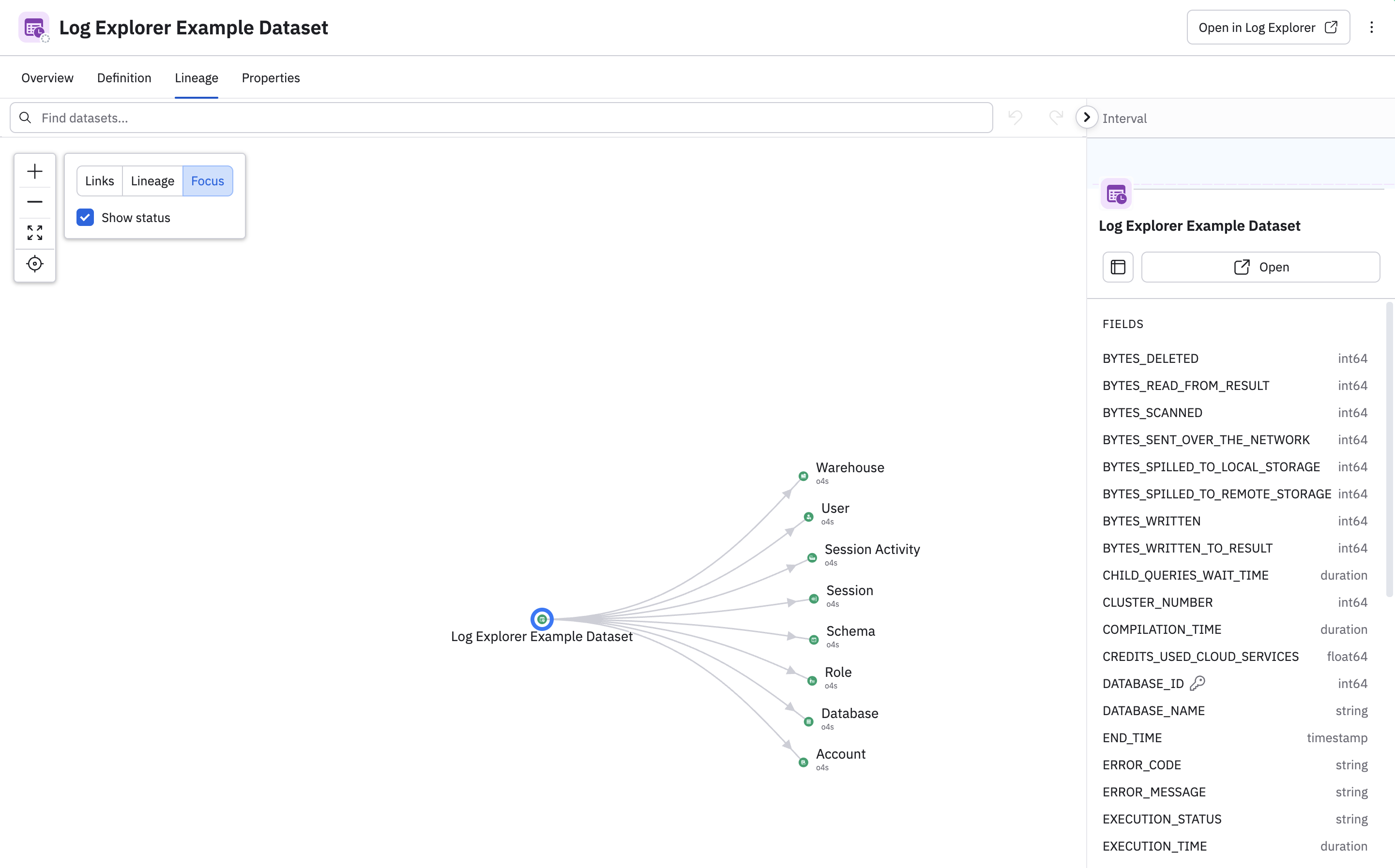
Click Lineage to view information about how this Dataset is connected to and derived from other Datasets.
- Links show the Datasets connected to this Dataset by foreign and primary key:
- Lineage shows the upstream and downstream data sources for this Dataset:
- Focus shows the connections from the direct primary key, along with foreign keys to other Datasets.
Configure Dataset properties
Click the Properties tab to review and configure the properties for your Dataset.
| Property | Description |
|---|---|
| Labels | Review and change the name, description, and icon for this Dataset. |
| Access Control | Review and change the access control (sharing) settings configured for this Dataset when the Dataset was created. See RBAC and object visibility. |
| Correlation tags | Add correlation tags to your Dataset's columns and object paths. See Correlation tags. |
| Indexes | View the indexes used for this Dataset. An index is a structure that makes Dataset queries fast and efficient. |
| Keys | View the primary key for this Dataset. |
| Links | View details about the upstream and downstream links for this Dataset. |
| Interfaces | Contains field mappings for this Dataset. |
| Query filters | Manage and create query filters for your Datasets so that sensitive and personally identifiable information (PII) is not ingested by Observe. See Dataset query filters. |
Create a Dataset from the Dataset page
In addition to creating a Dataset from a Worksheet, you can also create Datasets from the Dataset page.
- Click New dataset on the Dataset page to begin creating a new Dataset.
- Select a Dataset.
- Specify additional filters using the builder or OPAL console.
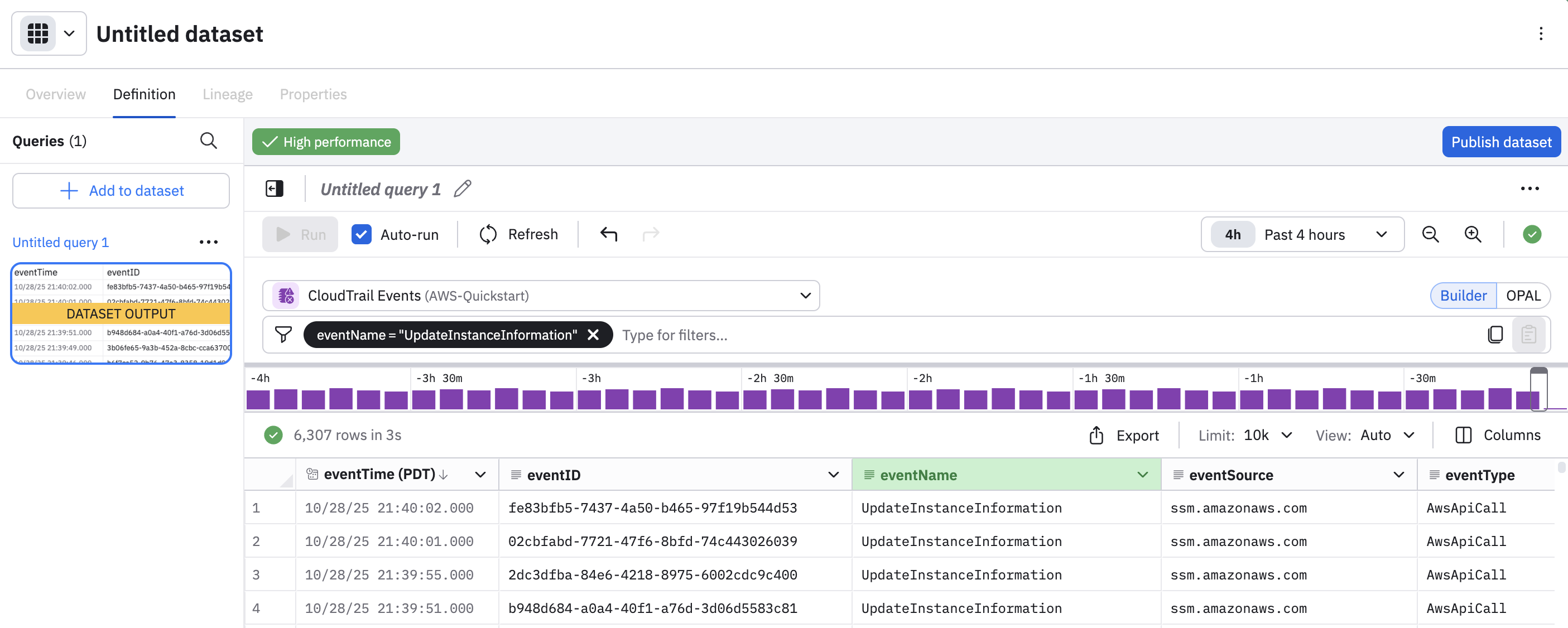
- Click Publish dataset. In the series of subsequent modal windows:
- Give the Dataset a name, add any desired Object tags, or specify a data lake other than the default Observe by Snowflake-managed data lake if you want to use Observe by Snowflake on Iceberg.
- Configure the sharing settings for your Dataset. See Create and publish a Dataset from a Worksheet for more information about the sharing settings.
- Click Publish.
Create a reference table from the Dataset page
Click the down chevron icon () in the Create dataset button, then select Upload CSV as a reference table.

Follow the instructions in Create reference tables using the UI to complete the dialog and create the reference table.
Updated about 10 hours ago