

Configure RBAC using Terraform
In Observe by Snowflake, you can assign users to RBAC groups using Terraform, an open-source infrastructure-as-code development tool. To learn more about using Terraform, visit their website. For additional information on using Terraform with Observe by Snowflake, see Observe by Snowflake's Terraform Provider Page.
NoteYour user must have Administrator permissions in Observe by Snowflake to create or modify RBAC resources.
Once you install Terraform, configure the provider, Observe by Snowflake, with the following attributes:
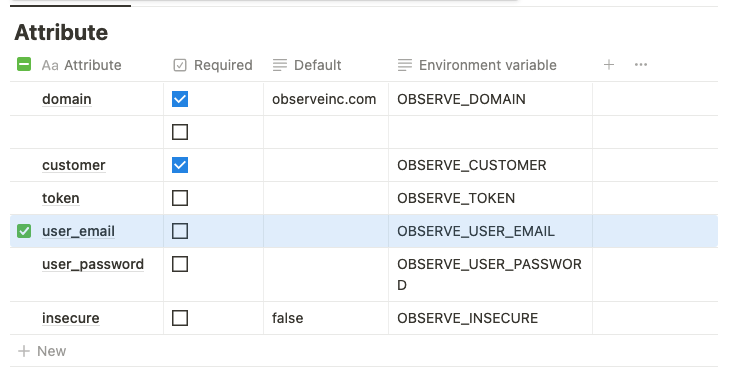
Add observeinc.com to the domain field, and your Observe by Snowflake customer ID in the customer field. Your customer ID precedes the domain name of your instance, for example, 123456789012.observeinc.com. In this case, 123456789012 is your customer ID.
NoteSome Observe by Snowflake instances may optionally use a name instead of Customer ID; if this is the case for your instance, contact your Observe by Snowflake data engineer to discuss implementation. A stem name will work as is, but a DNS redirect name may require client configuration.
You also need the following Terraform for your Observe by Snowflake setup:
# provider.tf

provider "observe" {
  customer      = "123456789012"
  domain    = "observeinc.com"
  user_email    = "[email protected]"
  user_password = "secret"
}# main.tf
terraform {
required_providers {
observe = {
source = "terraform.observeinc.com/observeinc/observe"
version = "~> 0.11"
}
}
}
data "observe_workspace" "default" {
name = "Default"
}When you set permissions using RBAC, grant only the permissions required to perform a task, also known as least-privilege permissions. Grants are additive — a user's effective permissions are the union of all grants that apply to them, either directly or through group membership. You can use observe_resource_grants to authoritatively control access to specific resources, ensuring no unintended permissions exist.
Use Terraform to look up users and groups
Look up users
To look up a user by email address or user ID, configure the following Terraform:
data "observe_user" "john_doe" {
  email = "[email protected]"
}

data "observe_user" "user_id" {
  id = "1234"
}
Replace the placeholder information with your user data.
Look up RBAC groups
To look up an RBAC Group, configure the following Terraform:
data "observe_rbac_group" "reader" {
  name = "reader"
}
Manage RBAC groups and memberships
Manage your groups and memberships using the following Terraform:
Create an engineering group
Use the following Terraform to create a group called Engineering:
resource "observe_rbac_group" "engineering" {
  name = "Engineering"
}
Add a user to the engineering group
Use the following Terraform to add a user John Doe to the engineering group:
 resource "observe_rbac_group_member" "johndoe_engineering" {
  group = observe_rbac_group.engineering.oid
  description = "add John to engineering group"
  member {
    user = data.observe_user.john_doe.oid
  }
}
Add an engineering group to the writer group
Use the following terraform to add the engineering group to the writer group:
resource "observe_rbac_group_member" "engineering_writers" {
  group = data.observe_rbac_group.writer.oid
  description = "add engineering group to writer group"
  member {
    group = observe_rbac_group.engineering.oid
  }
}
Manage grants using Terraform
To control access, use the observe_grant and observe_resource_grants resources.
observe_grantassigns a role to a user or group. Use it for global permissions (e.g.worksheet_creator) or for adding individual resource-scoped permissions.observe_resource_grantsauthoritatively manages all grants for a given resource, replacing any existing ones. If no grants are specified, only admins will have access. This is the recommended way to manage resource-scoped permissions, as it gives you full control over who can access a resource. Do not useobserve_resource_grantstogether withobserve_granttargeting the same resource, as they will conflict.
Grants consist of the following components:
| Component | Description |
|---|---|
| subject | The OID of the user or group the grant applies to. Use the built-in Everyone group to target all users. |
| role | A fine-grained role. See the Observe by Snowflake Terraform Provider documentation for the full list of accepted roles. Roles fall into two categories:
|
| qualifier | observe_grant only. The OID of the specific resource the grant applies to. Required for resource-scoped roles. |
Grant global permissions
Use the following Terraform to grant a permission that is not scoped to a specific resource. Omit the qualifier block for global roles:
resource "observe_grant" "engineering_worksheet_creator" {
  subject = observe_rbac_group.engineering.oid
  role    = "worksheet_creator"
}
Grant permissions on a specific resource
For resource-scoped roles, prefer using observe_resource_grants to manage all access for a resource in one place. Alternatively, you can use observe_grant with a qualifier block to add individual grants:
resource "observe_grant" "engineering_edit_logs" {
  subject = observe_rbac_group.engineering.oid
  role    = "dataset_editor"
  qualifier {
    oid = data.observe_dataset.sensitive.oid
  }
}
Restrict access to sensitive data
The observe_resource_grants resource is well suited for locking down access to sensitive data. Because it is authoritative, it ensures no other grants exist on the resource — only the grants you specify (and admins) will have access.
Use the following Terraform to create a sensitive_readers group. Later, you will grant only members of this group permissions to read a sensitive Dataset.
# Create a sensitive readers group
resource "observe_rbac_group" "sensitive_readers" {
  name = "Sensitive Readers"
}
Use the following Terraform to look up information about the sensitive Dataset:
data "observe_dataset" "sensitive" {
  workspace = data.observe_workspace.default.oid
  name      = "Sensitive Dataset"
}
Lock down a Dataset to a specific group
Use the following Terraform to grant only members of sensitive_readers view access to the sensitive Dataset. No one else (except admins) will have access:
resource "observe_resource_grants" "sensitive_dataset" {
  oid = data.observe_dataset.sensitive.oid
  grant {
    subject = observe_rbac_group.sensitive_readers.oid
    role    = "dataset_viewer"
  }
}
Lock down a Dataset to admins only
Use the following Terraform to restrict a Dataset so that only admins can access it. Specify no grants:
resource "observe_resource_grants" "admin_only" {
  oid = data.observe_dataset.sensitive.oid
}
Allow a group and a specific user to view a Dataset
Add additional grant blocks to the same observe_resource_grants resource to grant access to multiple subjects:
resource "observe_resource_grants" "sensitive_dataset" {
  oid = data.observe_dataset.sensitive.oid
  grant {
    subject = observe_rbac_group.sensitive_readers.oid
    role    = "dataset_viewer"
  }
  grant {
    subject = data.observe_user.john_doe.oid
    role    = "dataset_viewer"
  }
}
Bind users to the sensitive_readers group
sensitive_readers groupUse the following Terraform to bind users to the sensitive_readers group:
resource "observe_rbac_group_member" "john_sensitive" {
  group = observe_rbac_group.sensitive_readers.oid
  member { user = data.observe_user.john_doe.oid }
}
Manage default grants for new resources
Use observe_workspace_default_grants to configure the initial permissions applied to newly created resources. Only one instance of this resource can exist per tenant.
data "observe_rbac_group" "engineering" {
  name = "engineering"
}

data "observe_rbac_group" "readonly" {
  name = "readonly"
}

# Engineering can edit and readonly can view all newly created resources.
resource "observe_workspace_default_grants" "defaults" {
  group {
    oid        = data.observe_rbac_group.engineering.oid
    permission = "edit"
  }
  group {
    oid        = data.observe_rbac_group.readonly.oid
    permission = "view"
  }
}
You can also limit default grants to specific object types:
# Engineering can edit new dashboards and worksheets,
# but only view new datastreams.
resource "observe_workspace_default_grants" "limited" {
  group {
    oid          = data.observe_rbac_group.engineering.oid
    permission   = "edit"
    object_types = ["dashboard", "worksheet"]
  }
  group {
    oid          = data.observe_rbac_group.engineering.oid
    permission   = "view"
    object_types = ["datastream"]
  }
}
To restrict newly created resources so that only the creating user and admins have access by default, specify no groups:
resource "observe_workspace_default_grants" "restrictive" {}Updated 22 days ago