

Credit Manager
The Credit Manager helps you manage the consumption of your Observe by Snowflake Compute Credits (OCC) to stay within your desired budget.
Your organization consumes OCCs when the Observe by Snowflake platform performs computations on ingested data, such as performing a query or accelerating a Dataset. Use the Credit Manager settings to set separate quotas for the maximum number of OCCs your organization may consume for queries and the Dataset acceleration. Add the two numbers together to determine your overall OCC limit.
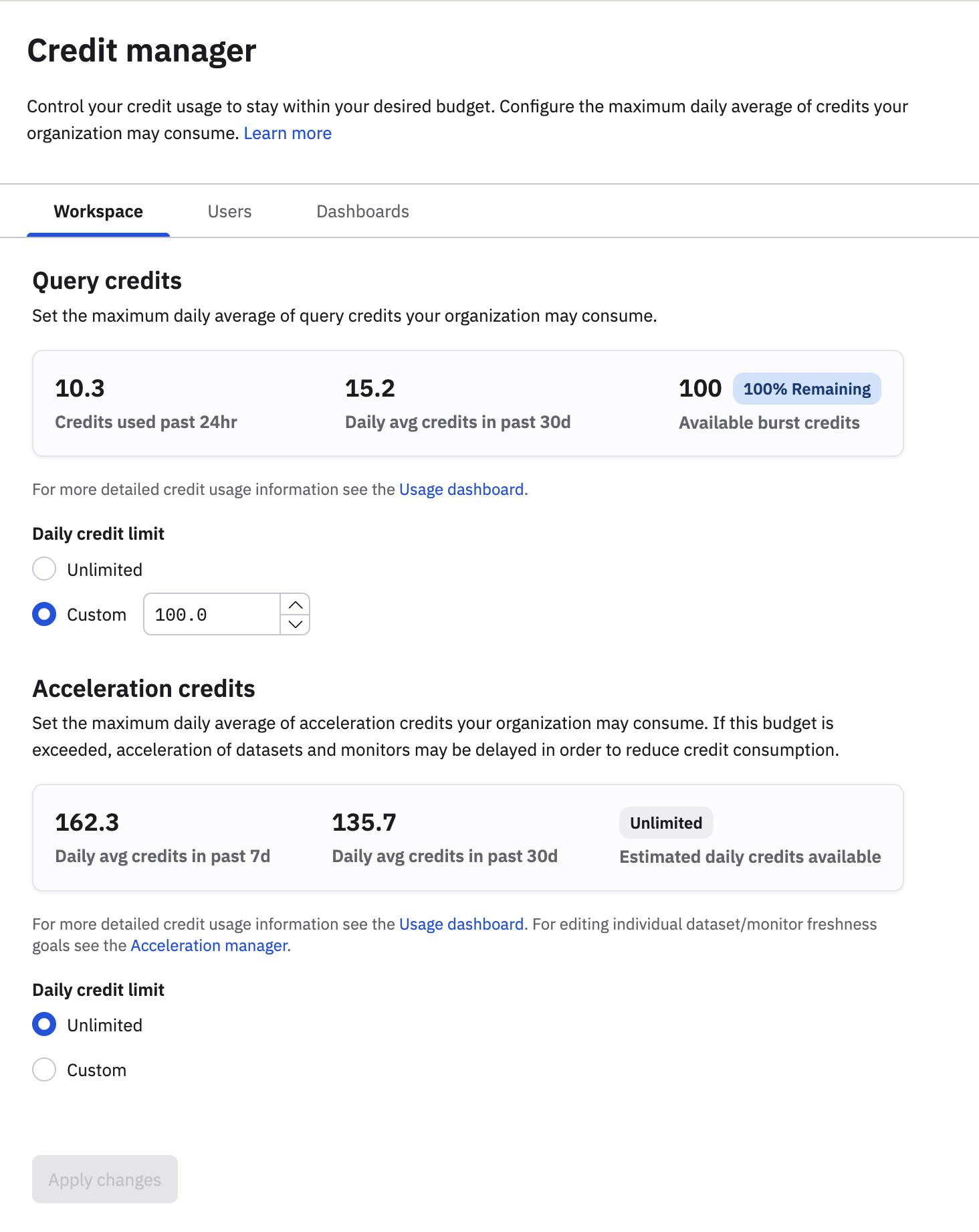
For example, if you set the Query Credit Limit to 100 credits per day and the Acceleration Credit Limit to 100 credits per day, your overall OCC budget consists of 200 credits per day.
In addition to these global limits, you can set user and dashboard credit limits. This helps you to prevent a single user, a group of users, or certain dashboards from accidentally consuming a larger amount of credits than expected.
When a throttle limit is exceeded, Observe by Snowflake slows usage for the user or dashboard and displays a warning.
For more information on the acceleration of Datasets and the execution of user queries, see Queries and on-demand acceleration.
Access the Credit Manager
You can access the Credit Manager in any of the following ways:
- In the left navigation rail, select Admin > Credit manager.
- In the left navigation rail, hover on your user name, then select Manage account, then click Credit manager.
- Use to the following URL, replacing
${observe_tenant}with your Observe by Snowflake tenant ID:
https://${observe_tenant}.observeinc.com/settings/credit-managerLimit query credits
Query compute limits are protection mechanisms by Observe by Snowflake which provide a guardrail against abnormally heavy usage of the product. If this ever does happen - it's usually an indication that the product is being used in a way that wasn't originally intended. Contact your Observe by Snowflake account representative or visit the Observe by Snowflake Support Portal to get assistance understanding or configuring your query credit limits.
When a query credit limit is set, the Credit Manager enforces that the daily credit usage for user queries lies below that limit. The query credit limit is a hard limit. When the query credit limit is exceeded, queries are blocked and users are notified of this. Because Observe by Snowflake is a critical monitoring and investigation tool, Observe by Snowflake provides several options to your users to continue using Observe by Snowflake without interruption:
- Allow Once - temporarily override the limit once for the current user query.
- Allow for the next hour - temporarily override the limit for user queries over the next hour.
As an administrator, you can set a higher query credit limit, or users can wait a short time until more query credits accrue at a rate defined by the daily query credit limit.
A note on the implementation
To smoothly limit the amount of query credits used, Observe by Snowflake employs the token bucket algorithm. This offers the advantage of building up a burst budget at times of low utilization. Assume for example that there was no query activity on the weekend. On Monday, the credit token bucket, storing the credits available to be consumed, is filled to 100%. The credits contained in the credit token bucket can then be consumed at an arbitrary rate. Rate limiting only takes place after all credits in the credit token bucket have been consumed. This means that a credit usage spike over daily credit limits, such as an urgent investigation, will not cause limiting until the built up balance is consumed. If your organization’s users are being blocked from using Observe by Snowflake unexpectedly, reach out to your Observe by Snowflake data engineer.
Limit acceleration credits
Unlike queries, Observe by Snowflake performs Dataset acceleration as a background activity, so your users do not receive explicit warnings or alerts when exhausting the acceleration credit usage. Instead, when the Observe by Snowflake account exhausts the acceleration credit limit in seven (7) days, Observe by Snowflake automatically loosens the freshness goals for Datasets in Observe by Snowflake to reduce cost and stay within credit limits.
Observe by Snowflake automatically re-tunes the freshness goal to the original value when the Acceleration Credit consumption returns below the set limit. For example, suppose you set the freshness goal for the Container Logs Dataset to 60 seconds. If the Acceleration Credit usage exceeds the limit for an extended period of time, Observe by Snowflake may automatically adjust this freshness goal to 120 seconds up to a maximum goal of one hour.
With a looser freshness goal, Observe by Snowflake performs Data Acceleration on each dataset less often, reducing the Acceleration Credit consumption rate. However, users may experience delays until data becomes available in the datasets. Optimizing Acceleration Credit consumption trades off cost and freshness goals, for example, latency between data ingest and the ability to query the data.
Limits credits per user
To give you more control over how query compute limits are shared across your organization, Observe by Snowflake applies default per-user credit limits in addition to your organization-level limit. Now, if a small number of users in your organization use a high amount of compute, only these users will experience any query throttling, and not the whole organization. You can set these limits high enough to ensure that even typical power users will likely never hit them, but less than the organization-level limit, to provide overall protection.
You have full control over per-user limits. From the Observe by Snowflake UI, you can view and adjust query credit limits for individual RBAC groups or specific users to suit your organization's needs. For example, you can set higher limits for power users who need a higher credit limit than other users. Be mindful that granting higher limits to power users may also cause you to hit your organization-level limit more quickly.
In the Credit Manager, click the Users tab to configure credit consumption per user.
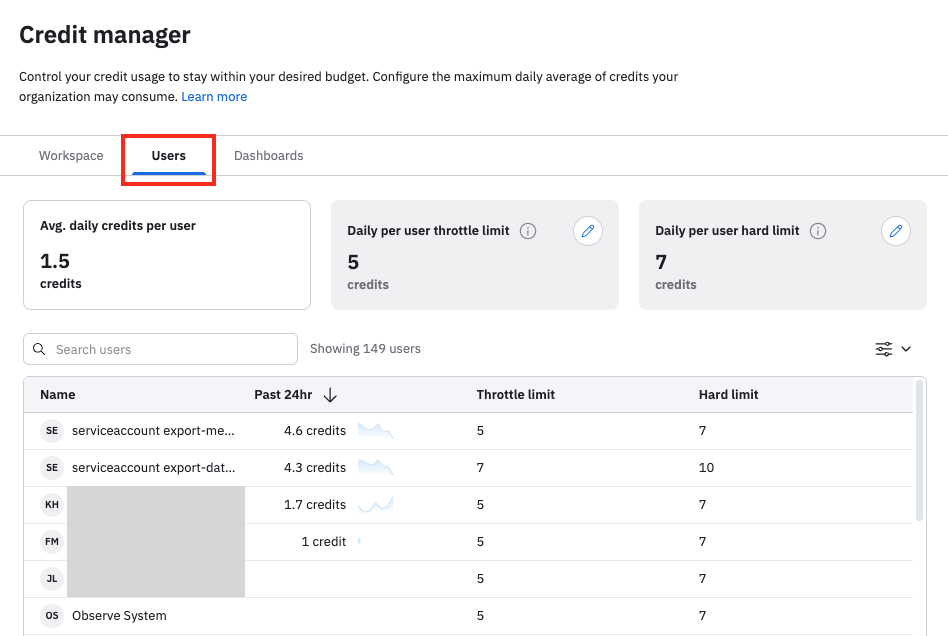
The Users page shows the average daily credits used for all users on this tenant, and also lists the users and their individual consumption in decreasing order. You can set throttle and hard limits for all users, and also set limits for individual users.
- Click the pencil icon () in the Daily per user throttle limit to set a throttle limit for all users. When any user exceeds this limit, they will receive a warning and their queries are throttled with a faster timeout.
- Click the pencil icon () in the Daily per user hard limit to set a hard limit for all users. When any user exceeds this limit, they will receive a warning and their queries won't be run anymore.
- In the list of users, hover on any user and click the pencil icon () to edit the throttle and hard limits for that user only.
Limits credits per dashboard
Per-dashboard credit limits provide an additional layer of control over how query compute limits are shared across your organization. If you have a small number of dashboards in your organization using a high amount of compute, only these dashboards will experience any query throttling. You can set these limits high enough to ensure that even high-credit dashboards will likely never reach them, but less than the organization-level limit, to provide overall protection.
You have full control over per-dashboard limits. From the Observe by Snowflake UI, you can view and adjust query credit limits for individual dashboards to suit your organization's needs. Be mindful that granting higher limits to certain dashboards may also cause you to hit your organization-level limit more quickly.
In the Credit Manager, click the Dashboards tab to configure credit consumption per dashboard.
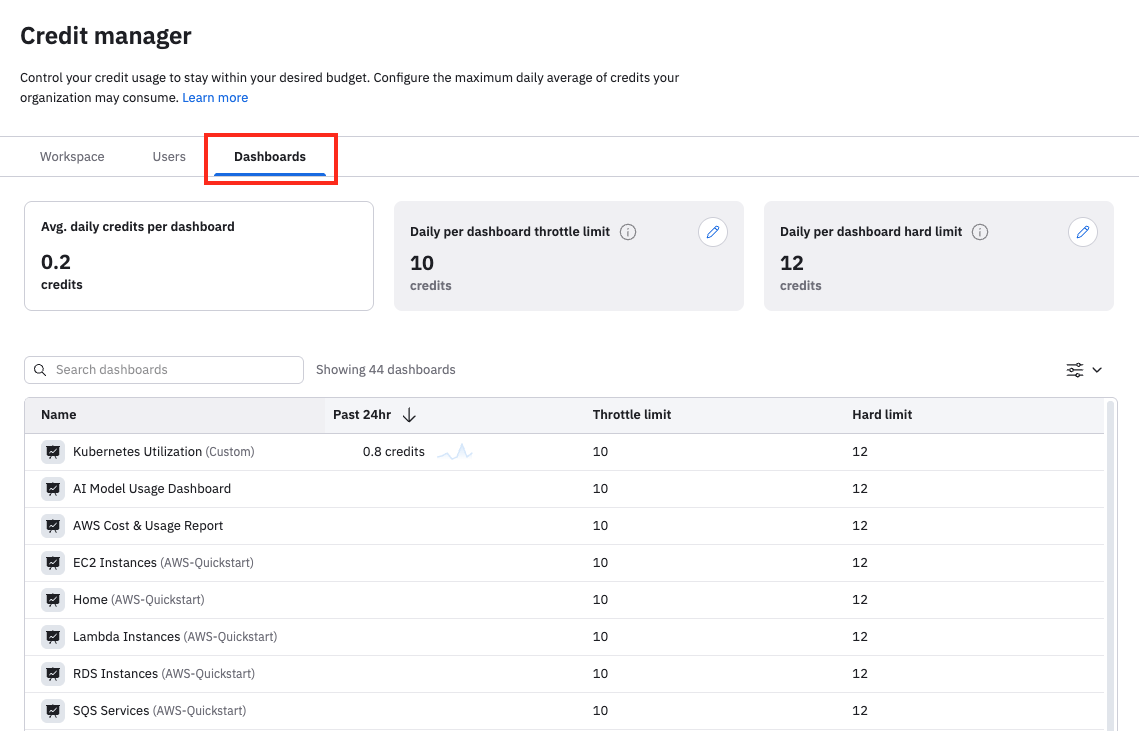
The Dashboards page shows the average daily credits used for all dashboards on this tenant, and also lists the dashboards and their individual consumption by name. You can set throttle and hard limits for all dashboards, and also set limits for individual dashboards.
- Click the pencil icon () in the Daily per dashboard throttle limit to set a throttle limit for all dashboards. When the credit usage for any dashboard exceeds this limit, a warning is posted on the dashboard, and the dashboard's queries are throttled with a faster timeout.
- Click the pencil icon () in the Daily per dashboard hard limit to set a hard limit for all dashboards. When the credit usage for any dashboard exceeds this limit, a warning is posted on the dashboard, and the dashboard's queries are not run anymore.
- In the list of dashboards, hover on any dashboard and click the pencil icon () to edit the throttle and hard limits for that dashboard only.
Tips for using Credit Manager effectively
The following tips guide you to effectively using and configuring Credit Manager:
- Use Credit Manager as a “safety net” to prevent excessive credit consumption and unexpected costs. When you use Credit Manager for the first time, start by setting the limit to twice the number of credits you plan to consume. If you forecast that you may consume 3,000 Query Credits in a month, set the Query Credit Limit to 3,000/30 x 2 = 200, which minimizes disruption to your users.
- The Credit Manager page contains a few statistics to help guide the configuration of your credit limits, such as Daily avg credits in past 30d and Credits used past 24hr. Use the Usage Dashboard to view credit usage in more detail and over longer ranges of time to assist with configuring your limits.
- If you find that your users reach the Query Credit Limit daily, use the following suggestions:
- Use shorter query time ranges such as Past 24 hours rather than long time ranges such as Past 30 days. When Observe by Snowflake queries with wider time ranges on large Datasets, a vast amount of data must be scanned. To make queries more efficient, use a shorter time range necessary to satisfy your query.
- If your users query a large Dataset, for example, Container Logs, you should create smaller Datasets derived from the large Dataset to target a common use case such as API Server Errors. Although creating a Dataset may consume Acceleration Credits, users share the accelerated Dataset and query it. This can result in a lower net consumption of total Credits. Also, queries on smaller datasets can be faster and provide a better user experience.
Ideally, you should adjust the freshness goals of your Datasets rather than allow Credit Manager to re-tune them for you. For example, suppose you have a Dataset that you infrequently query, such as VPC Flow Logs. In that case, you can set the freshness goal to 30 minutes to reserve more of your acceleration credit budget for more critical Datasets with tighter freshness requirements. Reach out to your Observe by Snowflake data engineer for assistance with re-tuning your Dataset freshness goals.
For more information on query credits and acceleration credits usage, see View your compute credit usage in the Usage Dashboard.
Updated about 2 months ago