

Pie chart
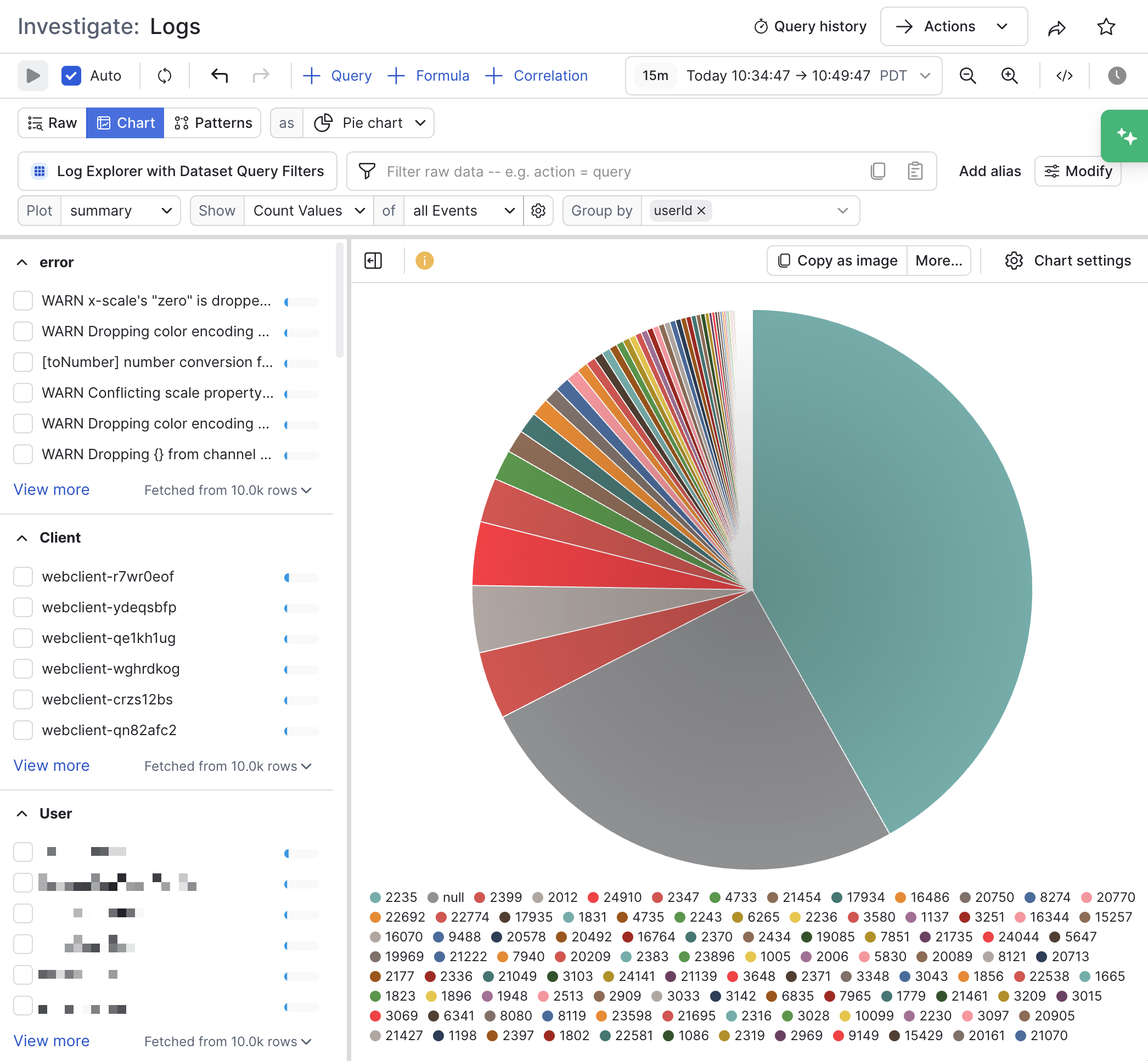
A pie chart represents the relative size of values as slices of a circular graph. The pie chart visualization is ideal for visualizing Datasets that naturally produce a complete whole, such as the number of tasks executed in a time period by a continuously running task engine. Note that Observe’s pie chart defaults to rendering as a ring with a shaded center, this a style decision that reduces human estimation errors.
Pie chart settings
Click Chart settings to configure the properties for a pie chart.
| Setting | Description |
|---|---|
| Encoding | Configure the slices in the pie chart:
|
| Value formatting | Configure how the values in the chart are represented.
|
| Colors | Configure custom colors you want to use for each item in the chart. |
| Slices | Configure the sort order and maximum number of slices shown in the chart. Enable the Others slice to combine the data beyond the maximum number of slices into a single slice. |
| Presentation | Configure an inner radius for the chart as a pie, donut, or ring. Enable Show values to print the numerical values in each slice of the pie chart. |
| Legend and tooltip | Customize the legend in the chart:
|
Updated about 1 month ago
Did this page help you?