

o11y AI Help

Observe uses artificial intelligence (AI) technologies from OpenAI, Snowflake, and in-house development to assist users in learning and using the Observability Cloud.

o11y AI Help

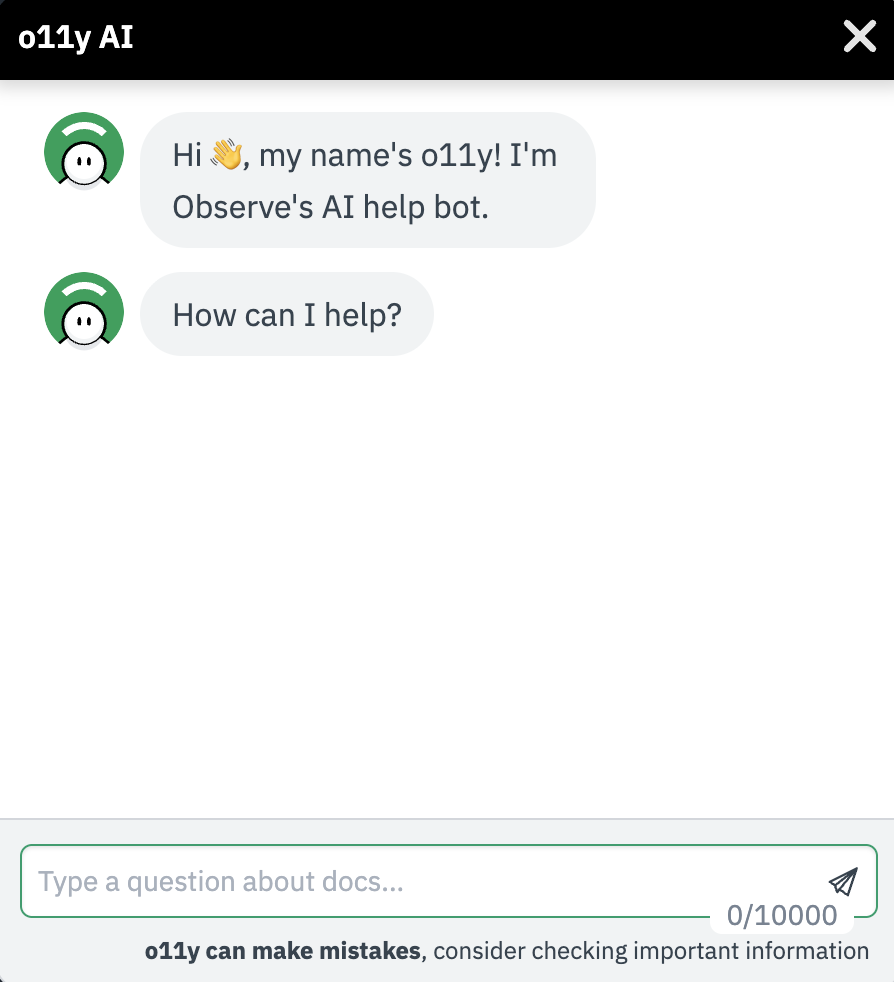
You can access o11y AI by selecting Help > AI Help anywhere in Observe from the left navigation menu. Ask o11y AI about specific functionality within Observe, how to perform tasks, and how to solve problems. o11y AI uses large language model technology to help you work with your data.
📘

Note

o11y AI is a single tool, available through AI Help in the Observe UI and o11y Slack in a configured Slack instance.

o11y AI is intentionally limited to observability topics and technical information about the observability cloud.

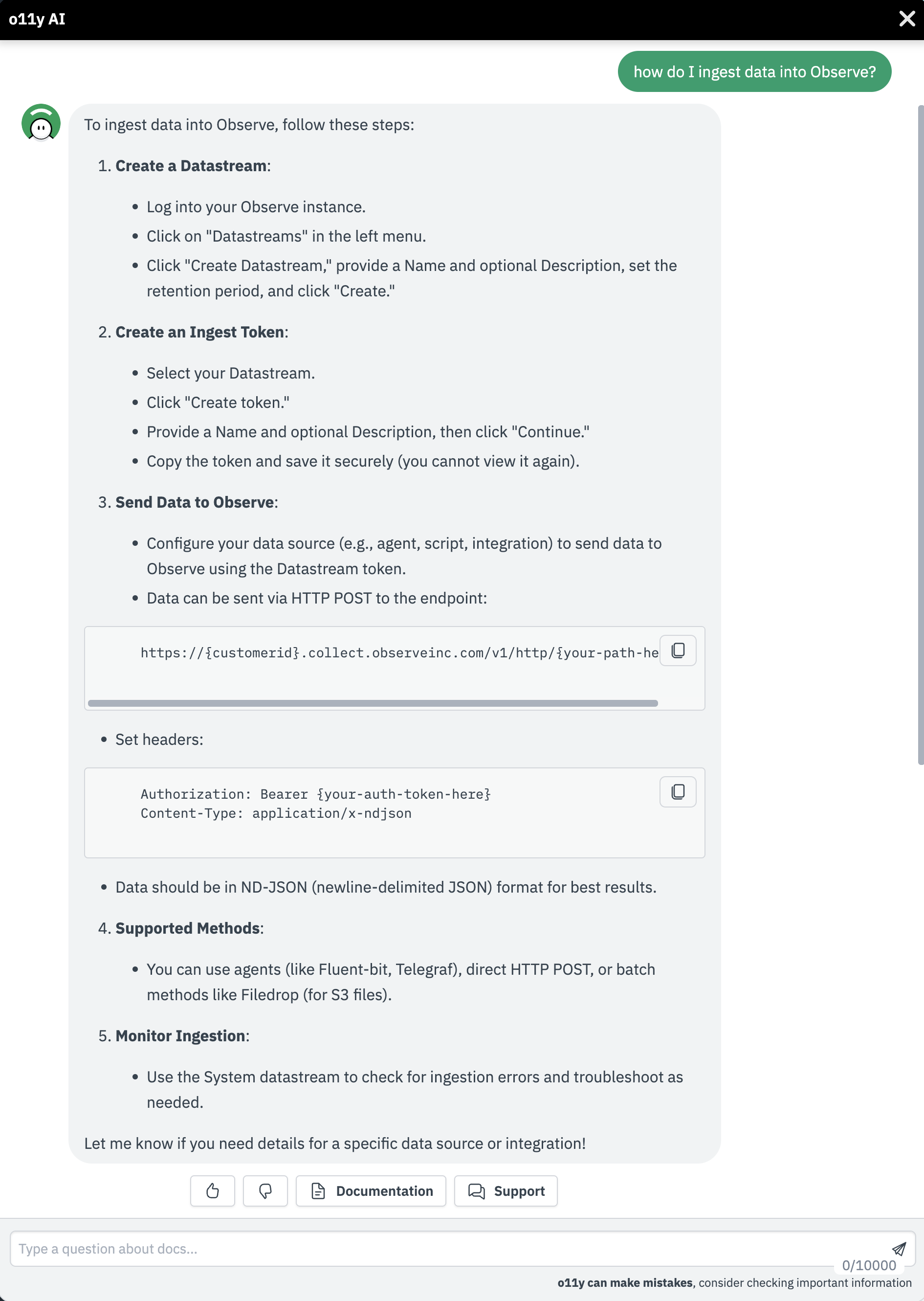
o11y AI example - data ingest

To try o11y AI, learn how to ingest data into your Observe instance. o11y AI responds with an answer and can interactively assist you through the process.
o11y AI example - OPAL

Perhaps you have a question about using OPAL and the statsby verb. o11y AI responds with answers about using the verb:
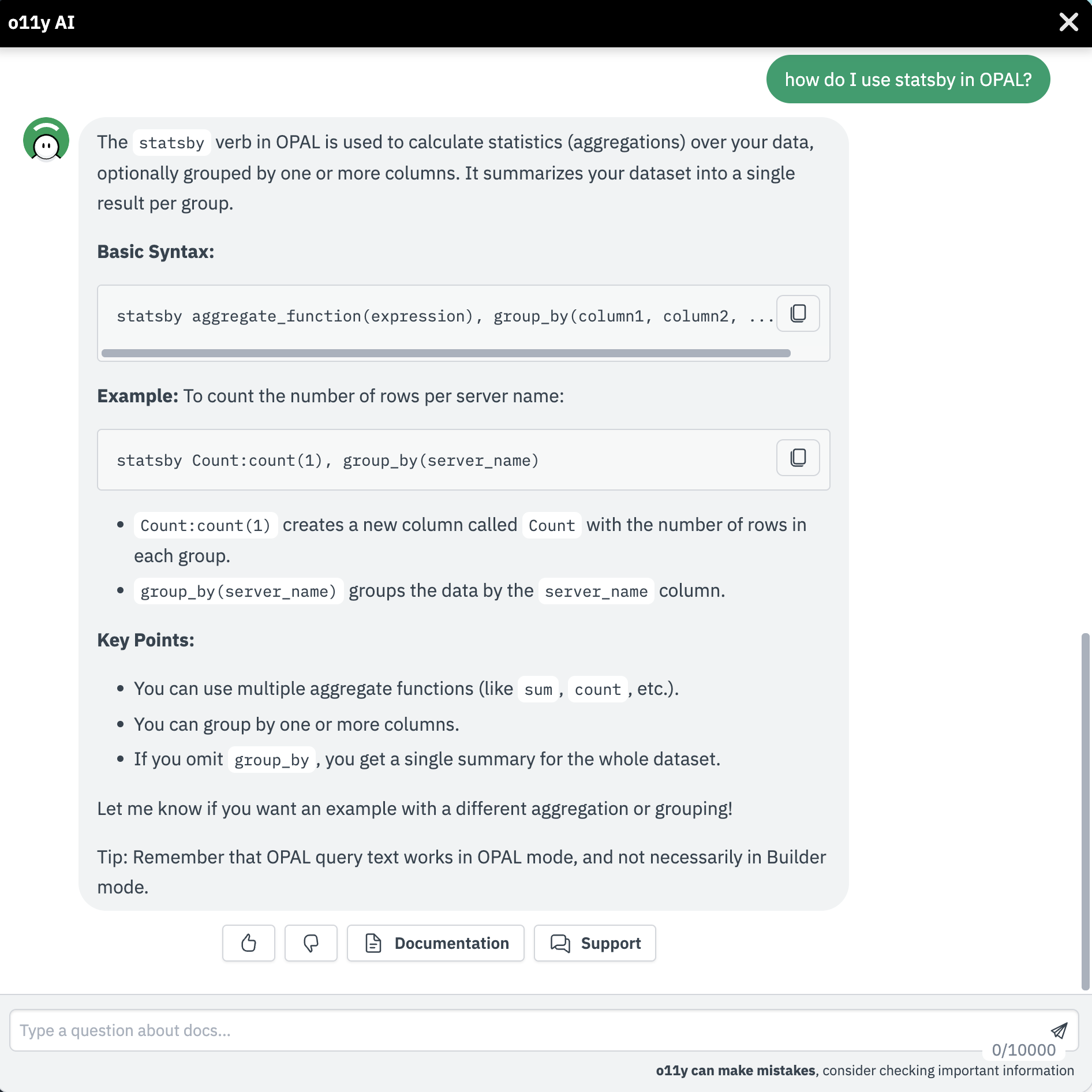
You can use the copy icon () to copy the answer to your clipboard and then paste it into a document or location for future reference.

You can rate each answer as Helpful () or Not Helpful () which helps o11y AI learn how to answer your question in a more useful manner.

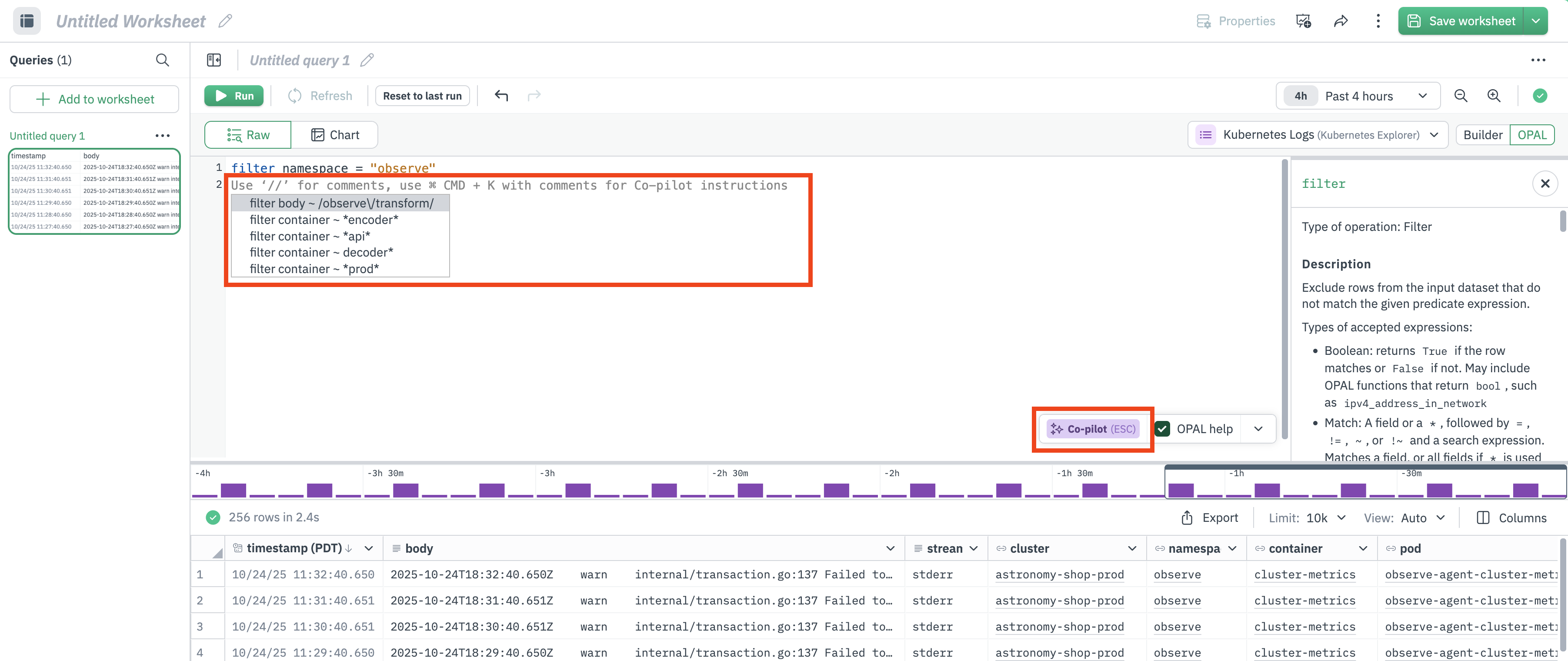
o11y AI example - OPAL Copilot

In addition to. asking o11y AI about OPAL verbs and functions, you can access o11y Copilot from the OPAL editor in any Explorer, Worksheet, Dashboard, or Monitor. o11y Copilot uses large language model technology to help you write OPAL to solve problems.

To use O11y Copilot, write a comment or line of OPAL, then press command-K (macOS) or CTRL-K (Windows). The line under the cursor will be used to generate suggestions in a popup menu. Select the option you prefer, and click to insert.
o11y AI example - explain messages in Explorers and Worksheets

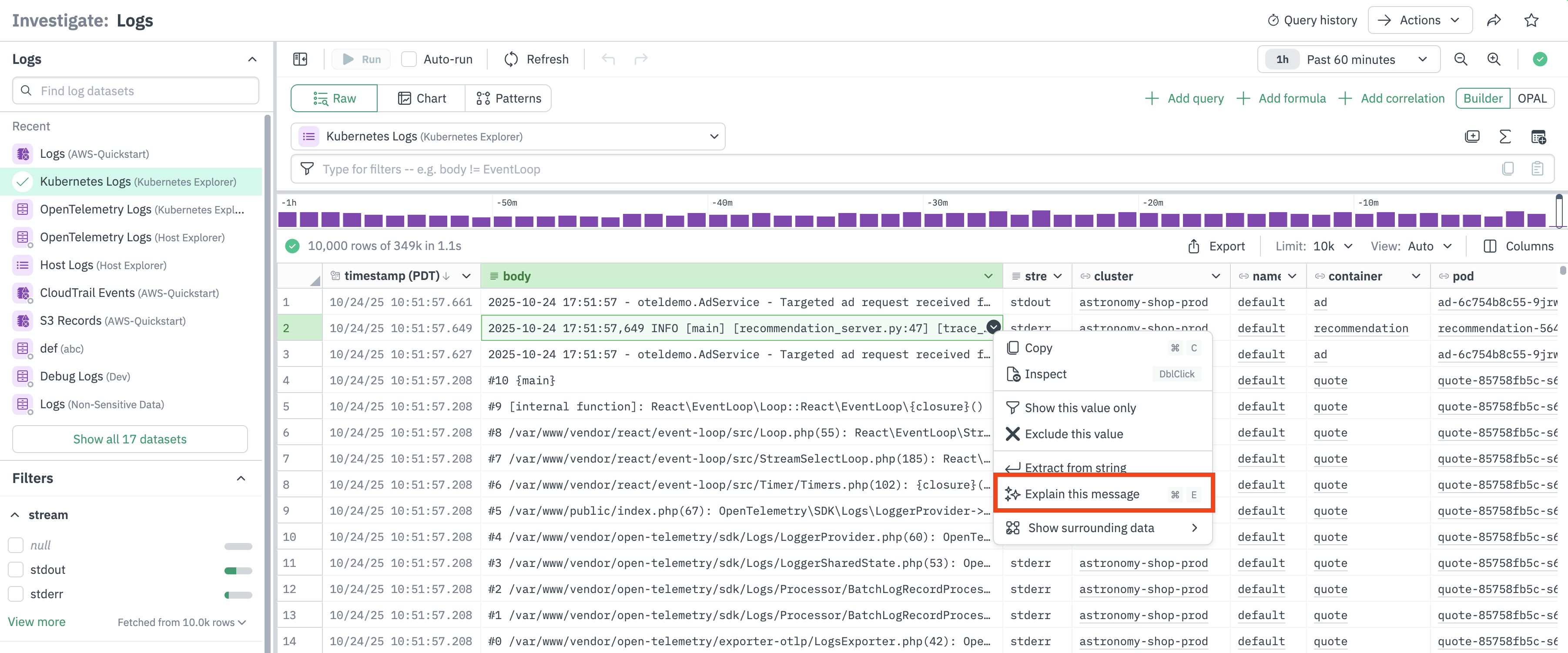
o11y AI is also able to explain strings. Using any Explorer or Worksheet interface showing tabular data, a cell that contains a string will have a green context menu to the right side. In that menu, select Explain this message to launch o11y AI and get an explanation of the message.
Help topics

o11y AI has specific training and focus on topic related to Observe, such as observability, security observability, and OPAL. It will respond to questions outside of those topics with "That does not compute." You can add information to it by uploading documents through the product settings Settings. DevOps teams can also upload incident summaries directly from O11y Slack (check the /o11y summarize command options to understand how to do this).

Keep asking questions to learn more about the ways o11y AI can help you use Observe.

Use o11y AI to extract regular expressions

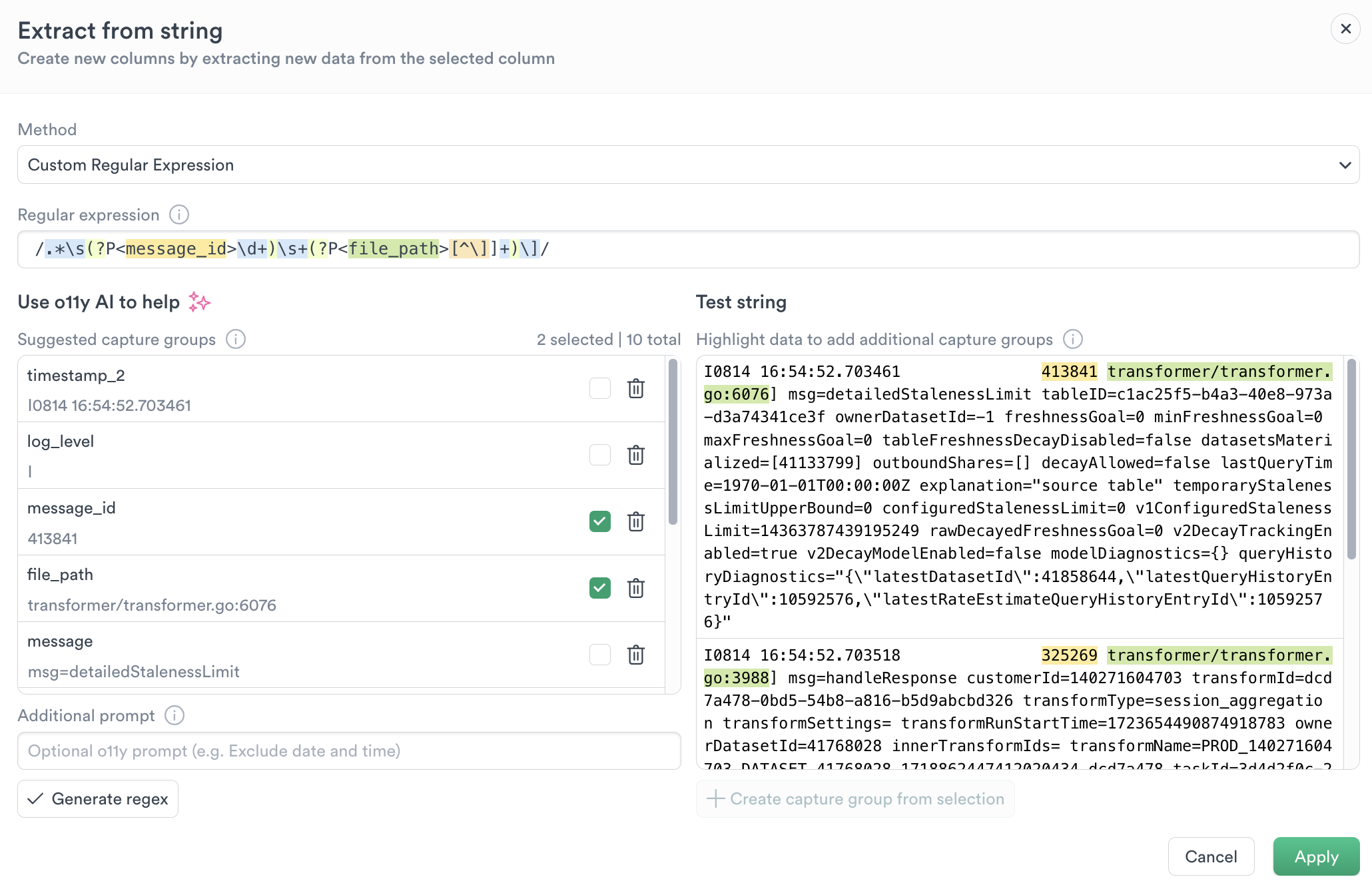
O11y Chat can help with regular expressions. In a Worksheet or the Log Explorer, String columns containing complex log data are often a challenge to extract useful data from. To start getting data, click the column header, and select Extract from String to browse several common pre-built options. The default is Custom Regular Expression, which uses o11y AI's OpenAI integration to suggest extractions. You can select from the suggestions, select a block of text to produce a new extraction, or add additional prompts for OpenAI. Finally, click Generate RegEx to produce the regular expression and extract the fields for use. Extracted fields will be color matched so you can check that they work. Click Apply to extract the fields in your dataset and continue working.
📘

Note

o11y AI's RegEx extraction works on the first row of the column that is present in the dataset. To make it use a specific row of data, click that cell's context menu and click Extract string. For best results, use shift or control clicking to select up to three cells before clicking Extract string.

o11y AI Slack

Observe's o11y AI extends into Slack, adding troubleshooting assistance during incidents. From within Slack, you can call @O11y to create incident channels, get links to alerts, transcribe Zoom calls, and summarize activity into Notion. o11y Slack can help you reduce time to resolution by providing quick access to common tasks.

o11y AI commands in Slack

From within Slack, use /o11y help to see an updated listing of commands. Slash commands are private. Use @o11y to give the same command publicly.

Users wanting to work with o11y Incident Assistant can then use /o11y (private) or @o11y (public) commands to communicate with the bot.

  • /o11y ask, how, what %question% Ask O11y a question
    • /o11y ask reset Reset the session with O11y to force context reload
  • /o11y help, ? Shows current help
  • /o11y incident Creates a new incident channel
  • /o11y join %zoom_url% Join a Zoom meeting. o11y AI automatically joins and transcribes Zoom calls initiated with /zoom in the incident channels it has created. Use /o11y settings to allow o11y AI Slack to join and transcribe Zoom calls from more channels, if appropriate.
  • /o11y leave, kick Makes o11y AI leave this channel
  • /o11y summarize, summary Generates a summary of the current incident channel (including transcripts of zoom calls). Summarization accepts the following arguments:
    • /o11y summarize --since %relative_time% Use notation like "7d" or "90m" to control how far back summarization should go
    • /o11y summarize --save Remember this summary as a runbook. You can view the runbook in the Uploaded Documents area of Workplace Settings.
    • /o11y summarize --retro Save this summary as a retrospective that is uploaded to Notion.
    • /o11y summarize --suggest Suggest a course of action based on prior retrospectives.
  • /o11y timeline Generates a timeline in an incident channel. (options: same as /summarize).
  • /o11y login %your_email_address% Log in to Observe. A login link will be produced to enable use of modern authentication technologies such as OAUTH2, SSO, and/or MFA.
  • /o11y logout Log yourself out of the o11y AI Slack integration. This action doesn't affect other users or your Observe login status.
  • /o11y settings Configure o11y AI Slack's behavior.

By default, /o11y [question] conversations are private and ephemeral. A Slack client reload will remove them. These private conversations are not possible in a thread, so /o11y is disabled in threads. Use @o11y [question] for conversations that you want to share with a channel or thread.

See the Use o11y AI in Slack tutorial to see this in action.

Configure o11y AI's Slack settings

To configure o11y AI's Slack behavior, use /o11y settings.

  • Public Answers in Thread When you ask O11y a public question (using @o11y), this option will cause it to thread its reply. Use @o11y within the thread to ask for clarification. Defaults to off.
  • Slash Commands are Public When you ask O11y a private question (using /o11y), this option will cause it to reply publicly in the channel. Defaults to off
  • Automatically joins Zooms outside incident channels This causes O11y Slack to join and transcribe all Zoom calls initiated within a Slack instance. It is intended for a Slack instance that is dedicated to solving DevOps problems with Observe. Defaults to off
  • Automatically joins Zooms in incident channels not created by O11y this causes O11y Slack to join and transcribe all Zoom calls in channels that have "incident" in their names (case insensitive). Defaults to off

Expand o11y AI

o11y AI and o11y Slack can be given more contextual data about your organization, which is used whenever it is recognized as relevant to the question. Observe administrators can manage these data files in Settings. See Uploaded documents.

o11y AI suggestions

When used in a Slack incident channel, o11y AI can also review your saved retrospectives and expansion material to suggest next steps. Use /o11y summarize --suggest to get a suggestion.