

Example: Use unified hosts-domains and URL threatlists
In this example, you explore using the Unified Hosts-Domains Threatlist and Unified URL Threatlist against data that contains Web activity URLs.
You cover the following topics in this tutorial:
- Extracting Fields from the JSON Payload
- Forming Event timestamps from Data
- Forming
url_hostField from the URL Field - Matching the
url_hostField to the IOCs - Matching the
urlField to IOCs - Merging url and url_host IOC Matches
Shape the data
You have a Dataset with a FIELDS column with the following data:
{"source":"weblogs","timestamp":"1684950343.405","url":"https://docs.observeinc.com/en/latest/content/common-topics/GS-observe.html"}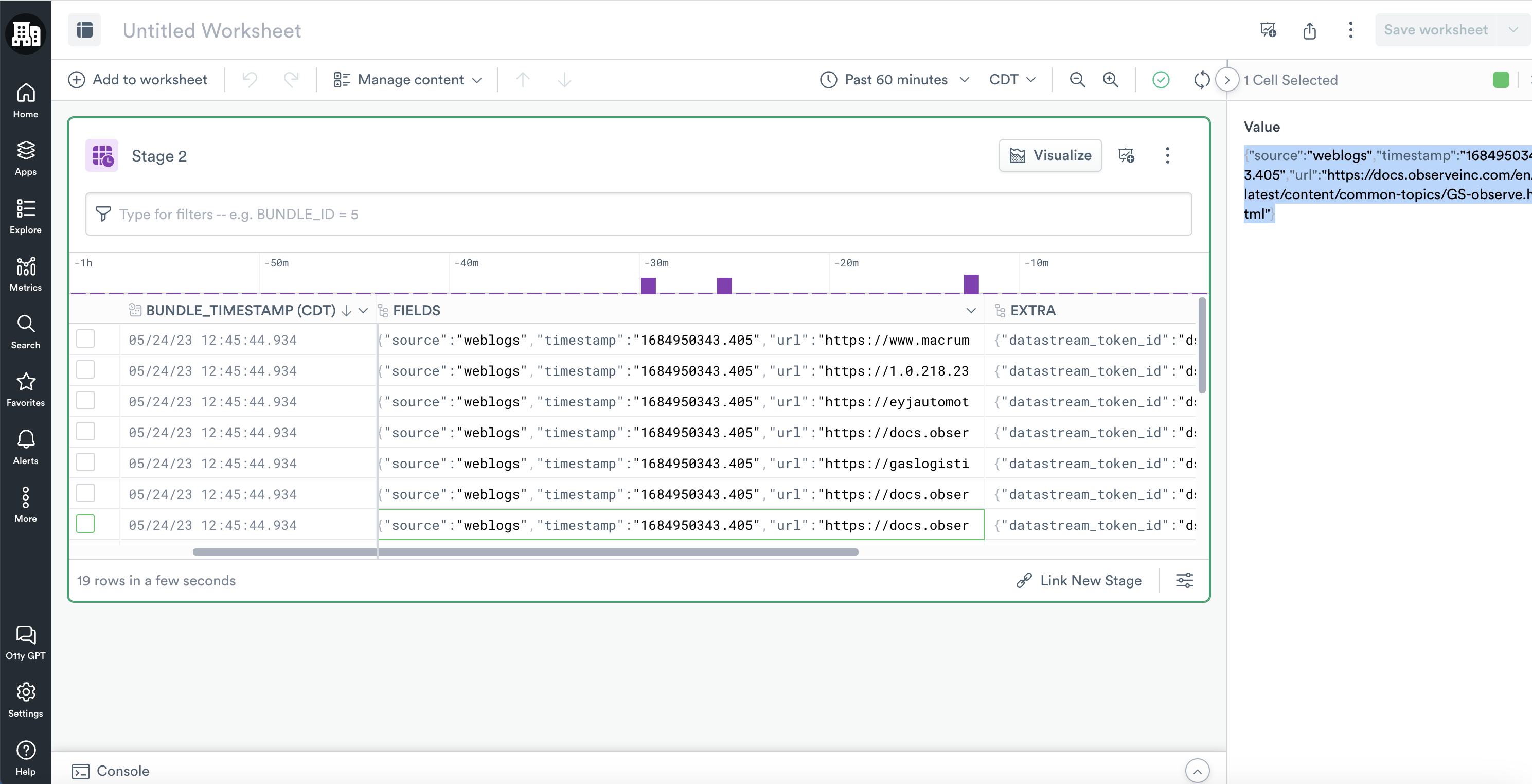
- Click on Untitled Worksheet and rename it to Example/Host-Domain-URL IOC Matches.
- Click on Stage 1 and rename it to Form Data.
Extract fields from the JSON payload
- Open the menu for the FIELDS column and select Extract from JSON.
- From the right menu, select the following fields. Some fields may be in nested objects:
- source
- timestamp
- url
- Click Apply.
The extraction creates the following OPAL:
// Note we use a lower function on the url to avoid case matching issues later
make_col source:string(FIELDS.source),
    timestamp:string(FIELDS.timestamp),
    url:lower(string(FIELDS.url))
Form timestamp from event data
- You want to designate the timestamp, in Epoch seconds, from the data as the event timestamp. The JSON extraction creates a string by default. You want to change it to a valid
timestampobject.
Change the string function to the from_seconds function to create a proper timestamp object type.
// Extract fields from JSON
make_col source:string(FIELDS.source),
    timestamp:from_seconds(FIELDS.timestamp),
url:lower(string(FIELDS.url)) - Add the following OPAL to set a
set_valid_from. For better performance, don’t use a new value that deviates too much from the original ingest time.
// Set valid from for the data
set_valid_from options(max_time_diff:4h), timestamp
Form host field from the URL field
- Next you extract the host value from the
urlbecause you want to check this value as well as the fullurlvalue against the Threat Intelligence IOCs. Add the following OPAL code:
// extract host from url
extract_regex url, /\/(?P<url_host>[^\/:]+)[:\/]?/- Add the following OPAL to reduce the columns to only the fields of interest.
// Keep fields of interest
pick_col timestamp,
    source,
    url,
url_host- Click RUN.
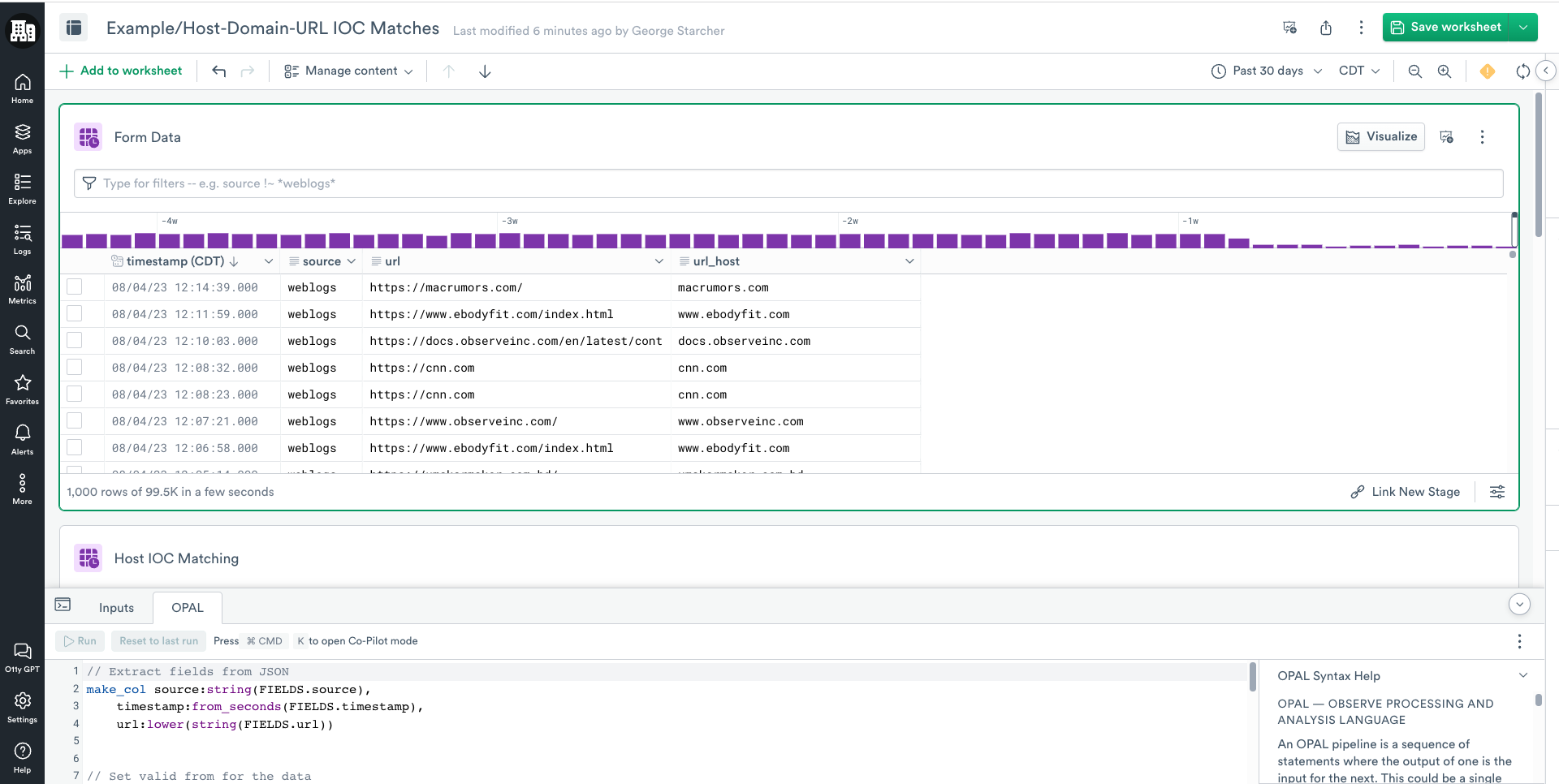
- Click Save Worksheet.
Match the url_host field to the IOCs
url_host field to the IOCs- Minimize the OPAL console so you can select Link New Stage.
- Rename the new Stage Host IOC Matching.
- Open the OPAL console.
- Click the Inputs tab.
- Search and add Unified Hosts-Domains Threatlist.
- Note the name of the added Input as you use it in the
joinstatement.

- Click the OPAL tab and add the following OPAL code.
// Note we use the lower() function to ensure values match consistently

join on(lower(url_host)=lower(@"Threat_Intel_Basic/Unified Hosts-Domains Threatlist".tip_domain)),
  tip_match:@"Threat_Intel_Basic/Unified Hosts-Domains Threatlist".tip_domain,
  tip_provider:@"Threat_Intel_Basic/Unified Hosts-Domains Threatlist".tip_provider,
  tip_provider_id:@"Threat_Intel_Basic/Unified Hosts-Domains Threatlist".tip_provider_url,
  tip_severity:@"Threat_Intel_Basic/Unified Hosts-Domains Threatlist".tip_severity,
  tip_tags:@"Threat_Intel_Basic/Unified Hosts-Domains Threatlist".tip_tags,
  tip_source:@"Threat_Intel_Basic/Unified Hosts-Domains Threatlist".tip_source,
  tip_tlp:@"Threat_Intel_Basic/Unified Hosts-Domains Threatlist".tip_tlp,
  tip_category:@"Threat_Intel_Basic/Unified Hosts-Domains Threatlist".tip_category,

tip_match_field:"url_host"- Click Run.
- Click Save worksheet.
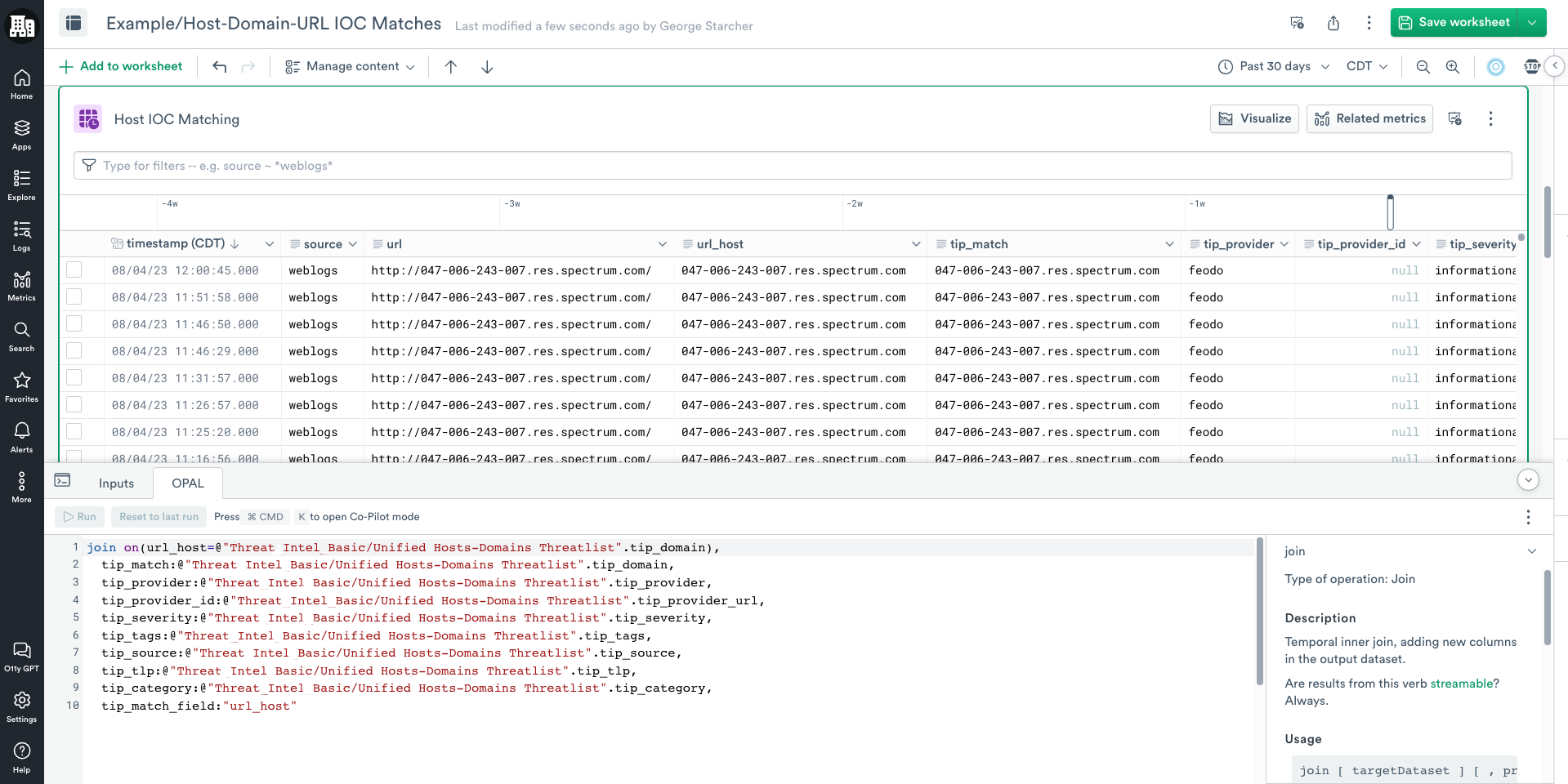
Match the url field to IOCs
url field to IOCs- Minimize the OPAL console.
- Return to the Stage Form Data and select Link New Stage. This links you to the original data.
- Rename the new Stage URL IOC Matching.
- Open the OPAL console.
- Click Inputs.
- Search and add the Unified URL Threatlist dataset.
- Note the name of the added Input as you use in the
joinstatement.

- Click the OPAL tab and update it using the following OPAL code.
// Note we use the lower() function to ensure values match consistently

join on(lower(url)=lower(@"Threat_Intel_Basic/Unified URL Threatlist".tip_url)),
  tip_match:@"Threat_Intel_Basic/Unified URL Threatlist".tip_url,
  tip_provider:@"Threat_Intel_Basic/Unified URL Threatlist".tip_provider,
  tip_provider_id:@"Threat_Intel_Basic/Unified URL Threatlist".tip_provider_url,
  tip_severity:@"Threat_Intel_Basic/Unified URL Threatlist".tip_severity,
  tip_tags:@"Threat_Intel_Basic/Unified URL Threatlist".tip_tags,
  tip_source:@"Threat_Intel_Basic/Unified URL Threatlist".tip_source,
  tip_tlp:@"Threat_Intel_Basic/Unified URL Threatlist".tip_tlp,
  tip_category:@"Threat_Intel_Basic/Unified URL Threatlist".tip_category,
  tip_match_field:"url"
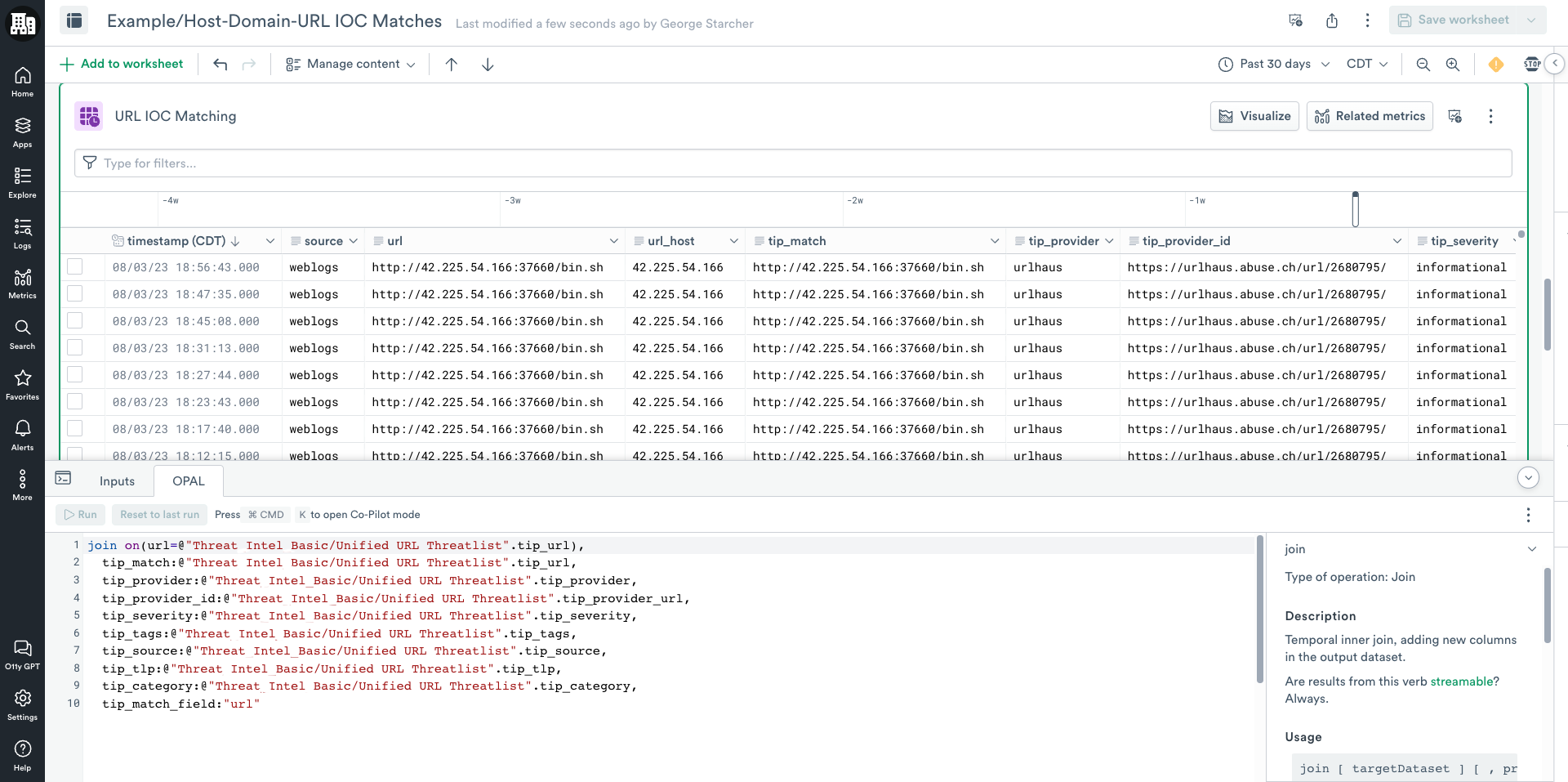
Merge url and url_host IOC matches
url and url_host IOC matchesYou now have two different stages from the main data matching each unified list.
- To merge the results, locate the stage URL IOC Matching and select Link New Stage.
- Rename the new Stage Merged Results.
- On the OPAL console, click Inputs.
- Search and add the Host IOC Matching.
- Note the name of the added Input as you use it in the
unionstatement.
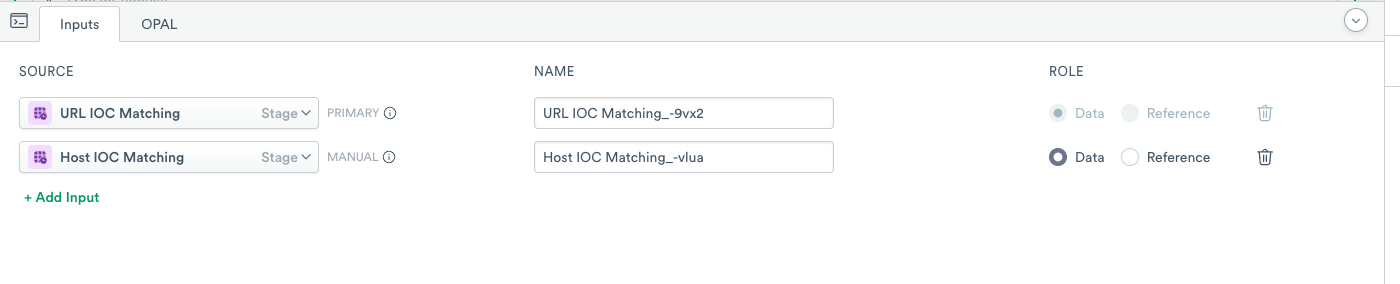
- Add the following OPAL to combine the results in the stage.
//merge in the host IOC matches
union @"Host IOC Matching_-vlua"

// use a statsby to reduce to what all matches by the URL in case you get matches on host and full url

statsby timestamp:last(timestamp),
  tip_match:string_agg_distinct(tip_match,","),
  tip_match_field:string_agg_distinct(tip_match_field,","),
  tip_provider:string_agg_distinct(tip_provider,","),
  tip_provider_id:string_agg_distinct(tip_provider_id,","),
  tip_severity:string_agg_distinct(tip_severity,","),
  tip_tags:array_agg_distinct(tip_tags),
  tip_source:string_agg_distinct(tip_source,","),
  tip_tlp:string_agg_distinct(tip_tlp,","),
  tip_category:string_agg_distinct(tip_category,","),
  group_by(url)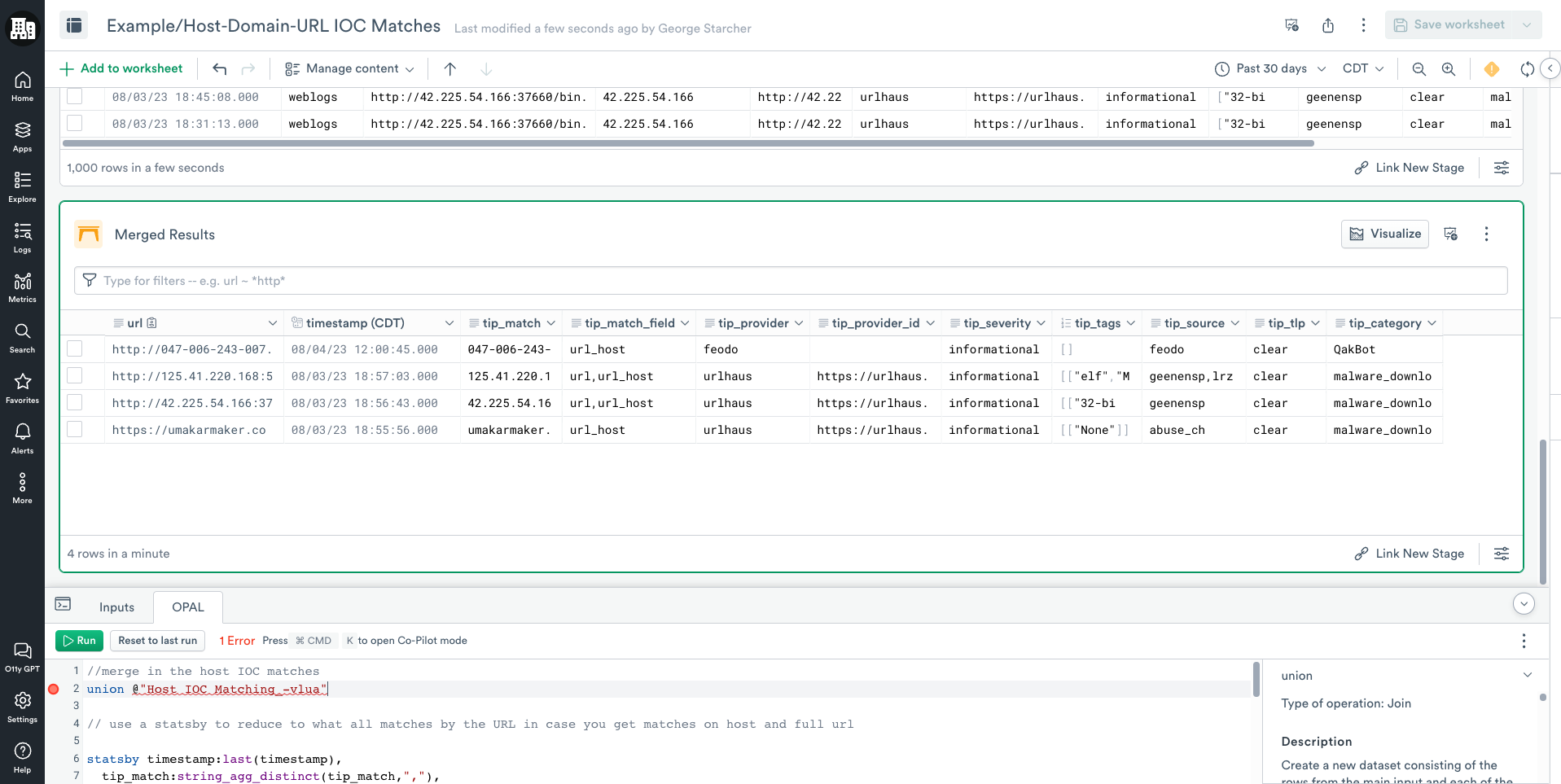
You have now completed the usage example. You could also use this Worksheet to make a Dataset and subsequent Monitor if so desired.
Updated 12 months ago
Did this page help you?