

Manage groups and members
Observe by Snowflake provides two default groups out of the box: Everyone and Admin. Both are reserved groups with special properties. The Everyone group includes all users in your Observe by Snowflake tenant; its membership is dynamic and can't be changed. The Admin group can perform all actions and access everything in the account, and its permissions can't be modified. These groups ensure consistent access and management across your Observe by Snowflake tenant. You can't delete these groups, nor can you change the name of either group.
Access the Groups dashboard
Access the Groups dashboard in either of the following ways:
- In the left navigation rail, select Admin > Groups.
- In the left navigation rail, hover on your user name, then select Manage account, then click Groups.
Create a group with admin privileges for its members
If you need to have a group whose members have admin privileges, do the following:
- Create the group and give it a name other than Admin.
- Assign admin privileges to the group.
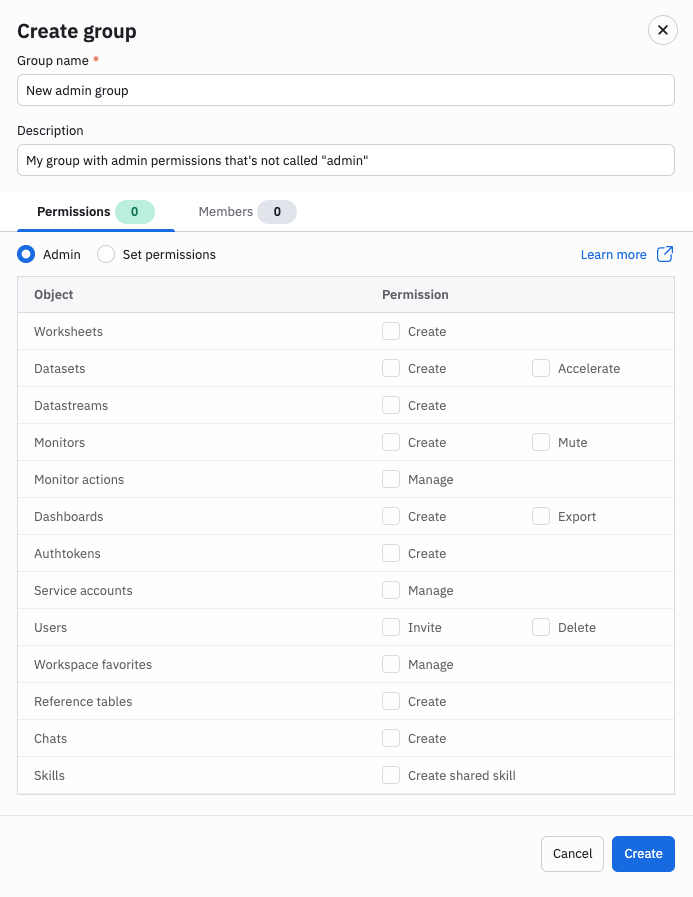
- Click Create.
Group permissions
Groups are subject to the following permissions, note that the Admin permission provides administrative access to the entire tenant workspace and include actions not explicitly listed in the Set permissions table.
| Object | Permission |
|---|---|
| Worksheets | Grant group members the ability to create new worksheets. |
| Datasets | Grant group members the ability to create and publish new Datasets, and accelerate new Datasets. |
| Datastreams | Grant group members the ability to create new Datastreams and associated ingestion tokens, pollers and filedrop configs. |
| Monitors | Grant group members the ability to create new monitors and actions, and mute existing monitors and alerts. |
| Monitor actions | Grant group members the ability to manage monitor actions. |
| Dashboards | Grant group members the ability to create new dashboards and create and export dashboard reports. |
| Authtokens | Grant group members the ability to create auth tokens for use with the Observe by Snowflake REST API. |
| Users | Grant group members the ability to invite and reactivate users, and delete and deactivate users. |
| Investigations | Grant group members the ability to access investigations. |
| Workspace favorites | Grant group members the ability to manage Workspace favorites. |
| Reference tables | Grant group members the ability to create reference tables. |
| Chats | Grant group members the ability to create chats in AI SRE. |
| Skills | Grant group members the ability to create a shared AI SRE skill. |
Add members to the group
After you finish defining the group properties, click the Members tab to add members to this group.
- If you are creating a new group, slide the Show only members in group toggle to the off position, so you can see all the members in your organization.
- Search and select the members you want to add.
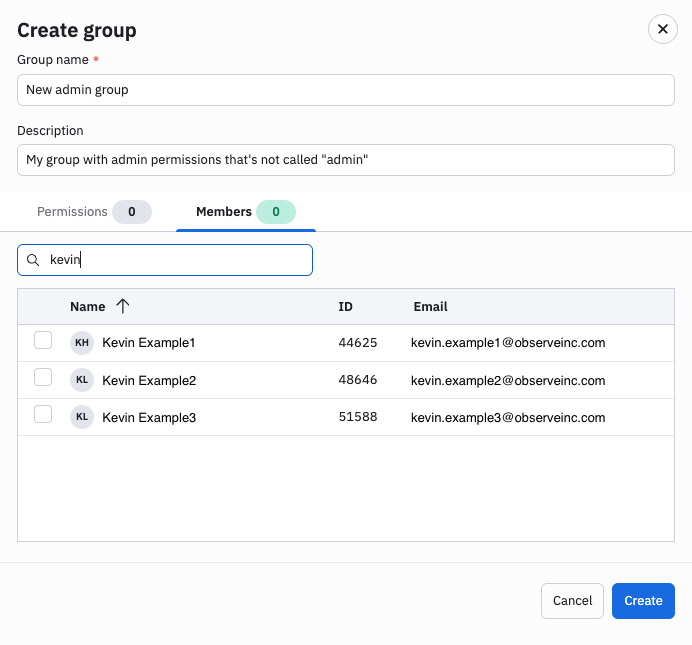
- Click Update.
Updated about 1 month ago