

Configure OneLogin for SSO
Observe by Snowflake supports OneLogin as an Identity Provider (IdP) using Security Assertion Markup Language (SAML).
Configure OneLogin
- Log into the OneLogin portal as the admin and choose Applications > Applications > Add App.
- In the Search field, enter saml test.
- Choose SAML Test Connector (Advanced) and change the Display Name to Observe.
- Add a description and click Save.
- Verify the Display Name as Observe by Snowflake, and add the Observe by Snowflake icon by navigating to
https://s3-us-west-2.amazonaws.com/observeinc.com/assets/saml-icon.png. - Change to the Configuration page and set the following values. Replace
${OBSERVE_CUSTOMER_ID}with your Observe by Snowflake tenant ID, and${REGION_URL}with the appropriate URL for your deployment region. See Observe by Snowflake deployment regions.
- ACS URL Validator - enter the URL
https://${OBSERVE_CUSTOMER_ID}.${REGION_URL}/auth/saml2/callback. - ACS URL - enter the URL
https://${OBSERVE_CUSTOMER_ID}.${REGION_URL}/auth/saml2/callback. - SAML initiator - enter
Service Provider. - SAML nameID format - enter
Email. - Name ID - enter
Basic Information > Primary email. - SAML signature element - enter
Response.
- Navigate to the Parameters page and add the following parameters one at a time by clicking the +, and then Save after adding each value.
- Field Names -
email,firstName, andlastName(case-sensitive!) - Values -
Email,First Name, andLast Name
- Select the Include in SAML assertion.
- Copy the SAML 2.0 Endpoint (HTTP) URL.
Configure Observe by Snowflake
Perform the following steps to configure Observe by Snowflake for Microsoft Entra ID SSO:
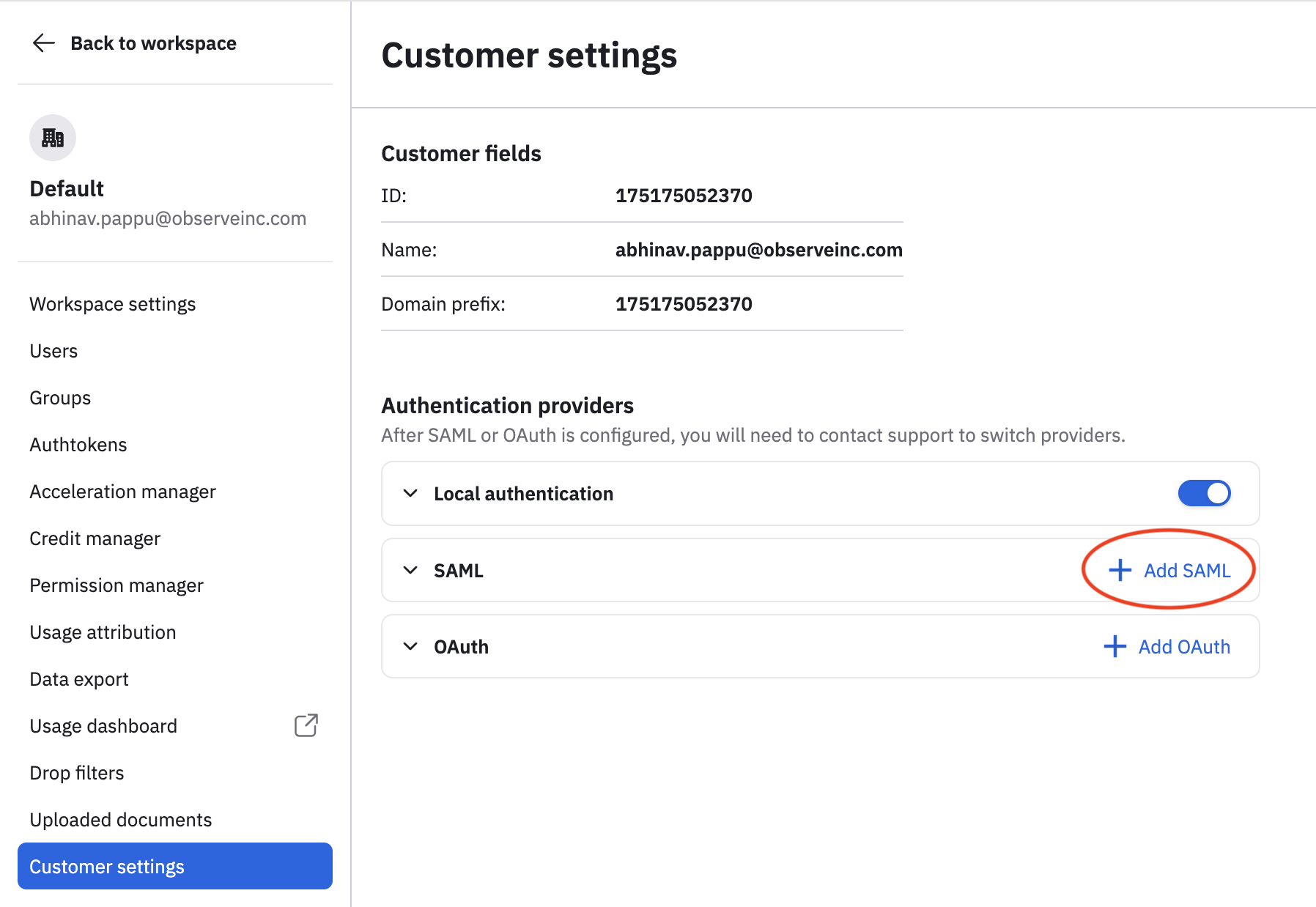
- In the left navigation rail, hover on your user name, then select Manage account.
- Click Customer settings.
- Click Add SAML.
- Paste the SAML 2.0 Endpoint (HTTP) URL into the Entry Point field.
- On the OneLogin SSO page, click Details for the X.509 certificate. Copy the certificate details and paste them into the Cert field for Observe by Snowflake.
- Click Add SAML Provider.
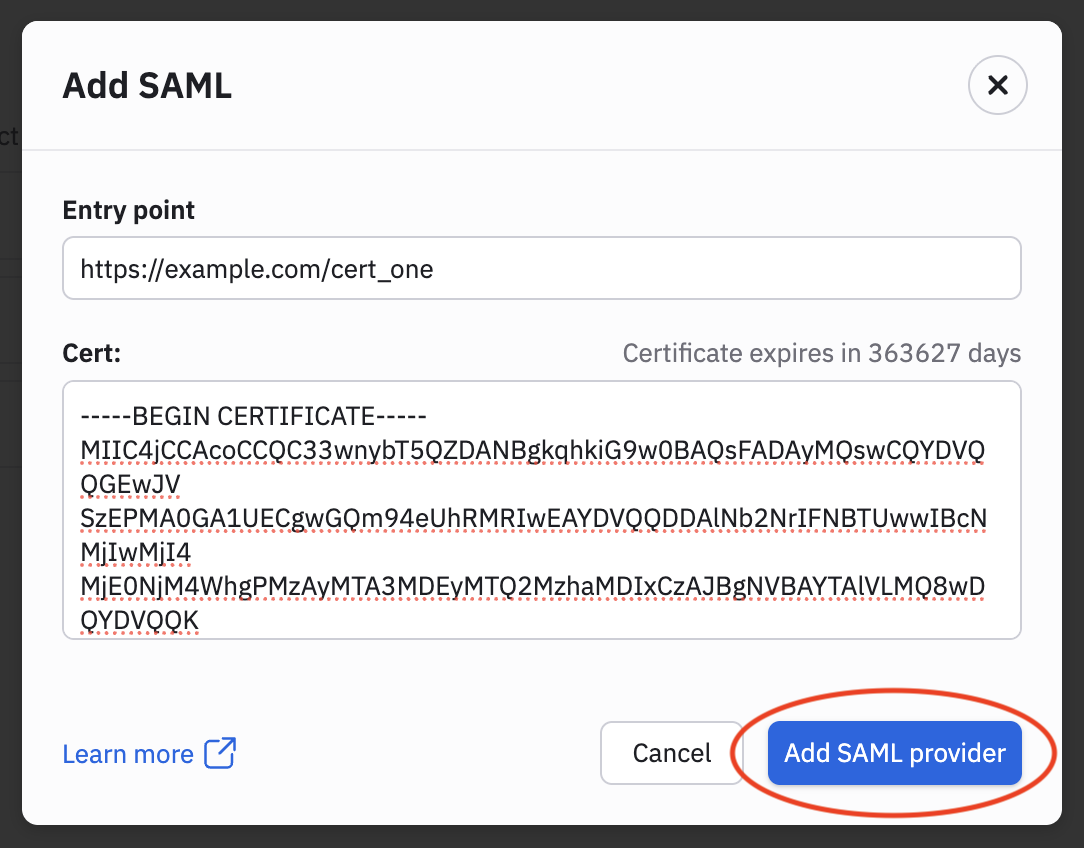
NoteNOTE THE CERTIFICATE EXPIRATION DATE! If this is your first SAML app for OneLogin, the certificate is new and valid for five years from today. If you previously configured other SAML apps, the certificate may be an older one. Observe by Snowflake does not currently warn about the expiration date. When this certificate expires, your SAML integration stops functioning.
Updated 29 days ago
Did this page help you?