

Add dashboard parameters
Learn how to add dashboard parameters to filter the content in your dashboard cards.
Dashboard parameters are input fields, such as drop-downs or text entries, you can use to narrow or customize the results displayed in the cards on your dashboard. For example, a dashboard parameter can be a text entry for an image hash, or a drop-down to select an instance name. These parameters can be referenced in OPAL scripts using a leading $, for example, $param.
Parameters can be of any basic data type, such as string, int64, float64, or bool. If you need to pass a non-storable value like a regular expression, you pass it as a string and cast it to the required type in your OPAL script.
Example usage in OPAL:
// Filter rows where the parameter $param is 'first' or 'second'
filter in($param, make_array('first', 'second'))
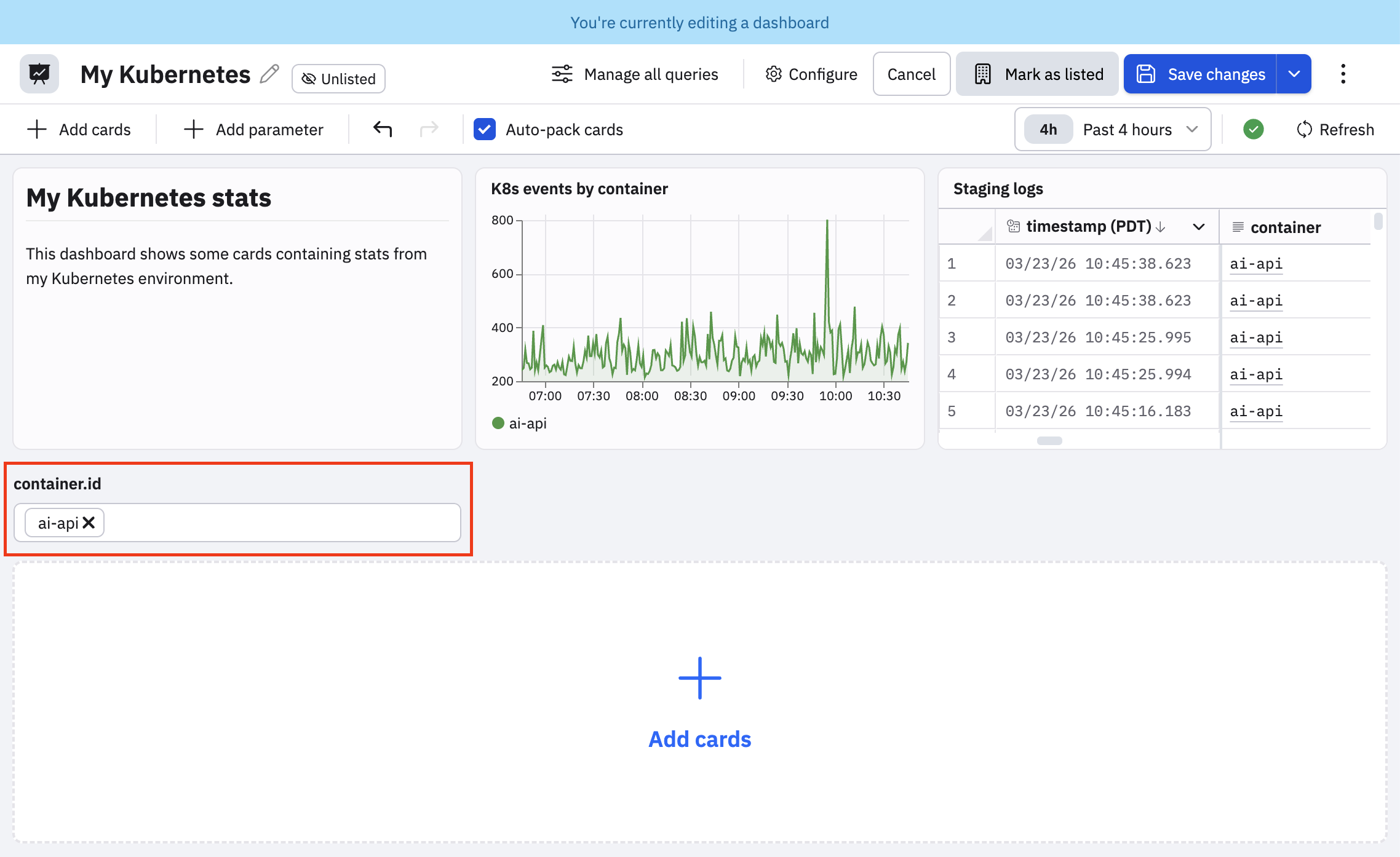
Parameters make dashboards interactive and flexible, allowing you to filter and explore data dynamically. In this example, there is a dashboard parameter configured and selected so that only data form the ai-api container is shown:
Types of dashboard parameters
The type of parameter you choose depends on what you want to do with the parameter.
Dashboard parameters that let you filter and pivot
If you want to add a parameter so that you can filter the data in your dashboard cards, and also pivot to other areas of Observe by Snowflake while carrying over those values to the destination for your pivot, choose one of the following:
| Parameter | Description | What it looks like in the UI |
|---|---|---|
| Correlation tag | Filter multiple cards by one or more correlation tag values. Correlation tag parameters enable pivoting between your dashboard and logs, metrics, and traces across Observe by Snowflake. | Drop-down list |
| Resource | Filter linked fields by a resource instance. Resource parameters enable pivoting between your dashboard and logs, metrics, and traces across Observe by Snowflake. The Resource parameter's dropdown list of options can only be populated with the primary key of a resource Dataset. For example, you can use Cluster Name, and populate the drop down with resources from your Kubernetes Clusters resource set. You may optionally allow a Null resource, which effectively means no filtering is done in the selected cards. | Drop-down list |
Dashboard parameters that let you filter only
If you want to add a parameter just to filter the data in the cards on your dashboard, choose one of the following:
| Parameter | Description | What it looks like in the UI |
|---|---|---|
| Metric tag | Filter one or more cards by metric tag values, meaning that you can filter on any metric Dataset that has a tag. Metric data often has associated tags, or labels, which provide extra data around the metric data points. Common examples of tags include cluster, host, service, and other important metadata. Observe by Snowflake automatically indexes the metric label for all metric Datasets so you can use that data to power parameters for filtering dashboard data. The metric tag parameter allows you to filter dashboard data through the tags, or labels, which are associated with metric data. While the values for the metric tag parameter are sourced from metrics data, you can filter all types of data on your dashboard -- logs, metrics, spans and more -- using the metric tag parameter. | Drop-down list |
| Single-value | Filter one of more cards by selecting a single drop-down value. You can pick a Dataset, card, or custom key/value pair list as the source for the drop-down menu value. | Drop-down list |
| Multi-value | Filter one or more cards by selecting multiple drop-down values. You can pick a Dataset, card, or custom key/value pair list as the source for the drop-down menu values. | Drop-down list |
| Text | Filter one or more cards by entering a single text value to filter any string fields in your card queries. | Input bar |
| Number | Filter one or more cards by entering a single number value to filter any float or int64 fields in your card queries. | Input bar |
| Filtered Dataset | Filter one or more cards by selecting a Dataset as a filterable source. The Dashboard editor makes suggestions when you are configuring filtered Dataset parameters. For example, we might make a new dashboard, add a card for Container Logs, add a card for Container Resources, and add a card for an unrelated dataset such as AWS ELB Active Connections metrics. When adding a Filtered Dataset to this dashboard, Kubernetes container relevant Datasets are suggested as the best options to use. | Side filter panel |
Create dashboard parameters
The flow for creating dashboard parameters varies depending on the parameter type:
- Single-value and multi-value parameters are not limited to a specific type of data. You can choose from Datasets, cards, or custom key/value pair lists as the source for the drop-down values.
- All other parameter types are limited to specific data type. Text and numbers are user-provided values, and correlation tags, resources, and metric tags get their values form their respective sources, so you don't get to choose the source for the parameter values.
The following examples of dashboard parameter creation are available:
- Create a multi-value dashboard parameter
- Create a correlation tag dashboard parameter
- Create a filtered Dataset dashboard parameter
Create a multi-value dashboard parameter
In this example, we will add a multi-value dashboard parameter that lets you filter the content in a single card. Using the My Kubernetes dashboard:
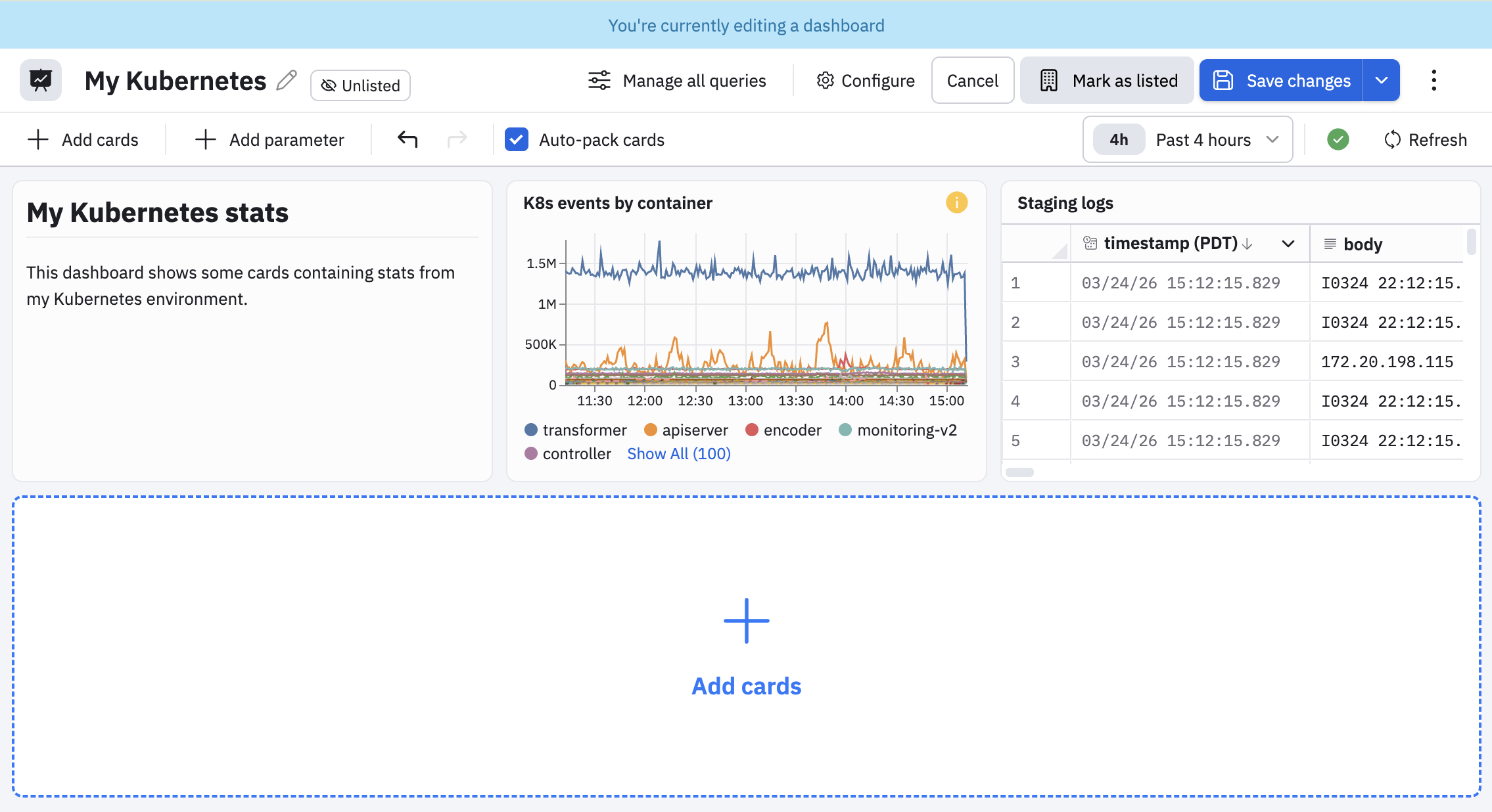
Perform the following steps to create a multi-value dashboard parameter.
-
Edit your dashboard, as shown in the example.
-
Click + Parameter.
-
Click Multi-value.
-
Give the parameter a name you want displayed on the dashboard, such as Container. By default, the OPAL token
$Containeris used, unless you want to change it. From the list of sources, select Dataset, then find and select the Kubernetes Logs Dataset. Lastly, select the container column.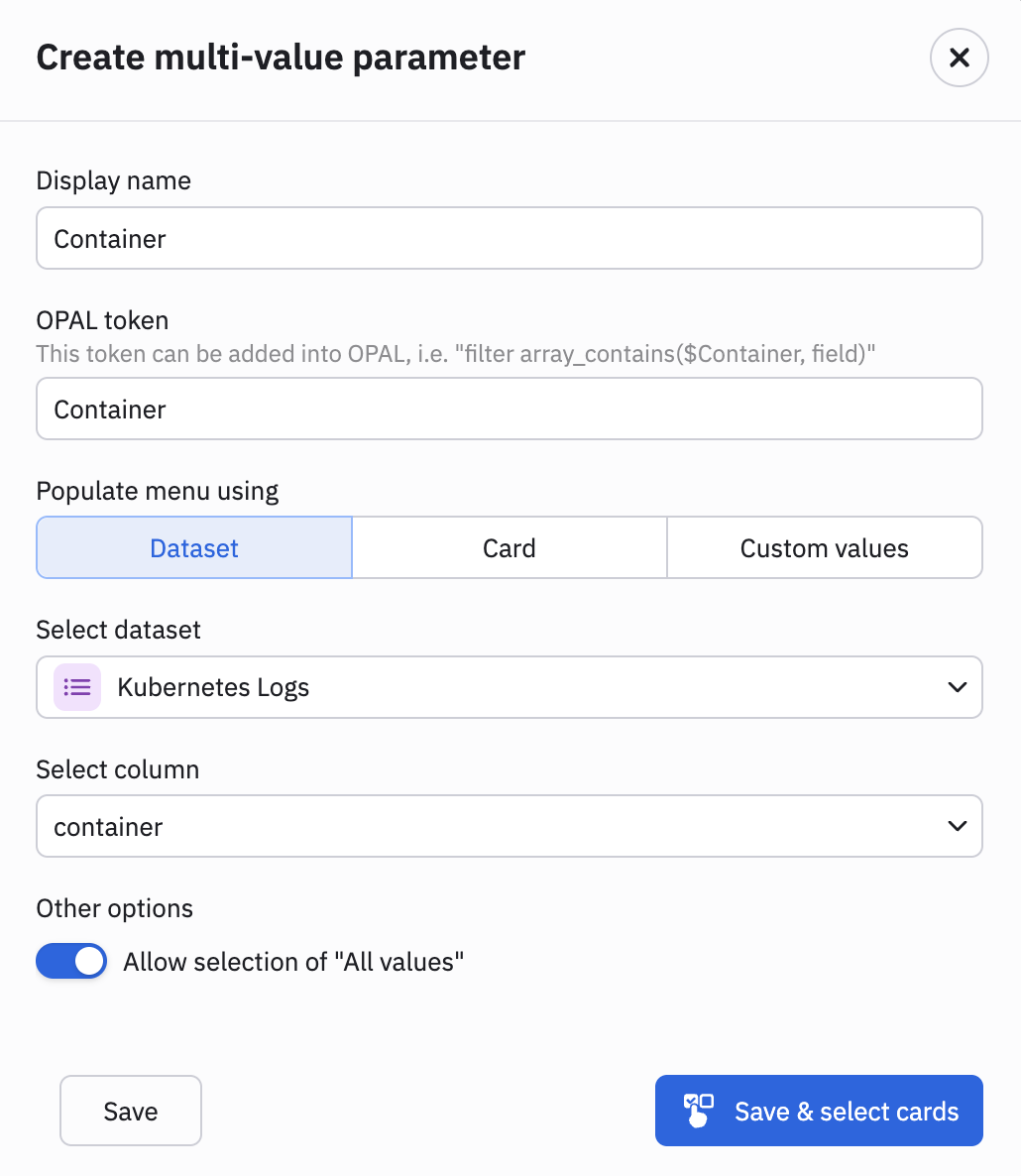
-
Click Save & select cards.
-
Select the card and field to which you want to bind your parameter field. In this case
-
For each card, select the the card field you want to bind to your parameter field. In this case, we will bind the
containerparameter field to thecontainerfield in the card. The corresponding OPAL behind the scenes iscontainer = $Container.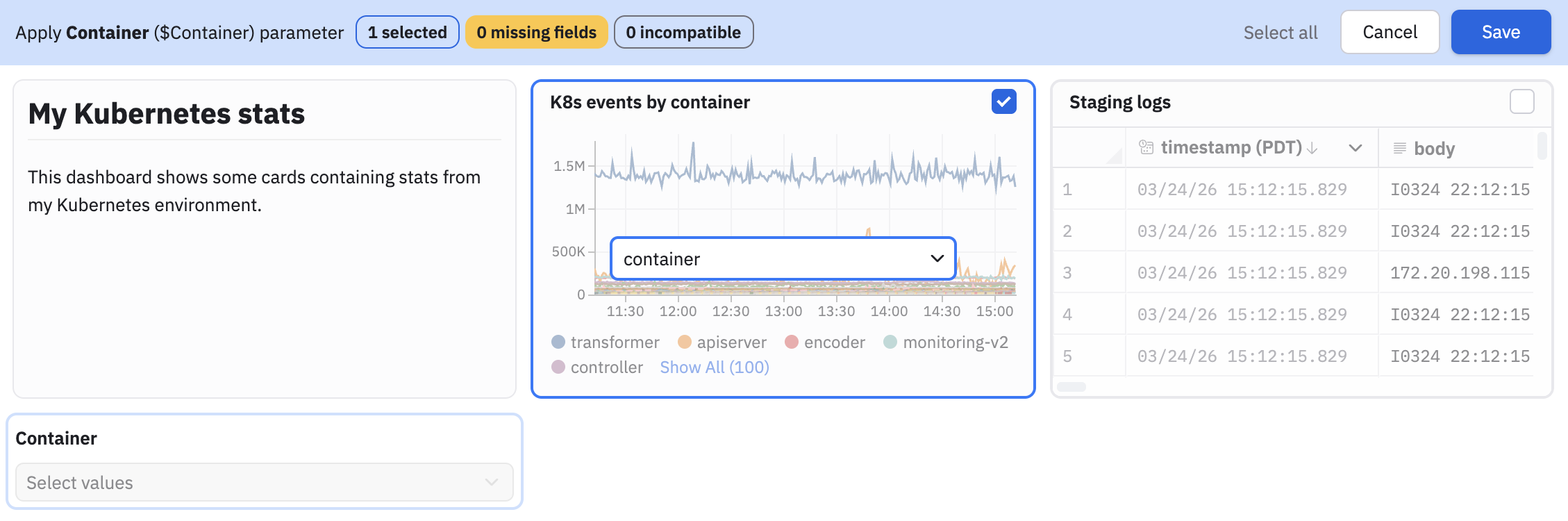
-
Click Save.
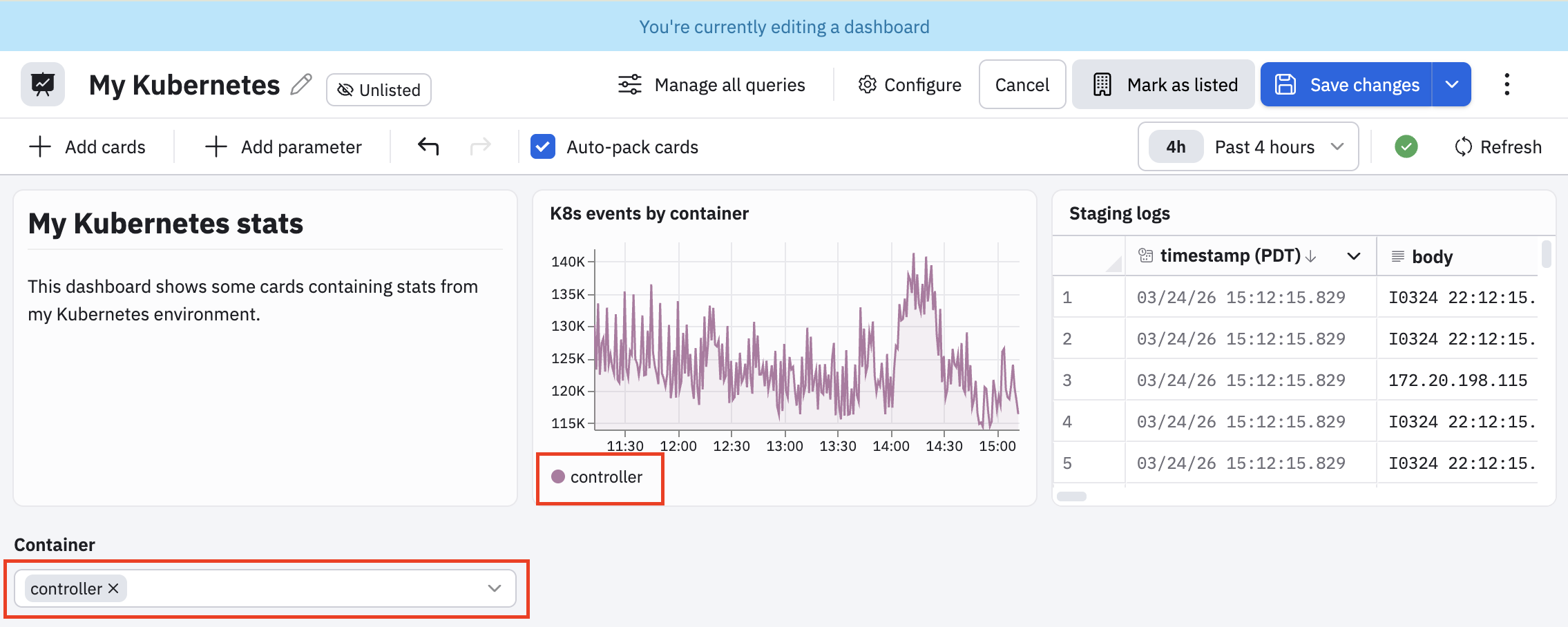
The dashboard now includes a dashboard parameter filter. Click on the filter, then find a select a container name, such as controller. The dashboard card is now updated so that only data from the controller container is shown.
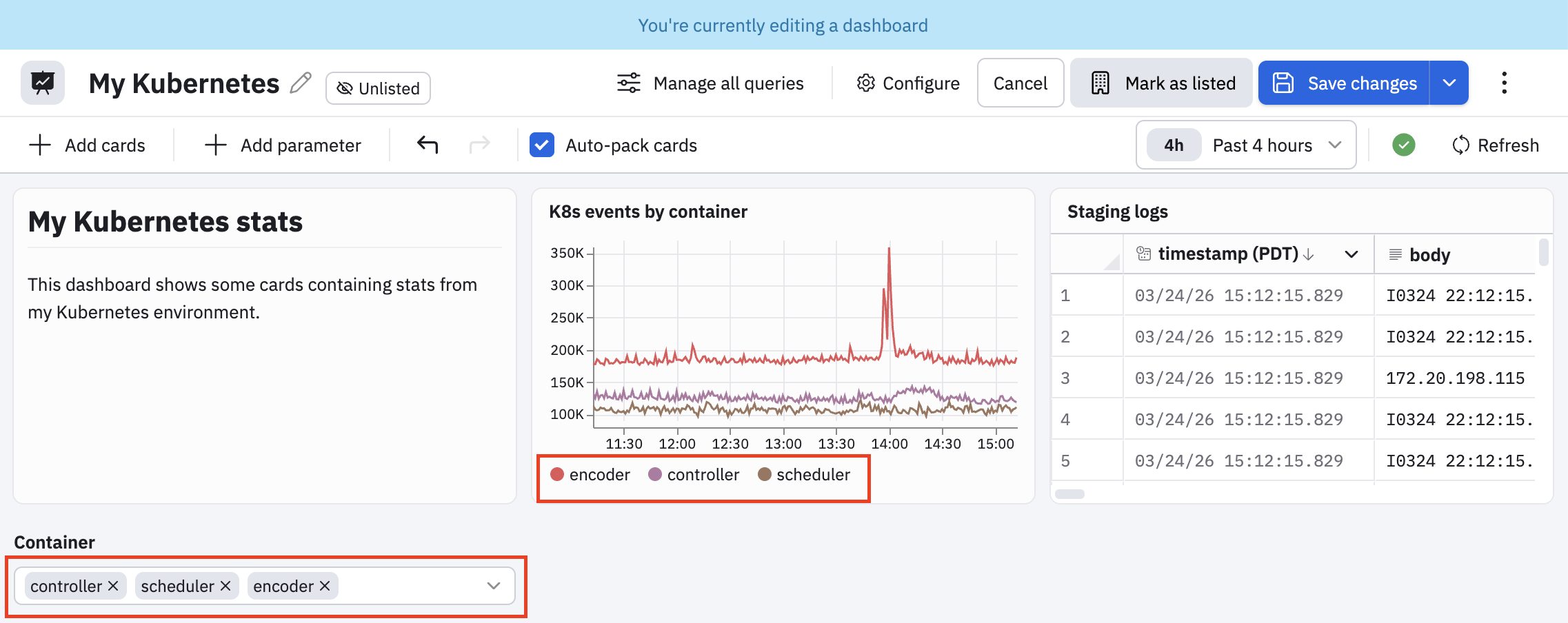
You can select multiple values in a multi-value dashboard parameter, as shown below:
Create a correlation tag dashboard parameter
Perform the following steps to create a correlation tag dashboard parameter. In this example, we have a dashboard showing a variety of Kubernetes data from logs, metrics, and traces, as correlation tag parameters enable you to filter across different data sources. Notice that there are several cards grouping the data by namespace:
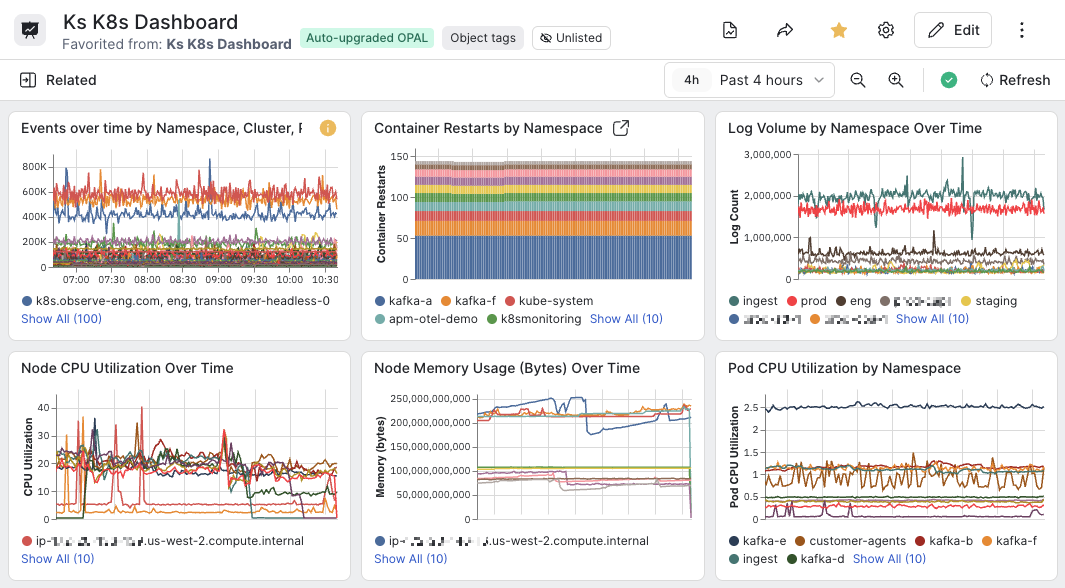
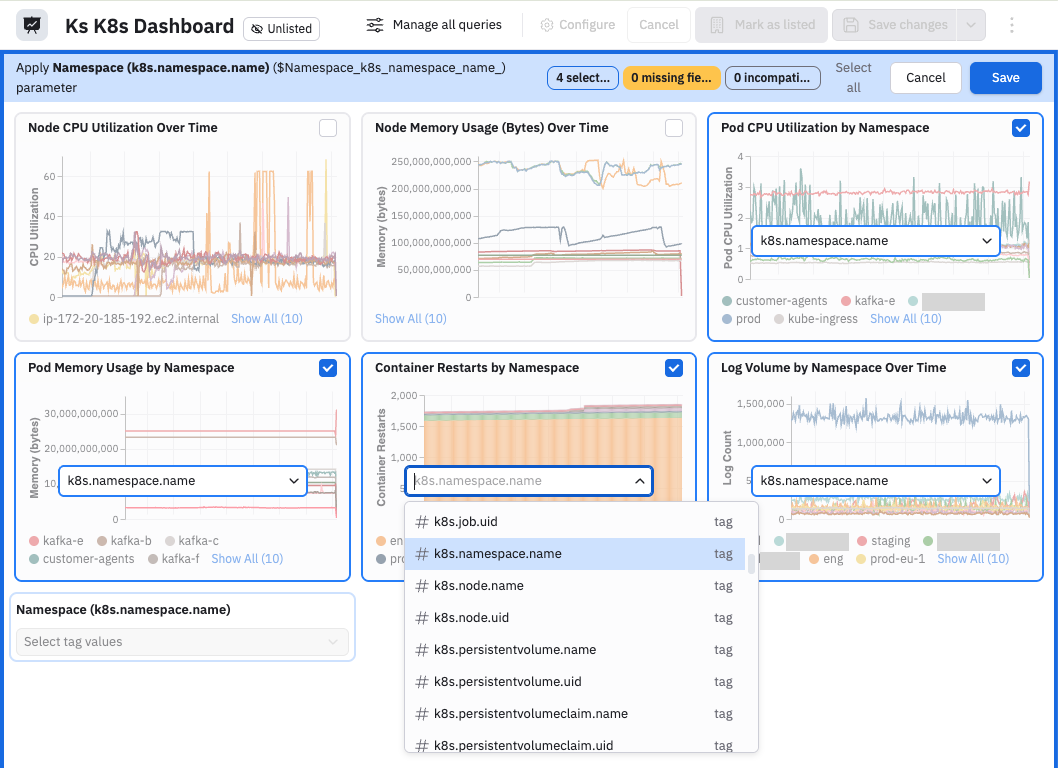
We will create a dashboard parameter to bind the k8s.namespace.name correlation tag to the correlation tag of the same name for the four cards also grouping by namespace.
-
Edit your dashboard.
-
Click + Parameter.
-
Click Correlation tag.
-
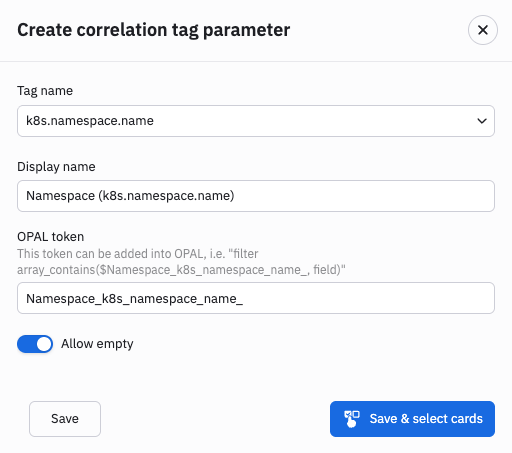
Select the k8s.namespace.name correlation tag. In the Display name field, you can change the value to use a more friendly label to display in the UI. We will use Namespace (k8s.namespace.name) as the display name.
-
Click Save & select cards.
-
Select the cards you want to apply this dashboard parameter to. We will select the four cards with the word Namespace in the card title. After you select the cards, you can see the parameter is automatically bound to the matching tag name in the cards. If this automatic binding doesn't happen you can click in the drop-down list and select the card column you want to bind to the correlation tag.
-
Click Save.
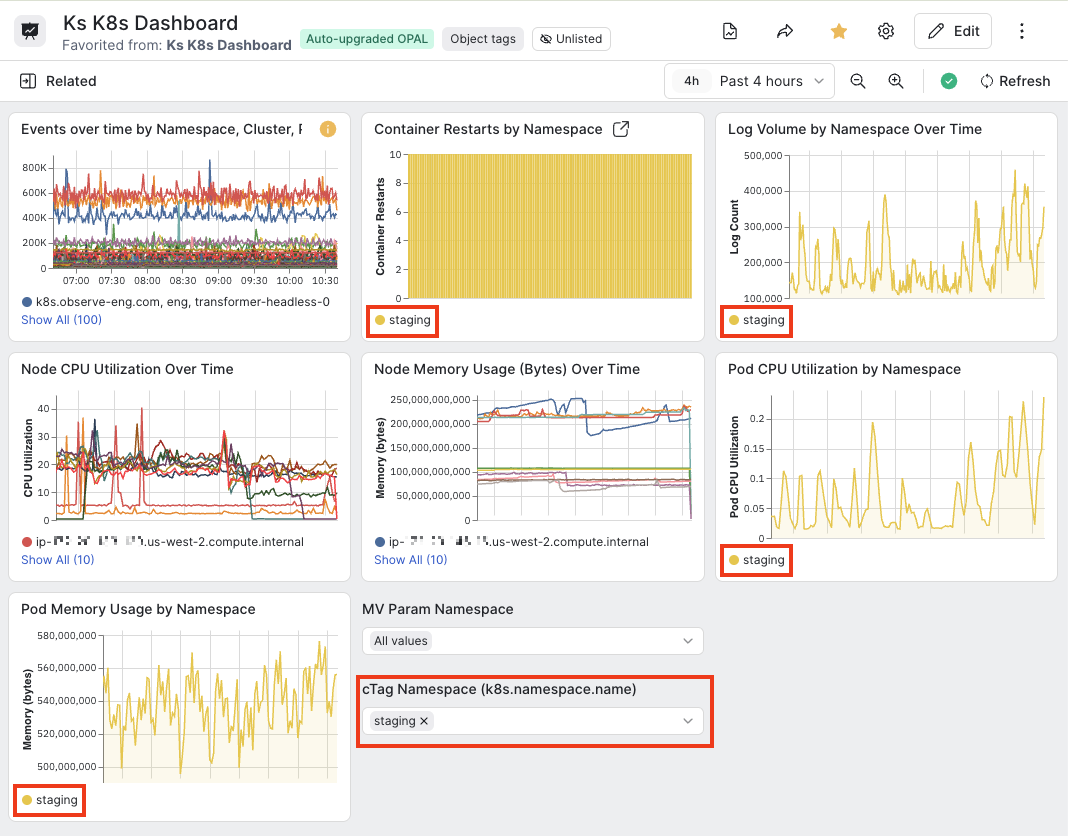
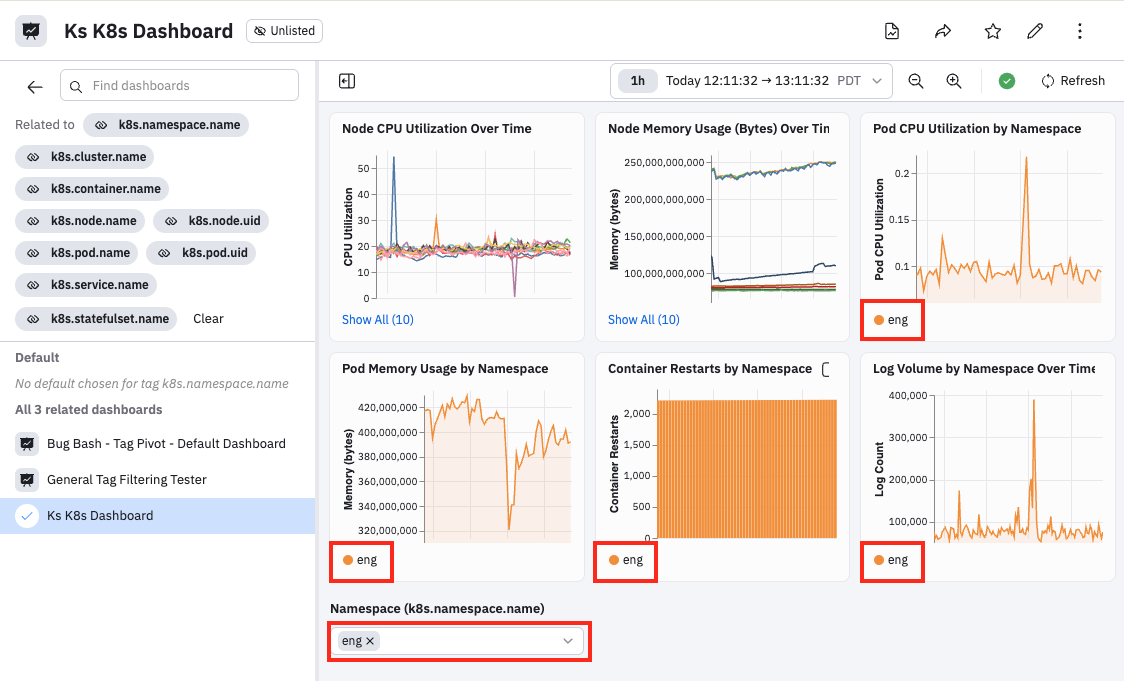
The dashboard now has a dashboard parameter configured. Click in the Namespace (k8s.namespace.name) drop-down list and select a value to filter the cards. For example, if we select staging as the namespace, we see in those four cards, only data from staging is shown:
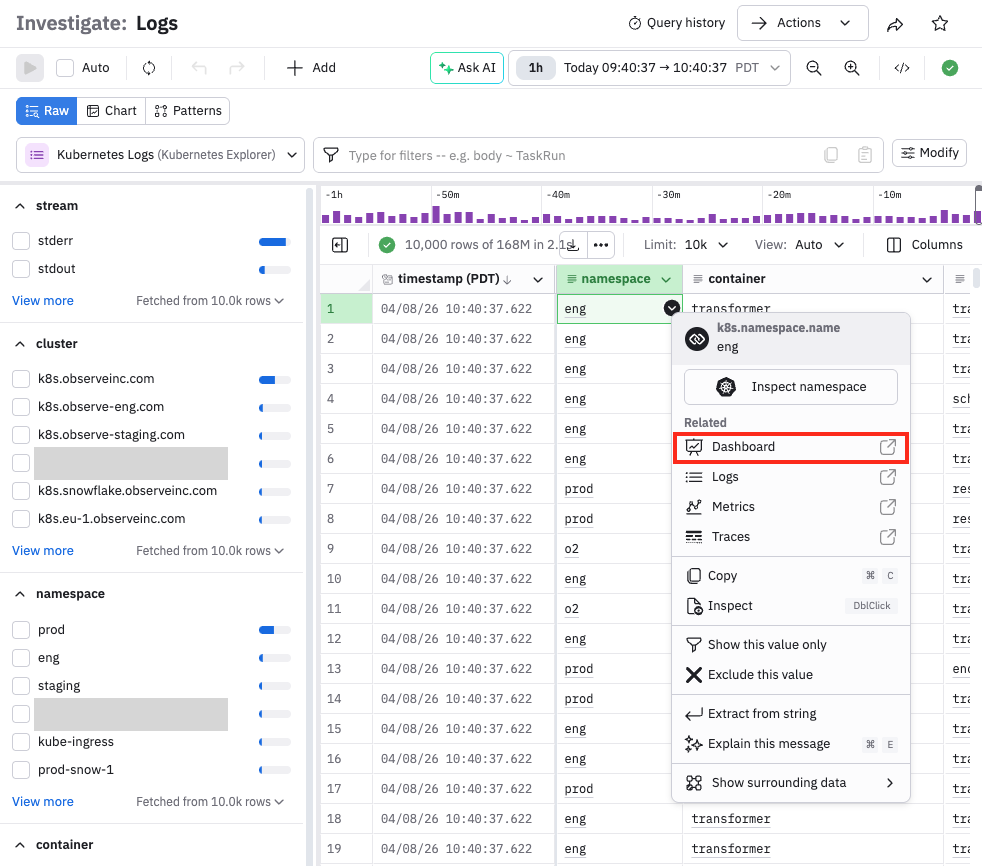
Correlation tag parameters make dashboards available as a destination for pivoting. For example, if we look at Kubernetes Logs from the Log Explorer, we can pivot from k8s.namespace.name to any dashboards also containing the same correlation tag dashboard parameter.
In the namespace column, click on the down caret icon (), then select Dashboard. In this example, we select the eng namespace to pivot from:
Next, you see a list of dashboards containing the k8s.namespace.name parameter, along with related parameters. We want to pivot to Ks K8s Dashboard, which we were working with earlier, so select that in the list of dashboards:
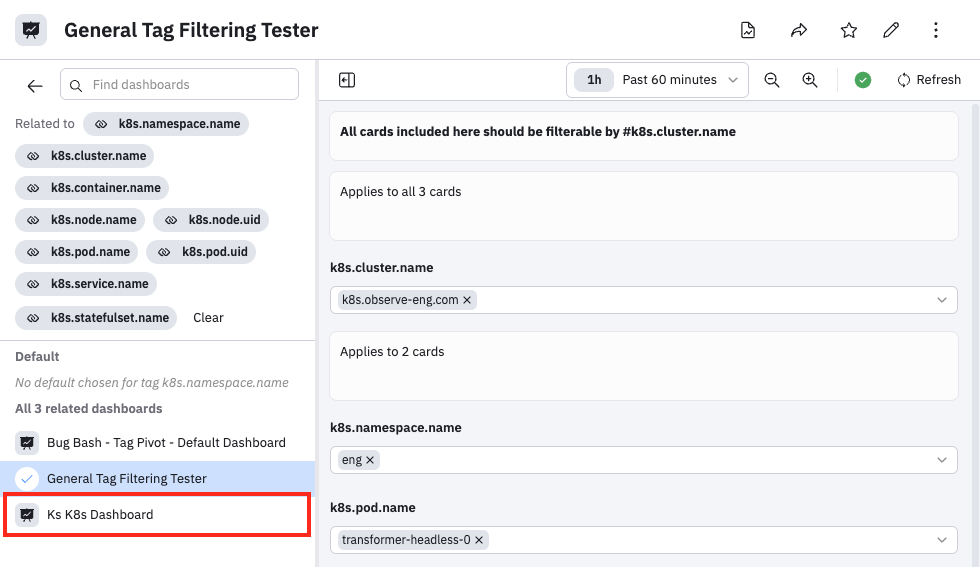
In the Ks K8s Dashboard, you can see the four cards where we have applied the dashboard parameter now only show data from the eng namespace, which is where we pivoted from in the Log Explorer.
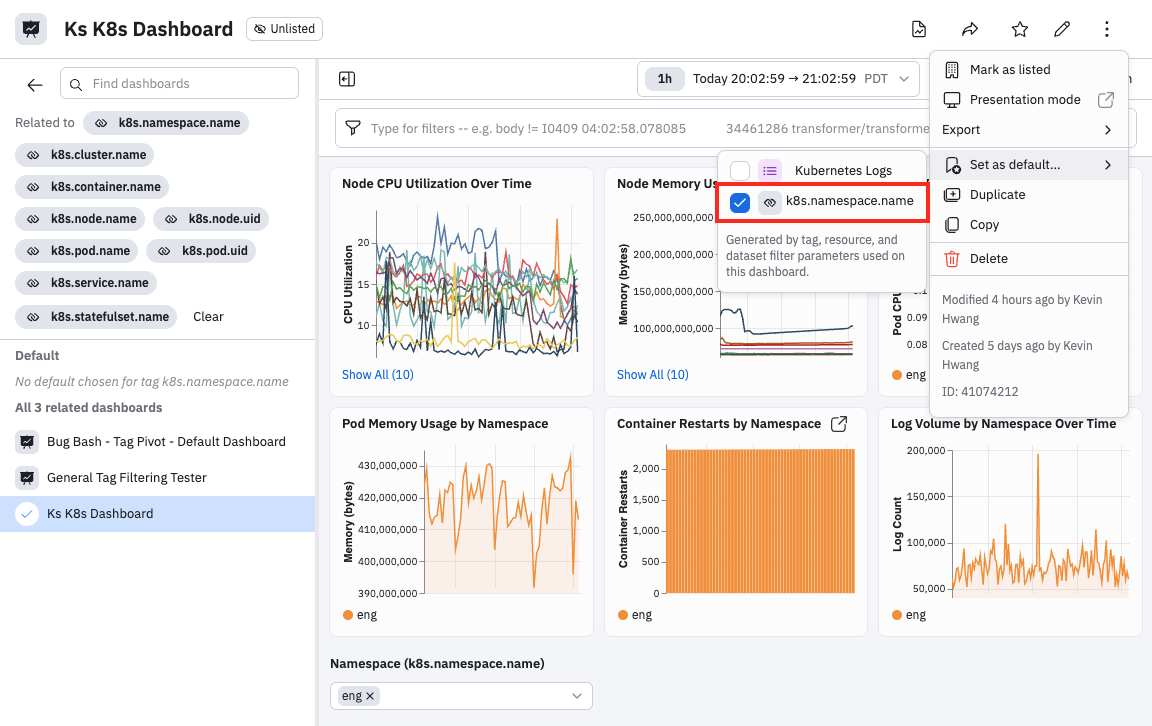
We can now set this dashboard as the default landing page any time anyone pivots on our correlation tag. Click the vertical ellipsis icon (), then select Set as default, then select the resource or correlation tag. In our case, we select the k8s.namespace.name correlation tag.
NoteSetting a default dashboard applies to the entire workspace and not just for the individual user.
Create a filtered Dataset dashboard parameter
Create a filtered Dataset dashboard parameter to filter the cards on your dashboard using a single Dataset. In our example, we can tie the Kubernetes Logs Dataset to the Ks K8s Dashboard, and use the fields from the Dataset such as container, cluster, or pod to filter the cards on our Dashboard.
Perform the following steps:
- Edit your dashboard.
- Click + Parameter.
- Click Filtered Dataset.
- Click the Select source drop-down and select Kubernetes Logs as the Dataset. Leave the default Apply filtering to all relevant cards option selected, to let Observe by Snowflake determine which cards are relevant and should have this filter applied.
- Click Apply.
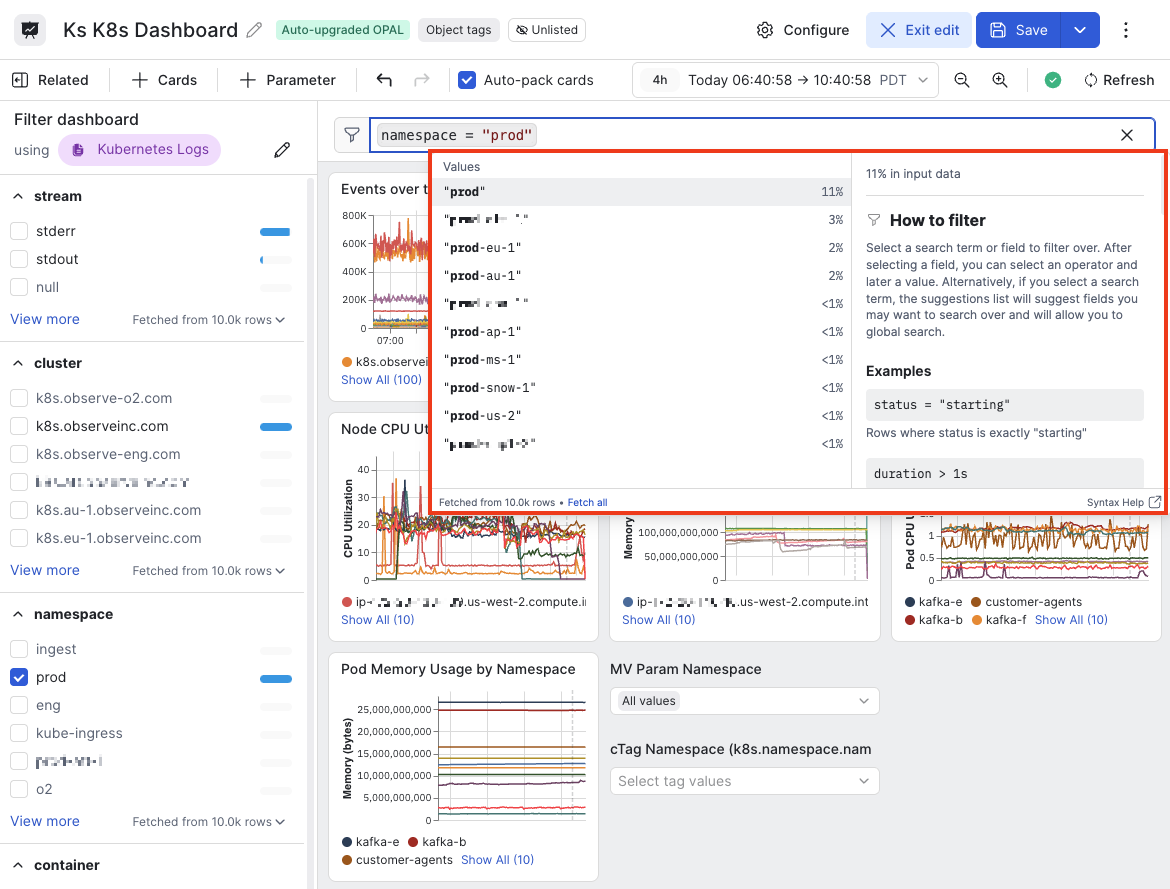
You can see a new filter dashboard is available now, populated with the fields from the Dataset, such as stream, cluster, and namespace.
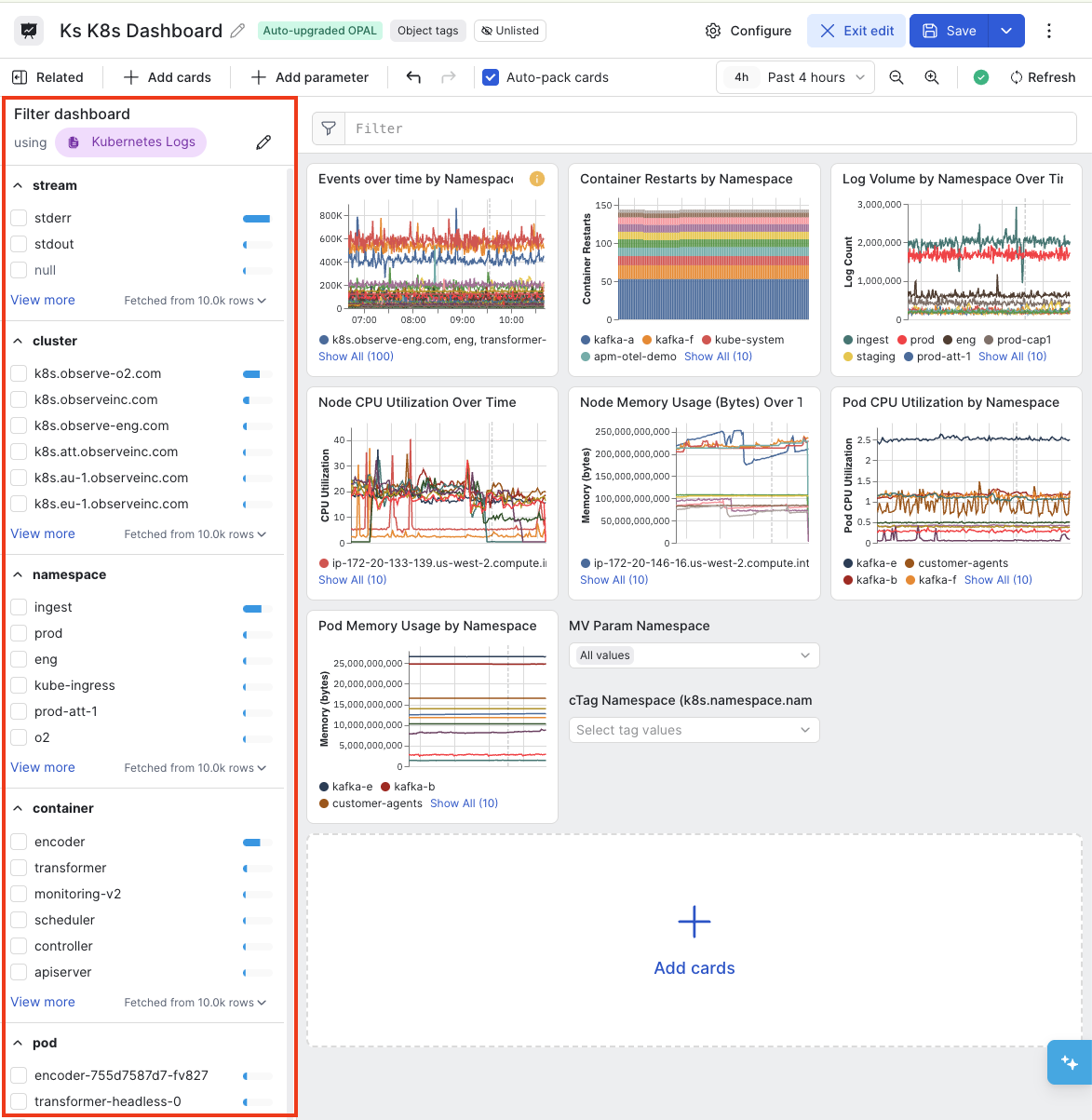
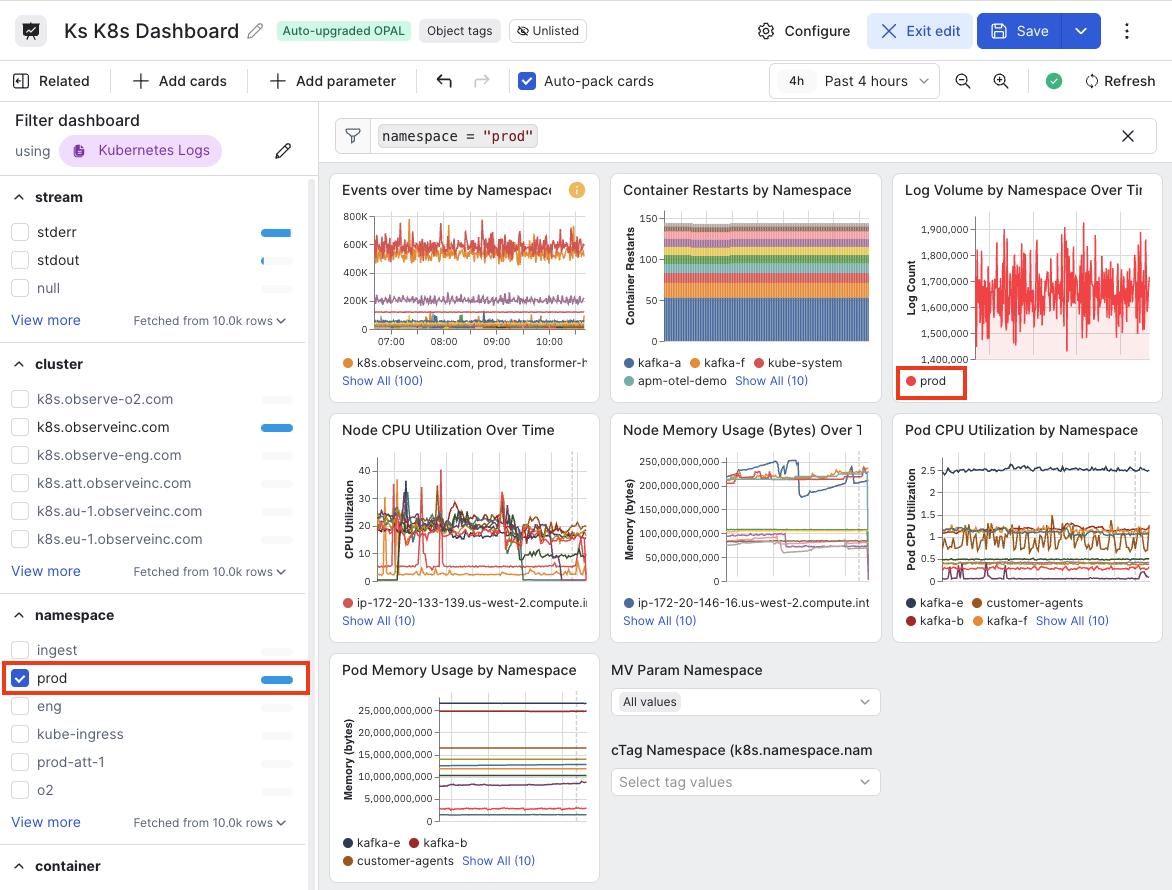
To use the filter, select any options in the filter dashboard to apply them as filters to the cards in your dashboard. For example, we select the prod namespace, and see that the Log Volume by Namespace Over Time card is filtered to show only data from prod:
In addition to using the filter dashboard, the filtered Dataset also provides the full filter bar experience, where you can enter your own text and operators, or click in the filter bar and use the help to assist you in building your queries.
Updated 6 days ago