

Create dashboard links
Learn how to create dashboard links to pivot from your dashboard cards to other destinations.
You can link dashboards together using custom dashboard drilldowns to support troubleshooting workflows where you need to view multiple dashboards or traverse from dashboards to external URLs.
Public preview featureYou may access and use this preview feature solely for internal evaluation purposes. Previews are provided as-is. Your use of this preview is subject to the Snowflake Preview Terms located at https://www.snowflake.com/en/legal.
Types of dashboard links
You can create the following types of links in your dashboards.
| Link type | Description |
|---|---|
| Card links | Allow you to pivot from a dashboard card to another destination. Card links can only push parameter values to the destination of the link. You can create card links in the following ways:
|
| Drilldown links | Allow you to pivot from the data in your chart or table to another destination. Drilldown links can push data selections, such as chart or table cell values from the card itself, as well as dashboard parameter values to the destination of the link. You can create drilldown links in the following ways:
|
| Text links | Allow you to create text links on a text card on a dashboard. Text links can only push parameter values to the destination of the link. |
You can create dashboard links to any of the following destinations:
| Destination type | What it opens |
|---|---|
| Dashboard | Another Observe by Snowflake dashboard (with parameter mappings into the destination dashboard’s parameters). |
| Link | An arbitrary URL (external or internal), with optional query parameters from mappings. |
| Log Explorer | Log Explorer for a target Dataset, with mappings into explorer filters / context. |
| Trace Explorer | Trace Explorer for a target Dataset, with mappings into explorer filters / context. |
| Metrics Explorer | Metrics Explorer for a metric/Dataset context. |
| Service Explorer | Service explorer (APM-style navigation). |
Create card links
This section provides some examples of how to create card links:
Create a card link when you are editing a dashboard
Perform the following tasks to create a card link when you are editing any dashboard:
- Edit the desired dashboard.
- On any dashboard card (not a text card), click the vertical ellipsis icon (), then select Add card link.
- Select the destination, then specify a label for the link. By default the label is the name of the target component, so if you are linking to a dashboard, the label is the name of the destination dashboard. In case you create multiple links, the label helps you easily identify the destination for each link.
- Provide additional configuration context for the link. These options differ depending on the type of link you are creating. For example, if you are linking to another dashboard, you can include your dashboard parameters. If you are linking to Log Explorer, specify the tags that the linked logs must contain.
- Click Add.
Card links appear as a link icon () at the top of the card. Here is an example of a card with multiple links, one to a dashboard called My Kubernetes, and a second link to the Kubernetes documentation:
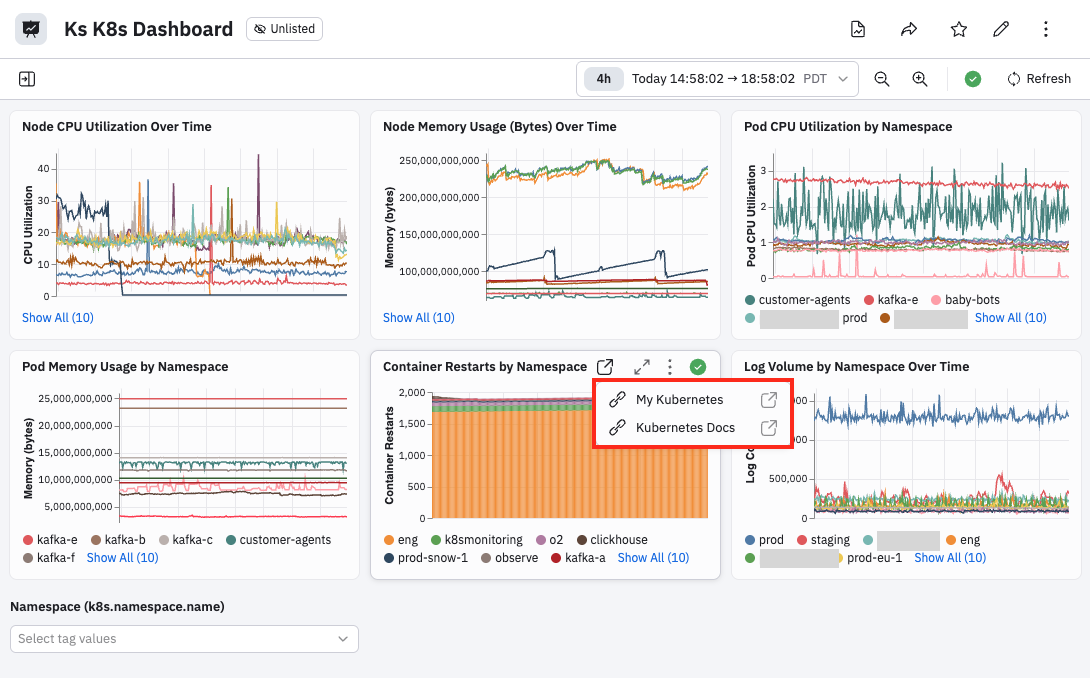
Create a card link when you are editing a card
Perform the following tasks to create a card link when you are editing a card on any dashboard:
- Edit any dashboard card:
- If you are viewing a dashboard, click the vertical ellipsis icon () on the card you want to edit, then select Edit card.
- If you are editing a dashboard, click the pencil icon () on the card you want to edit.
- Select Manage links > Add card link.
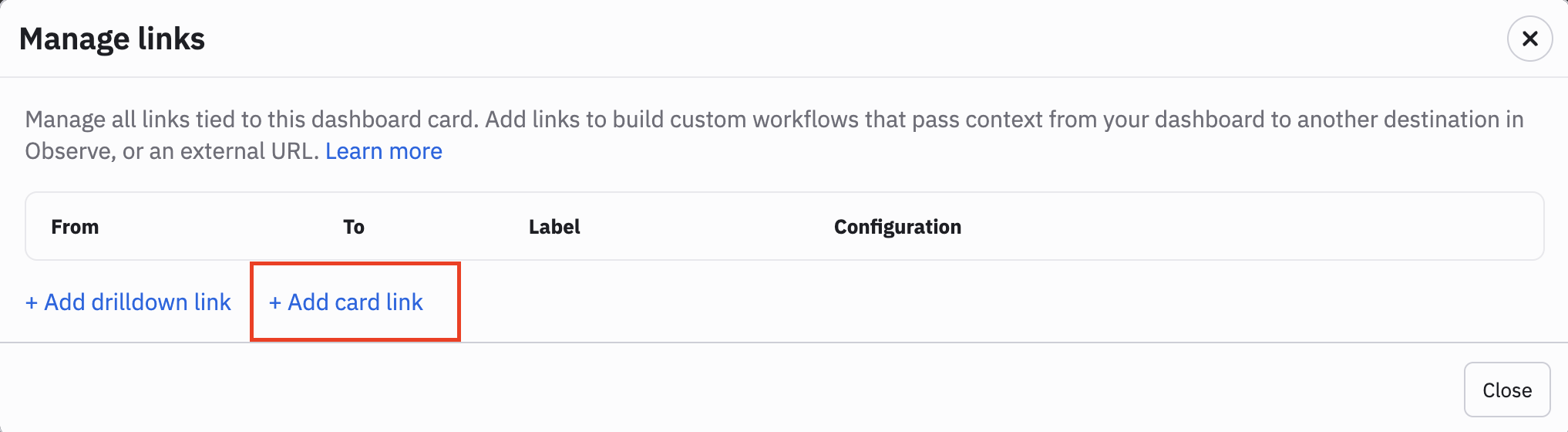
From the Add card link modal, follow the same instructions as described in Create a card link when you are viewing a dashboard to complete the card link configuration.
Create drilldown links
You can create drilldown links from any card when editing a dashboard. In this example, we will pivot from the Node CPU Utilization Over Time card to the Kubernetes logs:
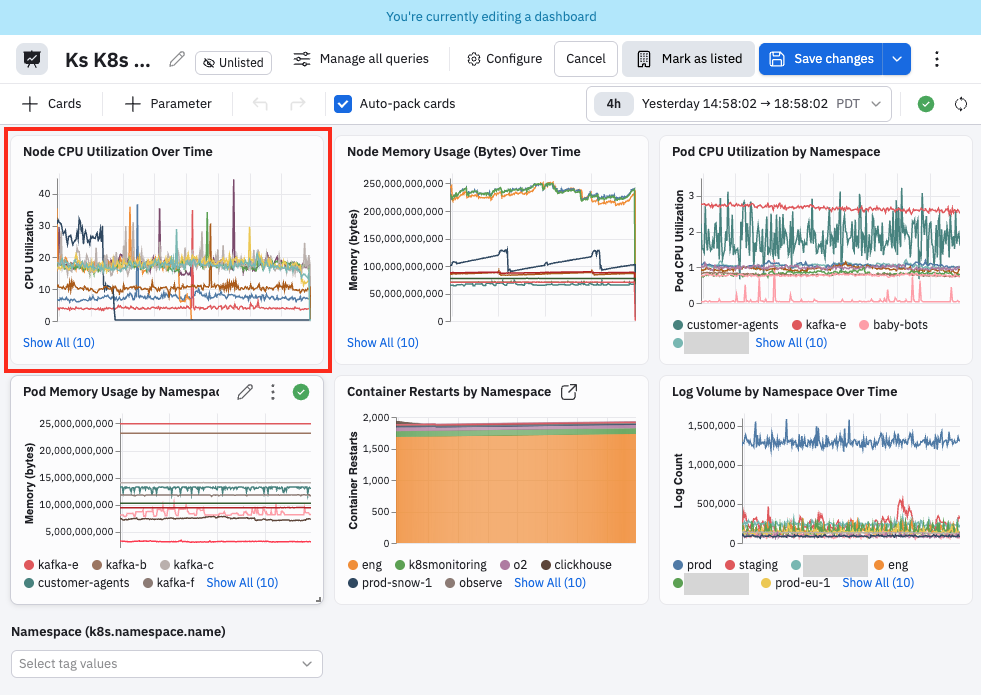
Perform the following steps to create a drilldown link:
-
Edit the desired dashboard.
-
In the dashboard card, you can create the drilldown link as follows:
- Click on any chart point, label, or table cell, then click Add drilldown link.
- Click the vertical ellipsis icon (), then select Manage links, then click Add drilldown link.
-
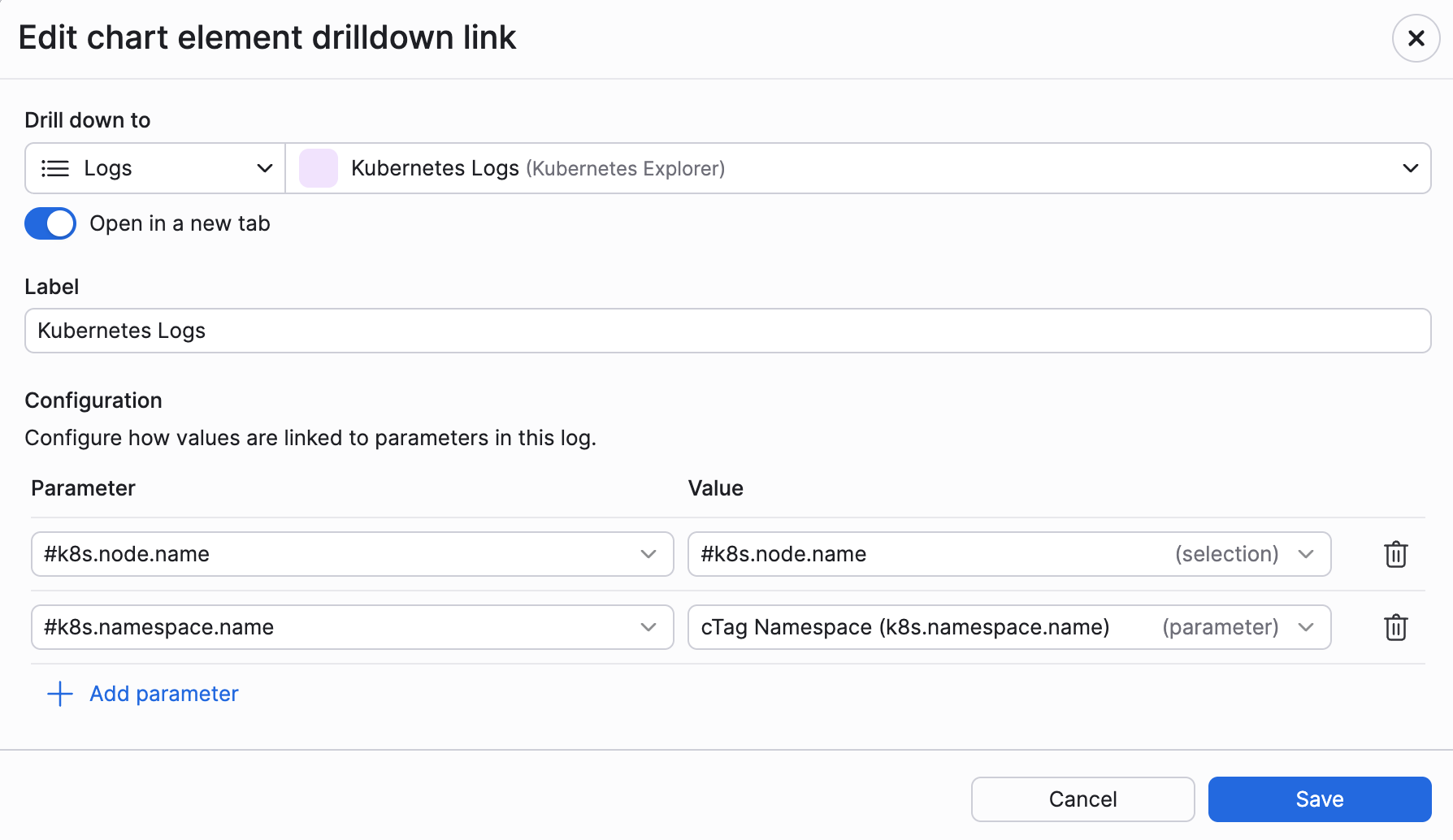
Select Logs as the destination, then select Kubernetes Logs as the specific log set. You can specify Dashboards, Logs, Metrics, Traces, Services, and external URLs as destinations.
If you are linking to an external URL, you can append parameters to the end of the link, or use Mustache Template parameters to edit and insert query parameters in any position inside an external URL. See Mustache template reference. External URLs also require you to specify a custom label. -
Configure the tags and values you want to carry over in the pivot. The Parameter column shows you the parameters that are available in the destination, in this case, the Kubernetes Logs. The Value column is where you choose the corresponding value from your card data selection or dashboard parameter value you want to carry over from the originating dashboard to those destination parameters. In this example, the destination Kubernetes Logs includes the correlation tags k8s.node.name and k8s.namespace.name, and this dashboard also has the correlation tag dashboard parameter k8s.namespace.name along with a selection data point with the correlation tag k8s.node.name, so Observe by Snowflake is able to link them together. You can see the k8s.node.name is labeled as a selection, and Namespace (k8s.namespace.name) is labeled as a dashboard parameter, from Create a correlation tag dashboard parameter.
-
Click Add.
-
Click Apply in the dashboard card.
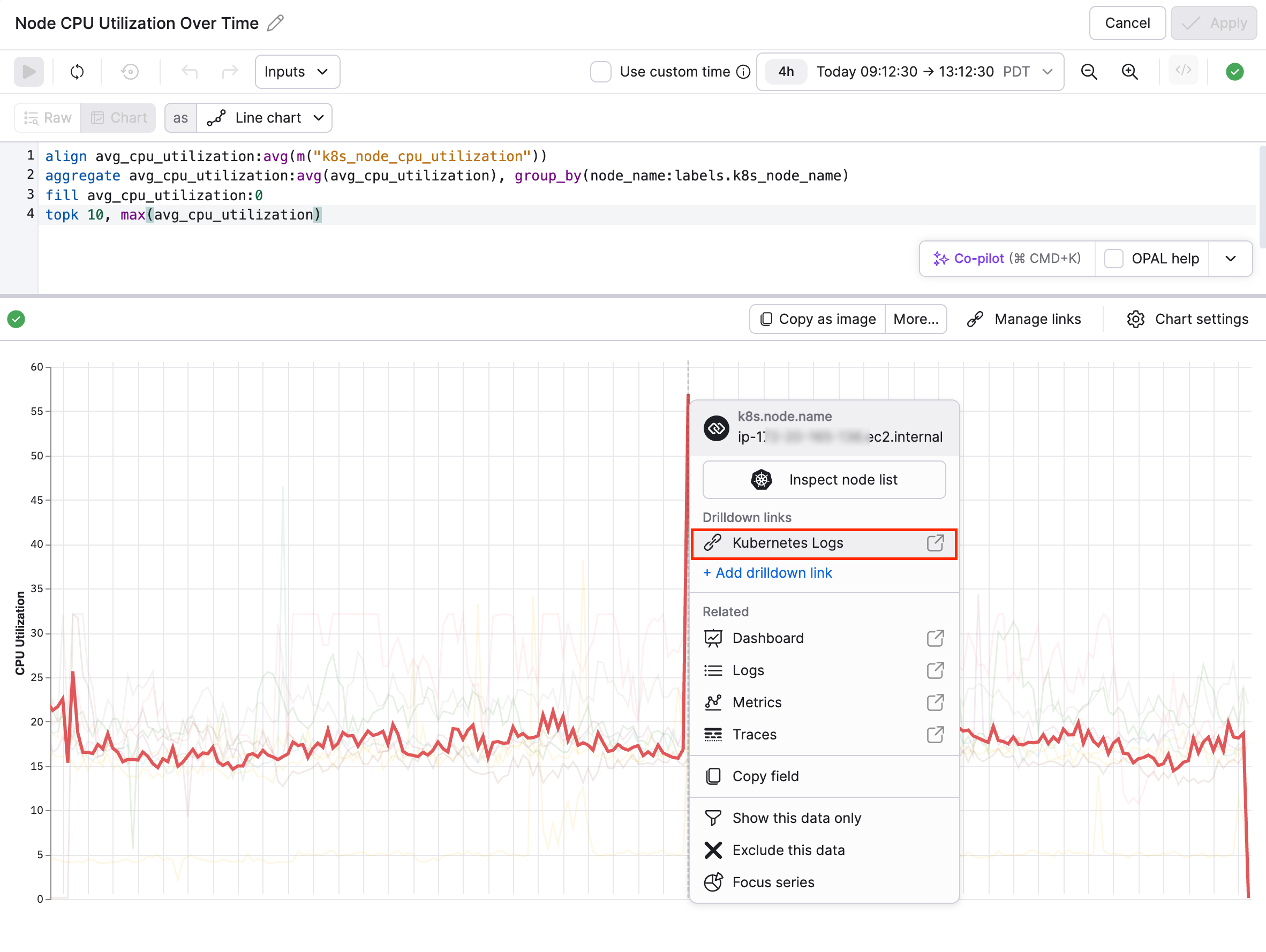
From the dashboard card, we can now examine the chart and pivot directly from the chart to the Kubernetes Logs. Here, we see a spike in this node's CPU utilization, so we can click on the spike and then select Kubernetes Logs in the Drilldown links section.
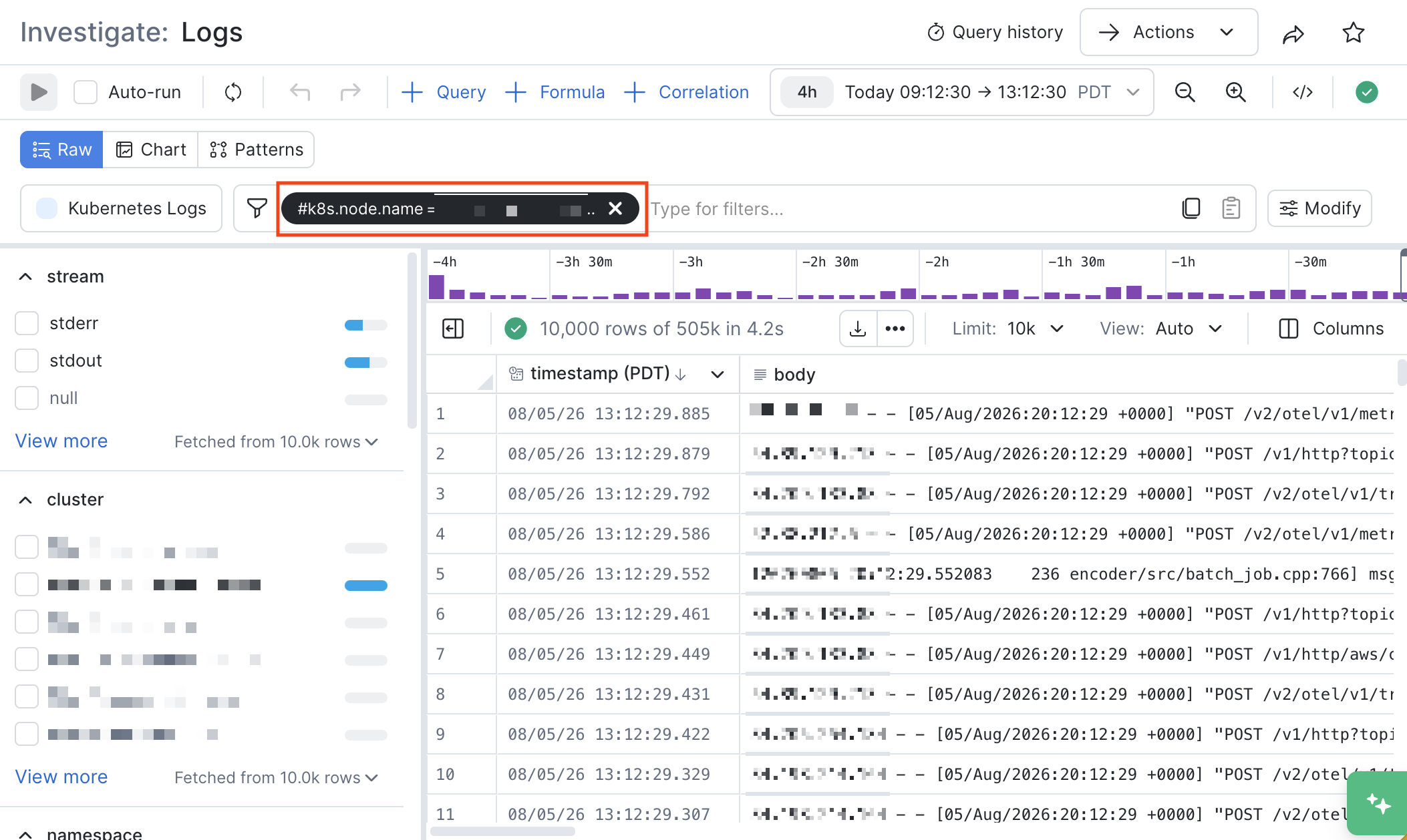
If we click on the drilldown link and pivot to the Log Explorer, we see the k8s.node.name selection is passed with the name of the node whose graph we selected in the dashboard card. The k8s.namespace.name correlation tag dashboard parameter is not passed because we didn't select a correlation tag dashboard parameter in this example.
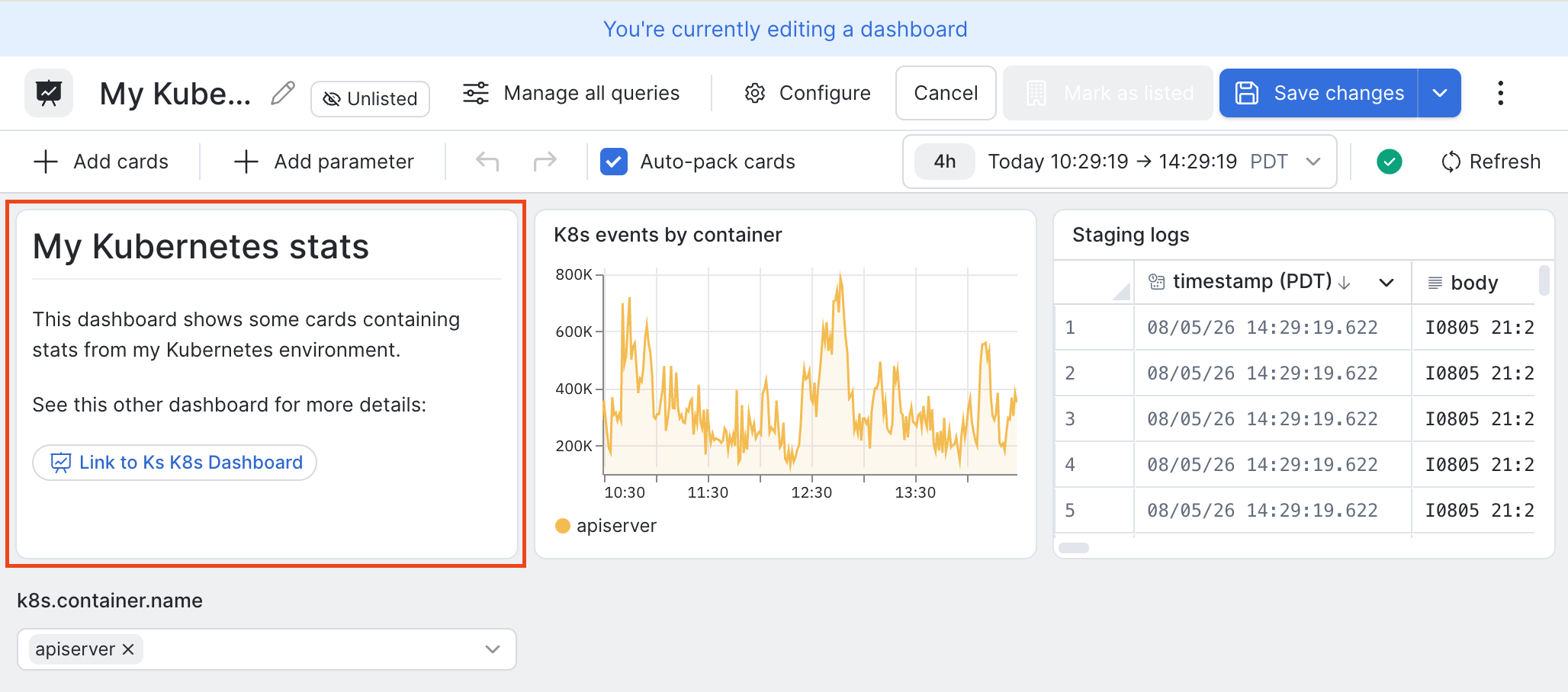
Create text links
Perform the following steps to create a text link:
- Edit any text dashboard card.
- Click Add text link.
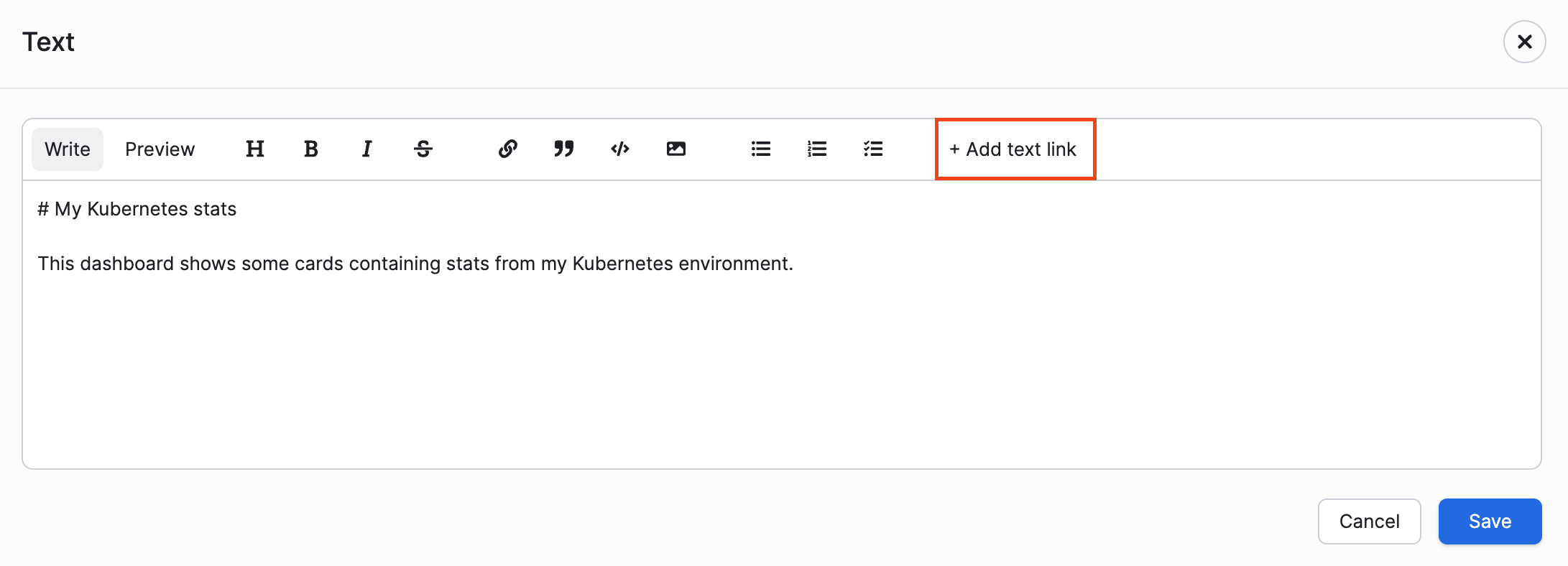
- Provide the destination and label, and any parameter values you want to push to the destination.
- Click Save. The new text and link that we added are appended to the text card:
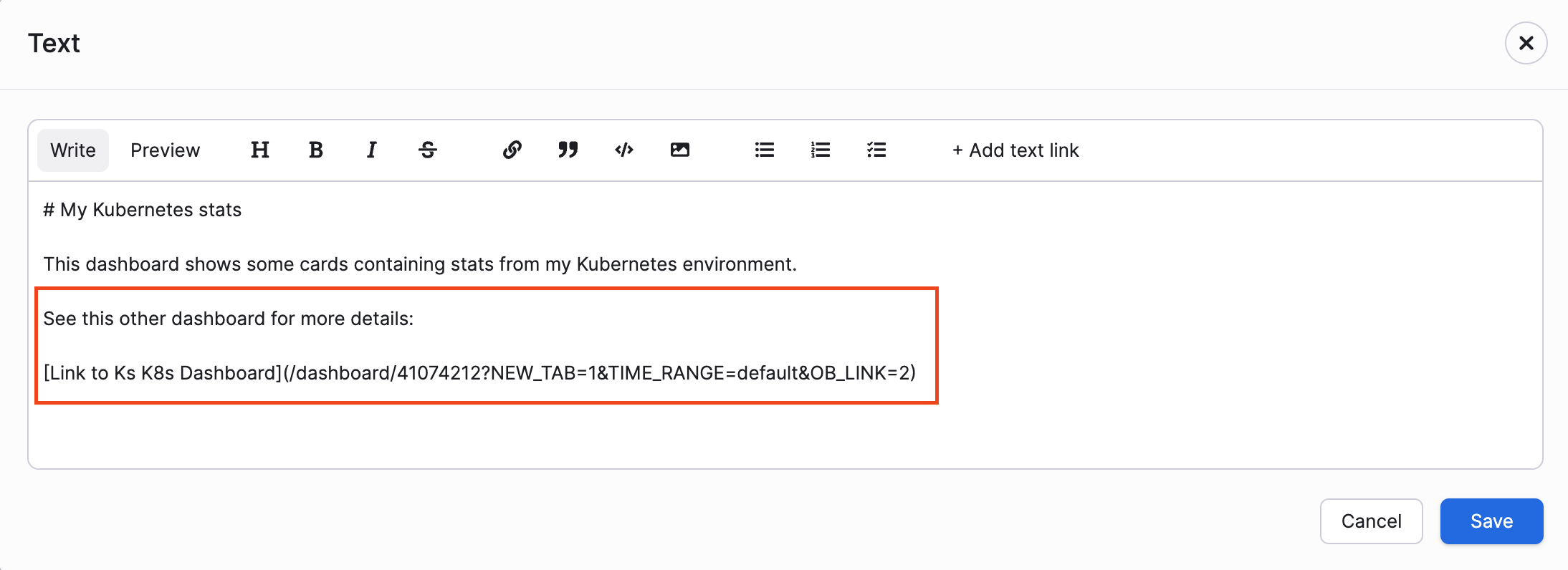
And here is the updated text card:
Manage your card and drilldown links
When editing any dashboard card, click Manage links to get a central view of all the card and drilldown links for that card.
The link manager provides the following information:
| From | To | Label | Configuration |
|---|---|---|---|
| Where can you access the link? Card, chart element, or table cell? | What's the destination of your link? | Custom link name you provide when you create the link. | What values are carried over from this dashboard to the destination? |
| For example: Card Table cell | For example: Logs Dashboard | For example: My card link My drilldown link | For example: name (parameter) #tag (selection) |
Updated about 1 month ago