

Presentation mode
A dashboard or series of dashboards can be configured to present in a slideshow, suitable for use in a shared-screen environment such as a network operations center (NOC) or security operations center (SOC).
To configure a presentation, go to any dashboard, click the vertical ellipsis icon () and select Presentation mode. The dashboard is opened in presentation mode in a new tab:
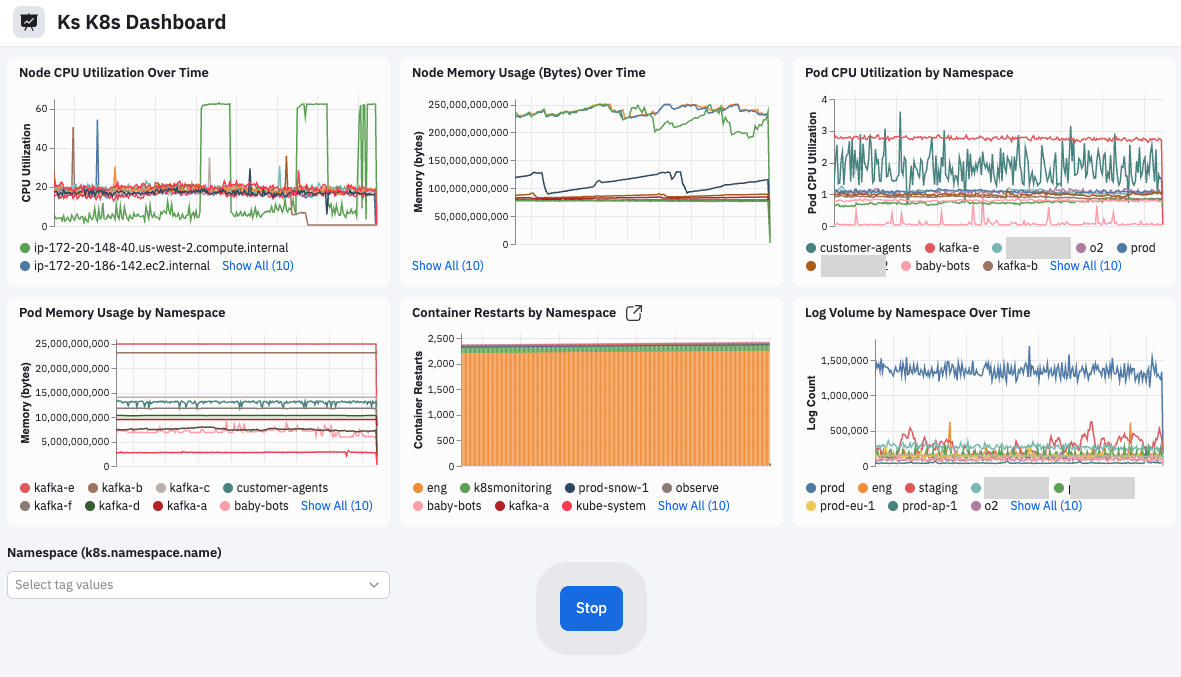
While in presentation mode, a dashboard's parameters are still visible, but cannot be changed. The filter bar and filter panel are not visible. Dashboards that are larger than the screen display area will slowly scroll down and up to ensure that all data is visible over time. Moving the mouse causes a Stop button to appear. Click Stop to stop the display, or to configure more advanced behavior:
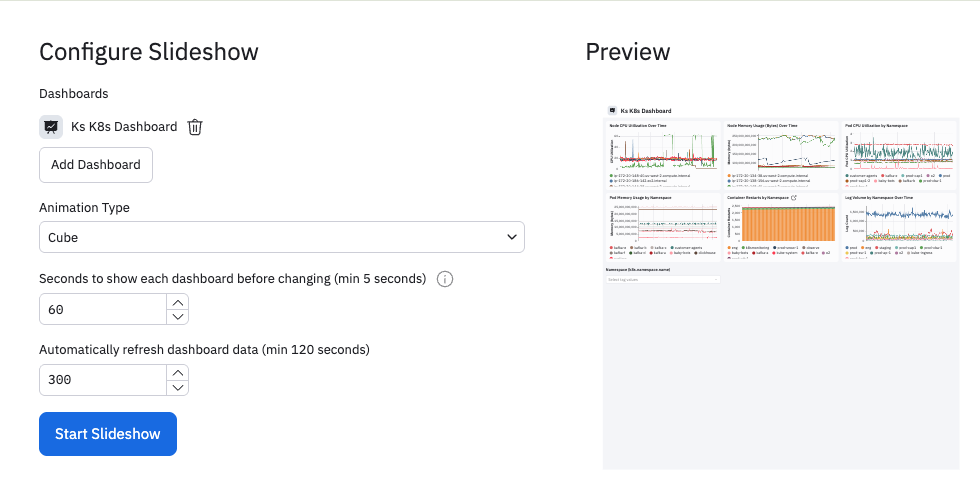
The Configure Slideshow screen lets you change how often the dashboard refreshes its data from the default of five minutes. You can also add more dashboards, and chose an animation effect for switching between dashboards in a slideshow. The amount of time each dashboard is on screen can also be changed from the default of one minute. Click the Start Slideshow button to return to presentation mode.
Updated 6 months ago