

Export and share dashboards
Learn how to export, share, and start other workflows form your dashboard.
You can export and share dashboards in Observe by Snowflake to satisfy a variety of use cases:
- Share a dashboard's URL with other Observe by Snowflake users. You can configure the time windows and filter settings when you share the link.
- Export a dashboard to a Worksheet, where you can experiment with additional queries and filters without affecting the current dashboard.
- Export the data in a dashboard card in CSV or JSON format.
- Export a dashboard to Terraform for automation and deployment.
- Copy and paste dashboards across Observe by Snowflake instances.
- Create Monitors from your dashboard.
Share a dashboard's URL
To share a dashboard with other Observe by Snowflake users, click the share icon (), then configure the share settings.
- Click in the Select users or groups field to add the users and groups you want to share the dashboard with. In this example, we are sharing with the Engineering Leads group, and giving members of that group Viewer permissions.
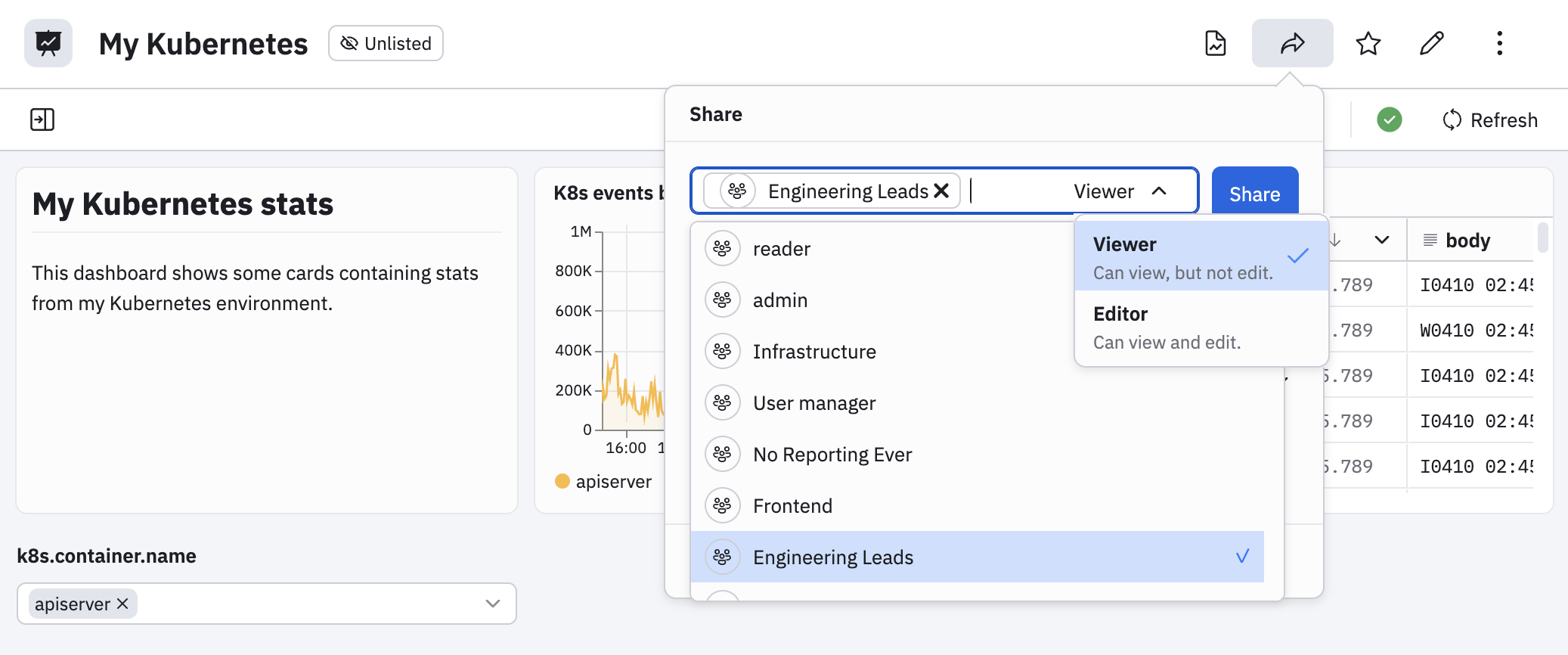
- Click the Copy link drop-down, and select a time and filtering option.
- Filters & Current Time – The default behavior attempts to show the recipient exactly what is on the sender’s screen. Filters are set to be the same, and the time window is fixed to the start and end that are currently used. This share link will point at a specific window of time that is receding into the past.
- Filters & Relative Time – Using filters and relative time is designed for dashboard use. It shares the sender’s filters and sets the time window relative to the present. This share link will point at a different time window each time it is opened.
- No Filters & Time – This option removes all filtering and time decisions from the shared link; the recipient sets filters and selects their desired time window if the dynamic Observe by Snowflake default for that dataset is not ideal.
NoteA Dashboard URL copied from the browser address bar should show the same content as a Share link. Review the URL query parameters to understand how the URL is constructed.
See Understand the time window selection for more detail on how time is referenced in an Observe by Snowflake dashboard.
Export a dashboard to a Worksheet
A Dashboard can be copied to a new Worksheet, which is useful for experimenting without cluttering the Dashboards list page. To export to a Worksheet, you can do either of the following:
- In any individual card, click the more icon (), then select Open in worksheet.
- From any dashboard, click the more icon (), then select Export > Export to worksheet.
A new Worksheet is created with the same data sources, filtered Datasets, and parameters. Each card in the dashboard becomes a new Worksheet query. Note that text and image cards do not have Worksheet equivalents and are not copied. Worksheet also don't retain dashboard layouts or sections.
Export data in a dashboard card in CSV or JSON format
Perform the following steps to export data in a dashboard card in CSV or JSON format:
- Edit the dashboard card you want to export.
- Click More, then select Add to worksheet.
- Create a new worksheet.
- In the new Worksheet, change the visualization to a table.
- Click Download as CSV, or click More and then select Download as JSON depending on what you need.
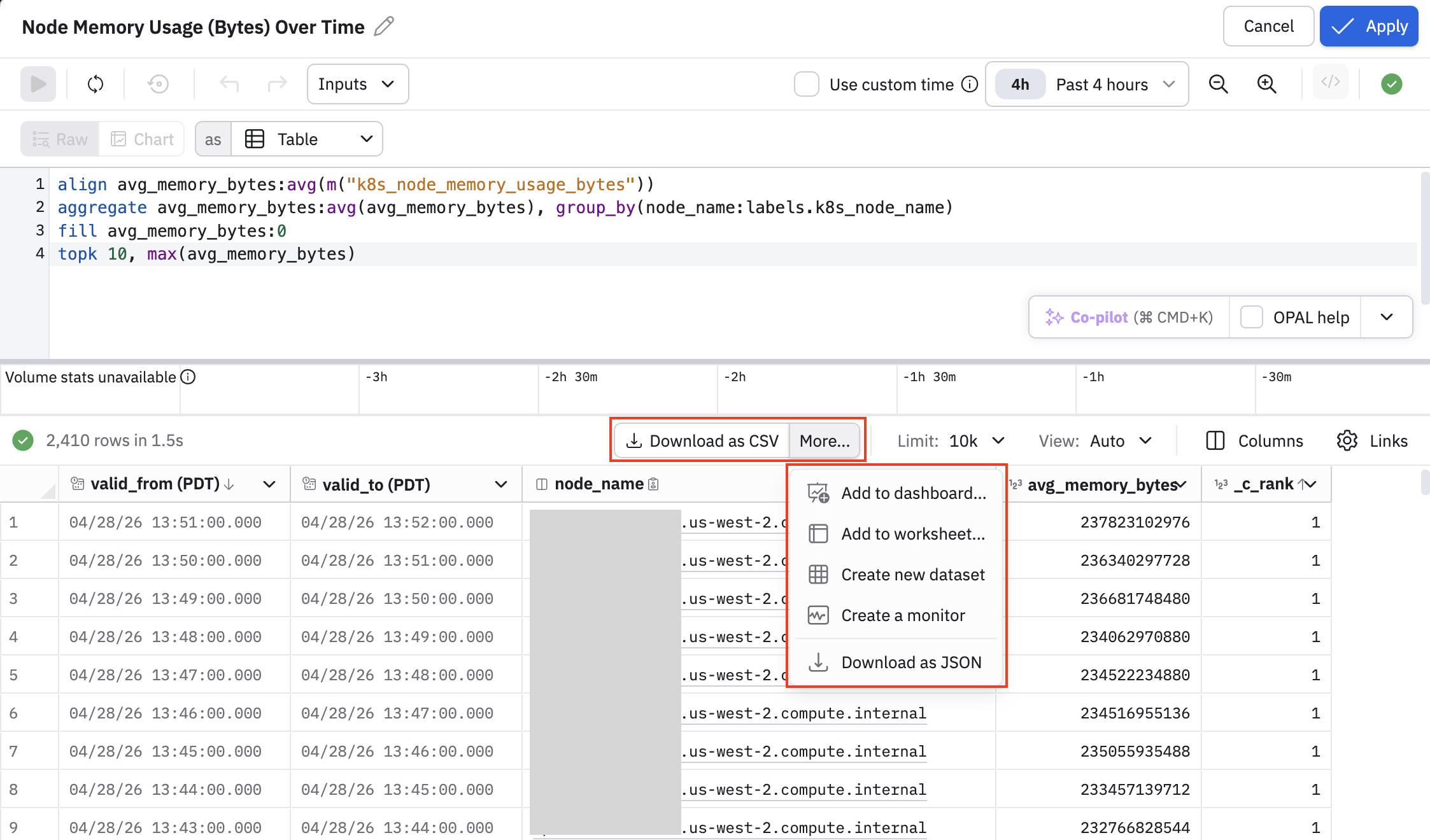
Before you download, you are asked to specify a maximum size limit (1,000, 10,000, or 100,000 rows). Note that hidden fields will be included.
Use the pick_col OPAL verb to reduce the width of downloaded data.
Export a dashboard to Terraform
You can export dashboards to Terraform for your Observability as Code (OaC) workflows.
- From your dashboard, click the more icon (), then select Export > Export Terraform (recommended). This causes the terraform script to contain values specific to your org, such as actions and Dataset IDs. You can also choose Export Terraform (cross customer) to get a more generic template where you can use variables based on your environment.
- When you see the Successfully generated Terraform script message, click Copy script to clipboard. The Terraform is not downloaded to a file on your system.
- Paste the script into your editor of choice.
Export a dashboard in PDF format
After you set a dashboard to its desired state, including the time window and dashboard parameters, you can export a snapshot of that dashboard to a PDF file. You can only export a dashboard to a PDF file when viewing the dashboard.
From any dashboard, click the more icon (), then select Export > Export as PDF.
The PDF file is downloaded to the default download location on your system.
Copy and paste dashboards across Observe by Snowflake instances
Use copy and paste to transfer dashboards across Observe by Snowflake instances. To copy a dashboard, a user must have Reader privileges. To paste a dashboard, a user must have Writer privileges or higher.
Perform the following steps to copy and paste a dashboard between instances.
- On the source Observe by Snowflake instance, click the vertical ellipsis icon (), then select Copy.
- On the destination Observe by Snowflake instance, go the Dashboard Explorer and click the paste icon () to create a new dashboard.
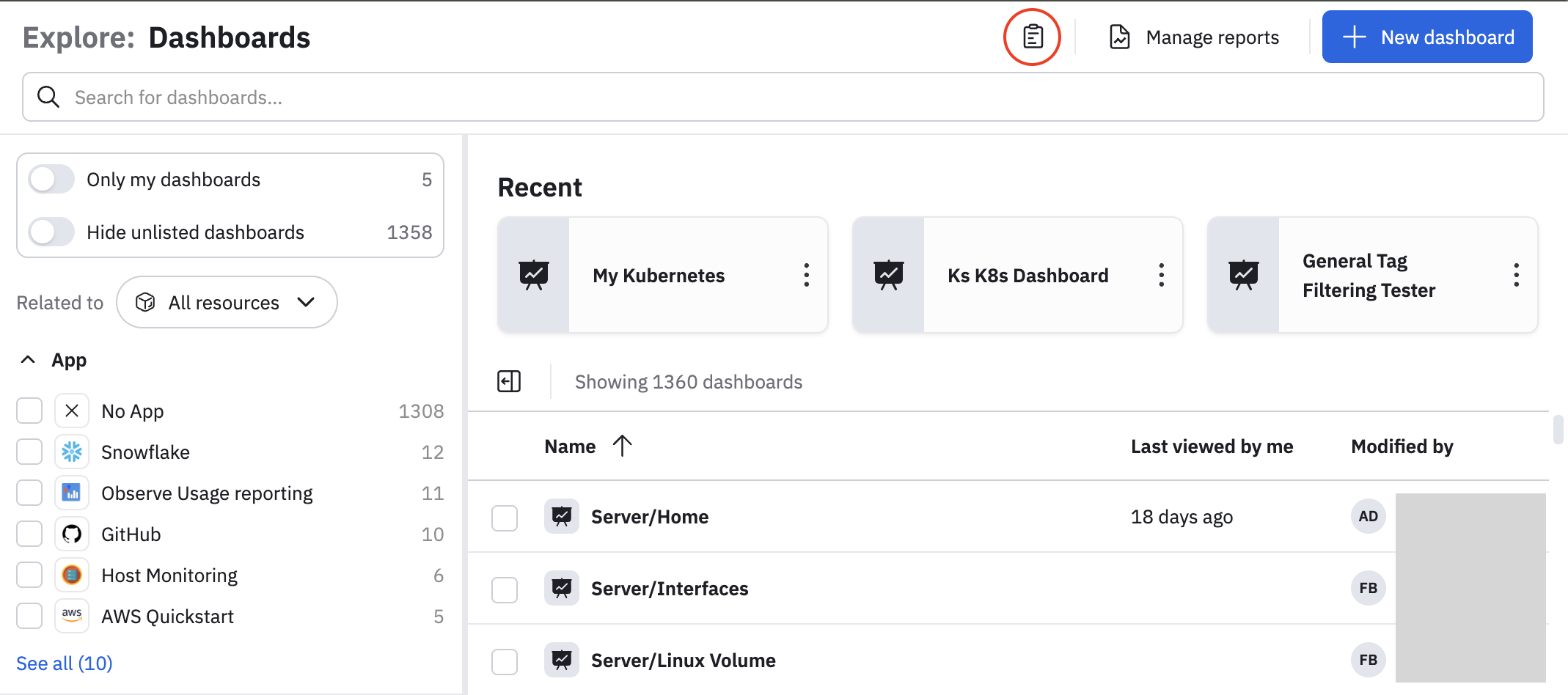
If the source dashboard needs a data source, a data source with the same name will be referenced in the destination. If there is no data set that matches, a warning will be displayed but the dashboard can still be saved.
The body of data that is copied to clipboard is a base64-encoded text blob, which can be saved to text for source code control.
Duplicate a dashboard
Duplicate a dashboard to make an exact copy of that dashboard in the same Observe by Snowflake instance. All of the dashboards existing settings, including dashboard parameters, card layout, and card settings, are preserved. The new dashboard name has the word Copy appended to the end. For example, duplicating My K8s Dashboard creates My K8s Dashboard Copy, which you can then further edit.
From any dashboard, click the vertical ellipsis icon (), then select Duplicate.
Create Monitors from your dashboard cards
When you are viewing any dashboard card, you can click the vertical ellipsis icon () and select Create a monitor to start creating a Monitor.
Based on the data you are evaluating in the card, Observe by Snowflake automatically sets the Monitor type for you, but you can change it along with the query parameters once you get into the Monitor creation workflow.
See Create Monitors workflow for more information about how to build a Monitor.
Updated about 18 hours ago