

Create dashboards
Learn how you can begin creating dashboards in Observe by Snowflake and configure their visibility.
This page describes the various ways you can create a dashboard in Observe by Snowflake.
Where you can create dashboards in Observe by Snowflake
You can create dashboards in Observe by Snowflake in any of the following ways:
- From the Dashboard Explorer
- Duplicate or copy an existing dashboard
- Make changes to any existing dashboard, then save as a new dashboard
- From any Worksheet or Explorer
- From o11y AI or AI SRE
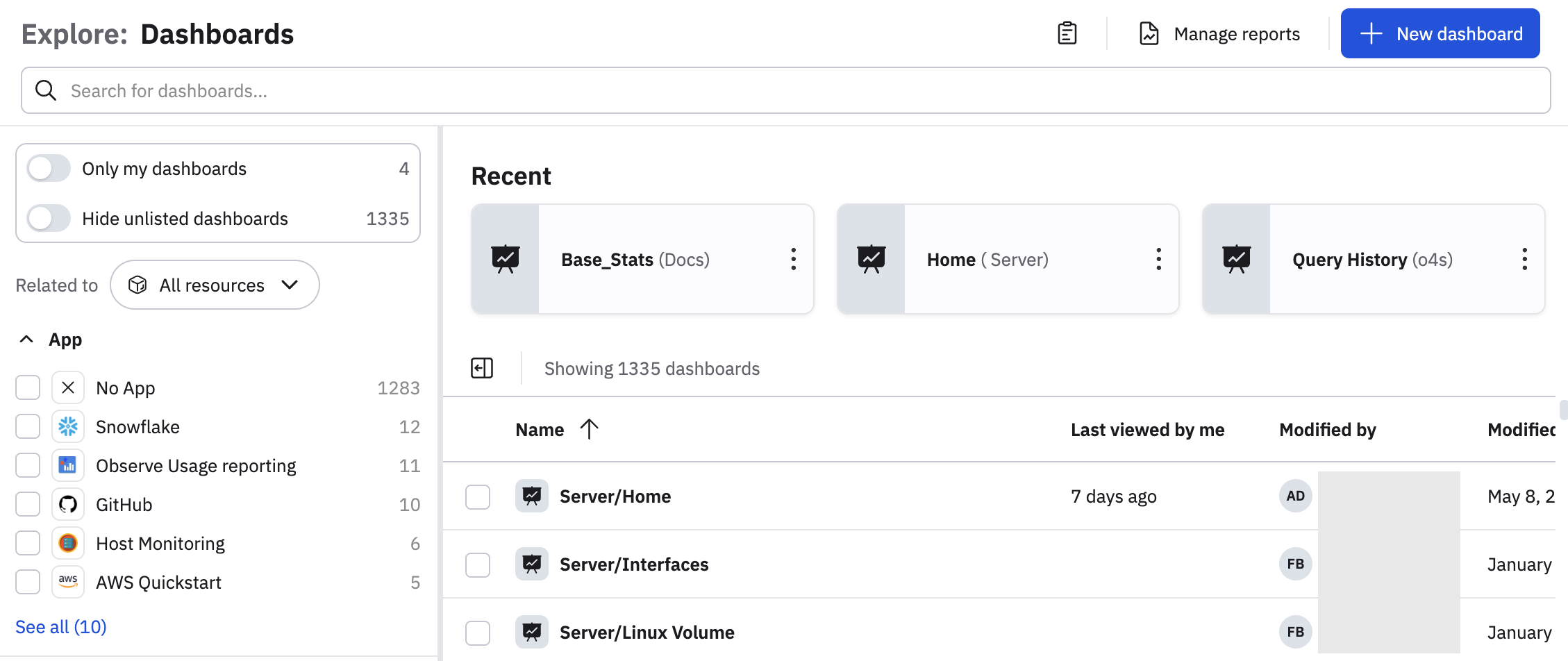
From the Dashboard Explorer
Use the New dashboard button on the Dashboard Explorer page:
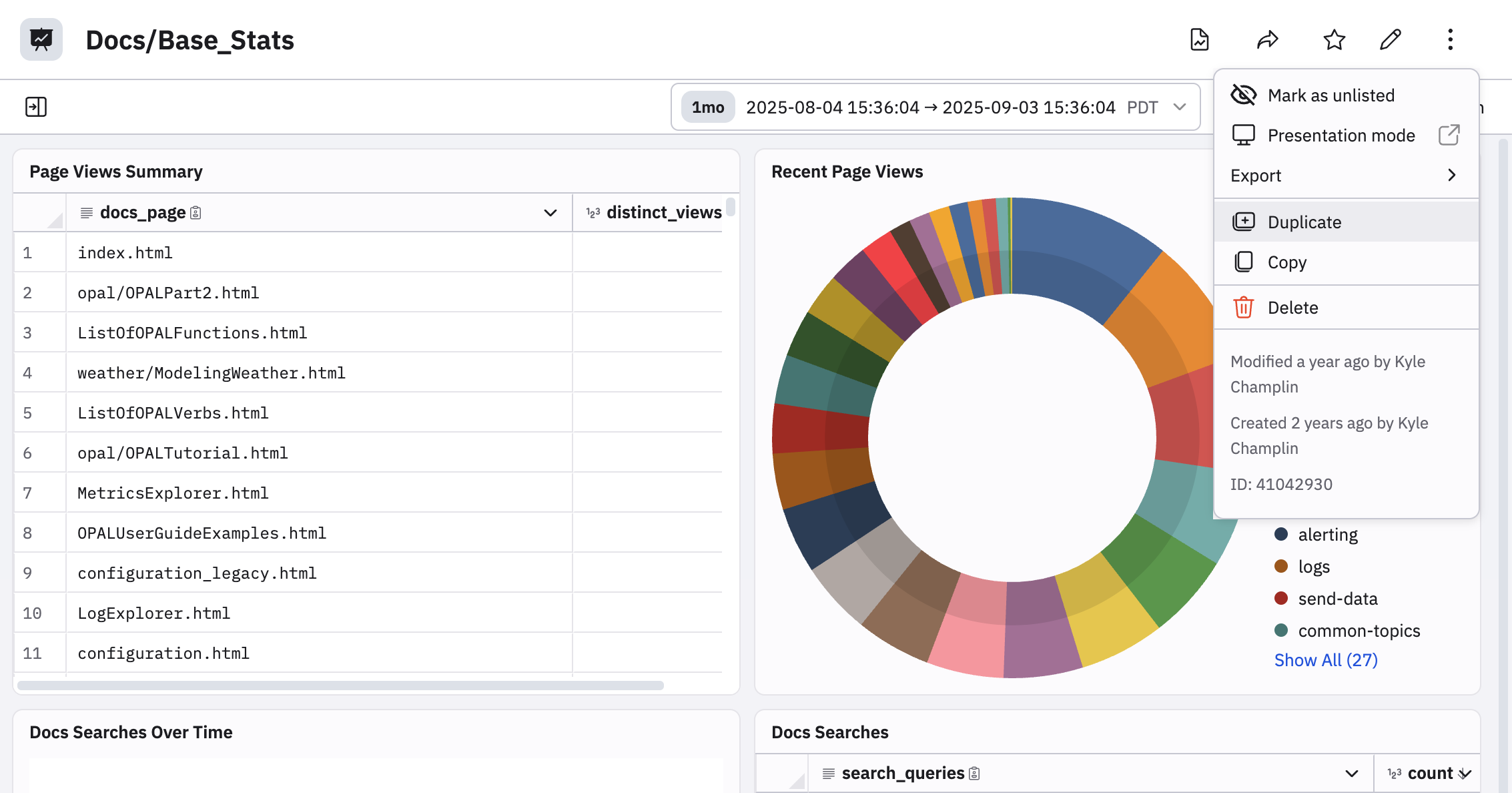
Duplicate or copy an existing dashboard
Duplicate an existing dashboard, which makes an exact copy of the existing dashboard. You can also copy an existing dashboard, so you can paste it as a new dashboard in any tenant.
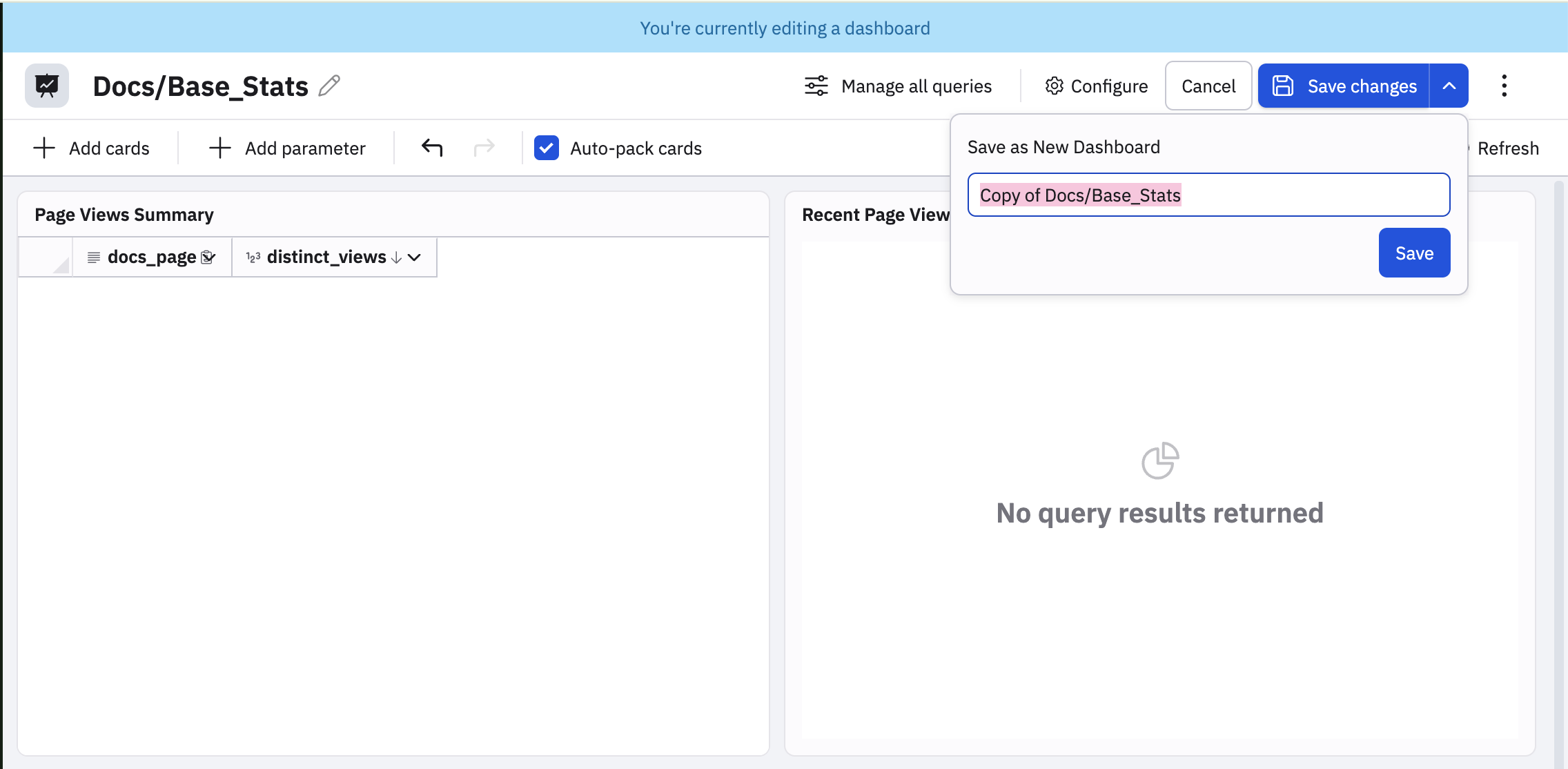
Make changes to an existing dashboard
Open an existing dashboard, make some changes, and use the Save as New Dashboard option.
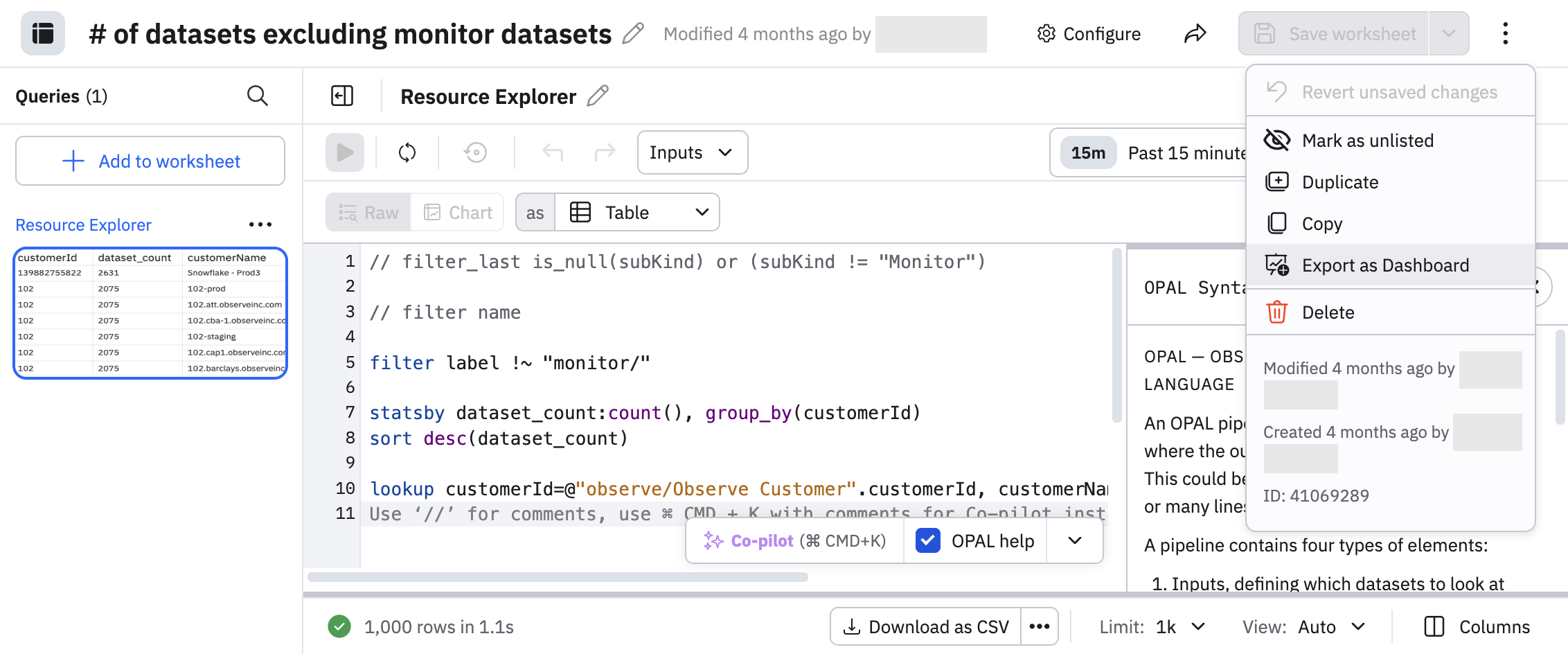
From any Worksheet or Explorer
From any Worksheet or Explorer, use Add to Dashboard or Export to Dashboard and select the Create new dashboard option.
From o11y AI or AI SRE
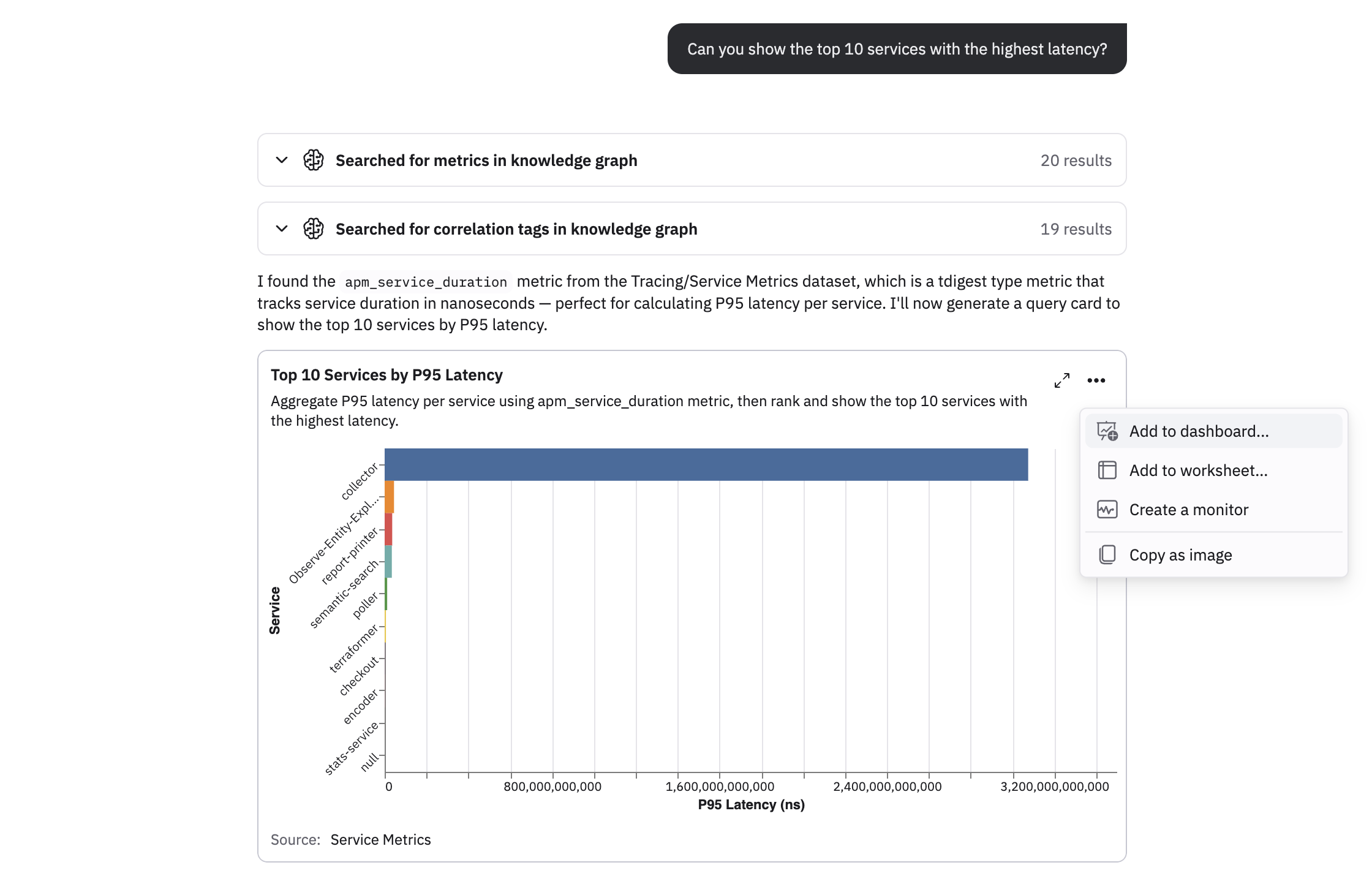
From o11y AI or AI SRE. You can ask either one a question and get a chart back, which you can then add to a new dashboard.
Updated about 1 month ago