

Create Worksheets
Learn how you can create Worksheets in Observe by Snowflake.
This page describes the various ways you can create a Worksheet in Observe by Snowflake.
Where you can create Worksheets in Observe by Snowflake
You can create dashboards in Observe by Snowflake in any of the following ways:
- From the Worksheet Explorer, either creating one from scratch or from any work-in-progress Worksheet.
- From the Actions menu.
- From any Dataset page.
- From any AI tools, such as o11y AI or AI SRE.
Create a Worksheet from the Worksheet Explorer
Use the New Worksheet button on the Worksheets Explorer page to create a new Worksheet.
When you are editing any Worksheet, you can also create a new Worksheet in the following ways:
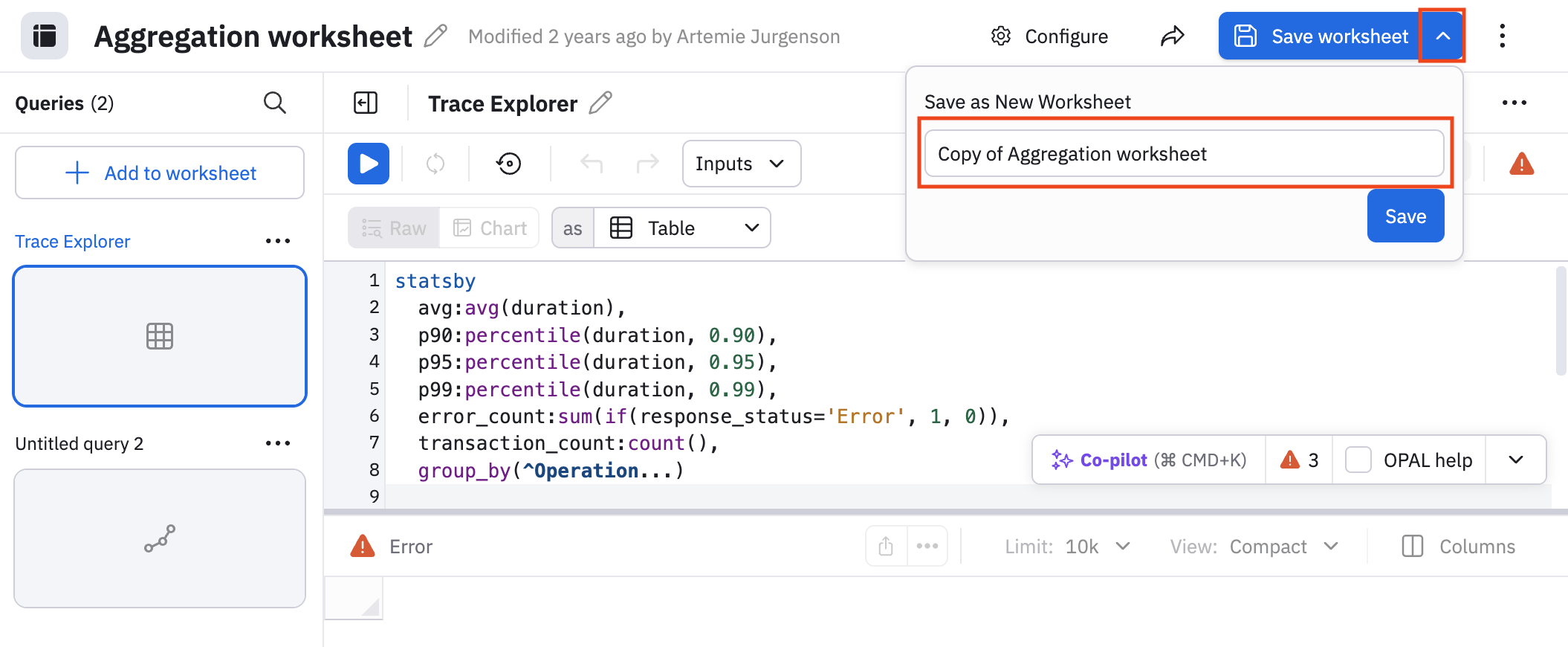
- Click the down caret icon () in the Save worksheet button, then give the Worksheet a new name to make copy of this Worksheet:
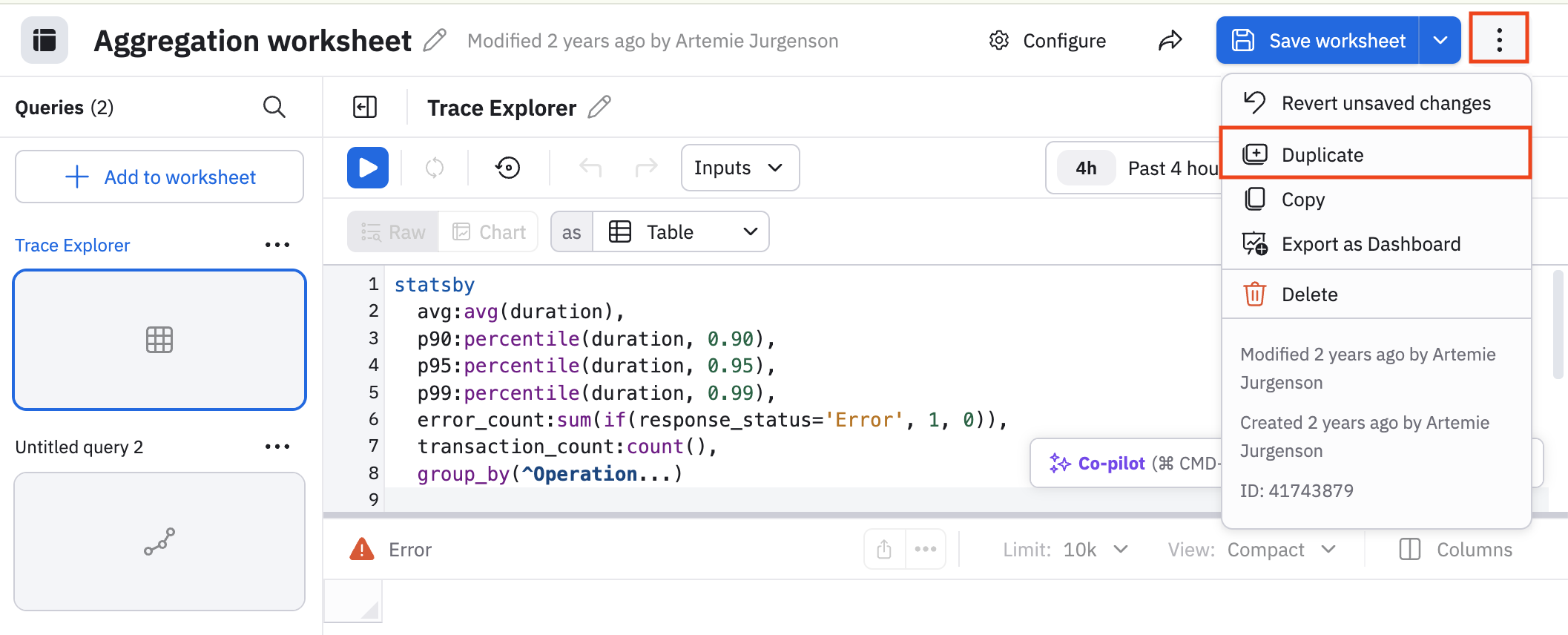
- Click the vertical ellipsis icon (), then click Duplicate to make a copy of this Worksheet:
From the Actions menu
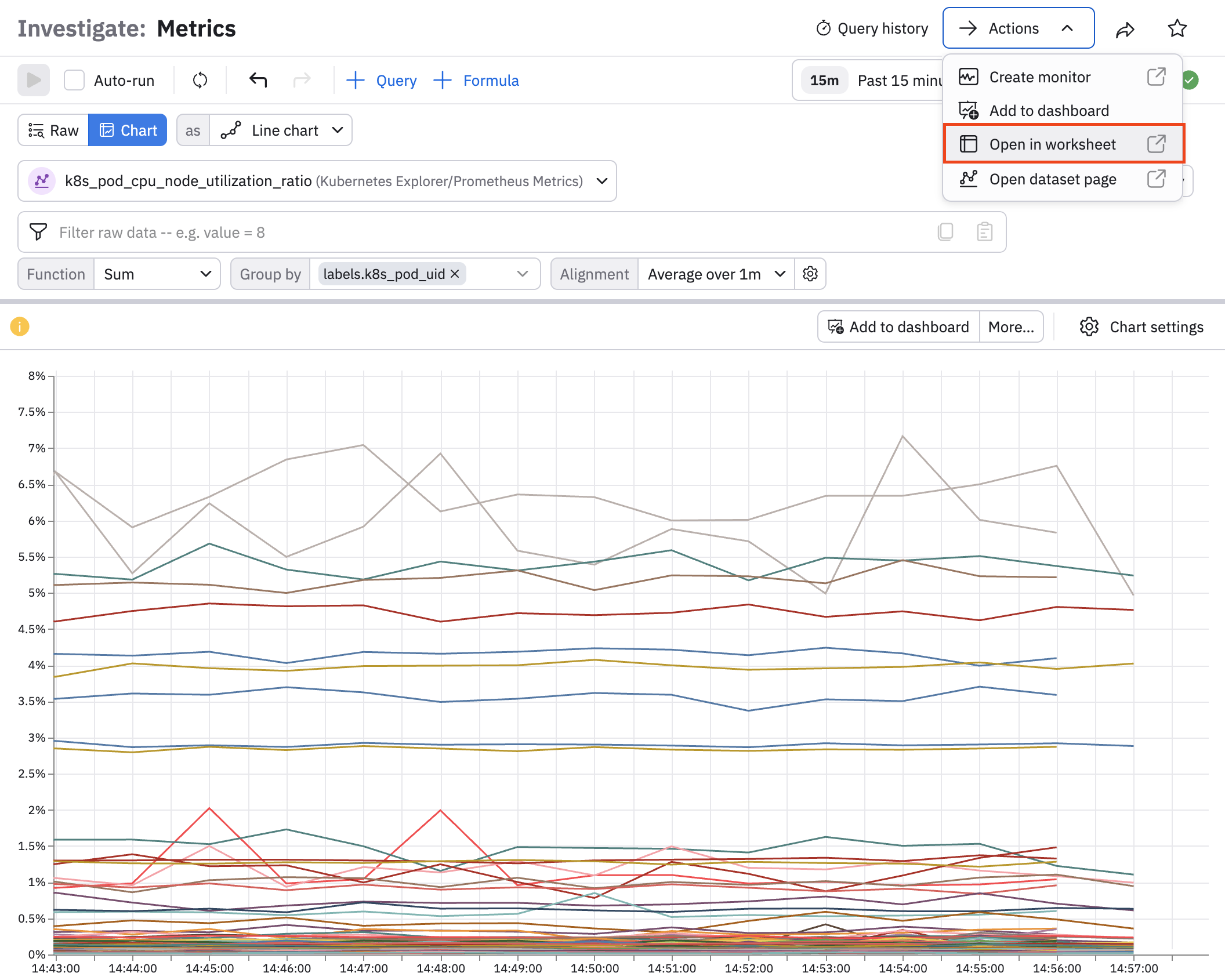
Select Actions > Open in worksheet from any page in Observe by Snowflake that has the Actions menu. For example, from the Metrics Explorer:
From any Dataset page
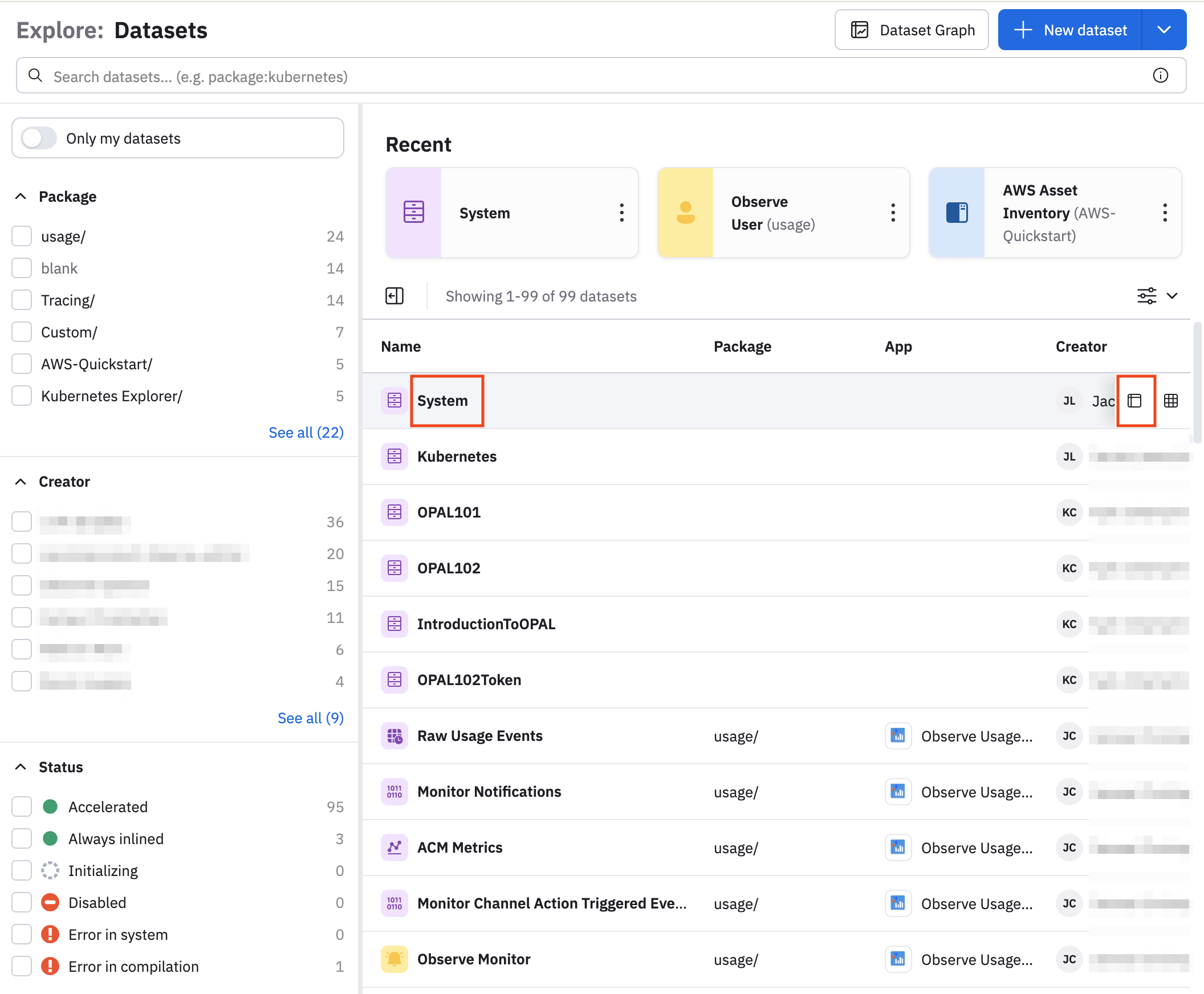
From the Dataset Explorer, click the name of any Dataset or hover on any Dataset name and click the table layout icon () to open the Dataset as a new Worksheet:
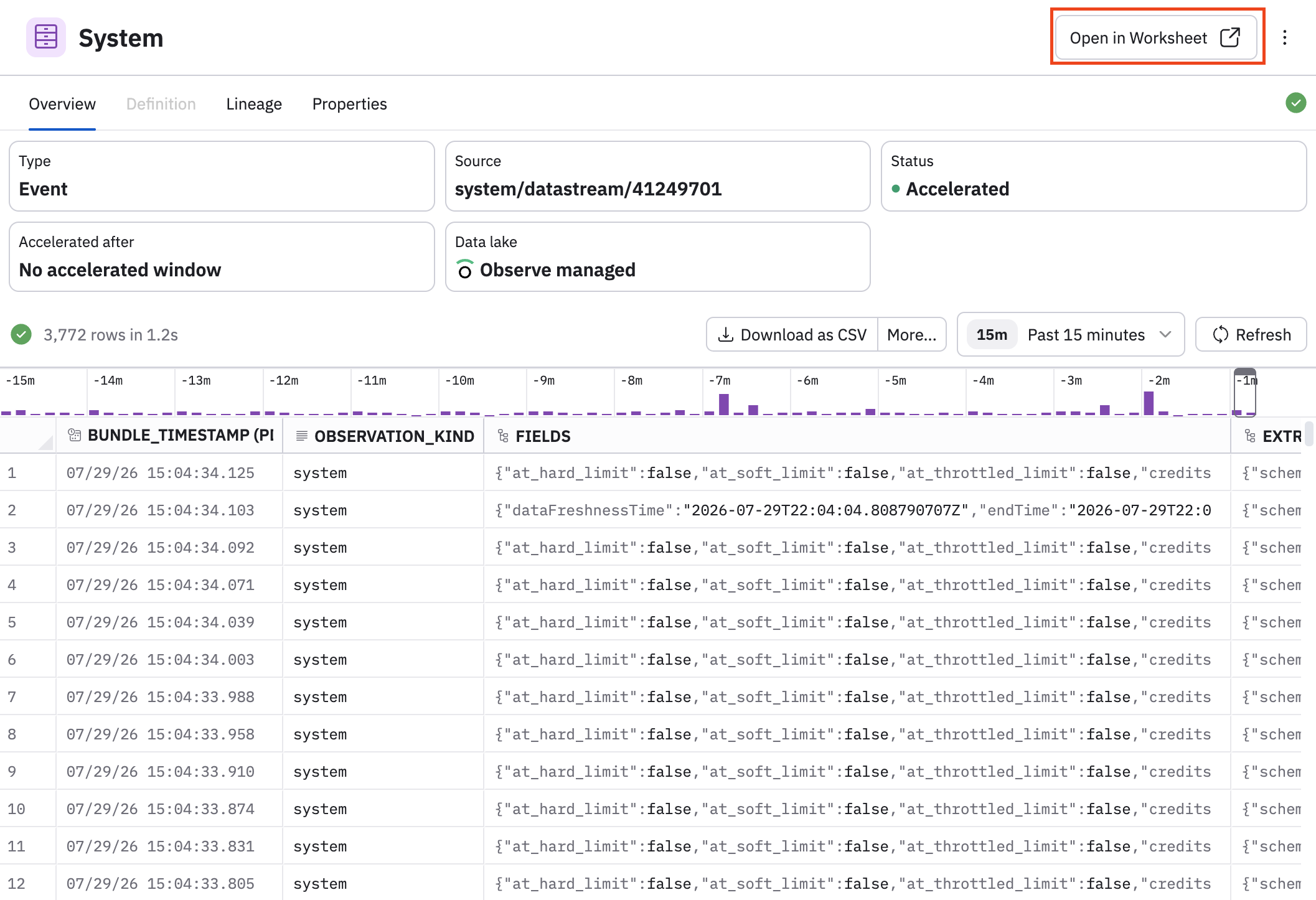
If you are creating or editing a Dataset, from the Dataset properties page, you can click Open in Worksheet to begin creating a new Worksheet:
From o11y AI or AI SRE
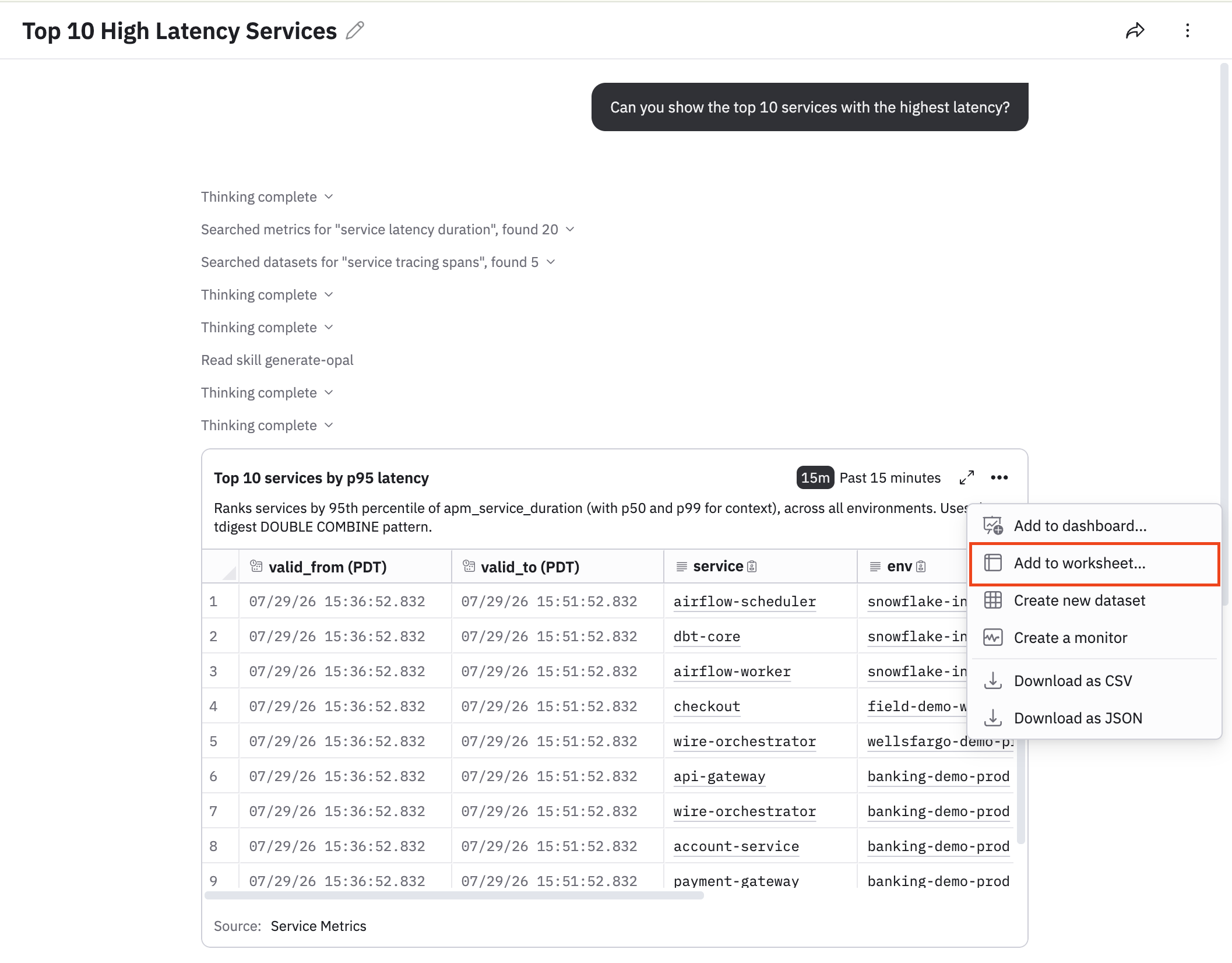
From o11y AI or AI SRE. You can ask either one a question and get a chart back, which you can then add to a new Worksheet.
Updated about 1 month ago