

Manage correlation tags
Learn how you can view and manage all the correlation tags in your tenant.
Use the Correlation tag manager page to view all your tags in Observe by Snowflake in one place. You can pivot from any tag to its corresponding Dataset or metric to begin a new workflow.
Access the Correlation tag manager
As a user with admin privileges in Observe by Snowflake, you can access the Correlation tag manager by hovering on your name in the left navigation, then selecting Admin > Correlation tag manager.
If you don't have admin privileges, you can access the Correlation tag manager from your Workspace settings, or from the Dataset properties.
From your Workspace settings, hover on your name in the left navigation, then select Manage account > Correlation tag manager.
From the Dataset properties:
- In the left navigation, click Datasets.
- Hover on a Dataset, then click the Dataset icon ().
- Click Properties.
- Click Correlation tags.
- Click Workspace tags.
When you first access the Correlation tag manager page, the correlation tags are listed alphabetically by name:
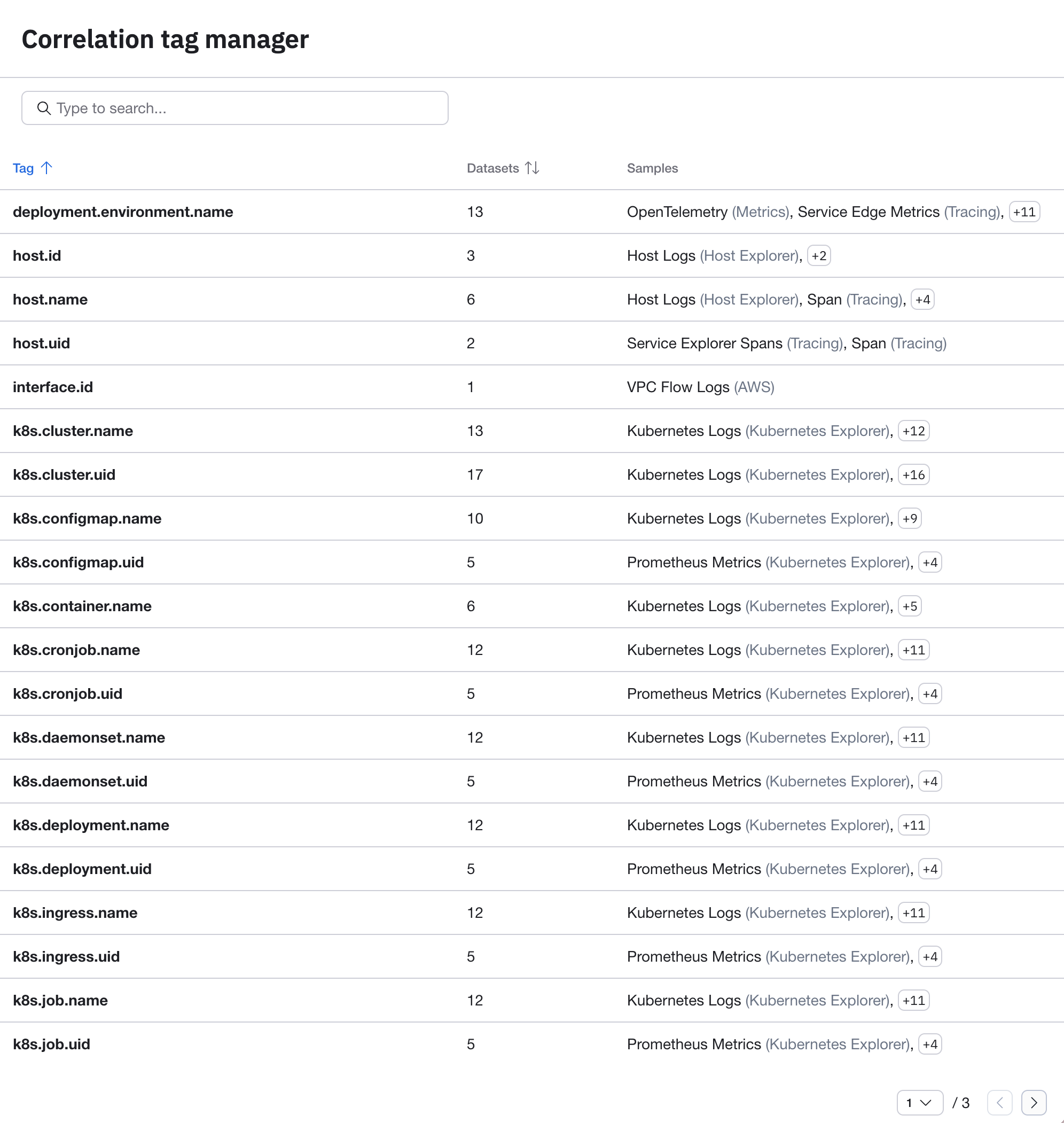
Click on the following column headers to sort how the tags are listed on this page:
- Click Tag to sort the tags alphabetically by name.
- Click Datasets to sort the tags by popularity, which is the number of Datasets that each tag appears in.
The Samples column shows you a few examples of the Datasets that use each tag.
View additional details for any correlation tag
Click in the row for any correlation tag to view additional details. In this example, we click on trace.id to view additional information in the side panel:
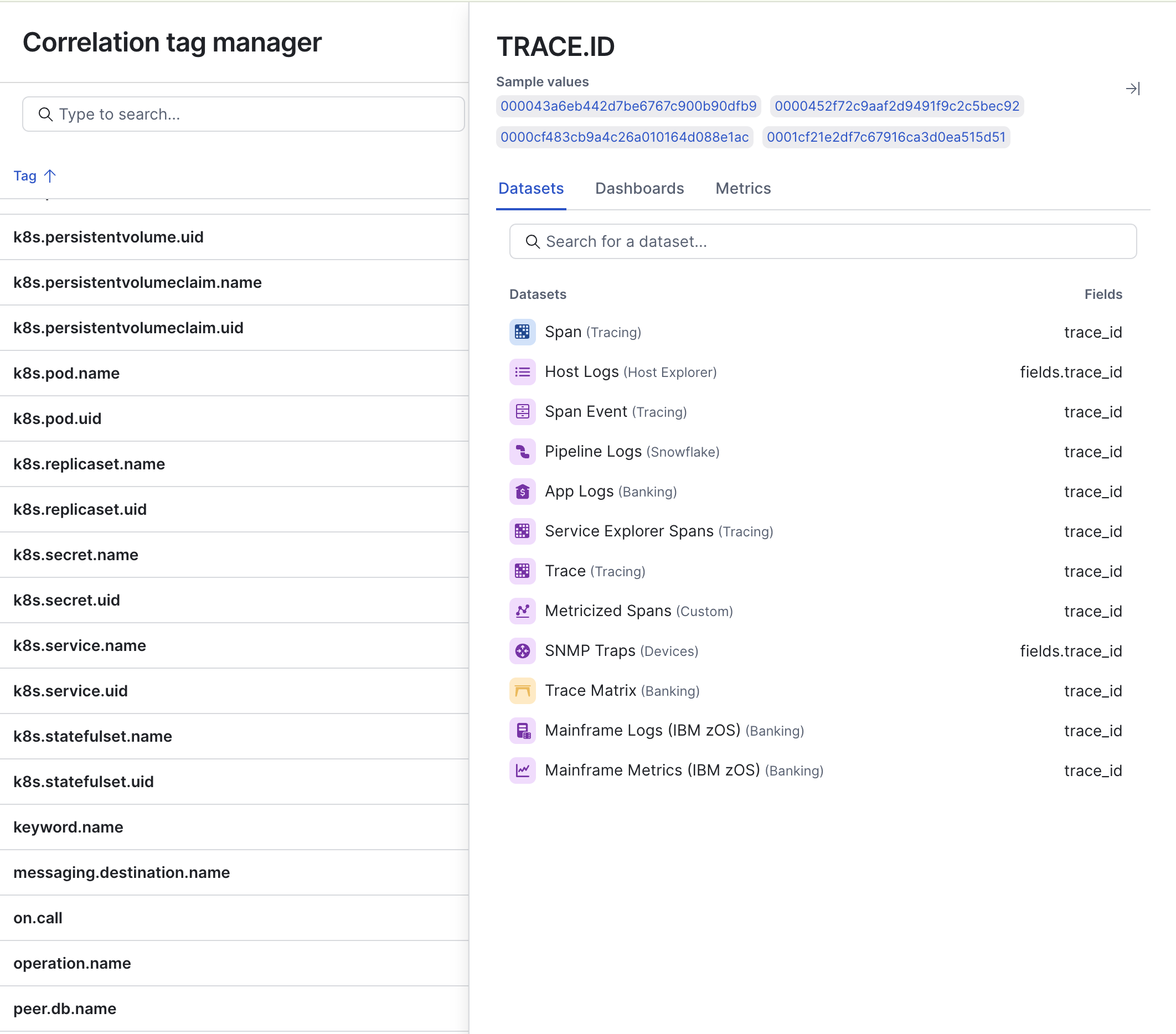
The side panel contains some example values for the tag, along with the following tabs:
| Tab | Description |
|---|---|
| Datasets | Lists the Datasets using the tag, along with the corresponding field mapped to the tag. |
| Dashboards | Lists any dashboards using a correlation tag parameter with this tag. |
| Metrics | List any metrics using this correlation tag. |
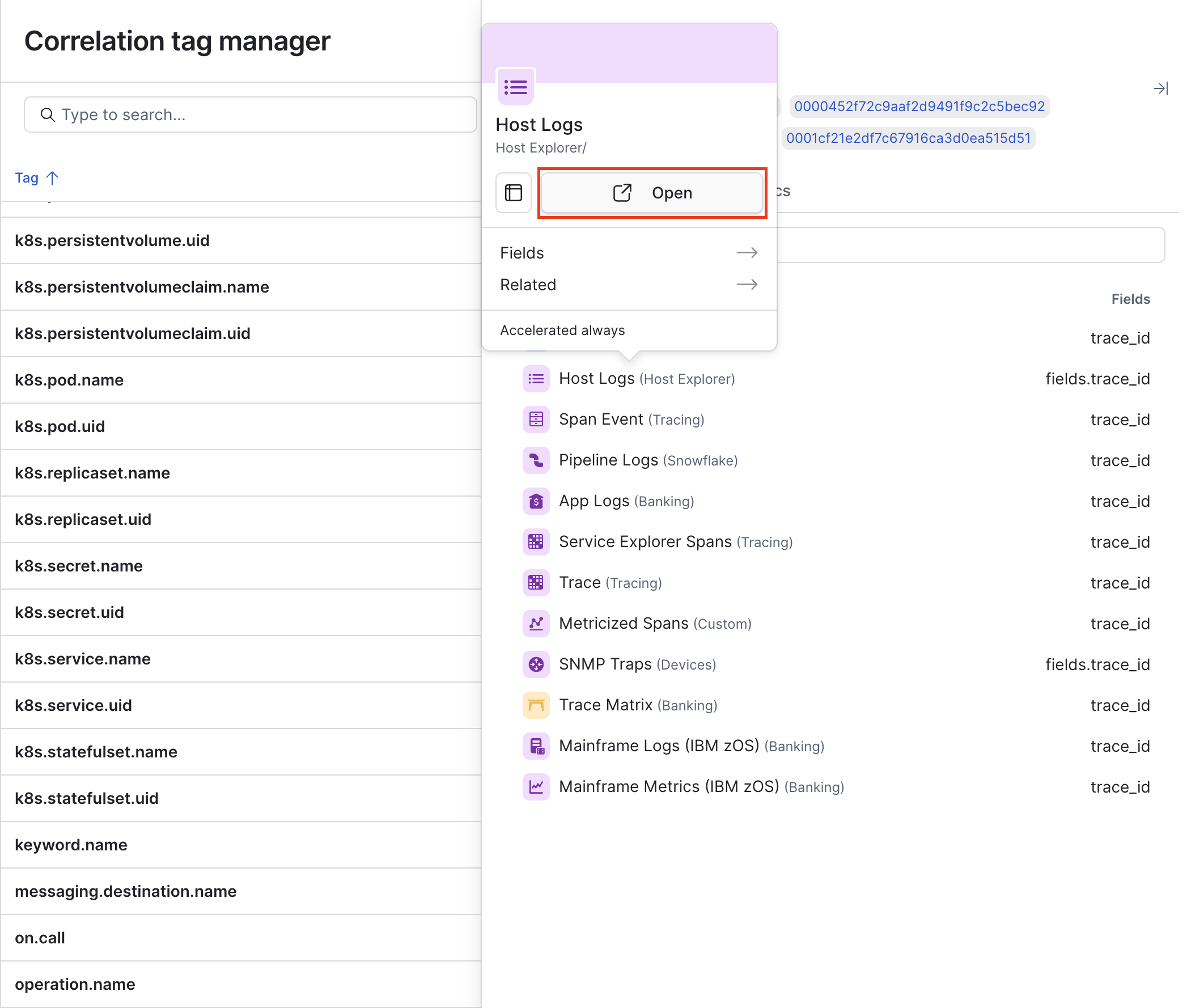
Hover on any Dataset, dashboard, or metric to pivot directly to the corresponding explorer or dashboard:
Manage unwanted tags
Correlation tags in Observe by Snowflake work best if you have a consistent methodology for creating and maintaining your tags across your organization. In the event you discover some unwanted or duplicate tags, you can manage those tags by pivoting to the Dataset properties.
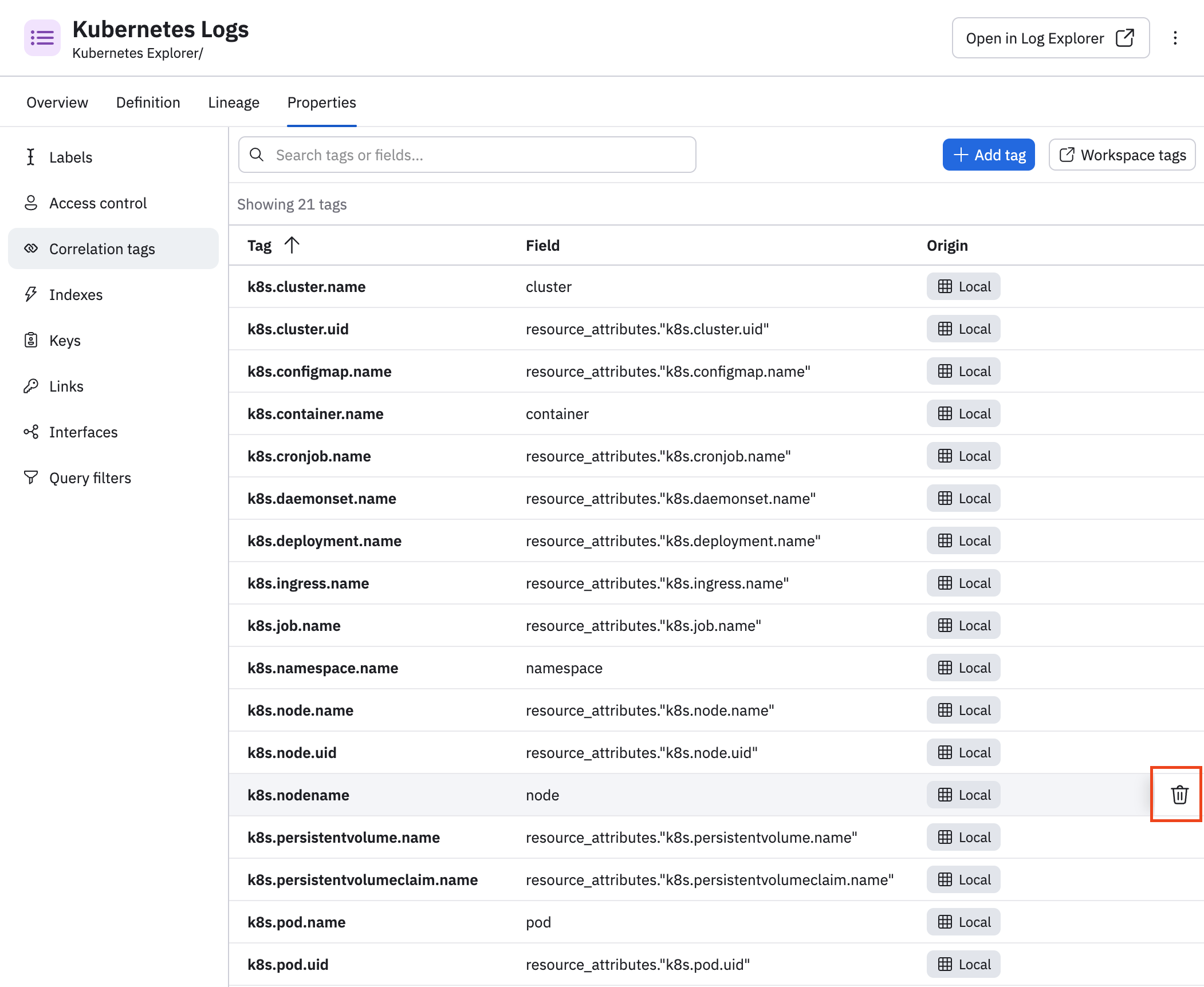
For example, suppose we search for tags with the word node in them. We see k8s.node.name and k8s.node.uid, which follow the desired convention, but there is also the k8s.nodename correlation tag which doesn't follow the naming convention we want.
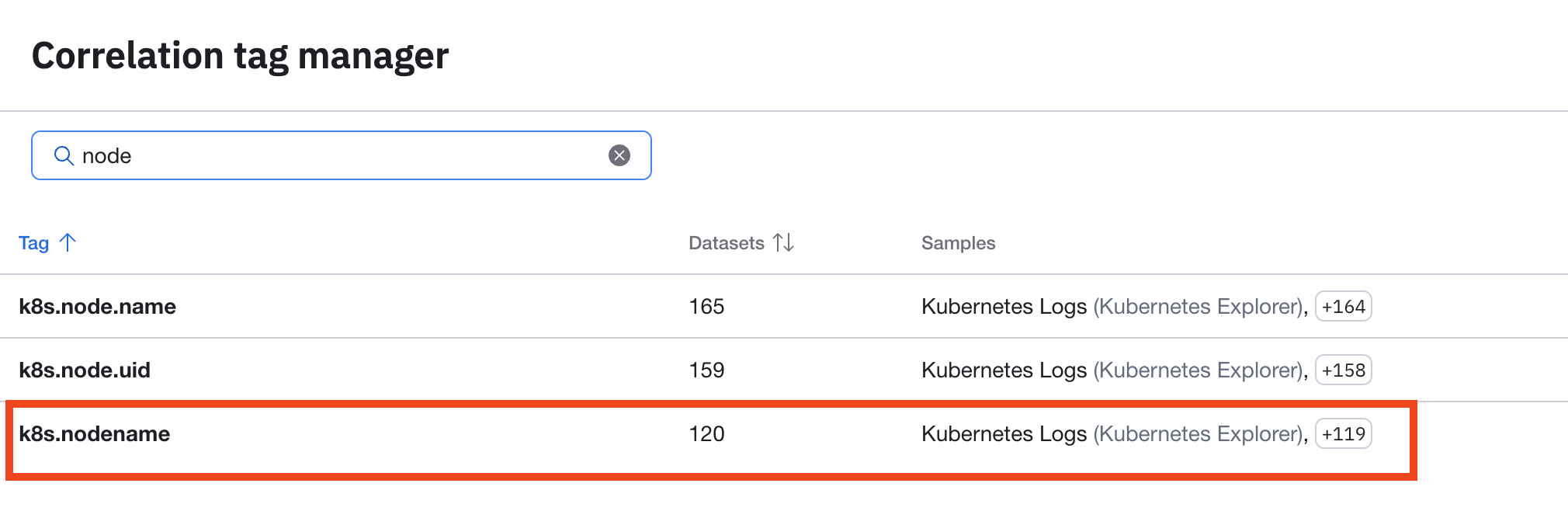
Perform the following steps to remove this tag:
- Click on the k8s.nodename tag.
- In the side panel, find the Kubernetes Logs (Kubernetes Explorer) Dataset, then hover on that Dataset name, and click Open.
- On the Dataset details page, click the Properties tab.
- Click Correlation tags.
- Hover on the k8s.nodename tag, then click the trash can icon () to delete the tag.
Updated about 1 month ago