

Set Worksheet visibility
Learn how to configure whether or not your Worksheet is searchable by other users.
Private preview feature (Invite only)This feature is enabled per tenant by Observe by Snowflake and is not generally available. To participate, contact your Observe by Snowflake representative. You may access and use this preview feature solely for internal evaluation purposes. Previews are provided as-is. Your use of this preview is subject to the Snowflake Preview Terms located at https://www.snowflake.com/en/legal.
New Worksheets are created in draft mode and are Unlisted, meaning that the new Worksheet won't appear in any other user's search results. You must change the Worksheet's visibility to Listed in order for other users to be able to find the Worksheet.
NoteA Worksheet's visibility is not related to access control. An unlisted Worksheet can still be accessed by any user who has the link and the appropriate RBAC permissions to view it.
Configure visibility settings for your Worksheet
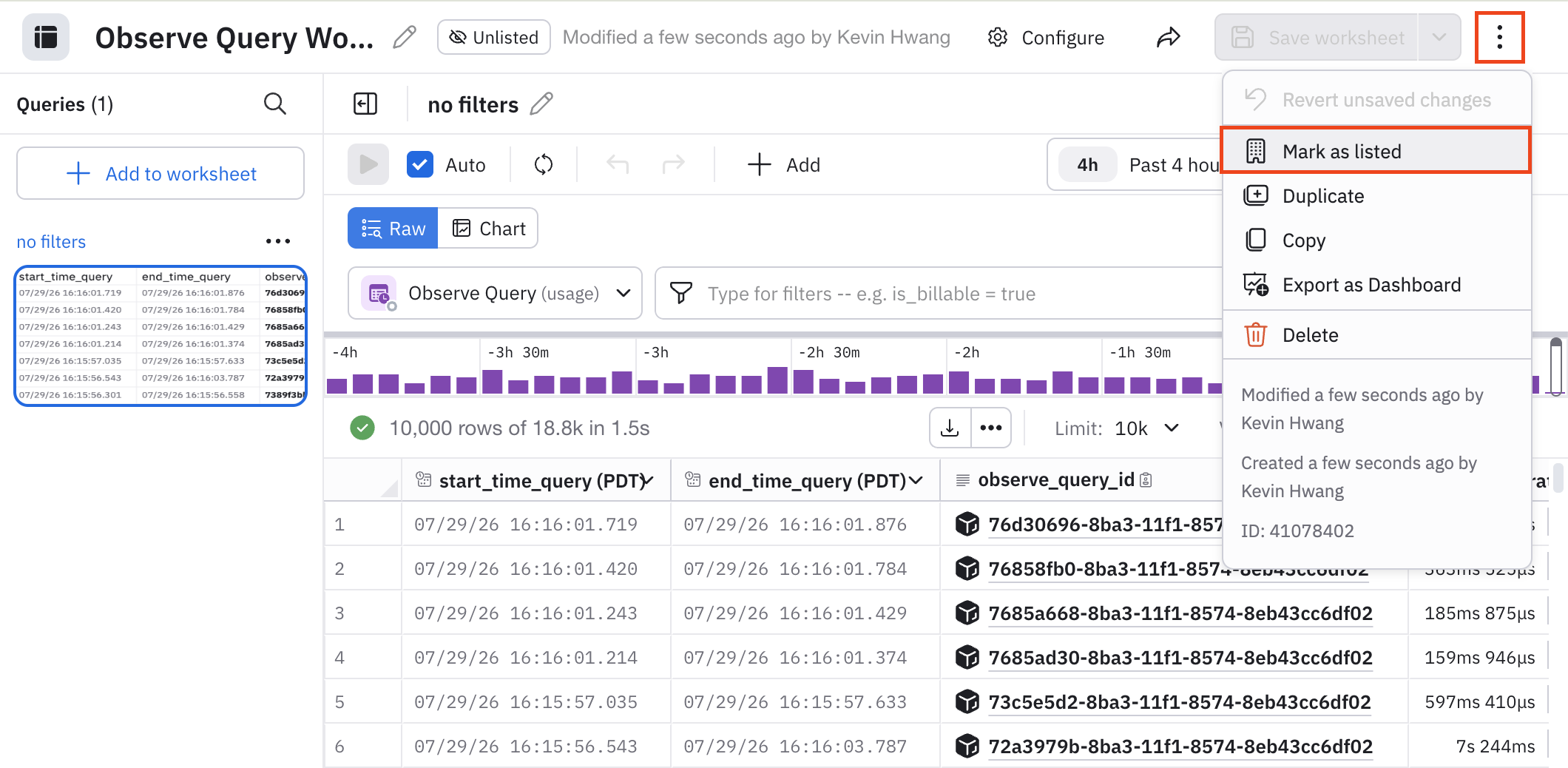
Edit your Worksheet to make your Worksheet's visibility Listed and available for other users to find.
Click the vertical ellipsis icon () and select Mark as listed:
View visibility settings in the Worksheets Explorer
Visibility settings for each Worksheet are listed in the Visibility column in the Worksheets Explorer:
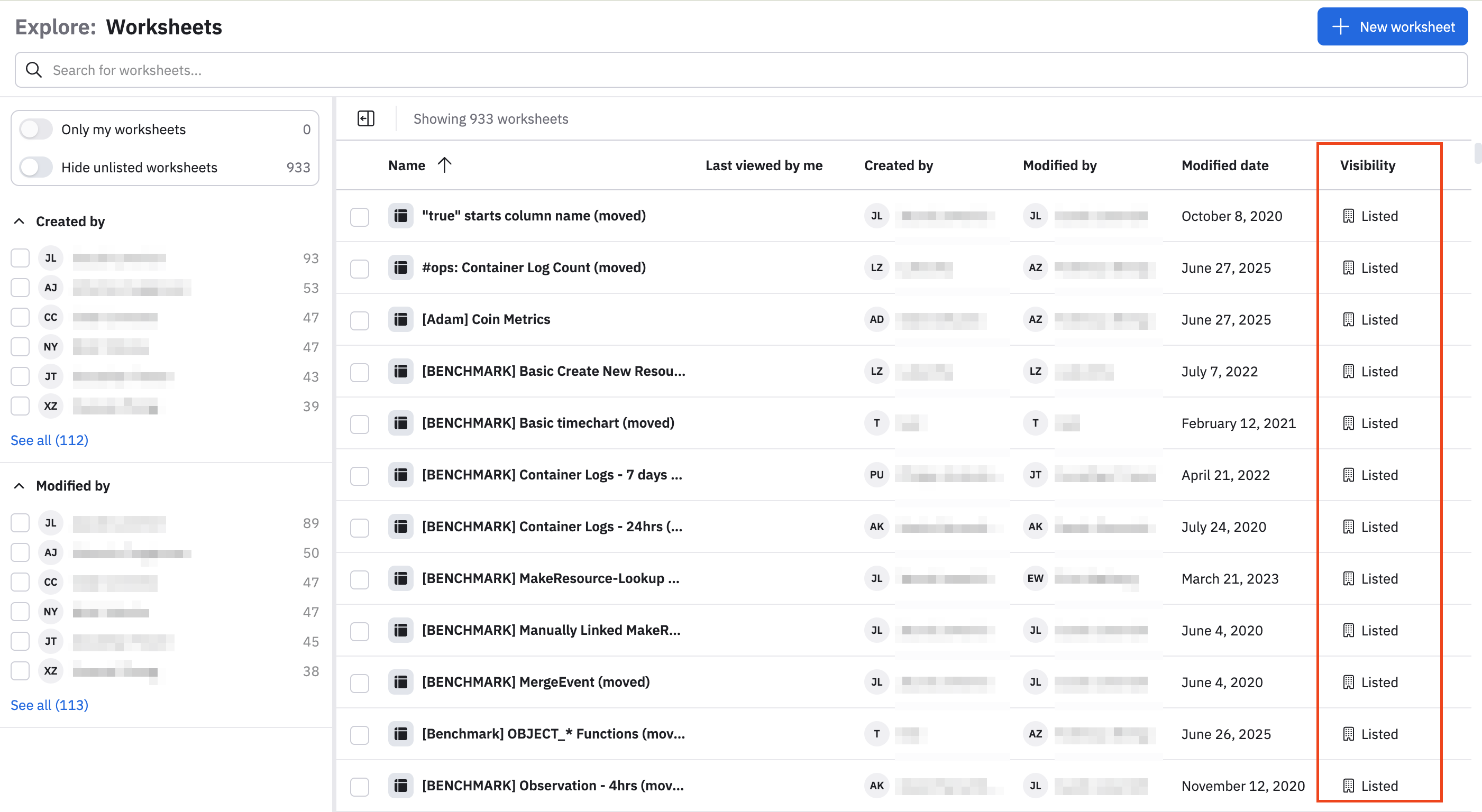
Use the Only my worksheets and Hide unlisted worksheets toggles to filter the Worksheets you see in the Worksheets Explorer. See Worksheets Explorer for more information.
Updated 3 months ago