

Object tags
Learn how to use Object tags to label and organize your content in Observe by Snowflake.
Private preview feature (Invite only)This feature is enabled per tenant by Observe by Snowflake and is not generally available. To participate, contact your Observe by Snowflake representative. You may access and use this preview feature solely for internal evaluation purposes. Previews are provided as-is. Your use of this preview is subject to the Snowflake Preview Terms located at https://www.snowflake.com/en/legal.
Object tags allow you to organize and categorize your Datasets, Worksheets, and dashboards with custom key-value pairs. Object tags make it easier to filter, search, and manage your observability assets across your workspace.
An object tag consists of two parts:
- Key: A category or attribute name, such as team, environment, or service.
- Value: The specific value for that category, such as platform, production, or checkout.
You can assign multiple object tags to any object, and each key can have multiple values.
Where can I add object tags
You can add object tags in the following ways:
- Add object tags to a new Dataset
- Add object tags to an existing Dataset
- Add object tags to Worksheets and dashboards
- Add object tags to favorites
Add object tags to a new Dataset
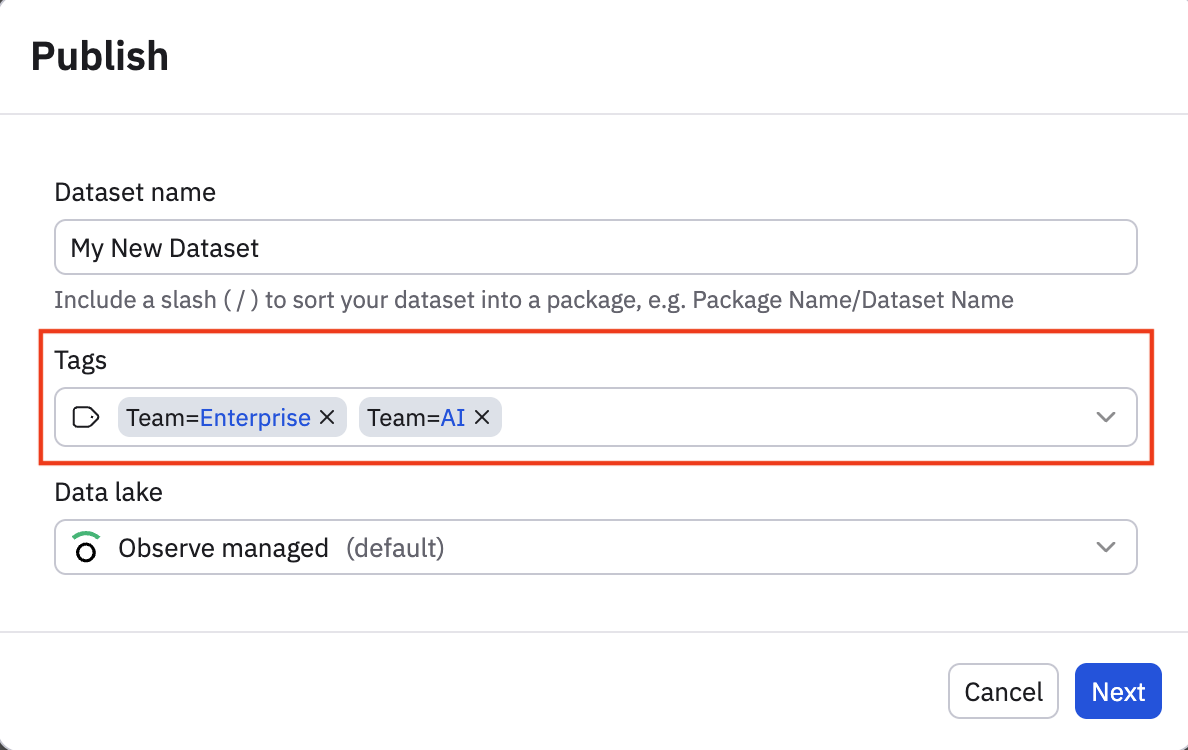
When you are creating a new Dataset, click Save and add the object tags in the modal. Click the Tags drop-down to select a key, followed by its value, then repeat as many times as needed to create your desired object tags:
Add object tags to an existing Dataset
Perform the following tasks to add object tags to an existing Dataset:
-
Click Datasets in the left navigation to access the Datasets Explorer.
-
Find the Dataset to which you want to add object tags, then hover on the Dataset's name and click the Open dataset page icon ().
-
Click the Properties tab.
-
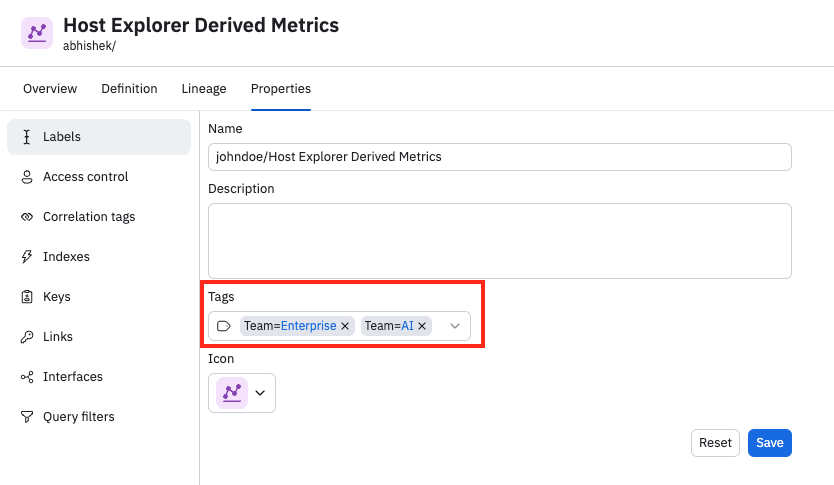
Under the Labels section, click the Tags drop-down to select a key, followed by its value, then repeat as many times as needed to create your desired object tags:
-
Click Save.
Add object tags to Worksheets and dashboards
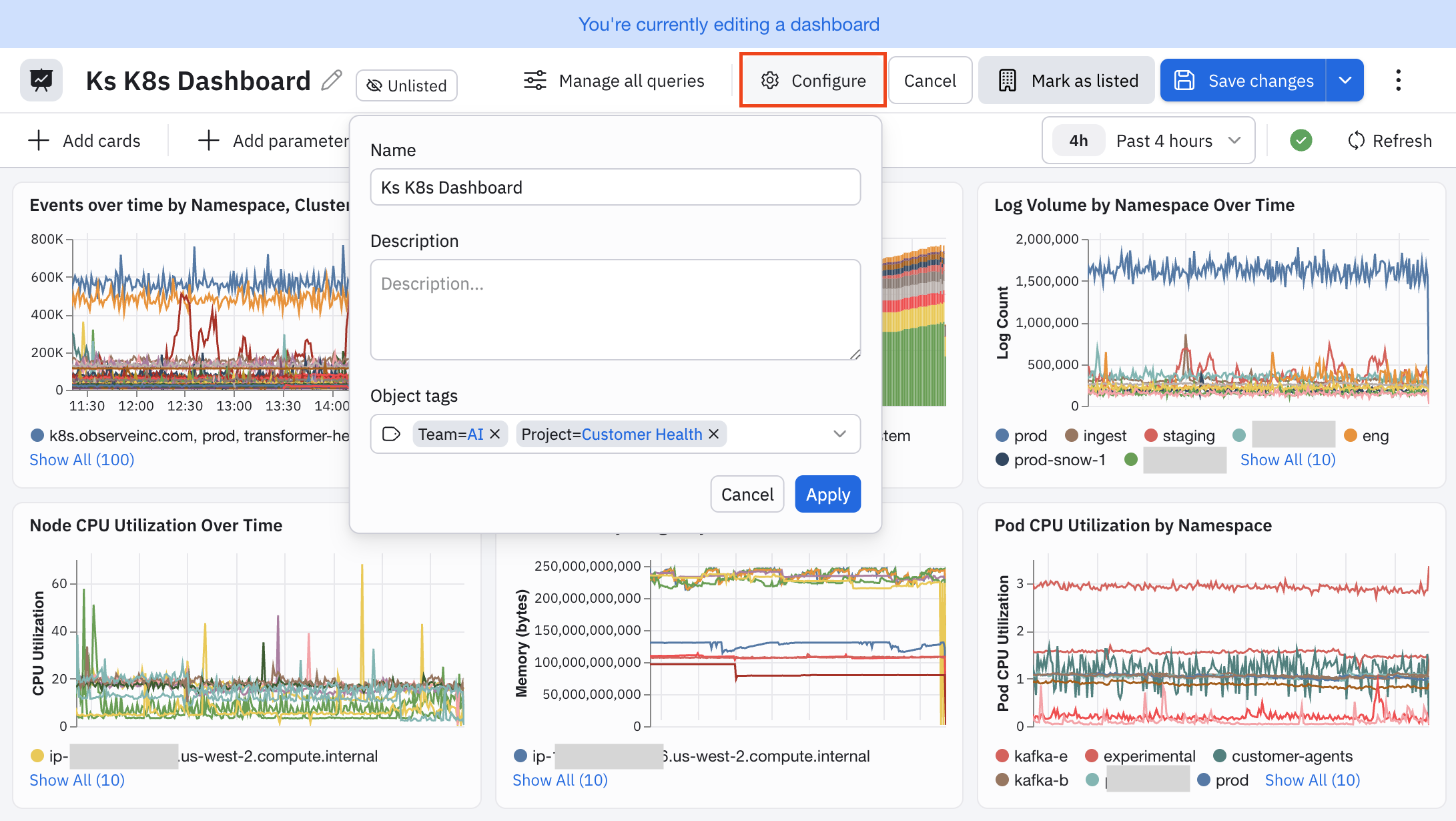
When you are editing any Worksheet or dashboard, click Configure to add object tags to your Worksheet or dashboard. For example, here are object tags added to a dashboard:
Add object tags to Favorites
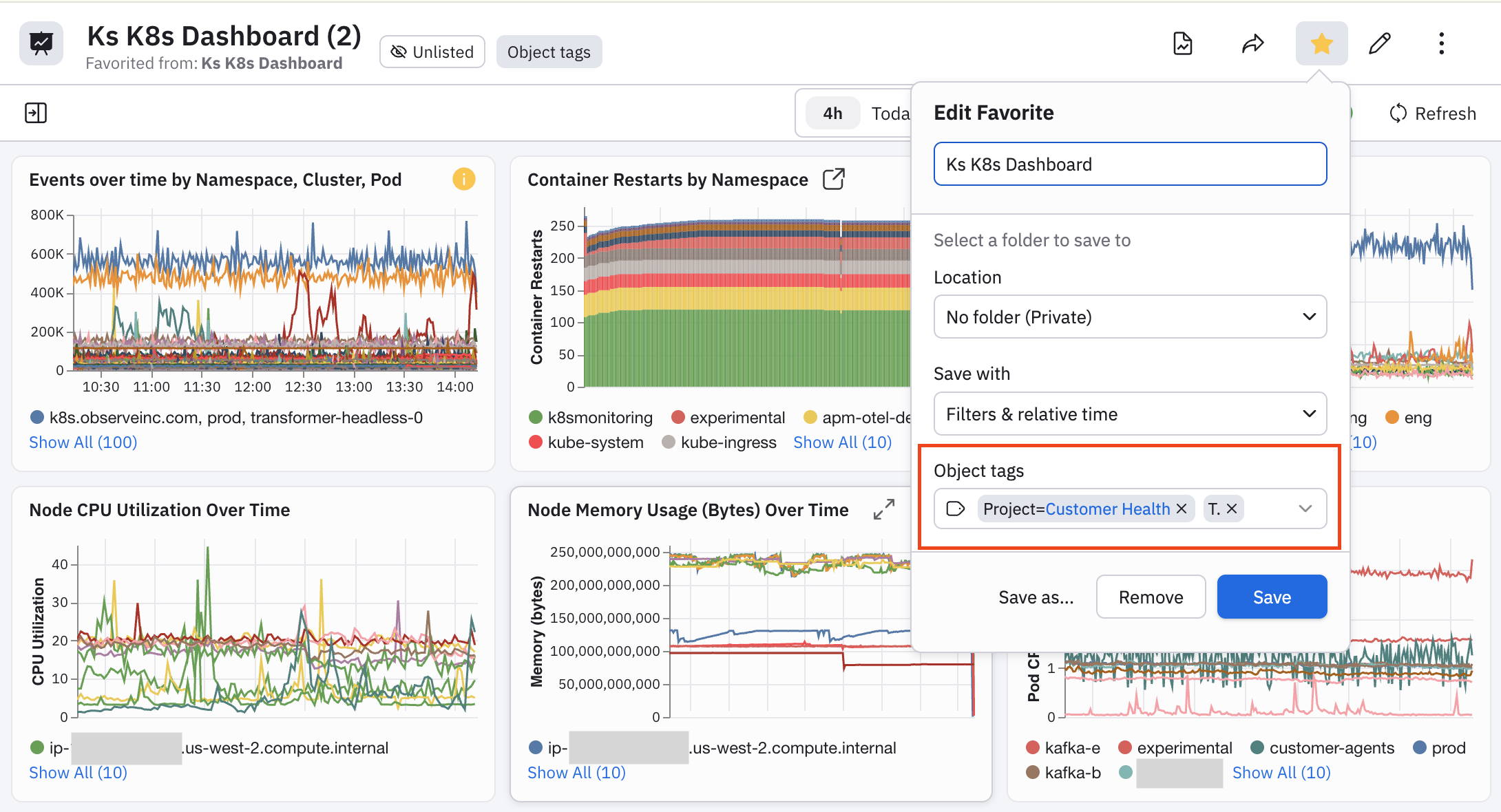
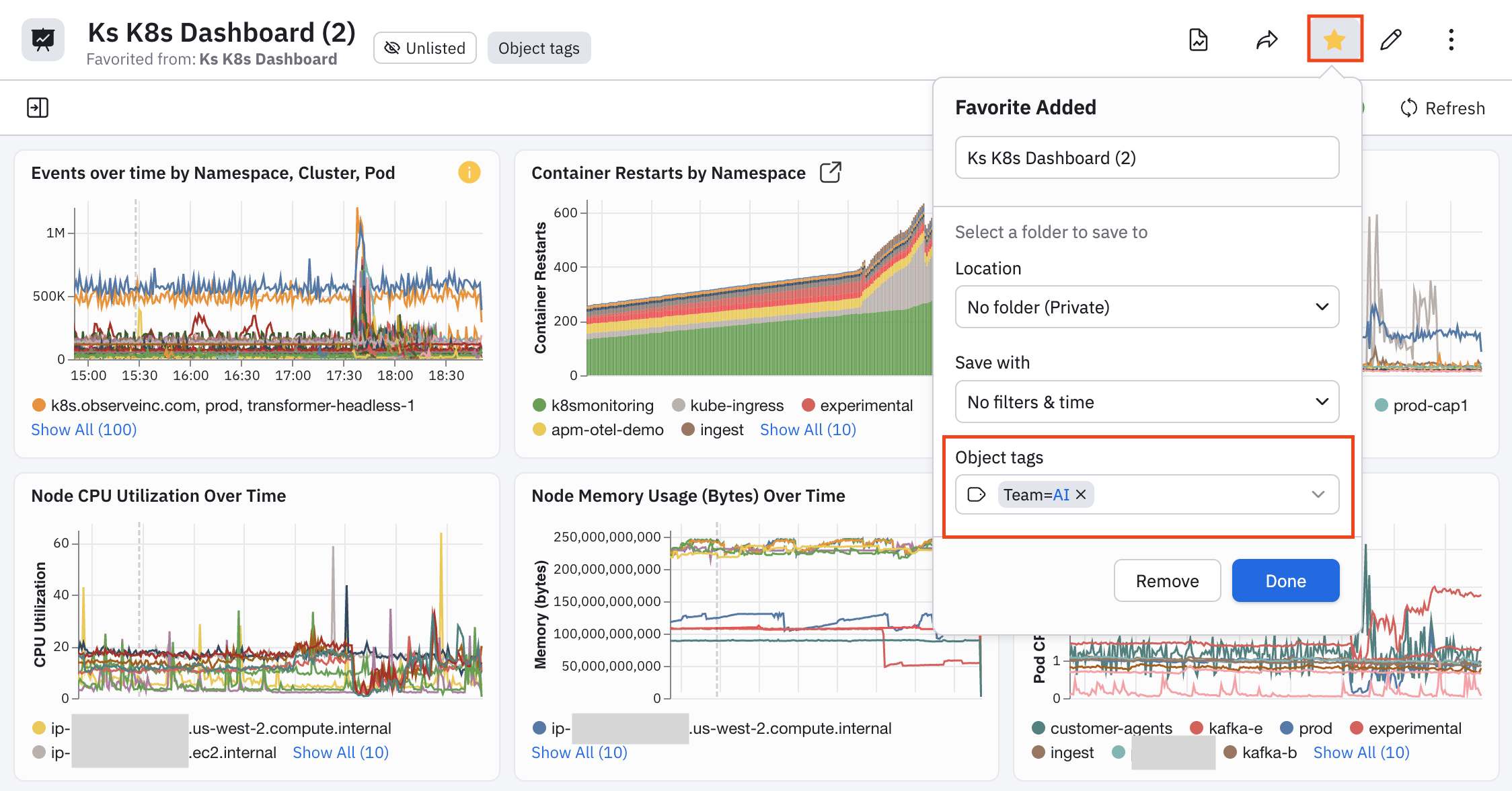
Whenever you click the star icon () in Observe by Snowflake to add content to your Favorites, you can also add object tags. For example:
How do I know if an object already has object tags?
Any object with object tags already configured has an Object tags label near the object name. You can hover on the label to view the object tags that are configured. For example, this dashboard has two object tags defined for it:
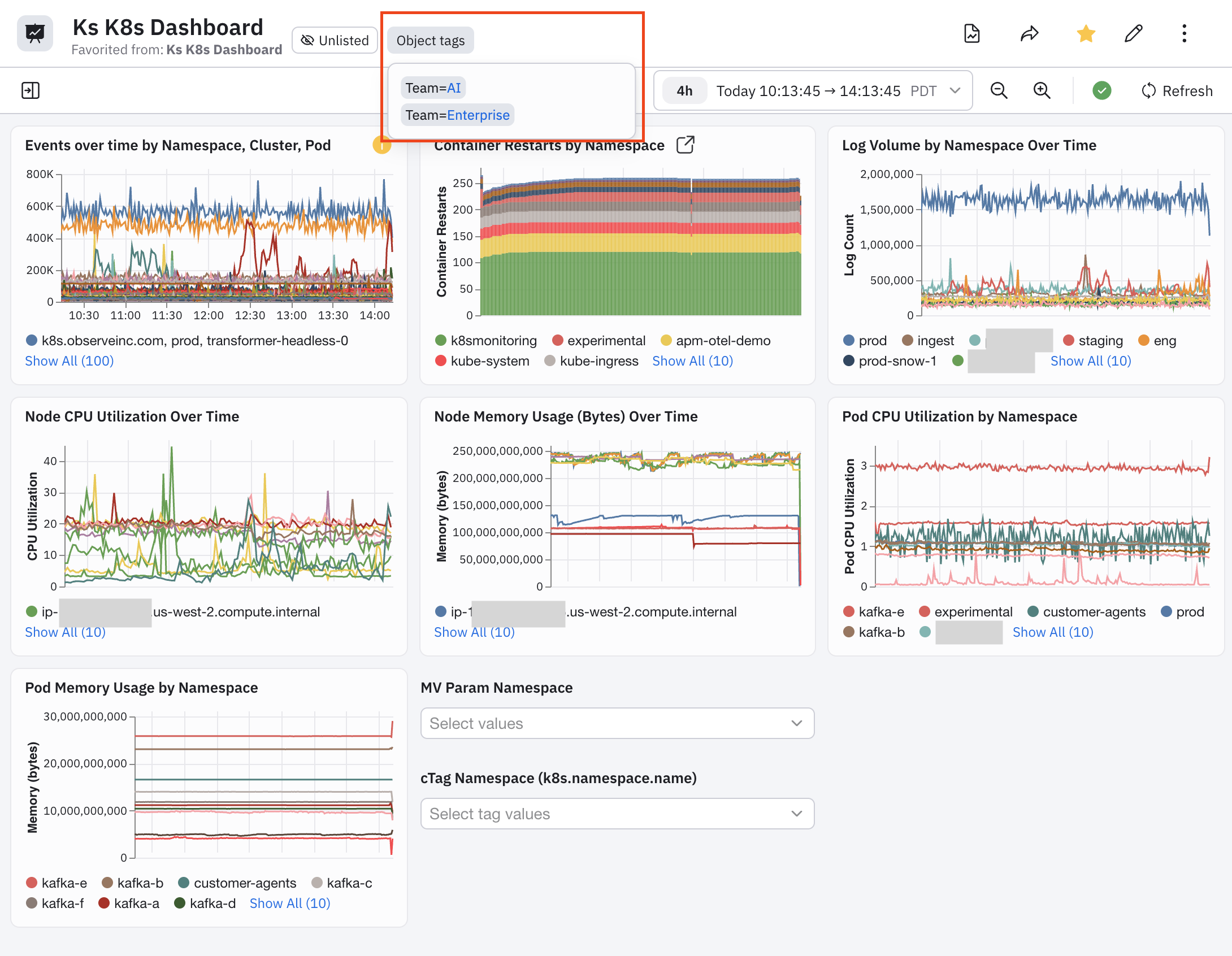
Filter your data using object tags
The following areas of Observe by Snowflake support filtering by object tag:
- Dataset Explorer
- Worksheet Explorer
- Dashboard Explorer
- Favorites
- Dataset input picker
Say you are a member of the AI team in your organization. Use the following examples to help you filter content in Observe by Snowflake so that you can see helpful assets for just your team.
Filter objects in your Datasets, Worksheets, and dashboards
You can filter by clicking on an object tag in the Object Tags column. The object tag you click on is added to the top filter bar. In this example, we have clicked on Team=AI in the Object tags column:
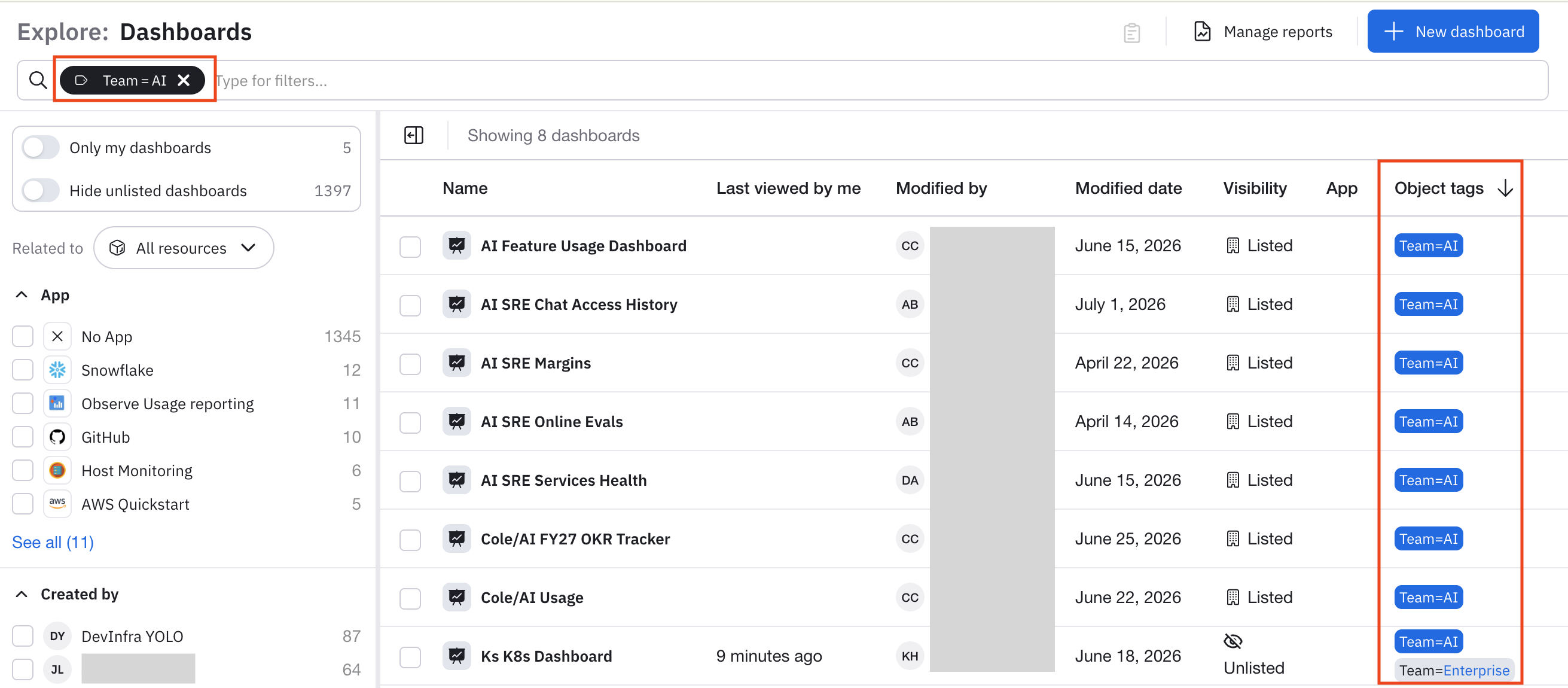
You can also click directly in the filter bar and select object tags from the modal. First, select the desired key, then select the value.
Click the x on any object tag in the filter bar to remove that object tag as a filter.
Let's say we want to make the K8s Kubernetes Dashboard a favorite. Let's click on that dashboard, then click on the star icon () to save it as a Favorite, and add the Team=AI object tag:
Favorites
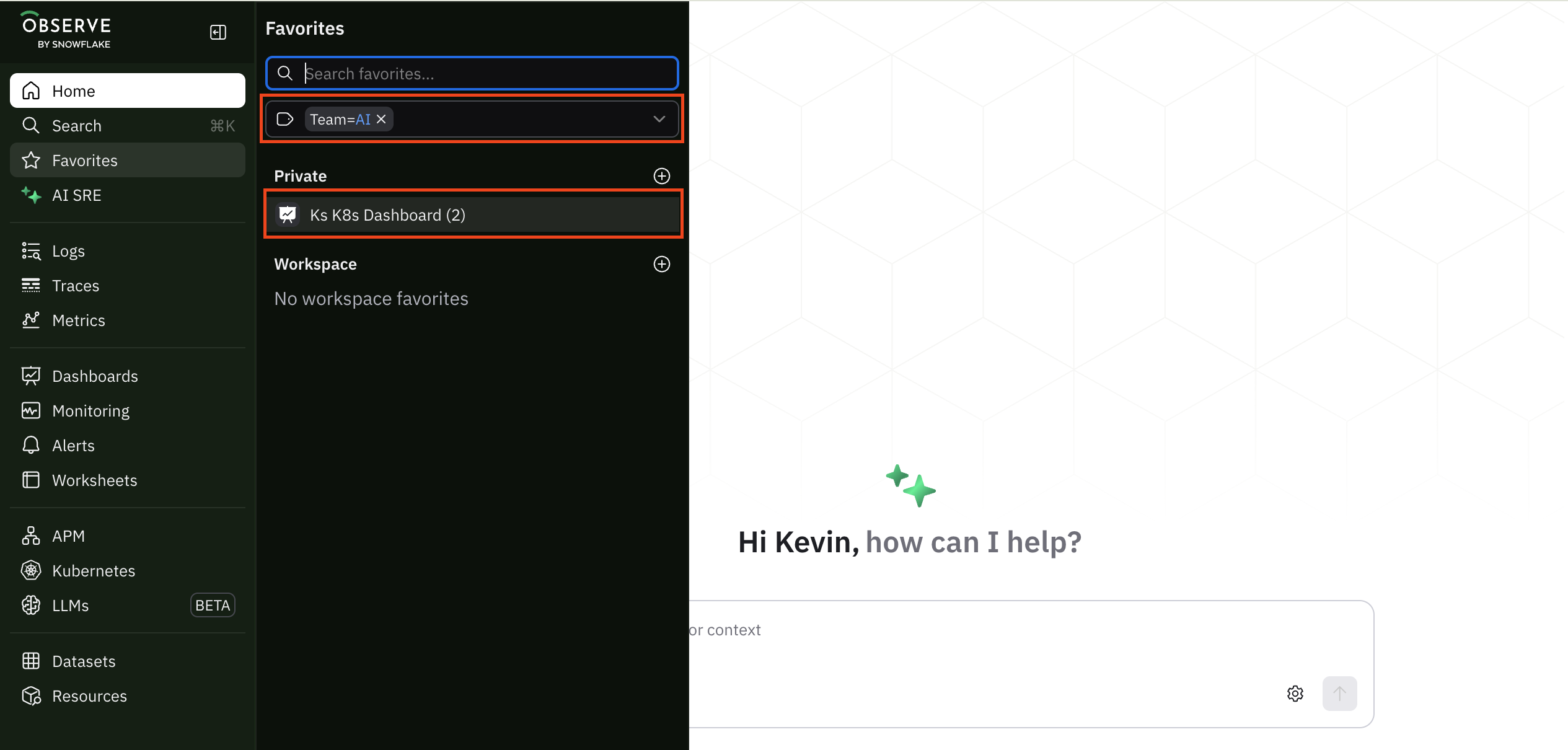
Favorites can be filtered in the left navigation search panel. Use the Search object tags selector to pick tags to filter by.
Once again, if we filter by the Team=AI object tag, we see K8s Kubernetes Dashboard that we made a favorite with the Team=AI object tag:
Dataset input picker
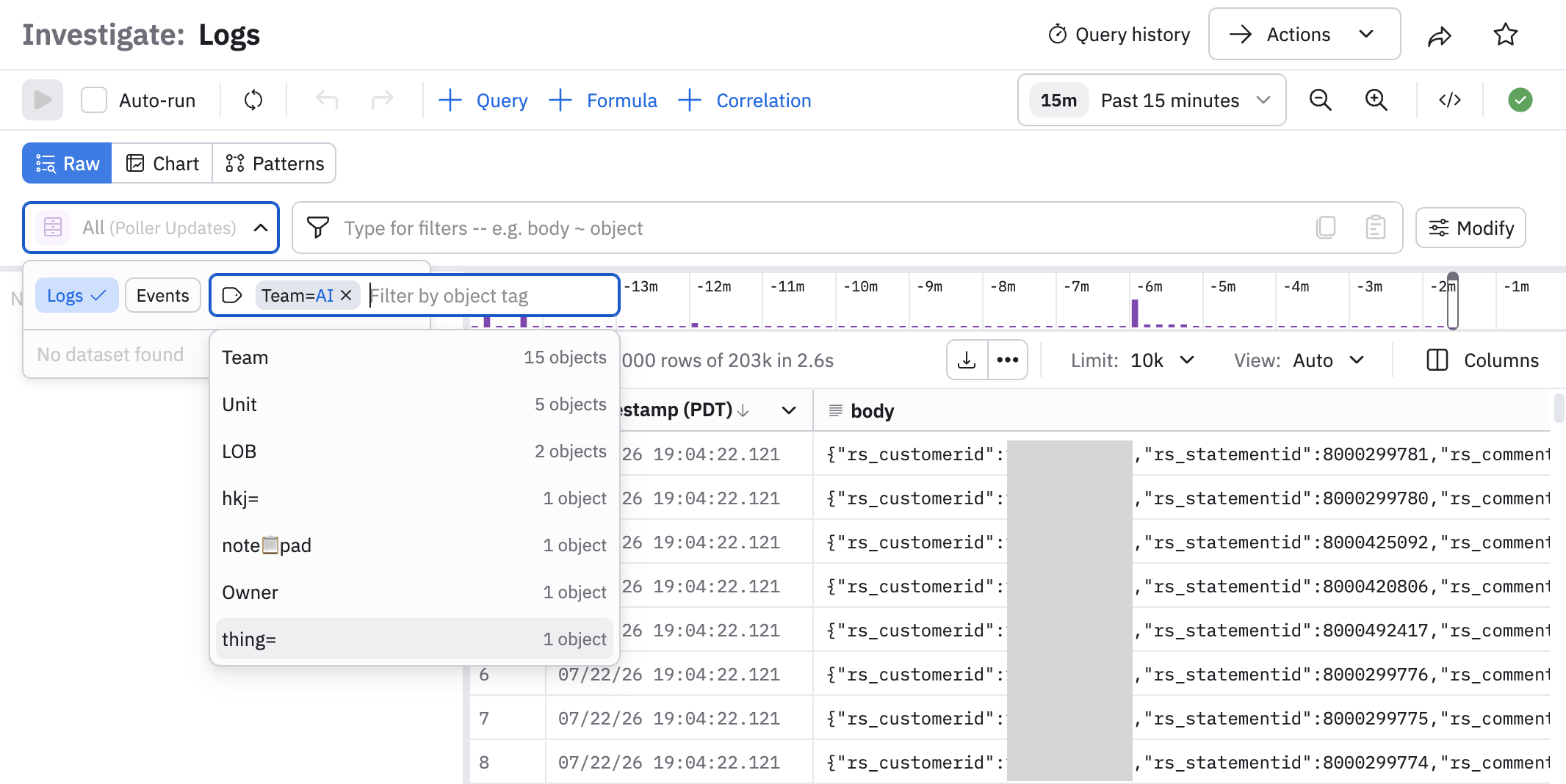
In the Log Explorer, the Dataset input picker can be filtered by object tag where you also filter by logs or events. Filter selections persist during your session even after the picker is closed:
NoteFor all object tag filters, multiple object tag filters with the same key, such as
Team=frontend, Team=backendwill result in an AND filter being applied, which means objects without both object tags are excluded.
Manage object tags using Terraform
Object tags can be managed programmatically using the Observe by Snowflake Terraform provider, allowing you to apply consistent tagging strategies across your infrastructure-as-code workflows.
Terraform resources
Object tags are supported on the following Terraform resources:
observe_datasetobserve_dashboardobserve_worksheetobserve_bookmark(favorites)
Basic usage
Add object tags using the object_tags attribute:
resource "observe_dataset" "example" {
  workspace = data.observe_workspace.default.oid
  name      = "HTTP observations"
  # ... other configuration ...

  object_tags = {
    environment = "production"
    team        = "backend,frontend"
  }
}
Multiple values
Use comma-separated values for multiple values per object tag:
object_tags = {
  team = "platform,sre"
}
NoteValues are automatically sorted alphabetically by the backend. For example, Terraform recognizes
"platform,sre"and"sre,platform"as equivalent.
Special cases
Leading/trailing spaces: Automatically trimmed from values
object_tags = {
  team = " platform , sre "  # Becomes "platform,sre"
}`
Values with spaces: Internal spaces are preserved
object_tags = {
  description = "Team Alpha,Team Beta"  # Two values: "Team Alpha" and "Team Beta"
}
Values with commas: Use CSV-style escaping
object_tags = {
  note = "\\"Team A, Inc\\",\\"Team B, LLC\\""
}
See also
Required object tags
Workspace administrators can configure required object tags that must be present on all objects before the objects can be saved. This ensures consistent tagging practices across your organization.
See Required object tags for instructions on how to configure required object tags.
Updated about 2 months ago