

Route your data to a specific Dataset
Learn how to configure routing to ingest your data and direct it to the desired Dataset.
Private preview feature (Invite only)This feature is enabled per tenant by Observe by Snowflake and is not generally available. To participate, contact your Observe by Snowflake representative. You may access and use this preview feature solely for internal evaluation purposes. Previews are provided as-is. Your use of this preview is subject to the Snowflake Preview Terms located at https://www.snowflake.com/en/legal.
Observe by Snowflake ingest routing allows you to specify content-based routes to direct incoming data to different source datasets via sets of rules matching the content of the observations.
Data flow
Flexible Observe by Snowflake data ingestion consists of three concepts:
- Self-standing ingest tokens authenticate a request and nothing more. They carry no destination. Find them under your user name in the left navigation rail, at Manage account > Ingest tokens.
- Type-specific source Datasets each store one type of data, and work out of the box with Observe by Snowflake Log Explorer, Metric Explorer, etc. Generic Any type datasets can store any other telemetry, but require more data shaping. Find your source datasets at Data & integrations > Source Datasets.
- Type and endpoint-specific ingest routes decide where data is stored. Find them at Data & integrations > Ingest routing.
The following diagram illustrates how Observe by Snowflake applies your routing rules to incoming data:
flowchart TD

    A[Your client sends data<br/>with an ingest token]
        --> B[Observe authenticates<br/>the request]

    B --> C{Evaluate the rules for<br/>this data type,<br/>in priority order}

    C --> D[First matching rule<br/>selects the destination]

    D --> E[Drop filters run on<br/>the destination Dataset]

    E --> F[Remaining data is stored<br/>in the Dataset]
NoteRouting and drop filters
Drop filters are attached to source Datasets. Observe by Snowflake applies ingest routing first to determine the destination Dataset, then applies any drop filters configured on that Dataset.
Supported data types
Each data type corresponds to a source Dataset schema and to the ingest endpoints that produce compatible data. You manage a separate list of routes for each type.
Most types also restrict which columns a routing expression may reference. The restriction keeps routing decisions on stable metadata rather than on payload fields that may not exist.
| Datasource type in Observe by Snowflake | API name | Ingest endpoint | Columns you can filter on |
|---|---|---|---|
| Logs - OpenTelemetry | otellogs | /v1/otel/v1/logs | body, attributes, resource_attributes, instrumentation_scope, fields, meta |
| Metrics - OpenTelemetry | otelmetrics | /v1/otel/v1/metrics | meta, metric |
| Traces - OpenTelemetry | oteltraces | /v1/otel/v1/traces | meta |
| Metrics - Prometheus | prometheus | /v1/prometheus | meta |
| Entity | k8sentity | /v1/kubernetes | Managed by Observe by Snowflake, so you cannot add rules |
| Generic - Any Data | any | /v1/* | FIELDS, EXTRA, BUNDLE_TIMESTAMP, OBSERVATION_KIND, DATASTREAM_TOKEN_ID |
Referencing a column outside the allowed set is rejected when you save the rule.
A route can only target a Dataset whose type matches the route's type. For example, you can't send OTel logs to a Prometheus Dataset.
Entity routing is managed by Observe by SnowflakeObserve by Snowflake creates and maintains the routes for Entity data. You can view them in the routing table, but you cannot add, edit, or reorder them.
Why some are limited tometaA trace filter can only reference
meta, not span content. Filtering on span content could send some spans of a trace to one destination and the rest to another, which breaks trace reassembly and span links. Likewise, prometheus metric data points and prometheus metric metadata must always route to the same datasets, or else the metric information in Observe by Snowflake will be incorrect.
Configure a data ingest routing rule
Perform the following steps to configure a new ingest routing rule. This example routes debug logs to their own Dataset. You can then keep them for a shorter period than the rest of your logs in order to save storage costs. The example assumes an OTel Logs source dataset called "Logs - OpenTelemetry".
-
Select Data & integrations > Ingest routing.
-
In the Datasource type field, select Logs - OpenTelemetry.
-
Click Add rule.
-
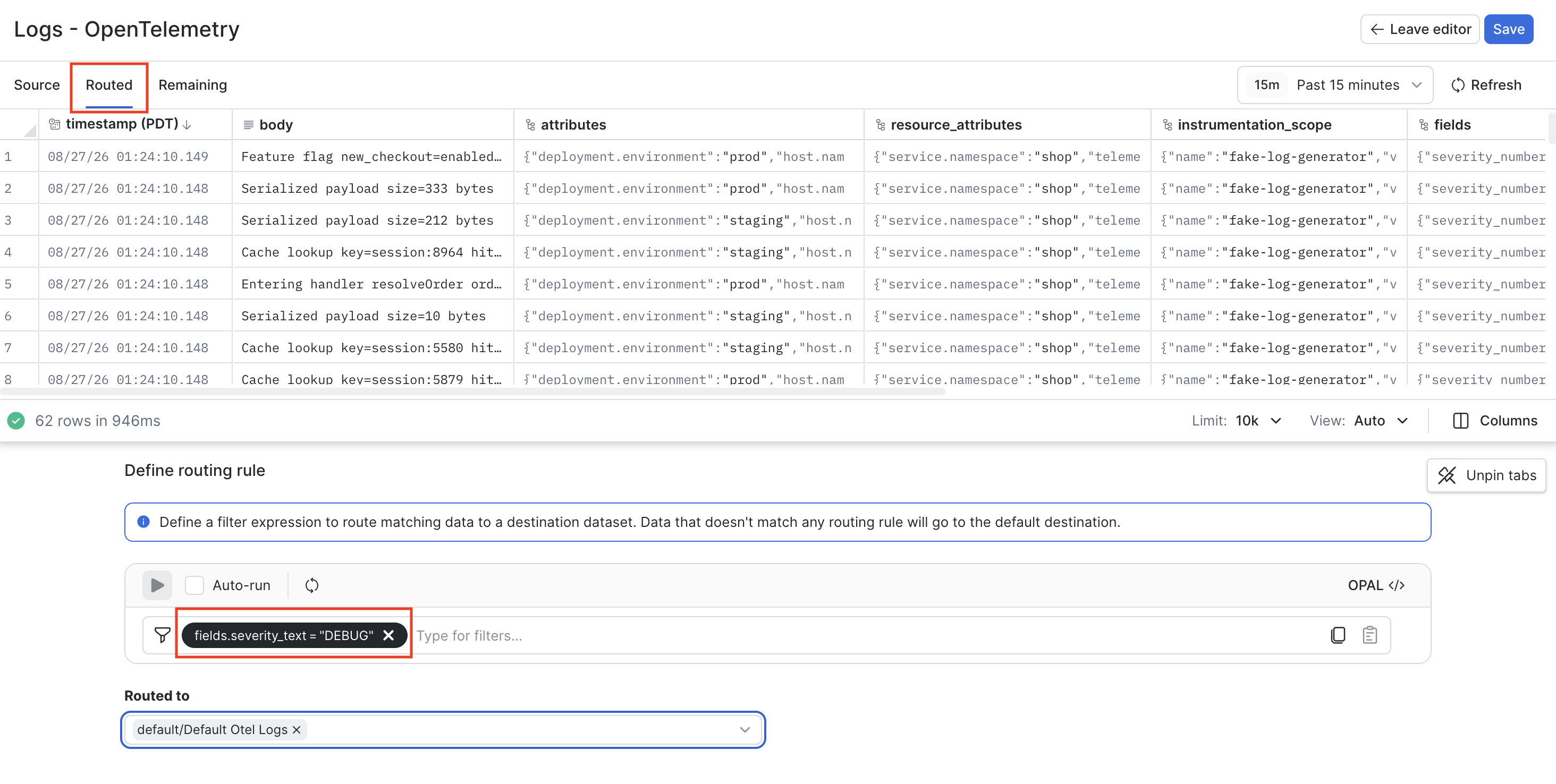
Enter a filter expression for the data you want to route. For this example, enter
filter fields.severity_text = "DEBUG".The table of events shows your incoming OTel logs. Check the expression against real data as you type.
-
Use the tabs to check what your expression matches:
- Routed shows the events this rule sends to its destination.
- Source shows the original set of events.
- Remaining shows the events the rule does not match.
-
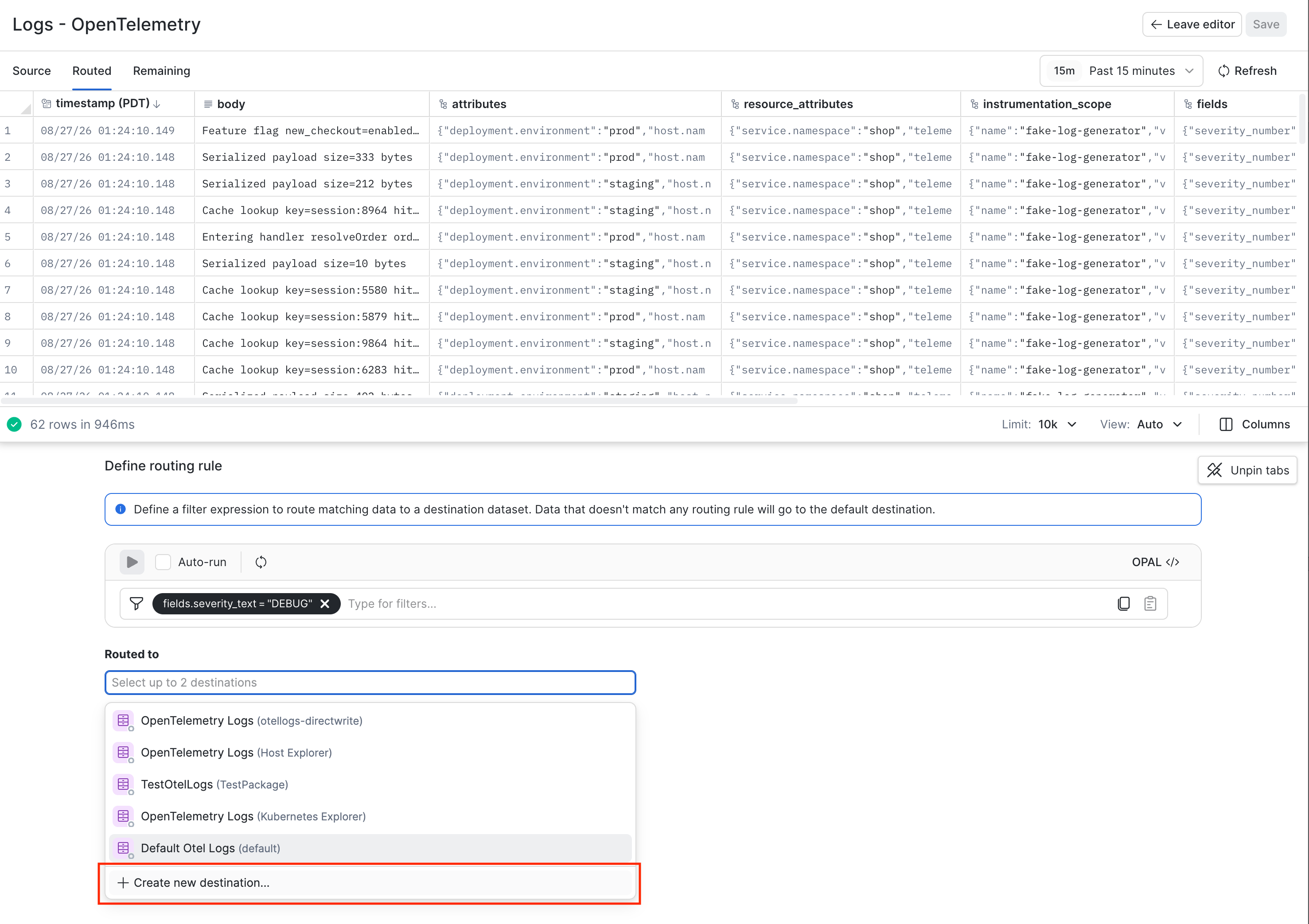
Open the Routed to drop-down and choose a destination. Select an existing Dataset, or select Create new destination to make a new one.
-
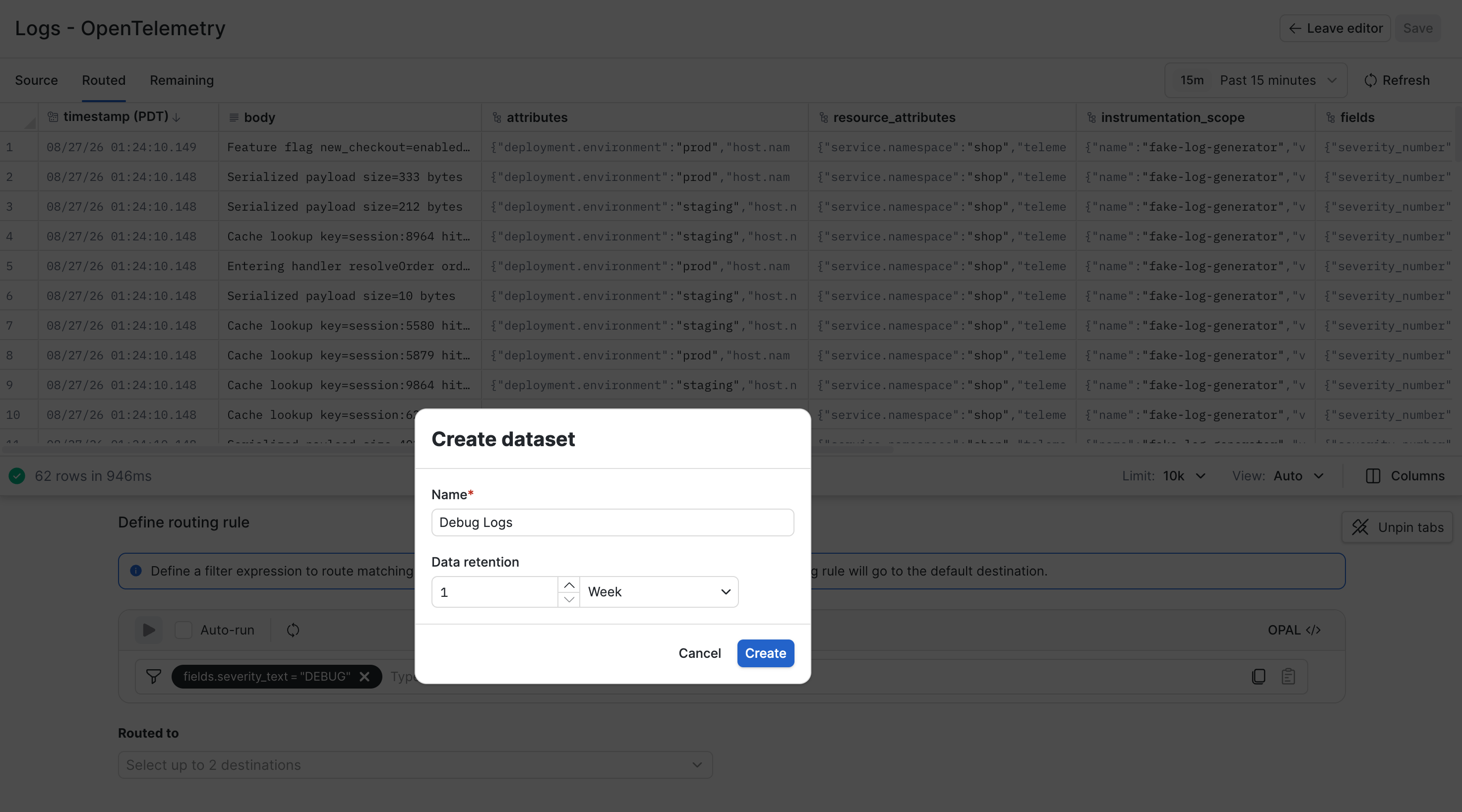
Name the new Dataset, select a retention period, then click Create. A short retention period suits debug logs.
-
Save the rule.
Enable your new rule
A new rule starts disabled, so saving it does not change where your data goes. Observe by Snowflake skips a disabled rule entirely, as though it did not exist.
Use the toggle in the rule's Enabled column when you are ready for the rule to take effect. Disable a rule to stop routing through it without deleting it.
Order your routes
Observe by Snowflake evaluates the routes for a data type from top to bottom and stops at the first match. Order therefore decides which Dataset receives data that more than one rule could match.
- Put narrow rules above broad ones. A broad rule placed first claims the data that a later narrower rule would have matched.
- Drag and drop to reorder. Reordering applies to every rule of that data type at once.
- New rules are added last. A new rule sits directly above the default route until you move it.
The default route
The default route catches observations that no other rule matched. Observe by Snowflake creates it with the first rule you add, provided a Dataset of that type already exists.
The default route behaves differently from the rules you write:
- It has no filter expression. It matches anything that reached it.
- It is always evaluated last, and cannot be reordered above another rule.
- It cannot be deleted or disabled. You can change its destination Dataset.
To change where unmatched data lands, edit the default route's destination.
Send data to two Datasets
A rule can name a secondary destination in addition to its primary one. Observations matching the rule are written to both Datasets.
Both destinations must be source Datasets of the rule's data type. Use a secondary destination to send a copy to a second team. You can also validate a new Dataset before cutting over to it.
NoteA secondary destination duplicates the data rather than splitting it. This adds additional payload bytes to your ingest billing.
Routes that Observe by Snowflake manages for you
Your route list may include rules that Observe by Snowflake created and that you cannot edit, delete, or reorder. Managed rows show their controls greyed out.
These managed routes exist so that content-based routing reproduces the implicit routing you already had. Observe by Snowflake manages two kinds:
- Package routes match data sent with a target package HTTP header, such as the Observe Agent. They point at the source dataset that package already used.
- Token association routes match data from a single Datastream token. They point at the source Dataset that token was associated with.
Managed routes are always evaluated before the rules you write, so existing data flows keep landing where they did before.
Observe by Snowflake also reconciles these routes continuously. It rebuilds them whenever the underlying dataset name or token association changes. Any manual change would therefore be reverted.
To send data covered by a managed route elsewhere, change the underlying source Dataset or token association.
Updated 7 days ago