

Manage and pivot from dashboard cards
Learn about additional workflows you can start from your dashboard cards.
Hover on any dashboard the click the vertical ellipsis icon () to access additional options. The options differ slightly depending on whether you are viewing or editing your dashboard.
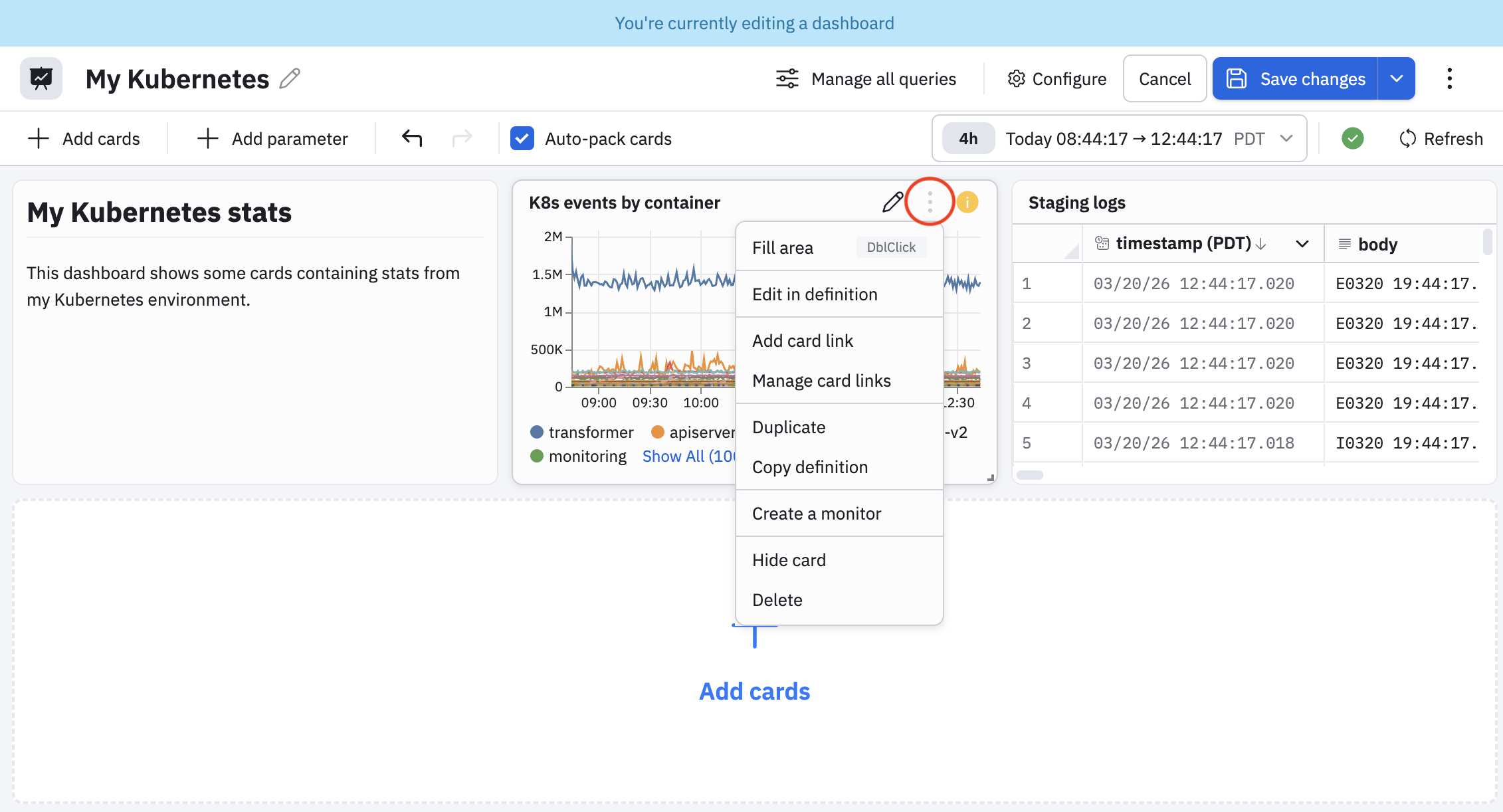
| Option | Description | Available when viewing dashboard? | Available when editing dashboard? |
|---|---|---|---|
| Fill area | This is a formatting option that makes the card fill the entire width of the available space. | No | Yes |
| Edit in definition | Edit the underlying OPAL query of the card. This is not the same as just editing the card, where you can change the visual representation and some basic query parameters. | No | Yes |
| Open in Worksheet | Open the card in a new Worksheet. See Create and share Worksheets. | Yes | No |
| Pivot to an Explorer | In this example, we see Open in Log Explorer because the data powering the card is log data. If the data was metrics data, the pivot option would be Open in Metrics Explorer. | Yes | No |
| Edit card | Open the dashboard card for editing. | Yes | No |
| Add card link | Add a link from this card to another dashboard. | No | Yes |
| Manage card links | View the links configured for this card. | No | Yes |
| Duplicate | Make a copy of this card in the same dashboard. | No | Yes |
| Copy definition | Copy the card definition to the clipboard. Then, from the same dashboard or any other dashboard, click Add card, then select Paste in the Objects category. | Yes | Yes |
| Copy as image | Copy the current state of the card as a PNG image that you can paste into any document. | Yes | No |
| Create a monitor | Create a Monitor based on the data in the card. Observe by Snowflake detects the computations used in the card and automatically selects the best Monitor type for you. See | Yes | Yes |
| Hide card | Hide the card so that the card is not visible on the dashboard. To make the card visible again, click Hidden to view the hidden dashboards, then click + for the card to want to make visible. | No | Yes |
| Delete | Delete the card. | No | Yes |
Pivot from dashboard card context menus
The data in dashboard cards can also be used to pivot or drill down for further analysis or investigation.
For example, we can hover on the Node CPU Utilization Over Time card and click on any dot in the line chart, or any of the chart labels to access a context menu. Here, we click on a dot in the line chart:
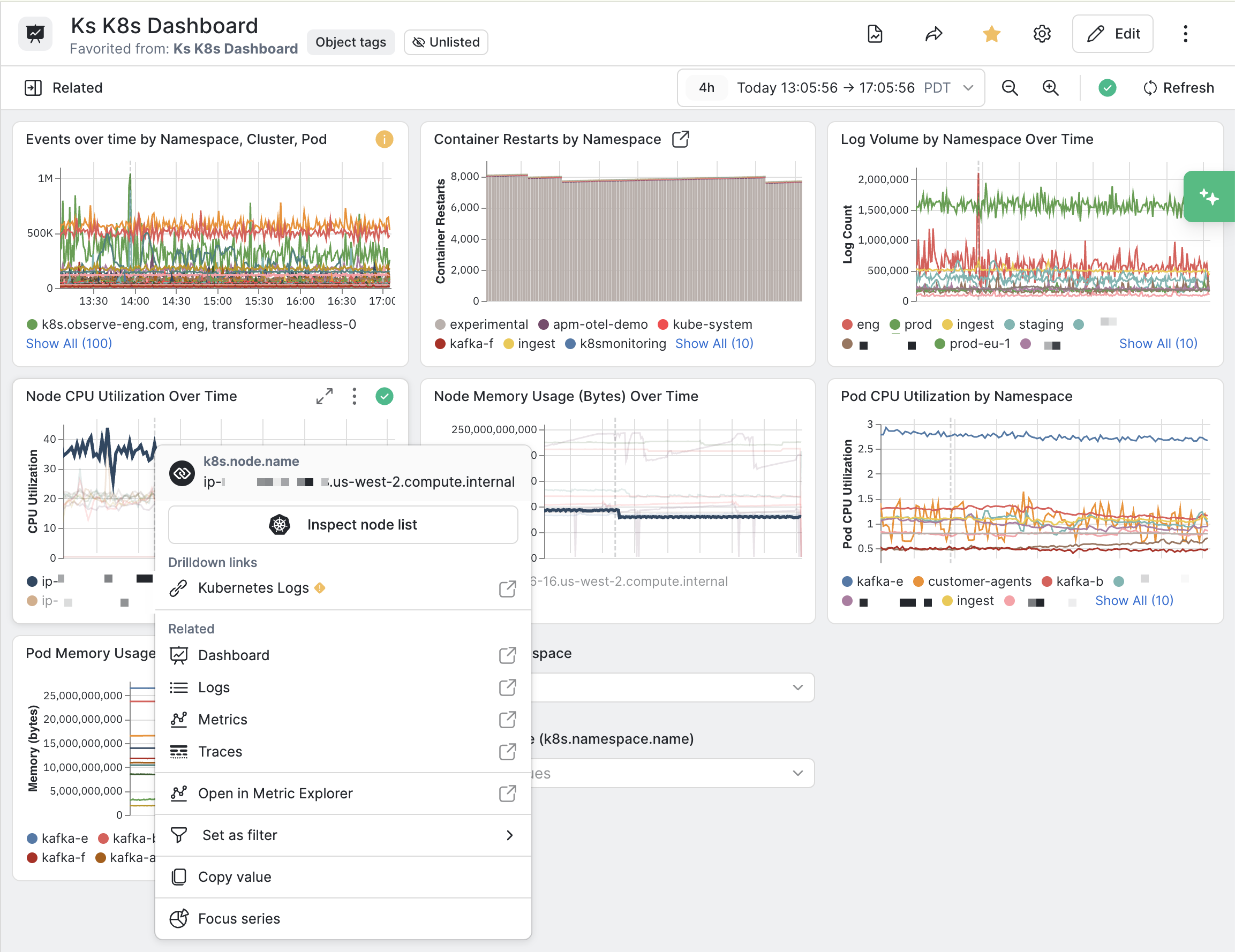
You can pivot to other areas of Observe by Snowflake and start new workflows from the options in the context menu. The following sections contain some examples.
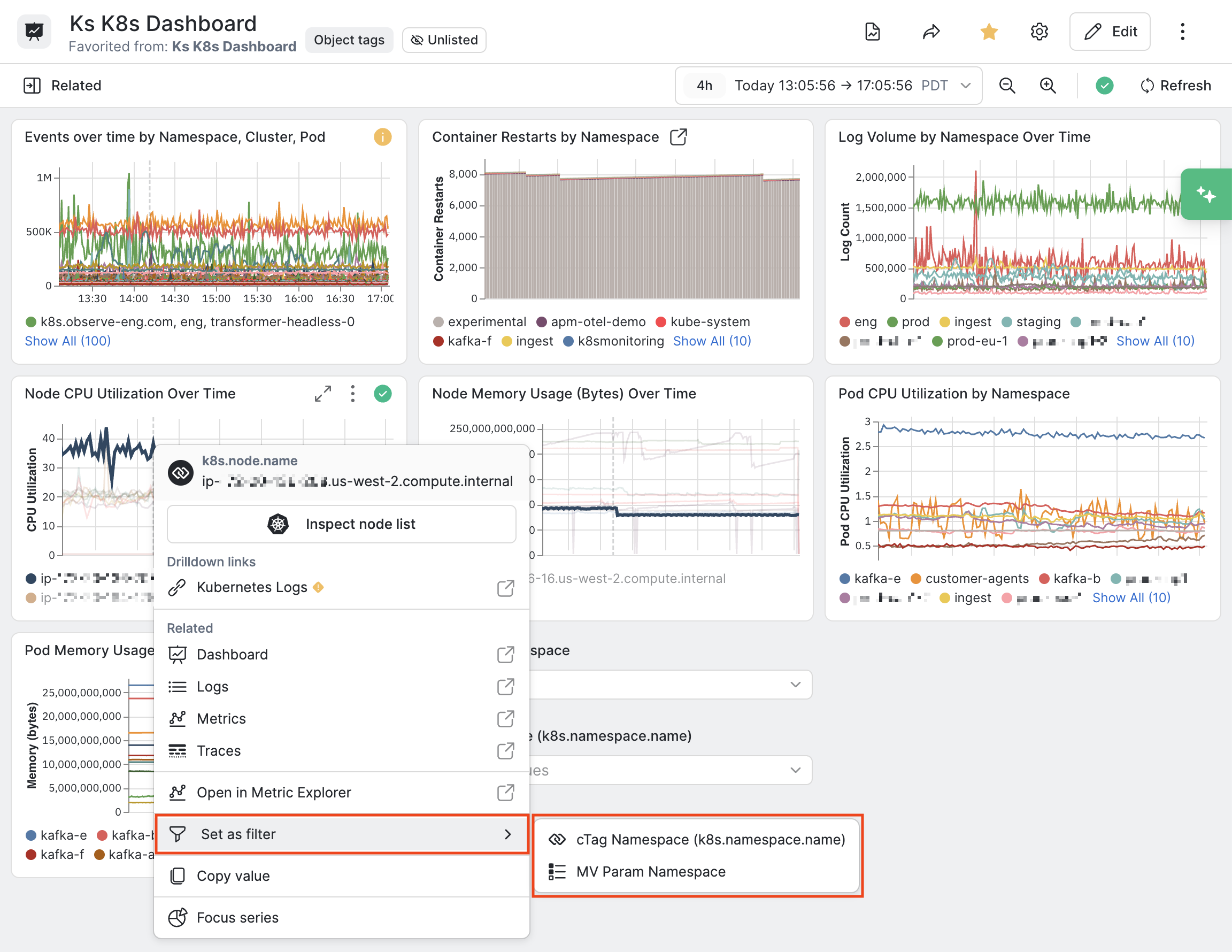
Set as filter
Click Set as filter to push the selection to a matching dashboard parameter. In our dashboard, we have configured a correlation tag parameter, and a multi-value parameter. If you select MV Param Namespace, the value of the selected dot is pushed to the multi-value parameter, thereby filtering other cards on the dashboard.
Focus series
Click Focus series to reduce visual clutter and show the data for just the selected time series.
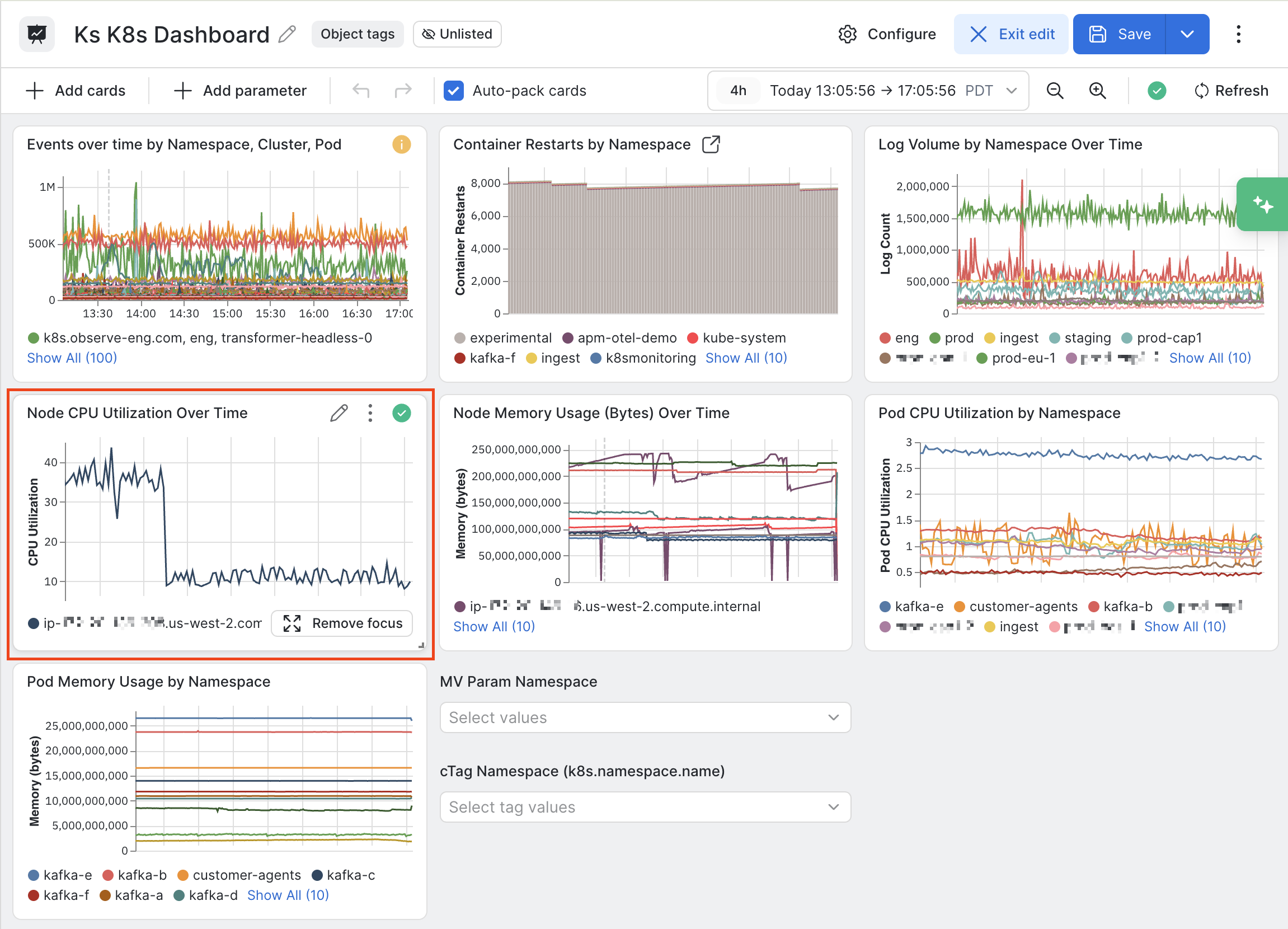
Click Remove focus to return to the original view.
Pivot by selecting a correlation tag
For cards that contain multiple tags, the context menu lists the tags so that you can easily pivot based on a specific tag value. For example, the Events over time by Namespace, Cluster, Prod card:
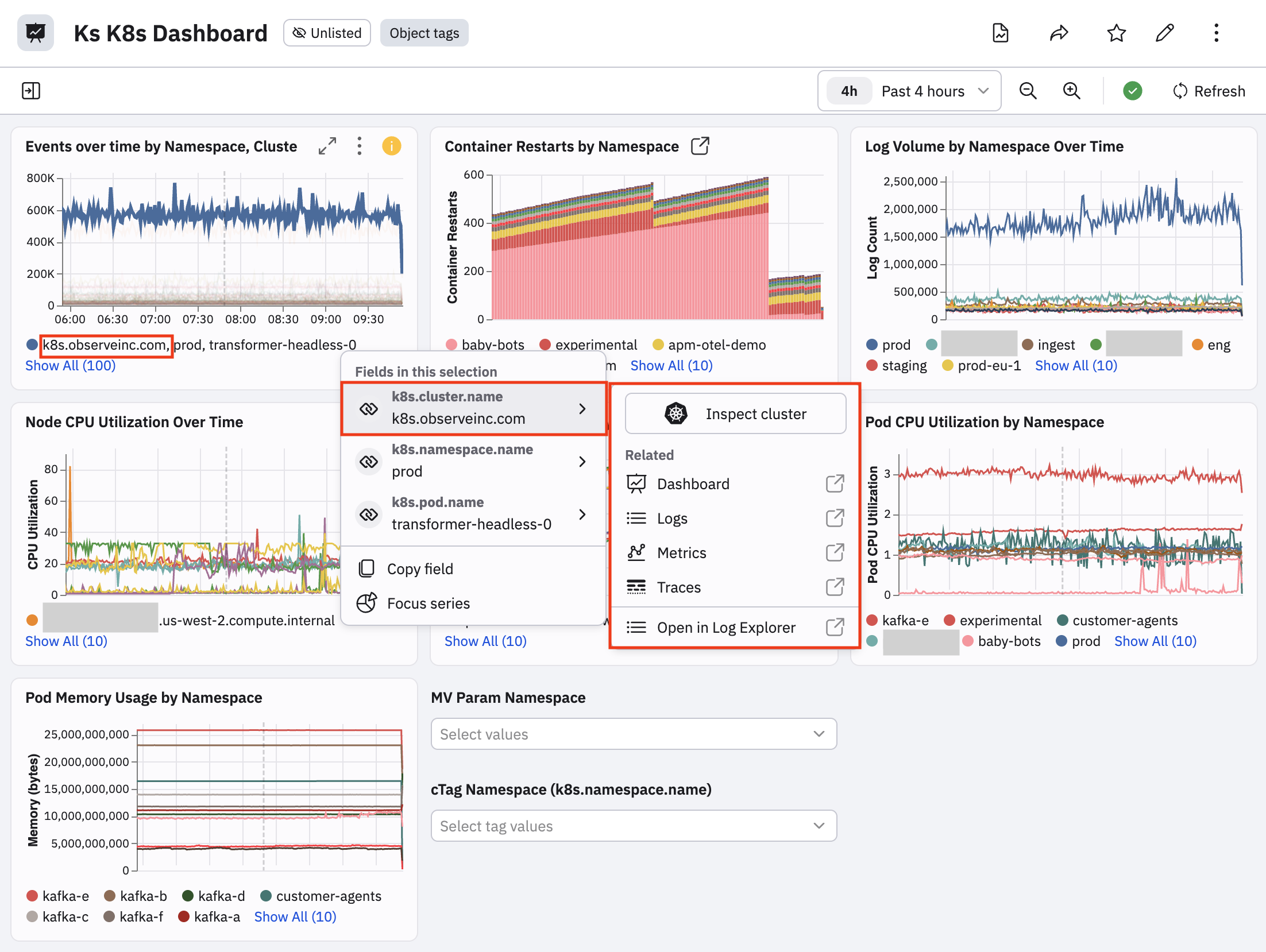
Each field has its own sub menu. For example, you can over on the k8s.cluster.name field to pivot based on the value of that field and carry the value forward when you pivot.
Updated about 2 hours ago