

Edit dashboard cards
Learn how to edit dashboard cards and manage hidden cards.
You can edit a dashboard card when you are viewing or editing any dashboard.
Edit dashboard cards when viewing a dashboard
When viewing a dashboard (not in edit mode), you can edit a card from the vertical ellipsis icon () or by expanding the card first, then editing the card.
Edit a dashboard card from the overflow menu
In any dashboard card, click the vertical ellipsis icon (), then click Edit card to edit that card:
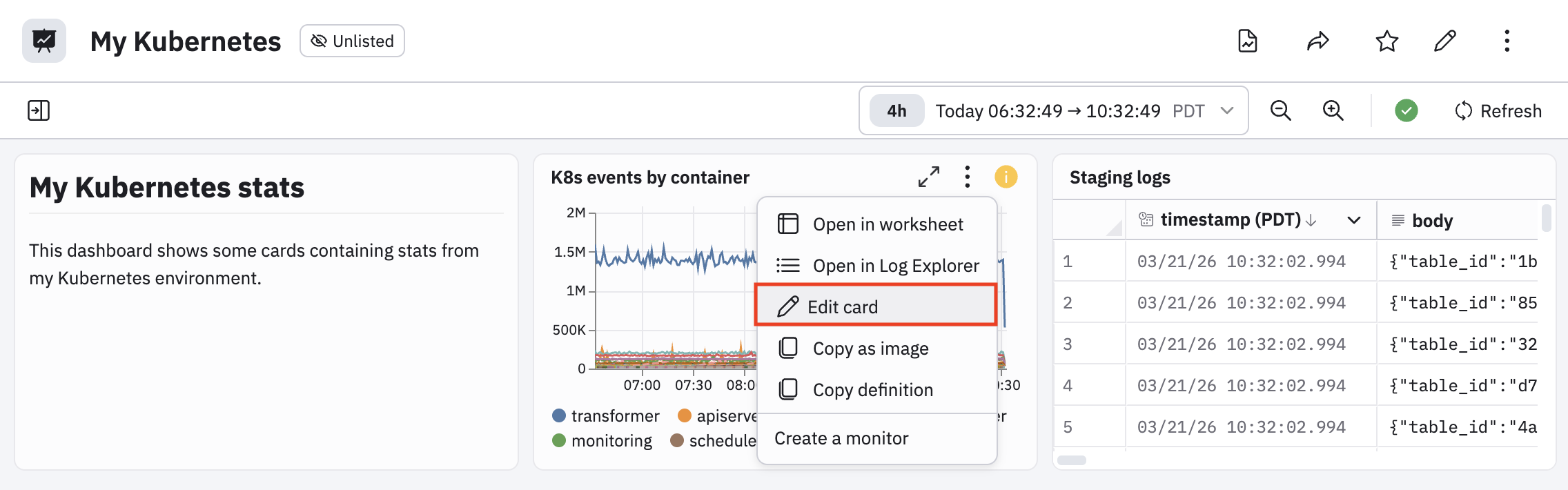
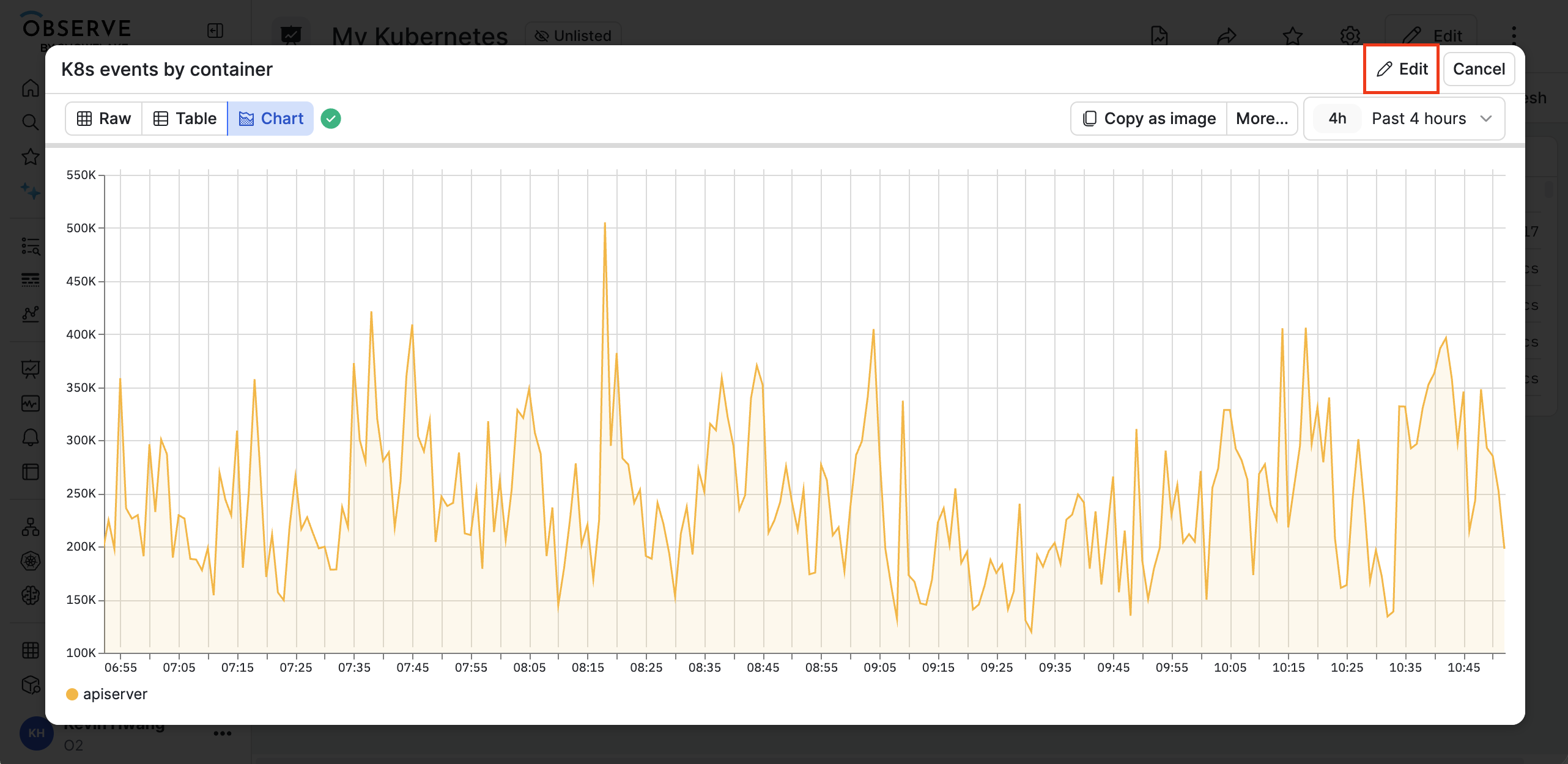
Edit a cardboard card after expanding the card
When you are viewing a dashboard, you can expand any card on that dashboard by clicking the expand icon (), then clicking Edit to edit the card:
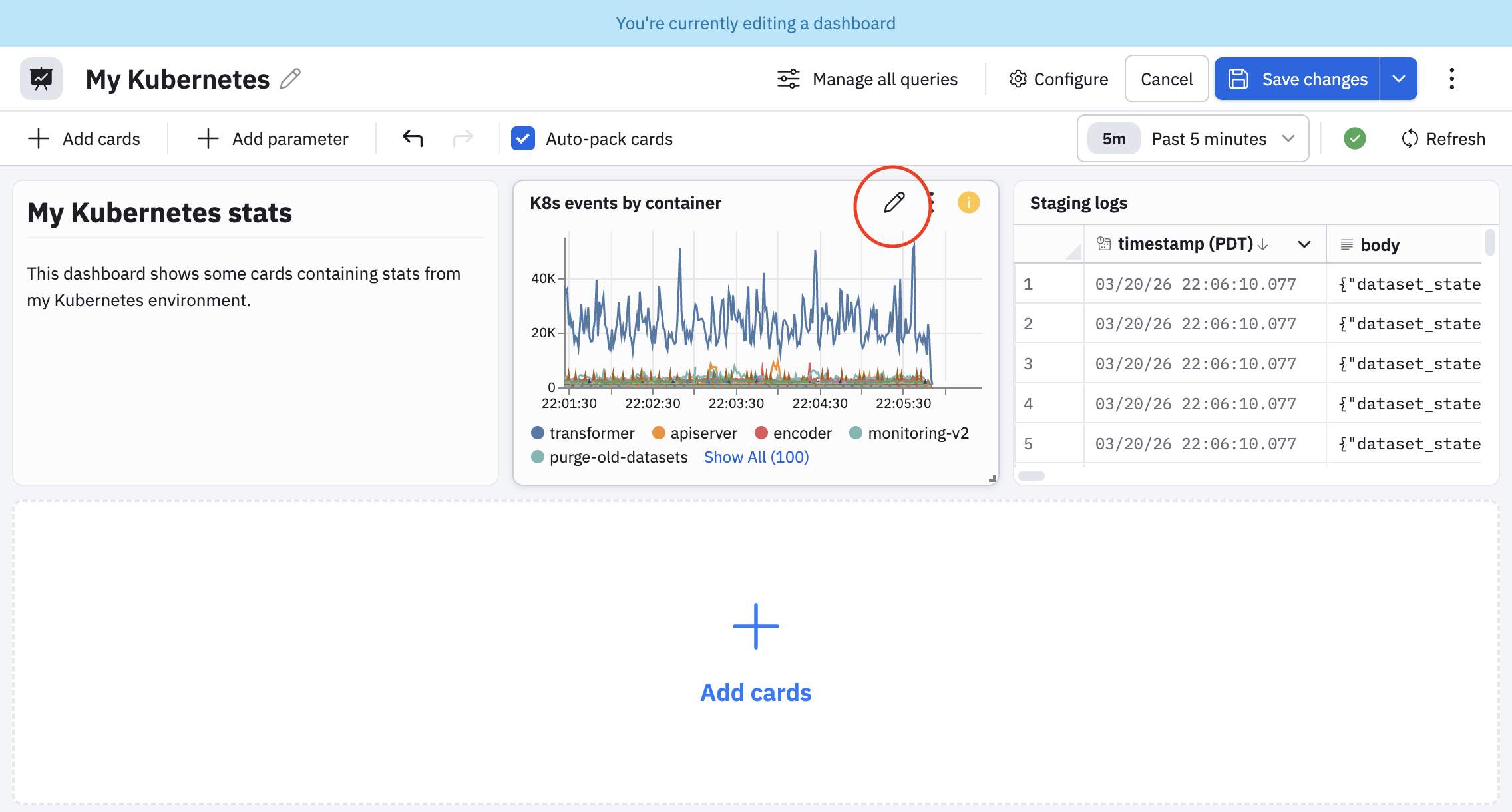
Edit dashboard cards when editing a dashboard
When editing a dashboard, hover on any dashboard card and click the pencil icon () to edit the card definition.
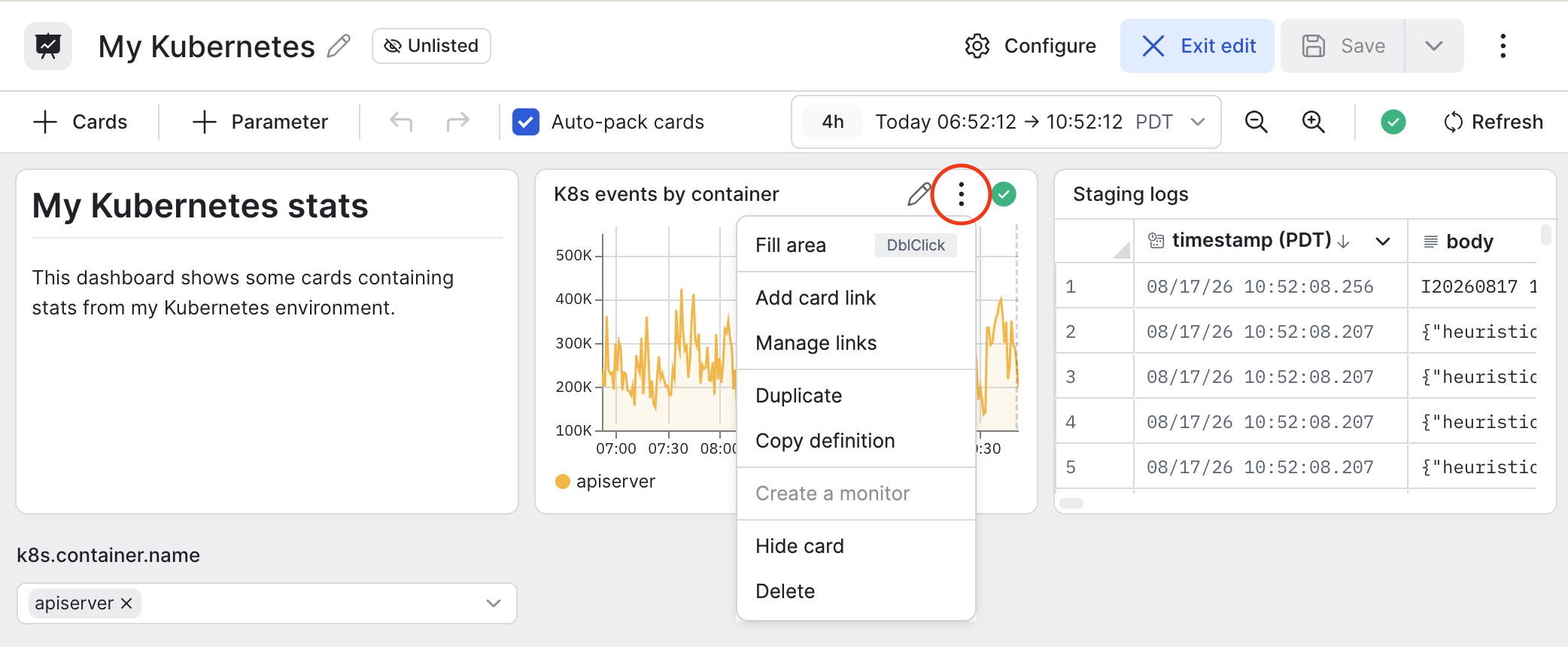
Additional card options when editing a dashboard
When editing a dashboard, click on the vertical ellipsis icon () to access the following additional card options:
| Option | Description |
|---|---|
| Fill area | Expand the card to fill the available space in the dashboard. |
| Add card link | Add a card link. See Create dashboard links. |
| Manage links | Add a card link or a drilldown link, and view existing card links and drilldown links. See Create dashboard links. |
| Duplicate | Make a copy of this card on the current dashboard. |
| Copy definition | Copy the definition of this card into your cache, so you can paste it in any other dashboard. |
| Hide card | Hide this card when viewing the dashboard. See Manage card visibility in your dashboard. |
| Delete | Delete this dashboard card. |
Manage card visibility in your dashboard
You can use hidden dashboard cards to serve as backend queries for the entire dashboard, providing prep work, shared Datasets, and parameter sources that the visible cards depend on, without cluttering the dashboard layout.
The query in hidden dashboard cards still executes, and still counts against your dashboard credits allowance.
Perform the following steps to hide a card in your dashboard:
- Edit a dashboard
- Click the vertical ellipsis icon () for the card you want to hide.
- Click Hide card.
When you have hidden cards, a hidden cards panel appears in your dashboard. Click Manage in the hidden cards panel to edit, show, delete, and view dependencies for those hidden cards. The manager tracks dependencies: a hidden query may power other visible cards, or feed dropdown parameters (SingleSelect / MultiSelect sourced from a stage).
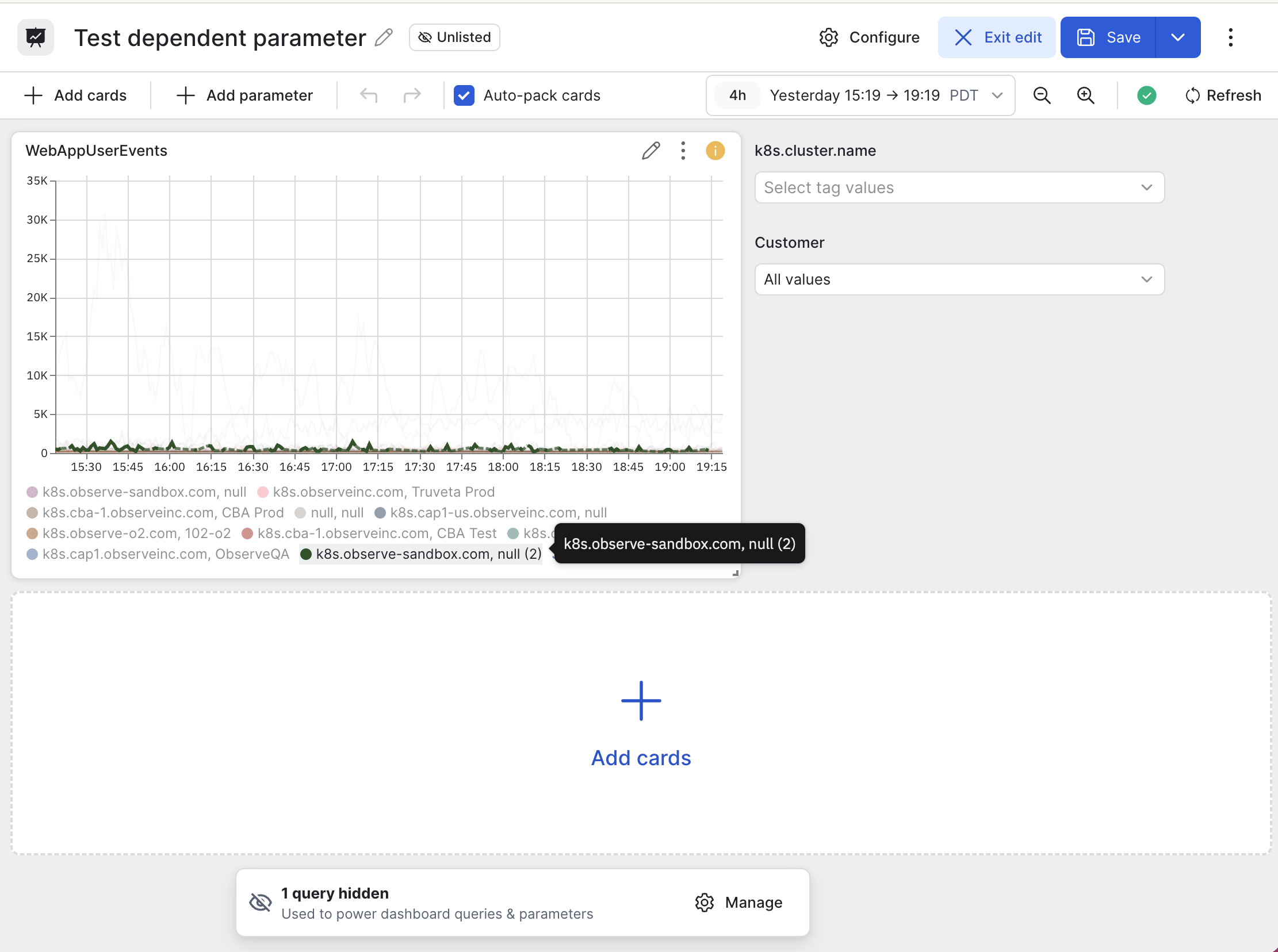
In this example, we have a dashboard showing user events. The goal is to be able to filter by cluster and customer, where customer is a subset of cluster. This means that when a specific cluster is selected, only customers within that cluster are listed in the Customer dropdown:
To set this up, the hidden card contains cluster and customer as fields:
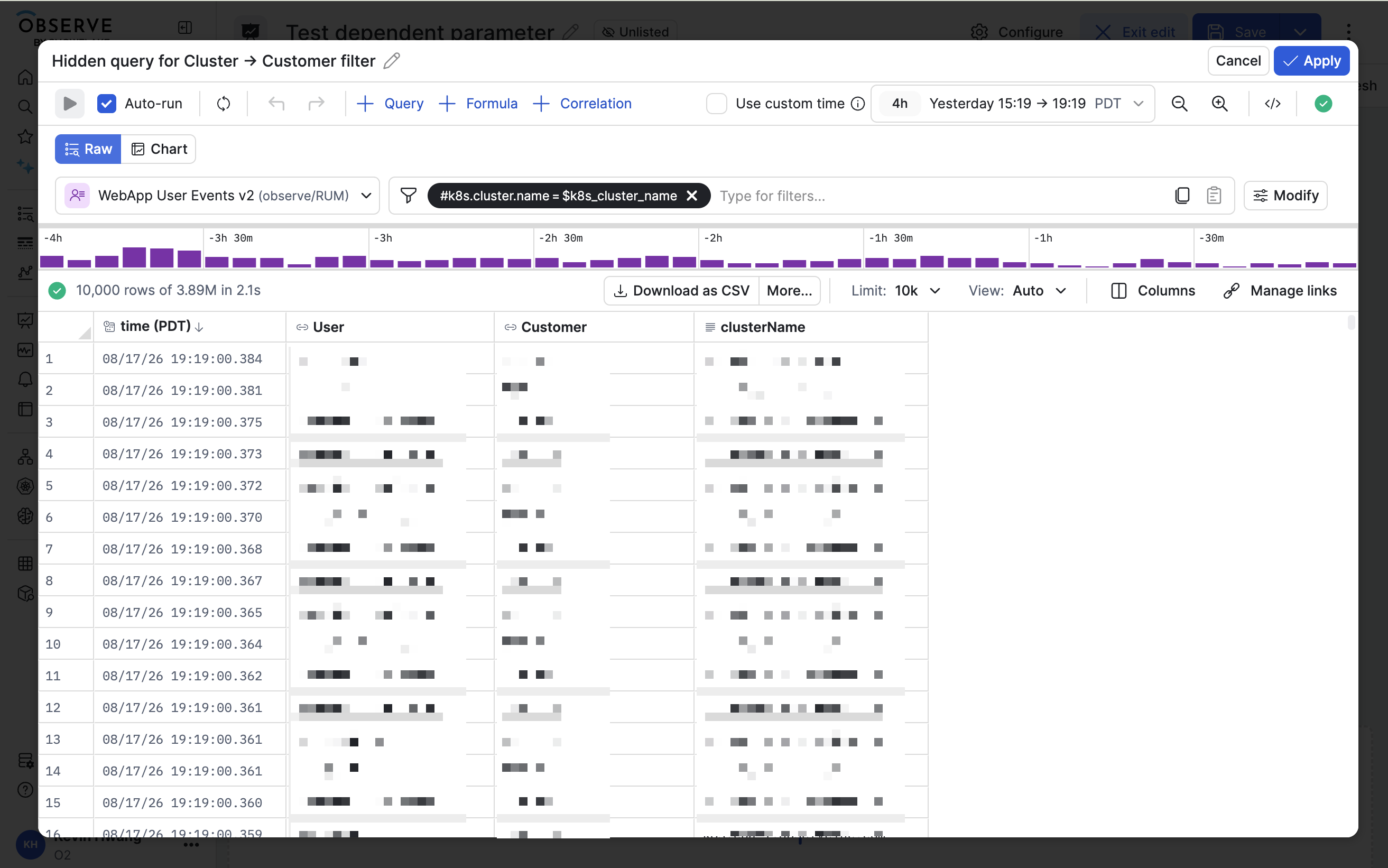
The cluster parameter k8s.cluster.name is bound to clusterName column in the hidden card, and the Customer column in the hidden card powers the Customer dashboard parameter.
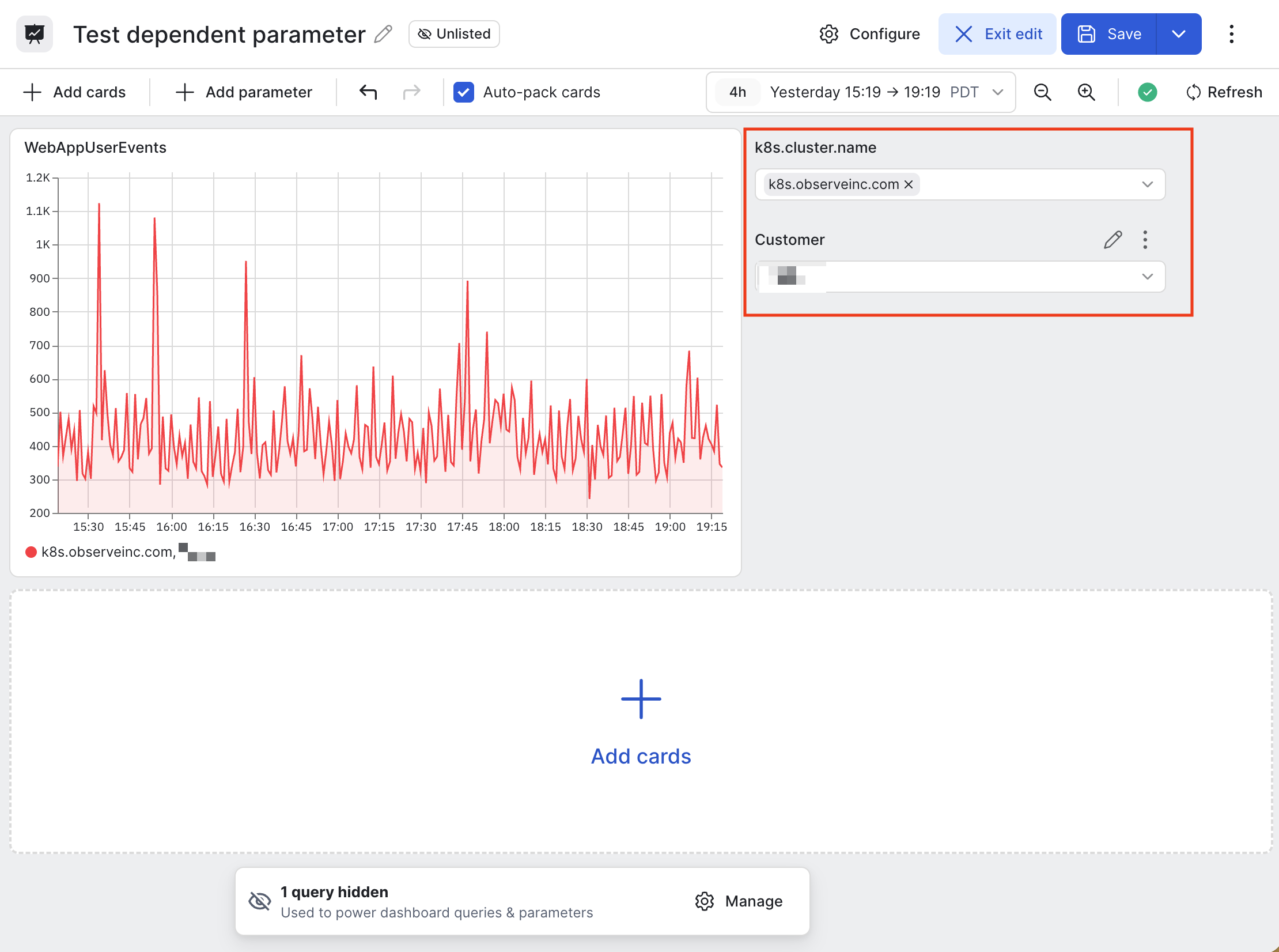
Back on the dashboard, we can select a cluster and then a customer in that cluster to filter the visible dashboard card:
Updated 7 days ago