

Auto-investigate alerts with AI SRE
Learn how to enable and view automatic investigations for your alerts.
Private preview feature (Invite only)This feature is enabled per tenant by Observe by Snowflake and is not generally available. To participate, contact your Observe by Snowflake representative. You may access and use this preview feature solely for internal evaluation purposes. Previews are provided as-is. Your use of this preview is subject to the Snowflake Preview Terms located at https://www.snowflake.com/en/legal.
Alert-triggered AI SRE investigates new Monitor alerts in the background and saves its findings in a chat linked to the alert. You can review the evidence and recommended next steps from the Alert Explorer or the alert details page.
Each Monitor controls which alerts start an investigation and how many investigations it can trigger. Automatic investigations use the identity and connected tools of the user who last saved the Monitor.
Before enabling automatic investigation, review the permissions of the user who last saved the Monitor, its connected sources, and the Monitor's sharing permissions. Investigation findings may contain information from sources that some recipients can't access themselves.
NoteUse a user account to configure the feature. Automatic investigation can't be configured by service accounts or for system-managed monitors.
Enable automatic alert investigation
In the Alerting rules section of a Monitor, slide the Auto-investigate alerts with AI SRE toggle to the on position.
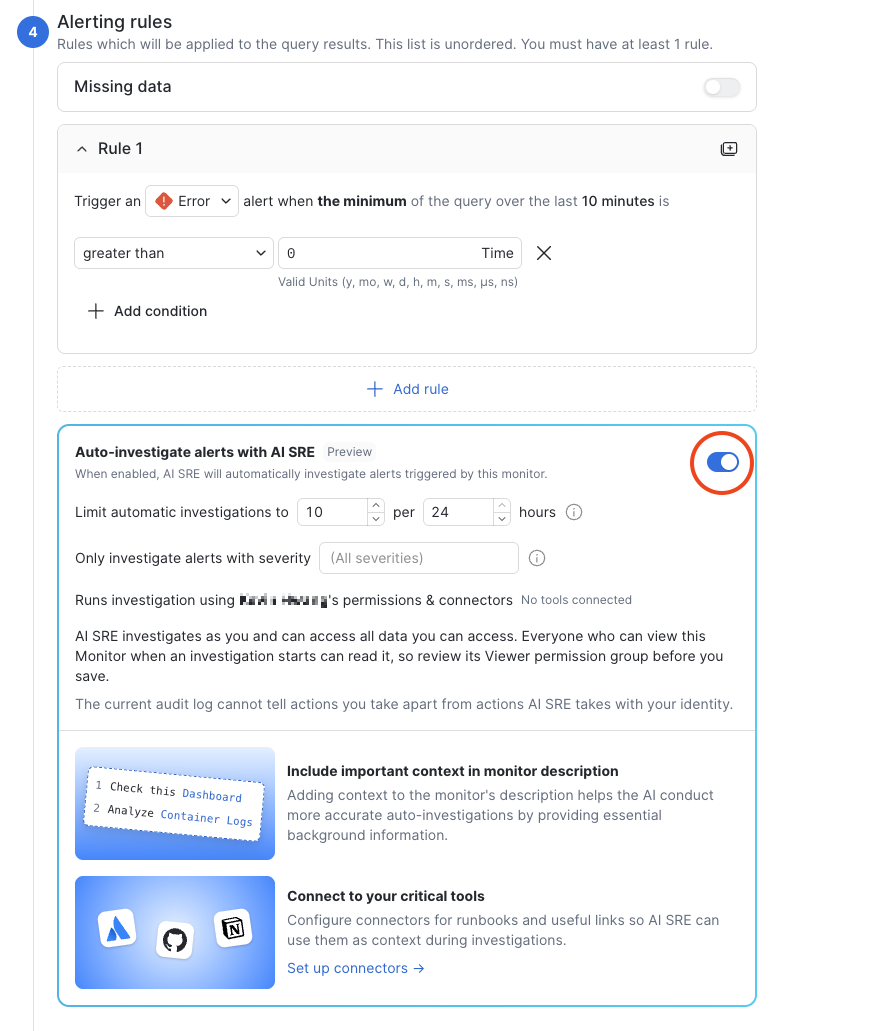
Review the summary of identity and connected tools. Saving the Monitor makes you the execution identity for future automatic investigations. The audit log can't tell the difference between actions you take from the actions taken by AI SRE using your identity.
Configure Limit automatic investigations to set the maximum number of automatic investigations AI SRE can perform in any rolling window. The default is 10 investigations per 24 hours. See Rate limiting controls for more information.
Select one or more severities to have AI SRE perform automatic investigations for alerts with the selected severities only. Leave this blank to have AI SRE investigate alerts with any severity.
In addition to these automatic investigation settings, make sure to also add a description, edit notification templates, and configure connectors.
Add investigation context using the description
Add useful context to the Monitor's description, such as the affected service, expected behavior, and links to runbooks.
Add the investigation link in the notification templates
If you are enabling automatic investigations for an existing Monitor, edit its notification templates to include the AI investigation link. Add {{alert.aiSreChatUrl}} using the link format for your notification channel, while preserving your existing customizations. Place the link inside a {{#alert.aiSreChatUrl}} section and close it with {{/alert.aiSreChatUrl}} so it appears only when an investigation link is available.
Slack example:
{{#alert.aiSreChatUrl}}
,{
    "type": "button",
    "text": {
        "type": "plain_text",
        "emoji": true,
        "text": "AI investigation"
    },
    "url": "{{alert.aiSreChatUrl}}"
  }
  {{/alert.aiSreChatUrl}}
PagerDuty example:
{{#alert.aiSreChatUrl}}
,{
    "href": "{{alert.aiSreChatUrl}}",
    "text": "AI investigation"
}
{{/alert.aiSreChatUrl}}
Email example:
{{#alert.aiSreChatUrl}}
<td class="action-button-cell">
    <a class="btn btn-secondary" href="{{alert.aiSreChatUrl}}">AI investigation</a>
</td>
{{/alert.aiSreChatUrl}}
Add AI SRE connectors
If you haven't already done so, you can connect AI SRE to Notion and Atlassian to access additional context such as runbooks and other useful links. See AI SRE connectors.
Save the Monitor settings
Click Save to save the Monitor configuration.
When the Monitor creates an eligible new alert, Observe by Snowflake checks the severity selection, mute rules, and investigation limits before starting an automatic investigation. Alert updates and reminder notifications do not each start another automatic investigation.
How muting affects automatic investigations
Muting alerts also suppresses their automatic AI SRE investigations. When a new alert matches an active mute rule, Observe by Snowflake skips the automatic investigation and records Alert muted as the reason. You can see this reason in the alert's AI SRE Investigations section.
The mute check happens before an investigation starts. Muting an alert after its investigation has started does not stop the running investigation. Unmuting an alert does not retroactively start an automatic investigation that was skipped while muted; future eligible new alerts can trigger investigations.
Follow up on your automatic investigations
Use the Alert Explorer to see the alerts linked to automatic investigations. Active ongoing investigations have an Investigating icon in the AI investigation column. Completed investigations have a Completed icon in the AI investigation column.
Click the Has AI investigation checkbox to quickly find all alerts with AI investigations.
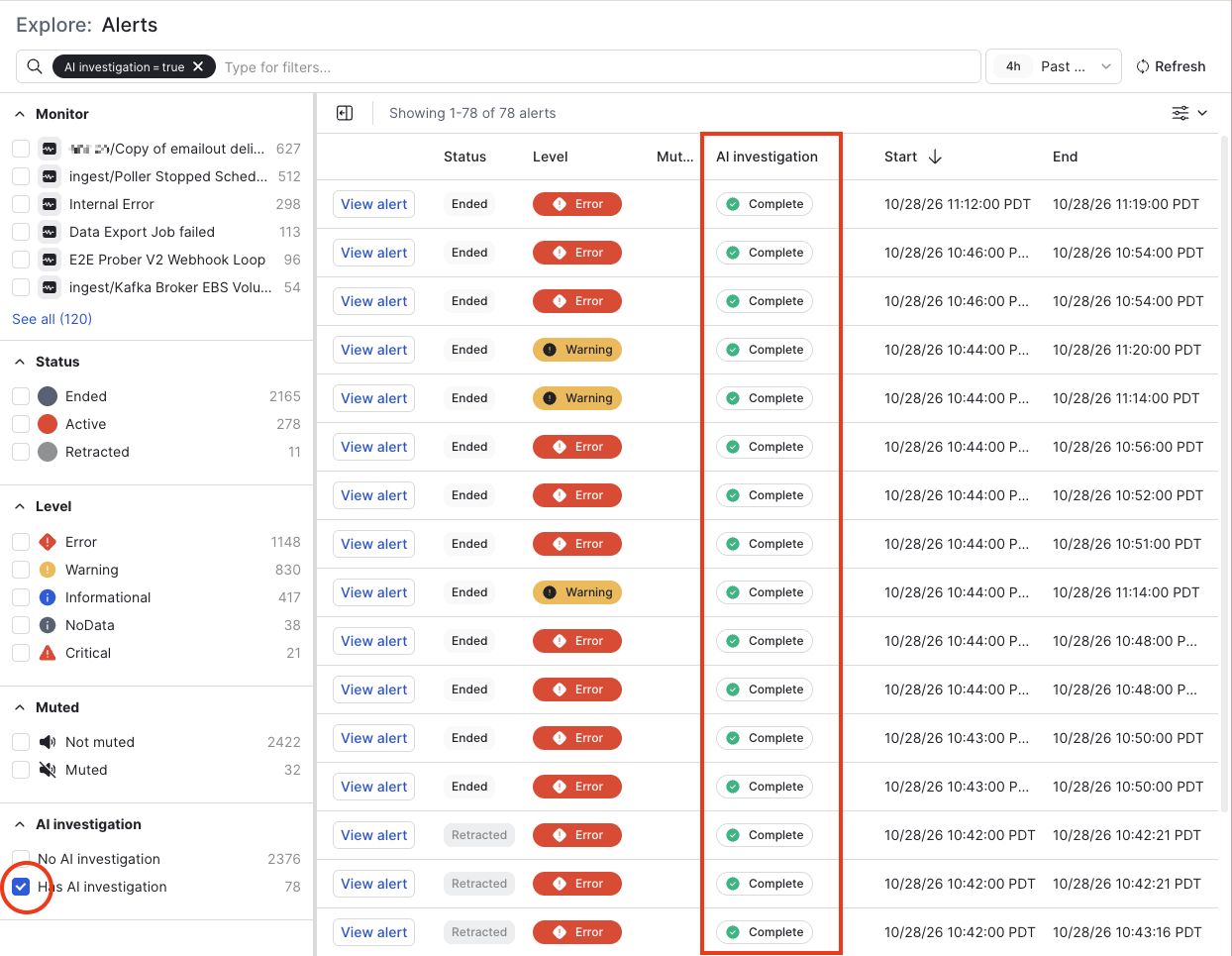
To access any AI investigation, you can do any of the following:
- Click the Completed or Investigating icon to go to AI SRE and view the investigation.
- Click View alert, then click View completed investigation or View active investigation to go to AI SRE and view the investigation.
- If the alert notification includes an AI investigation link, click the link to open the investigation. The notification template must include the investigation URL, and the link appears only when that URL is available.
If you don't have access to view an automatic investigation
If you see No access in the AI investigation column, it means that an automatic investigation exists, but you do not have permission to view its chat.
On the alert's detail page, the AI SRE Investigations section can still show that an automatic investigation has been started or completed, along with a message indicating that you don't have permissions to access the investigation. The investigation's summary and chat link are not displayed in such cases.
Reasons that an automatic investigation didn't start
This table shows some of the reasons that an automatic investigation didn't start. The reasons are listed in the alert's AI SRE Investigations section:
| Reason | What to check |
|---|---|
| Monitor limit reached | The Monitor's investigation usage, count, and rolling window. |
| Account limit reached | Investigation volume across Monitors and the account limit. |
| Account peak limit reached | Investigations attempted across Monitors in the preceding 60 seconds. |
| Alert muted | An active mute rule suppressed the automatic investigation. Review the mute rules that applied when the new alert fired. |
| Severity not selected | The Monitor's automatic investigation severity selection. |
| Execution user cannot investigate | The displayed identity, account status, and permission to start investigations. |
| Internal error | Available error details; contact support if the failure persists. |
Rate limiting controls
The following rate limiting controls are in place for automatic investigations:
| Control | Default | Where to configure |
|---|---|---|
| Monitor investigation limit | 10 investigations per rolling 24 hours. | Monitor editor, under Auto-investigate alerts with AI SRE. |
| Account investigation limit | 1,000 investigations across all Monitors per rolling 24 hours. | Workspace Settings; administrator access required. |
| Account peak limit | 10 investigations across all Monitors per rolling 60 seconds. | Workspace Settings; administrator access required. |
The Monitor accepts a window of 1 to 24 hours and a positive whole-number count. The maximum configurable count is 10 × the window in hours: for example, 10 for a 1-hour window or 240 for a 24-hour window. This setting defines the allowance within the selected window.
An administrator can change the positive account-wide investigation and peak limits in Workspace Settings. Increasing a Monitor's allowance does not override either account limit.
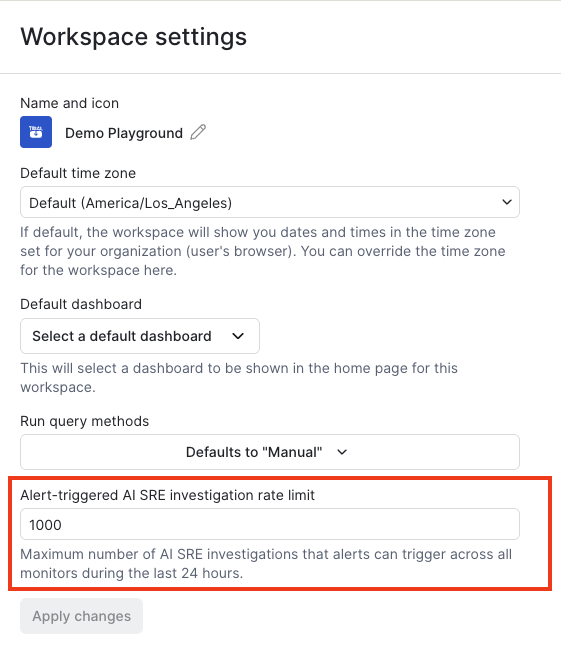
Click on a question to learn more about rolling time windows.
How rolling windows work
Observe by Snowflake counts automatic investigation dispatches within the preceding window. Capacity returns as older dispatches leave that window.
For example, with a limit of 2 investigations per hour, investigations dispatched at 10:15 and 10:20 consume both slots. A new alert at 10:30 is skipped. The first slot becomes available when the 10:15 dispatch leaves the rolling hour.
A daily allowance can admit a burst of investigations together. It does not spread them evenly throughout the day. The account peak limit provides a separate check across all Monitors during the preceding 60 seconds.
For example, if two Monitors attempt 12 investigations within 60 seconds and the account peak limit is 10, at most 10 pass the peak check. Other limits may admit fewer.
What happens when a limit is reached?
Observe by Snowflake skips the automatic investigation and records the reason. It does not queue the skipped alert for investigation when capacity returns. Future eligible alerts can start investigations once all applicable limits allow them.
The alert continues through its normal notification handling. Investigation limits are separate from alert-generation and notification controls.
Check the Monitor's investigation usage and the alert's investigation outcome to identify which limit applied. An administrator can review account limits if the account or per-minute limit was reached.
Can an investigation fail below these limits?
Yes. Other AI service limits, applicable AI usage controls, and model-provider limits can still reject a request or interrupt an investigation. For example, a provider can return a throttling error, even when the Monitor and account have remaining investigation allowance.
Investigation count limits do not define token usage, concurrency, or cost limits. If an investigation is incomplete, review the available error information and contact support if needed.
Automatic investigation identity and permissions
This section provides guidance to some questions about whose identity and permissions are used by AI SRE for automatic investigations.
Whose identity is used by AI SRE?
Automatic investigations run as the user who last created or saved the Monitor. When another user saves an edit, including a change to a threshold or description, future investigations use that user's permissions and connected tools. Enabling or disabling a Monitor won't change identity.
For example, if John saves a Monitor with automatic investigation enabled, its investigations run as John. If Jane later edits and saves that Monitor, future investigations run as Jane.
The Monitor displays the execution identity and connectors. Review them before saving. A separate operation that enables or disables the Monitor preserves the existing investigation identity; saving an edited Monitor changes it to the editor.
What data can an investigation access?
AI SRE uses the permissions of the user who last created or saved the Monitor to access Observe by Snowflake data. An investigation can follow related data beyond the Monitor's input Dataset.
AI SRE can also use connected sources available to that identity. Access to an external source follows the permissions of the account connected to that source. When a different user saves the Monitor, future investigations use that user's connections.
Automatic investigations use tools restricted to reading investigation data. They produce recommendations for you to review. Observe by Snowflake also saves the investigation and its messages as a chat.
Connect and authorize the sources you want AI SRE to use before enabling automatic investigation. A background investigation can't ask you to complete an interactive authorization step. Missing or expired connections can limit the evidence available to an investigation.
What happens if the identity loses access?
Observe by Snowflake checks that the identity of the user who last created or saved the Monitor is valid and can create an investigation before dispatch. A deleted or disabled user, an unsupported account type, or loss of permission to start investigations can prevent the investigation from starting. Changes to data or connector access can limit what AI SRE can investigate.
To take over future investigations, an eligible user can review the Monitor and save it. The Monitor then uses that user's identity and connections.
Who can view the investigation?
When an alert-linked investigation is created, it gives the user who last created or saved the Monitor Chat Editor access and copies the Monitor's Viewer and Editor subjects into the chat as Chat Viewers. Readers need the applicable permission to view the chat.
Receiving a notification or a link does not grant access to the investigation.
Query cards use the reader's own Dataset permissions. The saved investigation text can still contain information derived from Datasets or connected sources that the reader can't query.
NoteReview sharing before enabling automatic investigation. Findings can include information from sources that recipients cannot open themselves. Share results only with people authorized to see that information. Review notification destinations and any template that includes generated findings.
Monitor sharing changes affect the permissions copied into future investigations. They don't update the sharing permissions of existing investigation chats. Review historical chat access when changing the audience.
To continue an investigation under your own identity, make a copy of the chat. Follow-up investigation uses your permissions and connected tools. The copy retains the findings already present in the original chat.
Updated 2 days ago