

Composite Monitor example: APM high error rate and service latency
Private preview feature (Invite only)This feature is enabled per tenant by Observe by Snowflake and is not generally available. To participate, contact your Observe by Snowflake representative. You may access and use this preview feature solely for internal evaluation purposes. Previews are provided as-is. Your use of this preview is subject to the Snowflake Preview Terms located at https://www.snowflake.com/en/legal.
Use a Composite Monitor when an alert should depend on several signals being true at the same time, or on one signal being true while another is not.
A Composite Monitor alerts when a boolean condition over other Monitors is true. You select between 2 and 10 existing Monitors, called constituents, and write a condition that refers to each constituent by its letter, such as A && B.
For example, you have one Threshold Monitor that alerts when CPU is high, and another that alerts when memory is high. Both are grouped by host. A Composite Monitor with the condition A && B alerts only for hosts where both are alerting:
| host | A: CPU high | B: Memory high | Composite Monitor |
|---|---|---|---|
| web-1 | Alerting | Alerting | Alerting |
| web-2 | Alerting | Not alerting | Not alerting |
Composite Monitors don't query data. They read the alerting state that each constituent already records, and evaluates the condition on that state.
Prerequisites and limits
Observe the following prerequisites and limits for Composite Monitors:
- Constituent count. A Composite Monitor combines at least 2 and at most 10 Monitors.
- Constituent types. Threshold, Count, and Anomaly Monitors can be constituents. You can't include Promote Monitors and other Composite Monitors as constituents.
- Constituent visibility. You can add only Monitors you can see.
- Grouping. Constituents must be grouped consistently. See Grouping.
- Data-driven settings. A Composite Monitor has no query, so it has no Dataset, expression builder, and no-data rules. It also has no stabilization delay or latency settings in the create flow.
- Deleting constituents. You can't delete any Monitor being used by a Composite Monitor. Remove it from the Composite Monitor first, then delete the Monitor.
Create a Composite Monitor
Composite Monitors are created from the Monitors list only. They are not available from Explorers, Worksheets, or AI SRE.
- Click Monitoring in the left navigation rail.
- Click New Monitor.
- Click Composite.
Give your Composite Monitor a name, then work your way through the template to finish configuring the Monitor.
- Step 1. Select the constituents
- Step 2. Configure the trigger condition
- Step 3. Write a description
- Step 4. Configure notification actions
- Step 5. Preview alerts
Step 1. Select the constituents
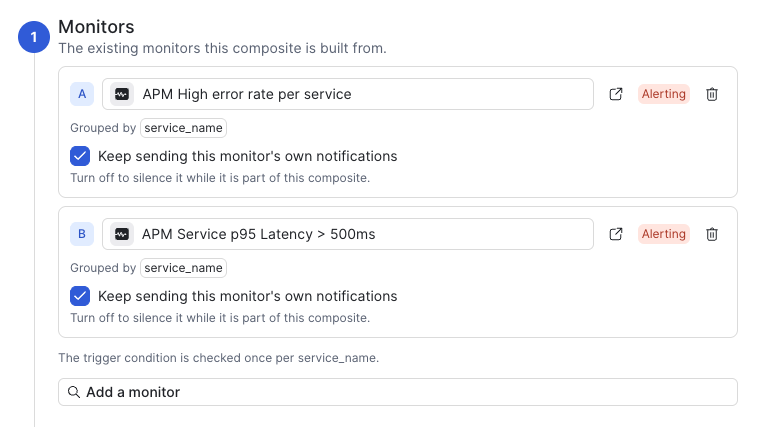
Click Add a monitor to begin creating this Composite Monitor. You must select at least 2 Monitors. The first Monitor you select gets assigned the letter A, the next Monitor is assigned the letter B, and so on. You can select a maximum of 10 Monitors.
In this example, we are building a Composite Monitor to generate alerts based on combined APM service error rate and p95 latency:
Step 2. Configure the trigger condition
Write the trigger condition as a boolean expression using the constituents' letters.
In this example, we want the Composite Monitor to generate alerts only when both A and B are actively alerting:

The following operators are supported:
| Operator | Meaning |
|---|---|
&& | And. Both operands must be alerting. For example, A && B means the Composite Monitor alerts when both A and B are alerting. |
|| | Or. Either operand must be alerting. For example, A || B means the Composite Monitor alerts when either A or B is alerting. |
! | Not. The operand must not be alerting. For example, A && !B means the Composite Monitor alerts when A is alerting and B is not alerting. |
() | Group operands. For example, (A || B) && !C means the Composite Monitor alerts when either A or B is alerting and C is not alerting.See Grouping for more information about how evaluation in a grouping is done. |
Letters are single uppercase letters from A through J. Literal values such as true and false are not allowed, and != is not supported. Use ! to negate a constituent.
NoteA Monitor that stops reporting data counts as not alerting. A
!over that Monitor becomes true when its data goes missing. For example,A && !Balerts when B stops reporting data.
Grouping
Grouping determines which alerts the composite correlates. Constituents must have compatible groupings:
All ungrouped
The Composite Monitor raises one alert for the whole condition.
All grouped by the same dimension
The Composite Monitor correlates on the shared grouping set. The condition is checked once per distinct value of the shared columns.
For example, if all constituents are grouped by host, the condition is checked once per host. If all constituents share the {host,region} grouping, the condition is checked independently for each distinct combination of host and region.
All grouped with different but compatible sets of columns
The Composite Monitor evaluates on the largest shared set of grouping columns.
For example, two constituents A and B are grouped, respectively, on service and {service,cluster}. The composite evaluates on service. If the constituents are alerting, respectively, on service:email-service and service:email-service, cluster:production, if the condition is A && B, the Composite Monitor will generate an alert for service:email-service.
In an example with the following three constituents:
- A, grouped by {region, IP}
- B, grouped by {region, IP}
- C, grouped by {region, availability_zone, IP, port}
The composite evaluates on {region, IP}. C's alerts are combined per {region, IP}, regardless of which availability zone or port they refer to. Suppose the following scenario:
- A is alerting on
region:us-east-1, IP:10.0.1.12 - B is alerting on
region:us-east-1, IP:10.0.1.12 - C is alerting on
region:us-east-1, availability_zone:us-east-1a, IP:11.1.2.13, port:443 - The condition is
A && B && C
The composite will not generate any alert. The shared grouping set is {region, IP} and C’s alert refers to a different IP value (11.1.2.13) than A’s and B’s (10.0.1.12). In the group for 10.0.1.12, A and B are alerting but C is not. In the group for 11.1.2.13, only C is alerting. The condition is therefore false for both groups.
If a constituent has grouping columns the others do not, those columns are dropped, and that constituent's alerts are combined per shared value.
NoteThe grouping of a composite is fixed when you save it. To change the shared grouping, create a new composite with constituents that share the new grouping.
Trigger evaluation frequency
You don't set the evaluation frequency of a composite. A composite evaluates as often as its fastest constituent does.
How conditions are applied
For each group, every constituent is either not alerting, or alerting at a severity: informational, warning, error, or critical. The condition is applied as follows:
A && Btakes the less severe of the two constituents' severities.A || Btakes the more severe of the two.!Ais treated as critical when A is not alerting, and as not alerting when A is alerting.
A composite alert is raised only when the condition is true. Its severity comes from the condition.
Which groups are evaluated?
A grouped composite evaluates only groups that at least one constituent is alerting on. A group where every constituent is quiet is not evaluated. For example, a condition that is true only when everything is quiet, such as !(A && B) does not alert on a grouped composite.
An ungrouped composite always has one group, so a condition that is true when everything is quiet does alert.
Evaluation timing
Each evaluation reads what every constituent is alerting on at that moment. A constituent's alert that is raised at a single instant is counted as live until that constituent next evaluates, and for at least one composite interval. This keeps a short alert from being missed between two composite evaluations.
A composite does not wait for late data itself. If a constituent's alert is late, the composite's alert is late by the same amount. Preview warnings flag constituents whose history is incomplete.
Step 3. Write a description
Provide a description for this Composite Monitor to detail what the Monitor does. The descriptions are useful for AI agents to be able to find this Monitor in your agentic workflows.
Variables are not supported in this field.
Step 4. Configure notification actions
For this preview, you can't attach any notification actions natively to a Composite Monitor in the create flow. Notification actions must be configured in each of the constituents.
By default, Keep sending this monitor's own notifications in Step 1. Select the constituents is enabled for each constituent, so that each constituent sends notifications the way it always does. Clear this checkbox to silence these notifications while it is part of any enabled Composite Monitor. The constituent's alerts are still recorded, and you can see them in the Alert Explorer.
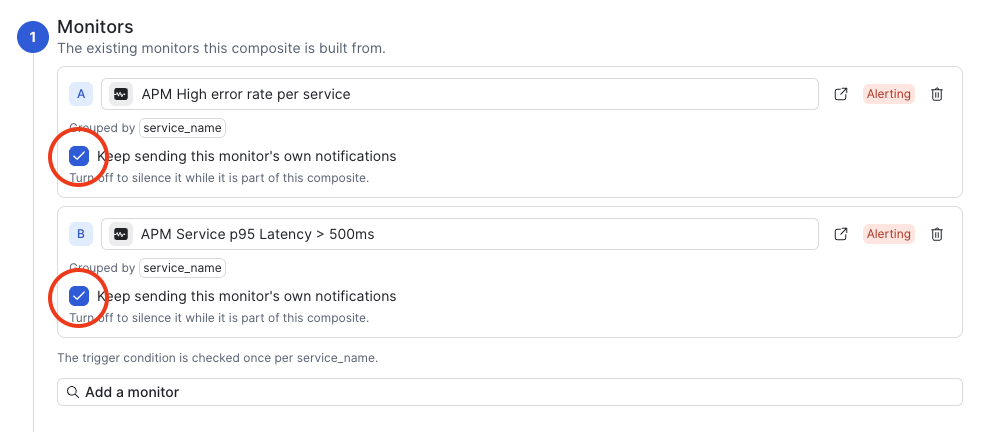
Suppression covers the new-alert notification and the end notification of the constituent. The constituent's own actions do not run for those events.
If a Monitor is part of more than one composite, it keeps notifying if any enabled composite keeps its notifications on. Disabling the composite restores the constituent's notifications.
WarningIf you clear the checkbox and the composite has no actions, nothing notifies for that constituent. Add notification actions to the composite, or keep the checkbox selected.
A constituent whose notifications are silenced shows a banner on its Monitor page, along with the name of the Composite Monitor that silences the notifications.
Step 5. Preview alerts
The Preview shows when the composite would have alerted over a past time range. The preview appears when the Composite Monitor is valid, with at least two constituents and a condition.
Each constituent has a timeline, and the composite has its own timeline. A timeline shows when the Monitor was alerting over the range.
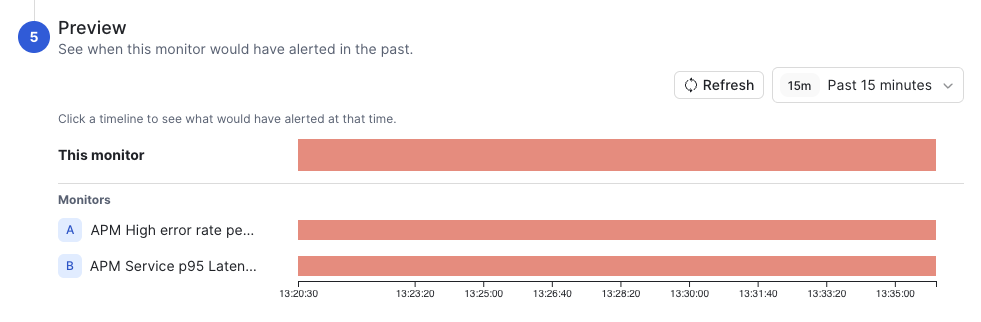
Choose a time range in the time picker to see which groups the composite would have alerted for at that time, and which constituents were alerting. Click Refresh after you select a new time range, or to refresh the preview using the existing time range.
If the range is older than alert retention, or has too many alerts, the preview cannot be shown. Choose a shorter or more recent range. The saved Monitor still evaluates every group.
What happens when a constituent is disabled, muted, or deleted?
The following table described what happens when a constituent is disabled, muted, or deleted:
| Constituent state | Description |
|---|---|
| Disabled | A disabled constituent does not alert, so it reads as not alerting. A && B stops alerting. A && !B behaves like A. The save warning names the disabled constituent. |
| Muted | A muted constituent still evaluates and still records its alerts. A composite reads those alerts, so a muted constituent still counts as alerting. Muting only affects notifications. See Mute a Monitor. |
| Deleted | You can't delete a constituent while it is being used by a Composite Monitor. Remove the constituent from the composite first. |
When you disable a Composite Monitor, it stops evaluating and stops alerting. Its constituents are not changed.
View alerts from your Composite Monitor
Open a composite alert from the Alert Explorer. For example:
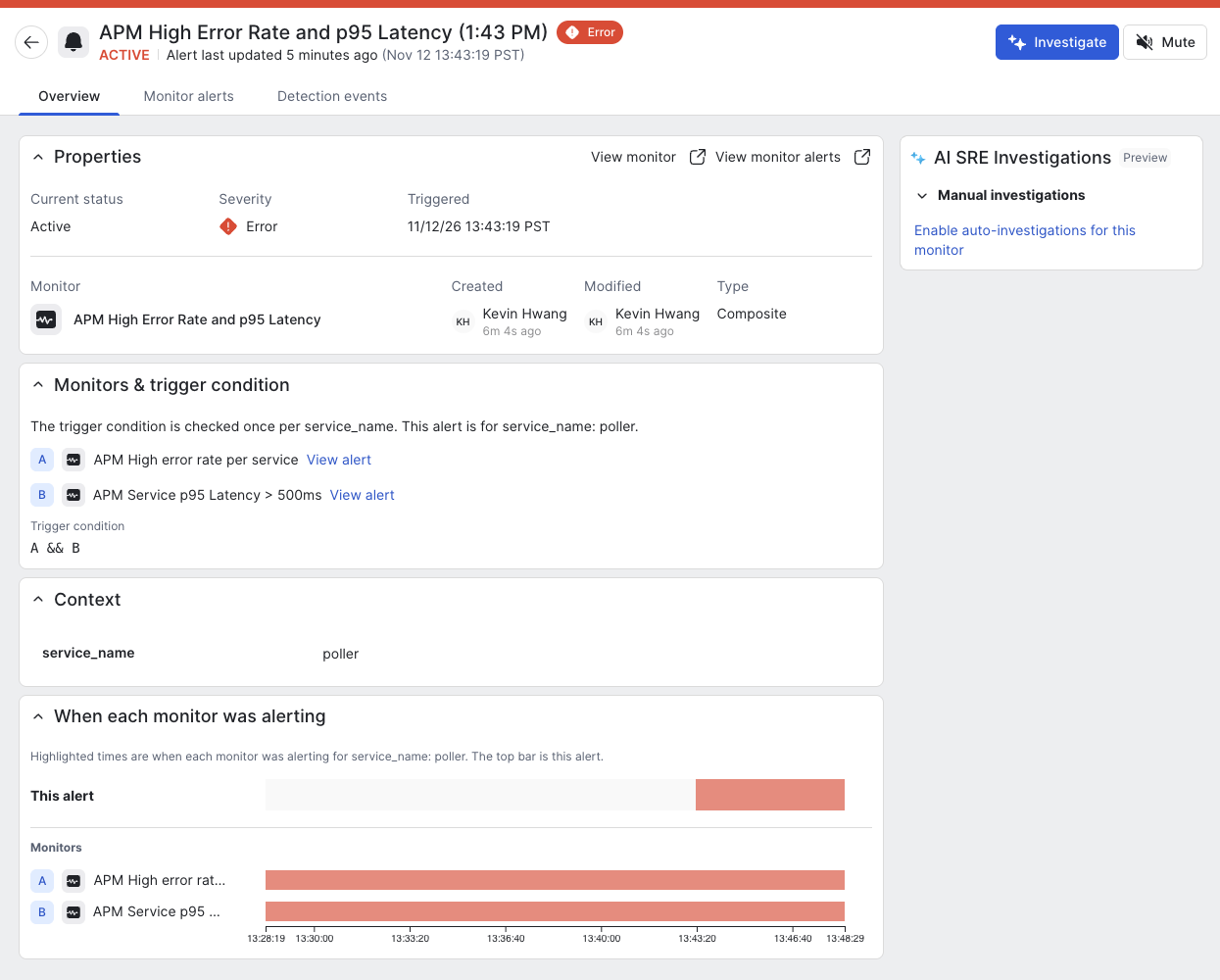
The Monitors & trigger condition card lists each constituent with its letter and a link to that constituent's alerts for the same group. It also shows how the condition is checked and which group this alert is for, and the trigger condition.
The When each monitor was alerting card hows one timeline per constituent over the alert's time range, padded at each end. Use it to see which constituent started first and which one cleared the alert last. This card needs the composite preview to be available.
Troubleshooting
This section contains information to help you in case you run into any issues while creating or editing Composite Monitors.
Monitor creation errors
This table shows the error messages and actions you should take during the Monitor creation process:
| Error message | What to do |
|---|---|
| Select at least 2 monitors. | Add another Monitor. |
| A composite can combine at most 10 monitors. | Remove a Monitor. |
| Enter a trigger condition. | Write a condition that uses the letters of your constituents. |
| These monitors have incompatible groupings | Make every constituent grouped, or every constituent ungrouped. Make sure the grouped constituents share at least one grouping column. |
| A selected monitor could not be loaded, so its grouping is checked when you save. | Wait, or reopen the Monitor. The check runs again when you save. |
| Fix the trigger condition to see a preview. | Correct the condition error shown on the field. |
| This range can't be previewed | Choose a shorter or more recent range. |
| The preview couldn't be loaded. | Click Try again. |
Trigger condition errors
This table shows the error messages and their causes when you are configuring the trigger condition in your Composite Monitor:
| Error message | Cause |
|---|---|
| unknown identifier in condition | The condition uses a name that is not a constituent letter (A-J). |
| unsupported syntax in condition | The condition uses a value, a method call, or an operator other than &&, ||, !, or (). See Step 2. Configure the trigger condition. |
| condition must evaluate to a boolean | The condition does not produce a true or false result. |
| alias is never referenced by the condition | A constituent is not used in the condition. Use it, or remove it. |
| condition can never fire | No combination of constituent states can make the condition true. |
| duplicate alias | Two constituents have the same letter. |
Errors when trying to save your Composite Monitor
This table shows the errors messages you can see when saving your Composite Monitor, and the reason for each message:
| Error message | Cause |
|---|---|
| wrong number of constituents | Use a minimum of 2 and a maximum of 10 constituent Monitors. |
| a composite cannot be built from another composite | Remove the composite constituent. |
| a composite cannot be built from a promote monitor | Remove the Promote Monitor. |
| the same monitor appears more than once | Remove the duplicate. |
| either every constituent must be grouped, or none | Make all constituents grouped, or all ungrouped. |
| grouped constituents share no grouping dimension | Choose constituents that share a grouping column. |
| a composite's grouping dimensions cannot change after it is saved | Create a new composite. |
| a composite monitor cannot change to another rule kind | Create a new composite. |
| composite monitors do not support no-data rules | Remove the no-data rule. |
| constituent monitor not found | The Monitor was deleted, or you don't have the permissions see it. |
Updated about 7 hours ago