

Create evaluations
Private preview feature (Invite only)This feature is enabled per tenant by Observe by Snowflake and is not generally available. To participate, contact your Observe by Snowflake representative. You may access and use this preview feature solely for internal evaluation purposes. Previews are provided as-is. Your use of this preview is subject to the Snowflake Preview Terms located at https://www.snowflake.com/en/legal.
Create an evaluation (eval) to monitor the quality of your conversations, and go beyond just the data for latency and errors. Use evals to find when agents hallucinate, call the wrong tools with the wrong arguments, or give bad answers.
Evals monitor your agent interactions and associates each interaction with a score. For example, you can set up an online eval to check to see if the agent is hallucinating, and give a numerical score of 1-5 representing the degree to which it is hallucinating. Having a qualitative metric for your interactions enables you to take action based on the score, such as creating a dashboard or alert based on the eval score.
Eval creation limits
The following eval creation limits exist in Observe by Snowflake for the private preview:
- Maximum of 30 evals per customer.
- Evals are automatically throttled once they reach a low cap. Consider sampling at a low rate until the product is GA.
Eval types
When you prompt an agent, everything that happens between the prompt and the response is captured as a trace. Each action within the trace, such as subagent calls, model calls, fetch from a database, or tool call, is captured as a span within the trace.
Each prompt you give an agent is called a turn, so one trace is equivalent to one turn in a conversation. A whole conversation you have with an agent is composed of many traces, or turns.
When you create an eval, you can choose to create a single call or single turn eval. Below are some examples to help you decide:
| Example | Eval type |
|---|---|
| Tool call correctness: Score whether a tool call passed valid, complete arguments. | Single call. You're just sending tool call spans to the LLM judge |
| RAG relevance: Score whether an answer stays on the question and uses the context in the request. | Single call. You're just sending model call spans that have context in them to the LLM judge |
| Toxicity: Score whether a single model response contains toxic or abusive content. | Single call. You're just sending model response spans to the LLM judge |
| Answer quality: Score whether the final answer addresses the user's prompt. | Single turn. The LLM judge needs both the user input and model output to make a judgment |
| Hallucination: Score whether the answer stays grounded in the conversation and the tools it used. | Single turn. The LLM judge needs the user input, tools used, and model output in order to make a judgement |
| Instruction following: Score whether the response follows the instructions in the user's prompt. | Single turn. Similar to hallucination eval, the LLM judge needs user input, tools used, and model output. |
| Tool use: Score whether the agent called the right tools and used what they returned. | Single turn. You're sending all the tool call spans into the agent, as well as the user input and model output in order to make a judgement. |
| Refusal safety: Score whether a model response refuses a harmful request and complies with a safe one. | Single call. You're sending in just the model response spans to the LLM judge. |
Create an eval
Perform the following steps to begin creating an eval:
- Click AI Agents in the left navigation rail.
- Select the Evaluations tab.
- Click Add evaluation.
- Select one of the provided templates to get started, or select a custom template.
The evaluations under the Template section come pre-loaded with much of the details already completed. You just need to select LLM to use for the eval, then save the template.
Pick a custom template to build the eval from scratch. You can create a single call eval, or a single turn eval.
Create a single call eval
Complete the template to create a single call eval.
Starting point
Select the eval template you want to use. You can change this anytime before you save the eval.
Name
Provide a name and description for the eval.
Judge model
Select the model you want to use as the judge for the eval to score the spans. This model is the judge. It is separate from the model your agent uses.
Judge instructions
Tell the judge how you want it to grade. For example:
You grade one tool call made by an agent. Decide whether the arguments are valid and complete for the named tool, using the result as evidence when present. You cannot see the user's request, so do not grade whether this tool was the right choice.
Data to grade
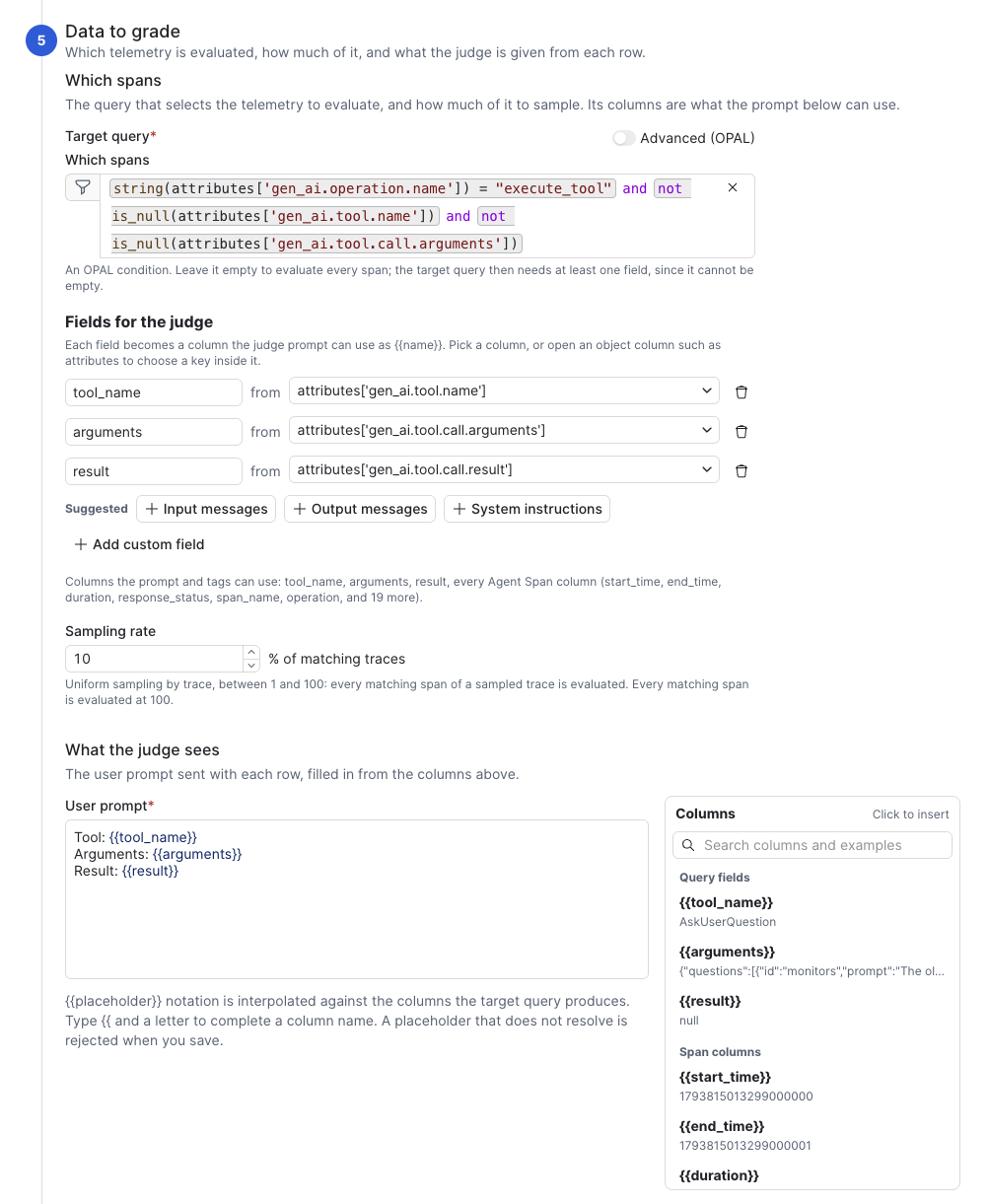
This step decides which spans get a score, how many of them the judge sees, and the exact text pasted into the judge prompt for each one.
| Config option | Description |
|---|---|
| Spans | Specify the spans you want to send in from your desired agent, environment, or version. For example, don’t include model response spans if you’re only evaluating tool calls. Make sure that any specific fields you added in the user prompt are included in your query. Any columns you specify in the query in the next step can be added to the user prompt in {{column_name}} syntax. |
| Fields for the judge | Pick the fields from the spans you send to the judge. Each row maps a span attribute to a name, which you can use in the user prompt as {{name}}. Click any of the suggested fields to add them as names, so that they can also be available in the user prompt. |
| Sampling | Sampling is by trace, not by span. If you specify 10% for a single call tool selection eval, one in ten traces containing a matching tool span is chosen, and then every matching tool span in that trace is graded. |
| What the judge sees | The user prompt is the message sent with each graded row, with the placeholders filled from that row. |
Output
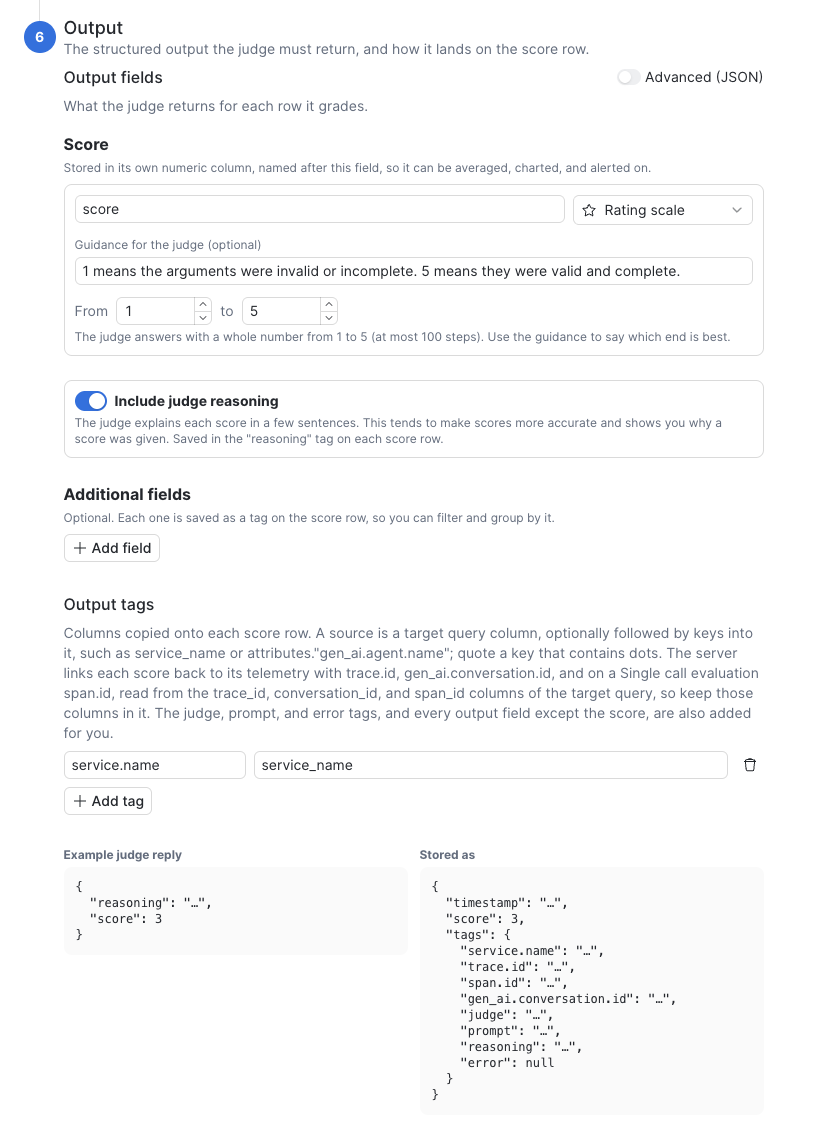
The structured output the judge must return, and how it appears on the score row. Slide the Advanced (JSON) toggle to the on position to customize the output.
Define the output tags. If you want to plot the judge output on a chart and group by certain breakdown dimensions like agent name or environment, specify the dimensions in this step.
| Output field | Description |
|---|---|
| Score | Define how you want the score to be output. The default is a whole number within a range that you define, but you can also define as pass/fail, any whole number, or any number including decimal places. |
| Additional fields | Define any additional fields you want the judge to return, in addition to the score. Each field is saved as a tag on the score row, so you can filter and group by it. This is different from output tags. Additional fields come from the judge's reply. Output tags come from the span. |
| Output tags | These copy columns from the target query onto each score row. Each row has two parts:
service_name into a tag named service.name, so you can filter scores by service. |
Create a single turn eval
Single turn evals grade one whole conversation turn at a time, not one span. The target query picks the spans. Observe by Snowflake groups the matching spans by trace, builds a transcript from them, and sends that transcript to the judge once per trace.
Starting point
Select the eval template you want to use. You can change this anytime before you save the eval.
Name
Provide a name and description for the eval.
Judge model
Select the model you want to use as the judge for the eval to score the spans. This model is the judge. It is separate from the model your agent uses.
Judge instructions
Tell the judge how you want it to grade. For example:
You grade one user turn from its transcript. The transcript labels each step: [REQUEST] is the input to an agent, and the first one is the user's request; [TOOL] is a tool call; [ASSISTANT] is a model reply. Decide whether the final reply addresses what the user asked, is complete enough to use, and does not contradict itself. Do not grade writing style.
Data to grade
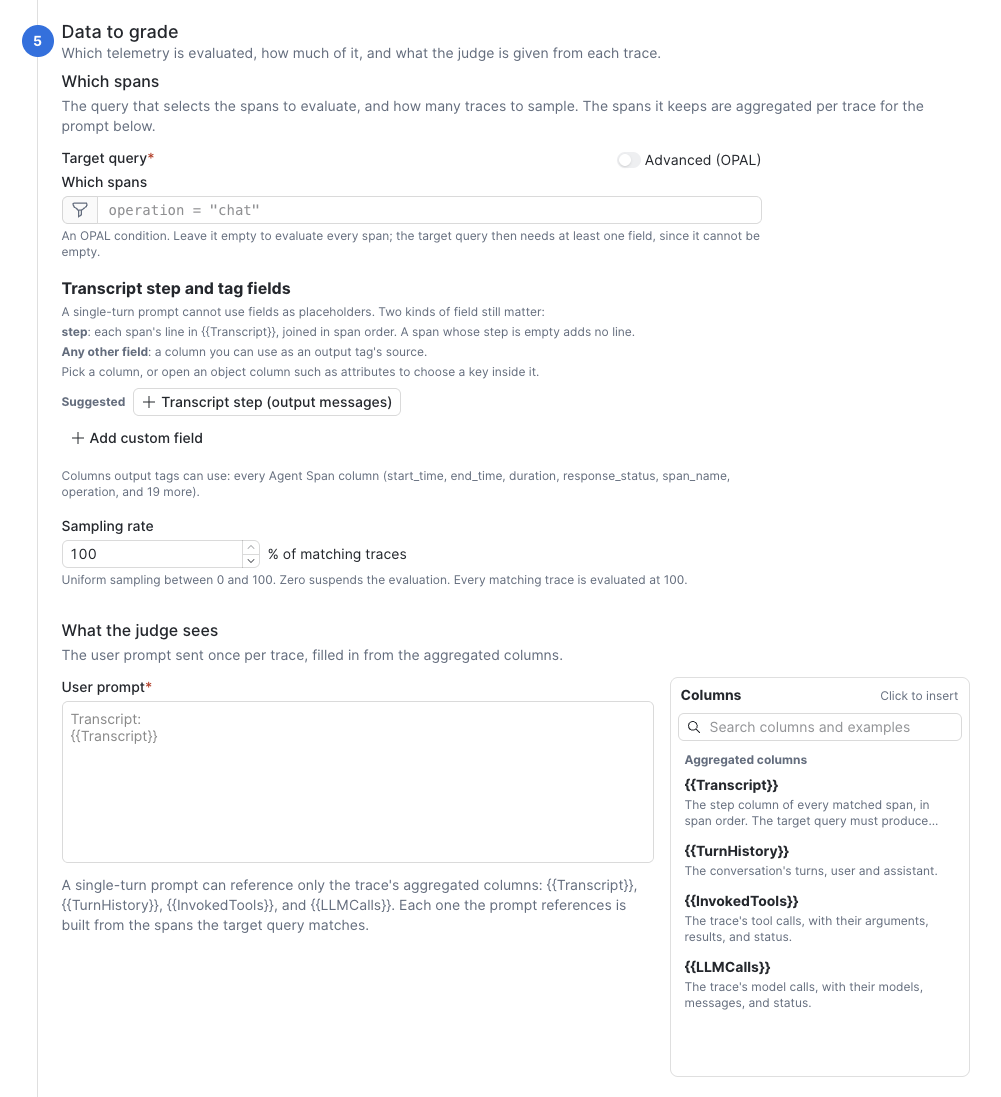
Create a span query like you did for the single call eval, but send the judge all the matching spans for each trace. The judge is invoked per trace instead of per span.
| Config option | Description |
|---|---|
| Spans | The query does two jobs in a single turn eval:
chat spans, the judge sees the model turns and no tool calls. A tool-use eval needs both chat and execute_tool spans in the query.Any columns you specify in the query in the next step can be added to the user prompt in {{column_name}} syntax. |
| Transcript tag and step fields | A single turn prompt can't use per-span placeholders like {{tool_name}}. Two kinds of field matter:
|
| Sampling | Sampling is by trace, not by span. If you specify 10% for a single call tool selection eval, one in ten traces containing a matching tool span is chosen, and then every matching tool span in that trace is graded. |
| What the judge sees | The User prompt is an additional prompt that tells the judge exactly what fields to use in the trace data it sees. Unlike with a single call eval, where any fields you specify in the span query can be added to the user prompt, you can only specify the following parts of the trace for a single turn eval:
|
Output
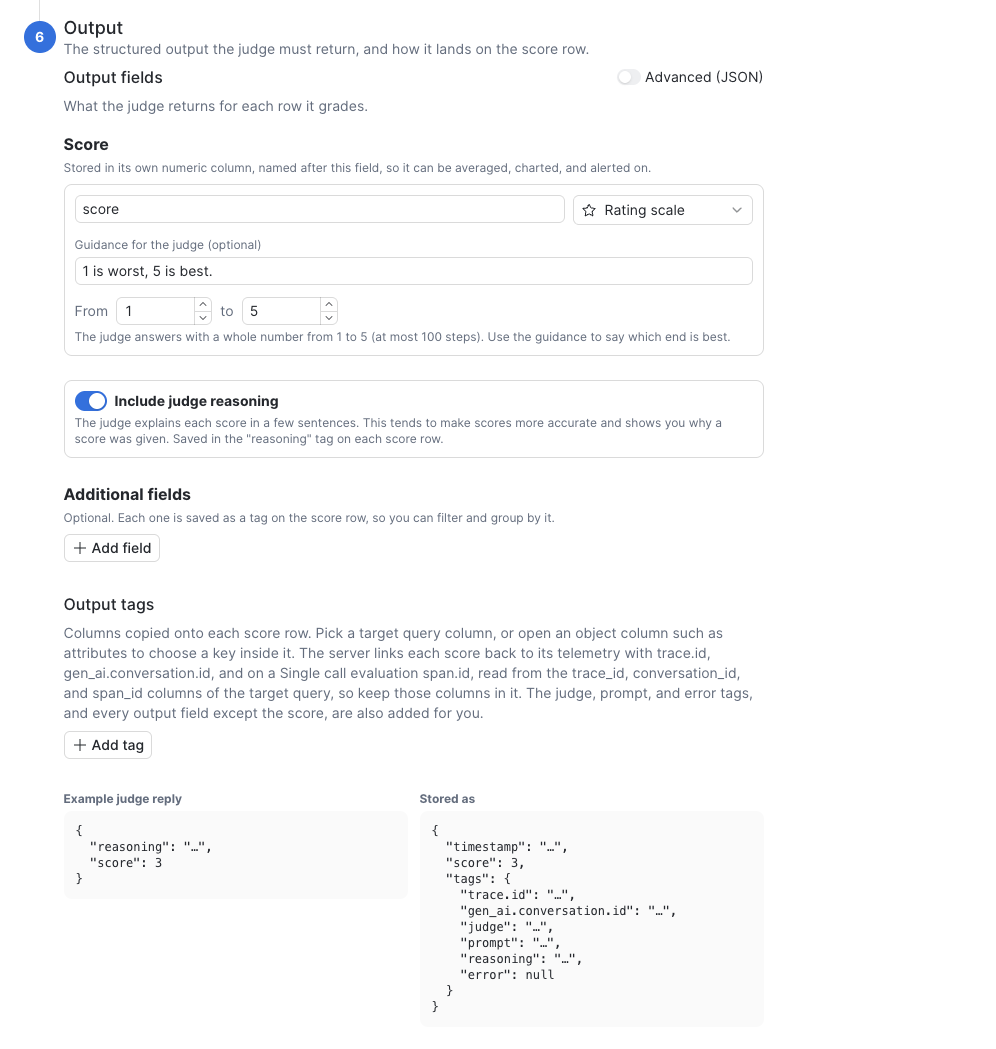
The structured output the judge must return, and how it appears on the score row. Slide the Advanced (JSON) toggle to the on position to customize the output.
Define the output tags. If you want to plot the judge output on a chart and group by certain breakdown dimensions like agent name or environment, specify the dimensions in this step.
| Output field | Description |
|---|---|
| Score | Define how you want the score to be output. The default is a whole number within a range that you define, but you can also define as pass/fail, any whole number, or any number including decimal places. |
| Additional fields | Define any additional fields you want the judge to return, in addition to the score. Each field is saved as a tag on the score row, so you can filter and group by it. This is different from output tags. Additional fields come from the judge's reply. Output tags come from the span. |
| Output tags | These copy columns from the target query onto each score row. Each row has two parts:
|
Updated 36 minutes ago