

Use AI SRE Assistant
Private preview feature (Invite only)This feature is enabled per tenant by Observe by Snowflake and is not generally available. To participate, contact your Observe by Snowflake representative. You may access and use this preview feature solely for internal evaluation purposes. Previews are provided as-is. Your use of this preview is subject to the Snowflake Preview Terms located at https://www.snowflake.com/en/legal.
Use the AI SRE side panel to help you create, edit, and manage your dashboards.
Click the sparkles icon () to open the AI SRE side panel.
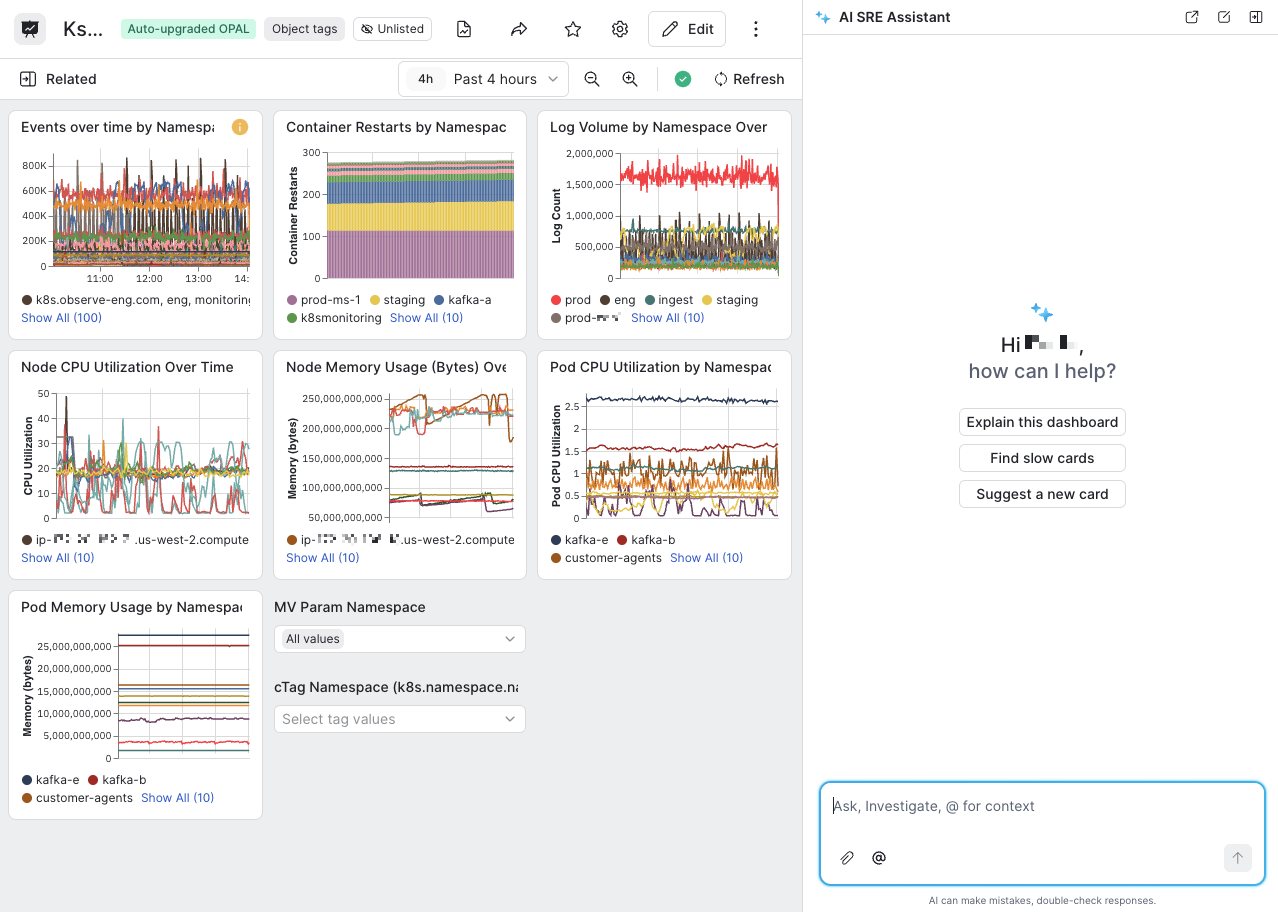
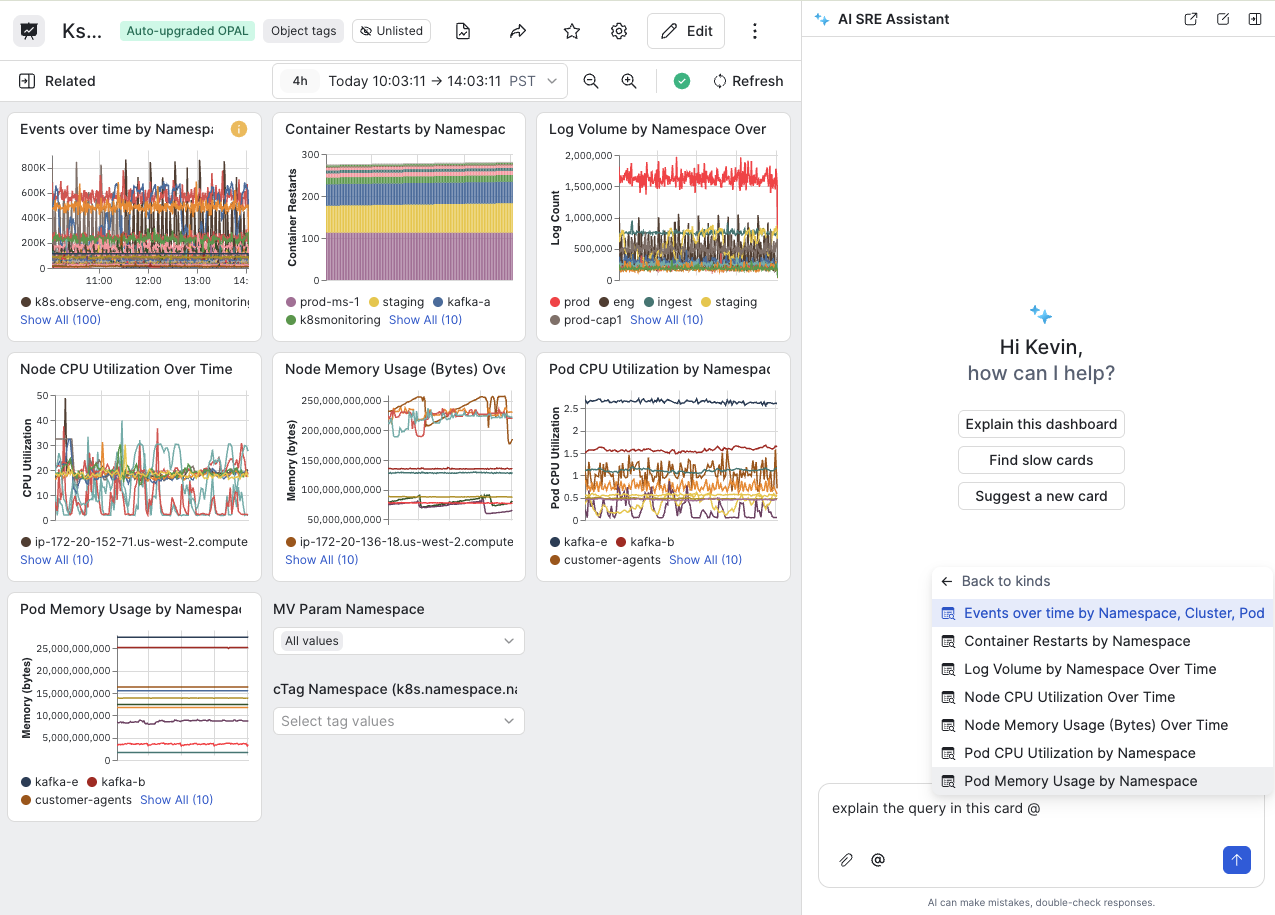
You can click any of the existing prompts to get a summary of the dashboard, find slow cards, or suggest new cards based on the content and theme of the dashboard. In the text field, type @ to reference specific cards, parameters, Datasets, metrics, and tags to create targeted prompts.
For example, say we want AI SRE to explain the query in a specific card, we can use @, select Cards, then select the desired card:
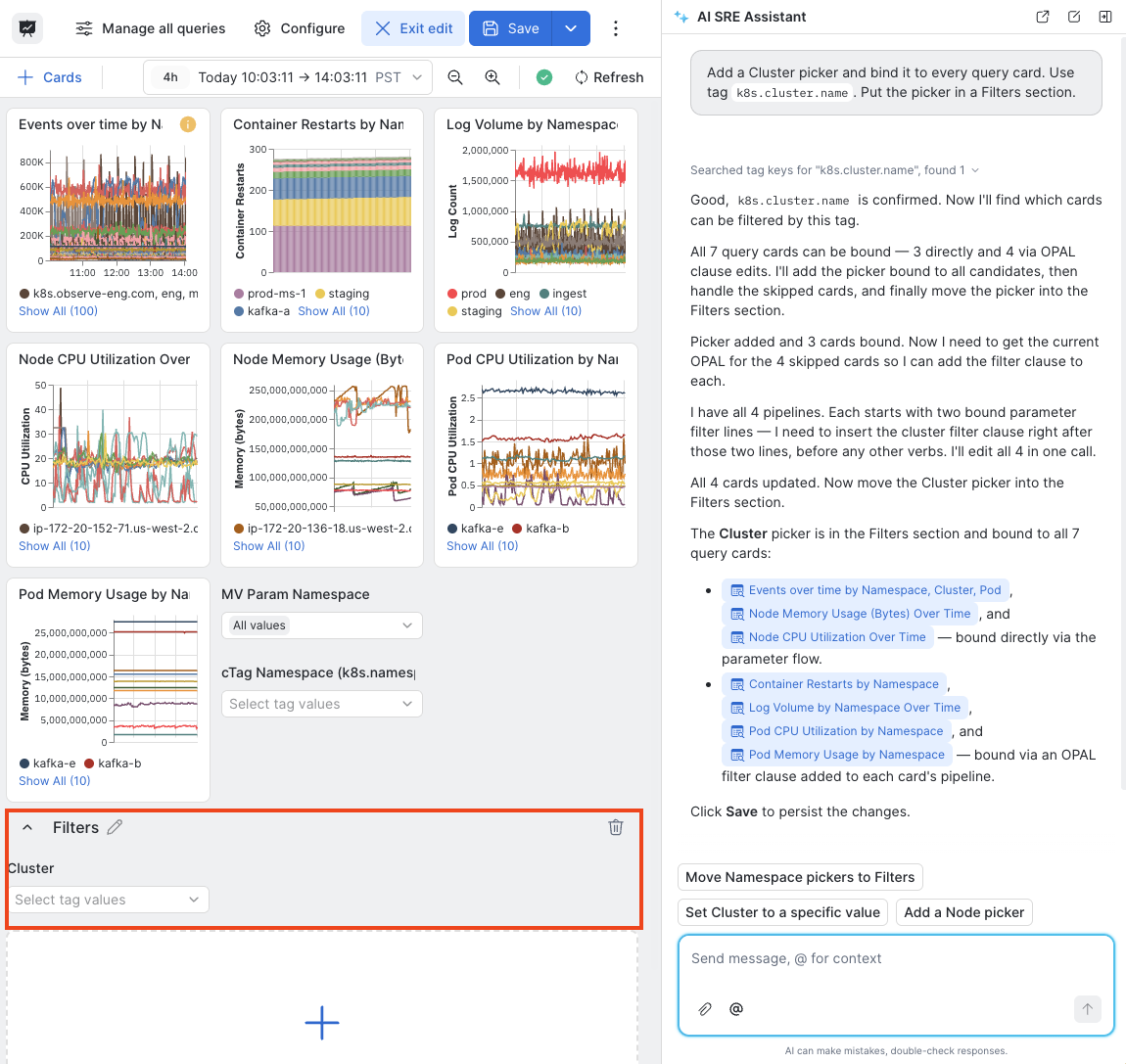
You can use the AI SRE assistant to create and bind parameters to the cards on your dashboard. For example, enter the following into AI SRE:
Add a Cluster picker and bind it to every query card. Use tag k8s.cluster.name. Put the picker in a Filters section.
Updated about 2 hours ago